What Password Generator does, and when you need it
Password Generator makes random passwords in your browser: you choose the length, from 4 to 128 characters, and the kinds of characters, and it makes one, or up to 50 at a time. The passwords are made on your device with its own secure random numbers; they are never sent to us, never stored, and gone when you close the page. There is no sign-up and no limit.
People use it when:
- A new account needs a password that nobody could guess, not a name, a date or a word with numbers on the end.
- An old password leaked, or was used on several sites, and must be changed everywhere.
- A Wi-Fi network, a router or a shared office account needs a fresh, strong password.
- Someone sets up accounts for others, such as a school's or an office's, and needs a different password for each.
To check a password you already have, use Password Strength Checker, which also runs only on your device.
How it works
The page asks your browser for random numbers with crypto.getRandomValues, the same source browsers use for encryption keys, not the ordinary random numbers games use. Each character is picked from the characters you ticked with equal chances; the page throws away the rare numbers that would make some characters a little likelier than others, so there is no bias.
To make sure every kind you ticked is there, it first picks one character of each kind, then the rest from all of them, and shuffles the lot, so the guaranteed ones can be anywhere. The note under the password says how many bits of randomness it has, and how strong that is.
Nothing about it leaves the page: no password, no setting, no count of how many were made.
Real results from our tests
We ran the page's own password code (web/js/gen-core.js) in Node.js, which has the same crypto.getRandomValues as browsers, on a Windows 11 laptop on 31 October 2026, and made 100,000 passwords of 16 characters with all four kinds ticked.
| What we checked | Result |
|---|---|
| Passwords with a capital, a small letter, a number and a symbol | 100,000 of 100,000 |
| Characters used | All 86: 26 capitals, 26 small letters, 10 numbers and 24 symbols |
| How often each turned up, in 1,600,000 characters | 17,508 to 24,139 times each |
| Randomness of one password, worked out exactly | 102.5 bits |
What the numbers mean: numbers turn up more often than any one letter, because every password must hold at least one of only ten digits. That rule costs very little: worked out exactly, a 16-character password has 102.5 bits of randomness, against 102.8 if every character were drawn with no rule at all. To guess half of the possible passwords at ten billion guesses a second would take far longer than the universe has existed.
On a first visit the page downloads about 0.1 MB for the tool: the page, its styles, its scripts and the fonts, with Google's ad code not counted.
Step by step
- Set the length. 16 is the default and right for most accounts.
- Tick the kinds of characters: capitals, small letters, numbers and symbols. Tick Leave out look-alikes if the password will be read or typed by hand.
- Press Generate. The password appears in large letters, with its strength under it. Press Generate again for another.
- Copy it straight into the site's password box, or into your password manager first.

How long should a password be?
Length matters more than anything else: each extra character multiplies the work of guessing about 86 times. These are the page's passwords with all four kinds, and the time to try half of all the possibilities at ten billion guesses a second, a fast attack on a stolen password file:
| Length | Randomness | Time to try half |
|---|---|---|
| 8 characters | 50.3 bits | About 20 hours |
| 10 characters | 63.5 bits | About 21 years |
| 12 characters | 76.6 bits | About 180,000 years |
| 16 characters | 102.5 bits | Longer than the universe has existed |
| 20 characters | 128.3 bits | Longer than the universe has existed |
So: 12 characters at the very least for anything that matters, 16 for email and banking, and 20 or more for a password manager's own master password, if you can remember it, or for Wi-Fi. Eight characters, still the minimum on many sites, is no longer enough on its own.
How passwords are really guessed
Attackers rarely start by trying every combination. They start with what people choose:
- Lists of leaked passwords, billions of them, most used first: 123456, password, India@123.
- Words with the usual changes: names, cities, cricketers and gods, with a capital first, a year or 123 on the end, and @ for a, 0 for o. "Mumbai#2026!" and "P@ssw0rd" fall in the first minutes.
- Your own details: a birthday, a child's name or a vehicle number, found on social media.
- Every combination, only when all that fails, and only then does length decide everything.
A random password skips the first three steps entirely, which is why a random 12 characters beats a clever 20 built from a word.
Passwords or passphrases
A passphrase is several random words, such as four to six picked by dice or a program from a list of thousands. It is long, so it can be strong, and easier to remember and type than random characters. The catch is that the words must be picked at random, not chosen: a favourite line from a song is in attackers' lists.
This page makes character passwords, which are best for the many accounts a password manager fills in for you. For the one or two you must remember, such as the manager's own master password, a passphrase from a password manager's generator is a good choice.
Which characters to tick
- All four kinds give the most randomness for each character: 86 to choose from.
- Without symbols, 62 characters, a password needs about two more characters to be as strong: 16 letters and numbers have about 95 bits, 12 have about 71. Use it when a site refuses symbols.
- Leave out look-alikes drops l, 1, I, O, 0 and o, which are easy to confuse when a password is read aloud or copied from paper. It costs about a tenth of a bit a character, so it is worth it for anything typed by hand.
- Numbers only makes a PIN, not a password. A 6-digit PIN is fine for a phone that locks after a few wrong tries, never for an online account.
The symbols used are ! @ # $ % ^ & * ( ) - _ = + [ ] { } ; : , . ? and /, the ones nearly every site accepts. Spaces, quote marks and backslashes are left out, as some sites and forms handle them badly.
When a site has password rules
Many sites set rules: a length between two numbers, and at least one capital, small letter, number and special character. The Income Tax e-filing portal, for example, takes passwords of 8 to 14 characters, with capitals and small letters. To meet a rule:
- Set Length to the site's maximum, 14 in that case, since longer is stronger.
- Keep all four kinds ticked: every password made here has at least one of each kind you ticked.
- If a symbol is refused, press Generate again for one without it, or untick Symbols and add a character or two of length.
Some bank sites forbid pasting into the password box. Then type it carefully from the page, with look-alikes left out.
One password for every account
The biggest risk to most people isn't a weak password but the same password on many sites. When one site is breached, attackers try the stolen email and password on banks, email and shopping sites within hours. A different random password for each account stops that: a leak from one site opens nothing else.
That means more passwords than anyone can remember, which is what password managers are for.
Where to keep them
- Your browser's password manager: Google Password Manager in Chrome and on Android, iCloud Keychain on iPhones and Macs, and Firefox's. They fill passwords in for you and sync across your devices.
- A separate password manager, such as Bitwarden or KeePass, if you use several browsers or want more control.
- On paper, for one or two passwords you must type, kept at home and away from the computer: safer than reusing one password everywhere.
Not in a note on your phone, an email to yourself or a spreadsheet called passwords: those are the first places anyone looks.
When to change a password
Change a password when there is a reason: the site was breached, you used it anywhere else, you shared it with someone, or you typed it on a computer you don't trust. Changing strong, unique passwords on a fixed timetable adds little, and current guidance from security bodies such as NIST no longer asks for it; forced changes push people towards Password1, Password2. A new random password from here, saved in your manager, costs a minute.
To learn whether your email address was in a known breach, Have I Been Pwned (haveibeenpwned.com) looks it up, and Google's Password Checkup, in Chrome and Google Password Manager, warns about saved passwords that have leaked.
Two-step sign-in
Turn on two-step sign-in wherever it is offered: email, banking, UPI apps' linked email, social media and shopping. Then a stolen password alone isn't enough; the thief also needs the code from your phone. An authenticator app or a passkey is stronger than an SMS code, but any second step is far better than none.
When you turn it on, most sites offer backup codes, for the day your phone is lost or changed. Save them in your password manager or print them and keep the paper at home; without them, a lost phone can lock you out of your own account for days.
Wi-Fi passwords
A home Wi-Fi password can be 8 to 63 characters, and since it is typed once per device, it can be long: 20 characters with look-alikes left out is strong and still easy to type on a TV remote. Instead of reading it out to guests, put it in a QR code they can scan with QR Code Generator.
The router's own password
A router has two passwords: the Wi-Fi password that devices join with, and the admin password that opens its settings page. Many routers come with an admin login printed on a sticker, often something like admin, and many people never change it, so anyone on the network can change the router's settings. Change it once, to a long generated password saved in your password manager, and note the change on the sticker's side with the date.
A password for a PDF
Salary slips, bank statements and ID copies are often sent as locked PDFs. Make a password here, lock the file with Protect PDF, and send the password another way, by a call or an SMS, never in the same email or chat as the file. A password sent next to the file opens it for anyone who sees the message.
Many passwords at once
Set How many to up to 50 and press Generate: each is made on its own, and they appear one to a line, ready to copy, or to download as passwords.txt. That helps when setting up accounts for a class or a team, where each person needs a different first password.
A file of passwords is as sensitive as the accounts. Hand each person only theirs, ask them to change it when they first sign in, and delete the file afterwards.
A worked example: moving off one shared password
Say someone has used "Krishna@1990" for their email, their bank and a dozen shopping sites. Our Password Strength Checker calls it weak: a common name with a year and a symbol added, which guessing programs try early. To fix it, in an evening:
- Email first, since it can reset everything else: make a 16-character password here, change it, save it in the browser's password manager, and turn on two-step sign-in.
- Banking and UPI-linked accounts next, each with its own new password.
- Then the rest, a few at a time, letting the password manager save each one as it is changed.
At the end, no two accounts share a password, and a leak from any one shop's site opens nothing else.
Private: made on your device, kept nowhere
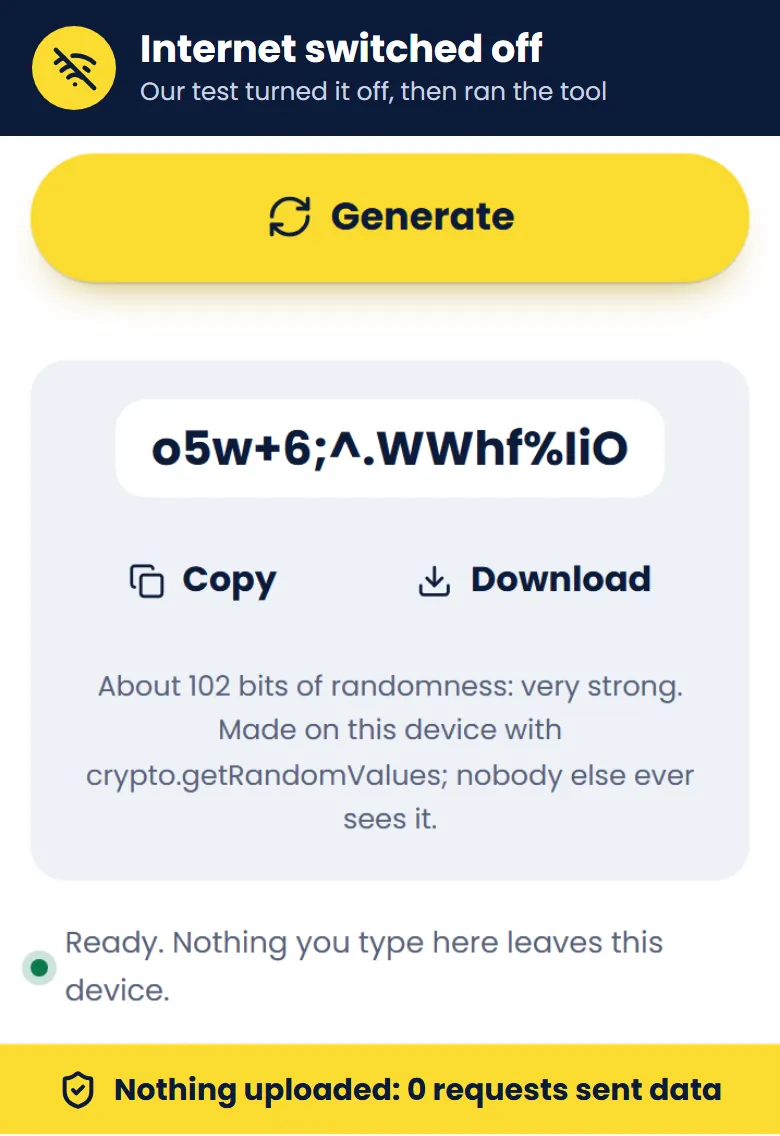
Every password is made inside your browser from your device's own secure random numbers. None is sent to us or anyone, none is saved by the page, and once loaded the page works with the internet switched off. Close the tab and they are gone, so copy the one you want first. Google's ad code runs on the page too, but our code never gives it a password. How we prove it shows how anyone can check.
Problems and fixes
- "Tick at least one kind of character."
- Every box was unticked. Tick capitals, small letters, numbers or symbols.
- The site says a character isn't allowed
- It refuses one of the symbols. Press Generate again, or untick Symbols and add two characters of length.
- The site says it is too long
- Set Length to the site's maximum and generate again.
- Hard to type on a TV or read from paper
- Tick Leave out look-alikes, so l, 1, I, O, 0 and o never appear.
- The password was lost after closing the page
- The page keeps no passwords. Make a new one, and save it in a password manager straight away.
Limits
- Passwords of characters, not passphrases of words.
- A fixed set of 24 symbols; you can't pick your own.
- 4 to 128 characters, and up to 50 at a time.
- It doesn't store passwords: use a password manager for that.
Other ways
- Your browser often offers a strong password itself when you sign up on a site, and saves it for you: Chrome, Safari and Firefox all do.
- Password managers such as Bitwarden and KeePass have generators of their own, with passphrases of words too.
- Not a secret at all? An ID that only has to be unique, such as a database key, is a UUID, and UUID Generator makes those.
This page is handy when those aren't to hand: a router's settings page, a shared computer, a form that won't trigger the browser's offer, or many passwords at once.
Terms explained
- Bits of randomness
- How unpredictable a password is: each bit doubles the number of guesses needed.
- crypto.getRandomValues
- The browser's secure random number source, made for keys and passwords.
- Brute force
- Guessing by trying every possible password in turn.
- Breach
- A site's stored passwords stolen, after which attackers try them elsewhere.
- Password manager
- A program that makes, keeps and fills in your passwords.
- Two-step sign-in
- A second check, such as a code on your phone, as well as the password.
- Backup codes
- One-time codes a site gives you to sign in if your phone is lost; keep them somewhere safe.