What the photo resizer does, and when you need it
The photo resizer changes a picture until it fits what a form asks for. You choose a size in KB, or a range such as 20 to 50 KB, and it saves a new picture inside that range. Some people call this compressing a photo or reducing its size. You can also set the width and height in pixels, in centimetres (cm) at a DPI you choose, or as a percent of the original. The new picture can be a JPG, a PNG or a WebP, and you can resize one picture or many at once.
It all happens in your browser. The tool has no upload step: your pictures are never sent anywhere. There is no sign-up and no watermark on the result.
A picture has two sizes, and forms often ask for both. Its size in KB is how much room the file takes. Its size in pixels, the tiny dots it is made of, is how big the picture is. Our 12-megapixel test photo, for example, was 2.37 MB, and a form may want it under 50 KB. The resizer works out the pixels and the quality that get you there, by trying, so you do not have to.
People use it for:
- Exam forms. The photo, signature, thumb impression and handwritten declaration for NEET, JEE Main, UPSC and IBPS, each with a preset you can pick.
- PAN card applications. A photo and a signature given in cm, with a small limit in KB.
- Scholarship and admission forms. The National Scholarship Portal, for one, asks for each document under 200 KB, as a JPG picture or a PDF.
- Job forms. Any form that says "photo under 50 KB" or "signature between 10 and 20 KB".
- Photos that came through WhatsApp. A photo of that kind is already small (our WhatsApp-sized test picture was 46.1 KB), but a form may still want it smaller, or a different size in pixels.
If your form wants a PDF and not a picture, use Compress PDF to 100 KB or Resize PDF. To put photos into a PDF, use JPG to PDF.
There are other ways to do this job. A phone gallery app or a photo editor on a computer can usually crop a picture and change its size in pixels, but asking for a size in KB is less common, so you save, look at the file size and try again. Many online photo resizers do aim for a size in KB, but they send your picture to their own computers first. Here the picture stays on your device, and the tool does the trying for you. A photo editor you already know well is still a fine choice if you prefer it.
Filling in an exam form? The Age Calculator checks your age on its cut-off date. Our post on calculating your age for an exam form shows how to read an age limit.
If your photo is a WebP file and the form takes JPG only, turn it into a JPG first with WebP to JPG.
Real results from our tests
We tested the resizer in Chromium 148, the open-source browser that Google Chrome is built on, on one Windows 11 computer with an Intel Core i7-1185G7 processor (4 cores) and 31.7 GB of memory. Other work was running on the same computer, so times went up and down from run to run. "Computer" below means a 1280 × 900 screen. "Phone screen" means Chromium set to a 390 × 844 phone-size screen with touch, on the same computer. It is not a real phone, and we did not test Safari or Firefox.
The test pictures were made by a script in our project (tests/tools/photo-and-signature/make_image_corpus.py) with a fixed seed. They are drawn pictures that behave like real files: a 12-megapixel phone photo with camera and GPS details, a WhatsApp-sized photo, signatures on lined paper, a thumb impression, a screenshot and more. They are not real people's photos.
- 47.3 KBfrom a 2.37 MB phone photo, asked to fit under 50 KB
- 20 of 20photos in one batch came out under 50 KB
- 10,240bytes: a small signature grown to exactly 10 KB (counting 1,024 bytes to the KB)
- 0requests to other sites after a picture was chosen (test page, Google's ad code left out)

| Test | Before | Result | Quality, tries | Computer | Phone |
|---|---|---|---|---|---|
| 12-megapixel phone photo, under 50 KB | 2.37 MB | 1271 × 1694 px, 47,307 bytes | Quality 75, 5 tries | 1.55 s | 2.11 s |
| The same photo, under 20 KB | 2.37 MB | 688 × 917 px, 18,729 bytes | Quality 75, 5 tries | 1.49 s | 1.52 s |
| The same photo, under 100 KB | 2.37 MB | 1673 × 2231 px, 95,308 bytes | Quality 75, 6 tries | 3.13 s | 2.79 s |
| The same photo, IBPS photo preset (200 × 230 px, 20 to 50 KB) | 2.37 MB | 200 × 230 px, 34,335 bytes | Quality 100, 2 tries | 0.44 s | 0.51 s |
| The same photo, 3.5 × 4.5 cm at 200 DPI, under 50 KB | 2.37 MB | 276 × 354 px, 11,405 bytes | Quality 92, 1 try | 0.36 s | 0.42 s |
| WhatsApp-sized photo, under 20 KB | 46.1 KB | 683 × 911 px, 19,911 bytes | Quality 75, 4 tries | 0.39 s | 0.42 s |
| Signature on lined paper, IBPS signature preset | 282.8 KB | 140 × 60 px, 10,240 bytes (271 bytes added) | Quality 100, 2 tries | 0.19 s | 0.16 s |
| Tiny photo, 20 to 50 KB | 3.13 KB | 150 × 200 px, 20,480 bytes (8,587 bytes added) | Quality 100, 2 tries | 0.16 s | 0.20 s |
| Screenshot saved as PNG, under 100 KB | 207.6 KB | 292 × 649 px, 94,716 bytes | Lossless, 5 tries | 0.45 s | 0.33 s |
| Large WebP saved as WebP, under 50 KB | 846.1 KB | 3000 × 4000 px, 48,552 bytes | Quality 60, 2 tries | 6.22 s | 6.65 s |
| 48-megapixel photo, NEET photo preset | 9.93 MB | 1884 × 1413 px, 189,734 bytes | Quality 75, 3 tries | 3.74 s | 3.07 s |
How to read the table. "Quality" is the number, from 1 to 100, that the browser's picture writer was given for a JPG or WebP: a higher number keeps more detail and makes a bigger file. A PNG has no quality number because it is lossless, which means it keeps every pixel. "Tries" is how many times the picture was saved while the resizer looked for the size. "Computer" and "Phone" are the seconds from pressing Resize to the finished result. The page's own line under each result shows a little less, for example 1.43 s for the first row, because it counts only the picture work itself.
What stands out:
- Small pictures are quick. Signatures, thumb impressions, the declaration and passport-size photos each took under half a second, on the computer and on the phone screen.
- Big photos need more tries, because the pixels have to shrink as well: 5 tries for the 12-megapixel photo at 20 KB and at 50 KB, and 6 at 100 KB. A picture already under the limit is still saved again: the WhatsApp-sized photo (1200 × 1600 px, 46,088 bytes) came out at 40,579 bytes for a 50 KB limit, in one try.
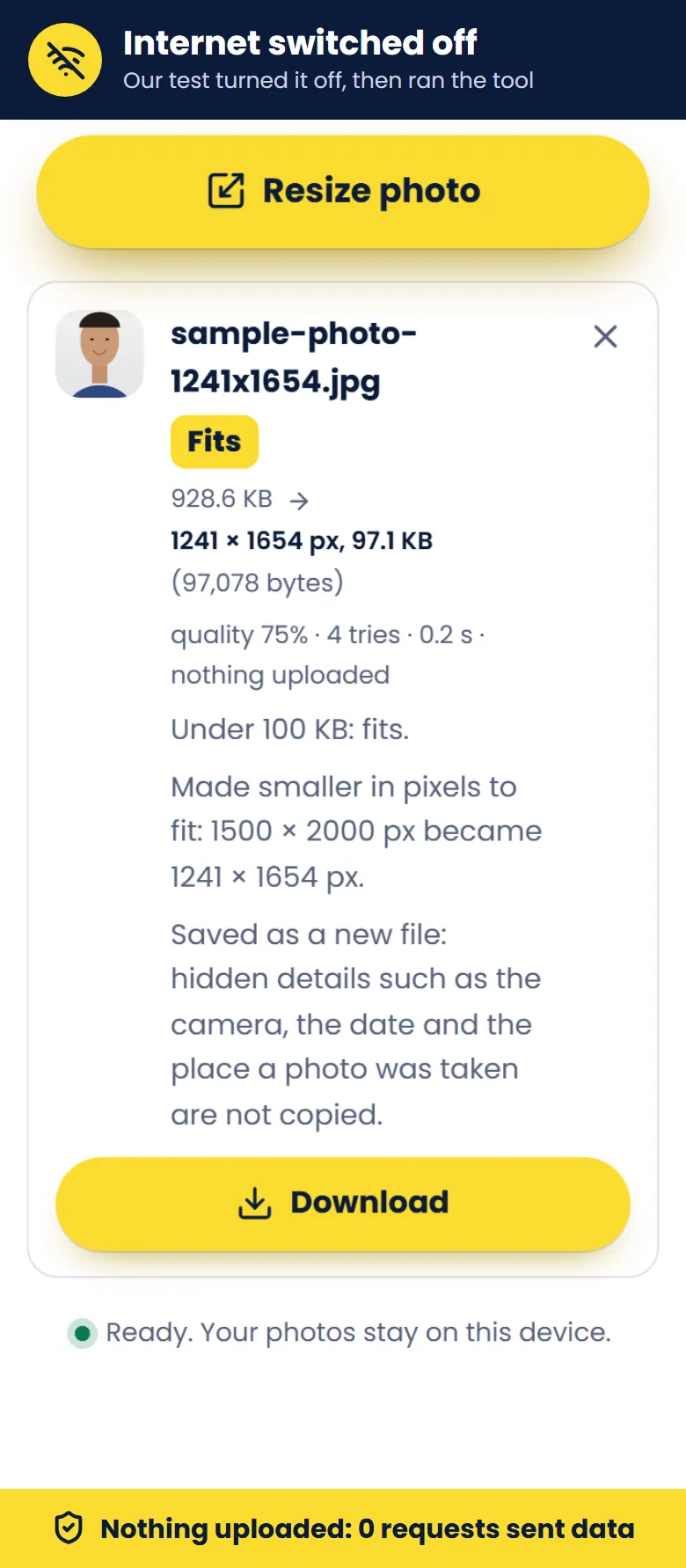
- A big WebP is slow. Each WebP try took about 3 seconds at 3000 × 4000 pixels. The same WebP saved as a JPG under 50 KB took 1.08 s (1241 × 1654 px, 45,547 bytes).
- Times move, the files do not. The 12-megapixel photo to 50 KB took 0.92 s on the computer in an earlier run and 1.55 s in this one, with the same bytes, pixels, qualities and tries. The part of the browser that runs the page and does the work peaked at 356 MB of memory for that photo, and at 798 MB on the computer (767 MB on the phone screen) for the 48-megapixel photo.
Many photos at once. We gave the resizer 20 pictures (23,145,276 bytes in all, four each of five different test pictures) and asked for under 50 KB each. All 20 came out under 50 KB, 939,824 bytes in total, and no picture needed more than 6 tries. The whole batch took between 6.6 and 29.6 seconds in four runs, depending on what else the computer was doing. A ZIP of the 20 results checked out too.
How good do the results look? A checking script from our project (tests/tools/photo-and-signature/check_image_out.py) turns each original upright, crops and resizes it the same way with the Pillow picture library, and compares it with our result using a score called SSIM. The score runs from 0 to 1, and 1.000 means the pictures look the same. The IBPS photo scored 0.991, the NEET photo with Keep 0.938, the IBPS thumb impression 0.994 and the PAN signature 0.996. Two results scored lower: a WebP at 0.897, and a CMYK photo (a print colour mode) at 0.828, because Chromium and Pillow turn CMYK colours into screen colours in different ways. Every other result scored 0.937 or higher.
Try it yourself: press "Try with a sample photo" at the top of this page. It draws a simple 1500 × 2000 px portrait on your device, with nothing to download, and you can resize it to any size you like.
Try the sampleStep by step: a photo and signature for an exam form
Say you are filling an exam form that wants a photo and a signature as two separate pictures. Here is the whole way, from the camera to the upload.
- Take the photo. Stand in front of a plain white wall or sheet, with the light on your face (face the window, do not stand with it behind you). Keep your face straight and fill the frame. The NEET and JEE Main bulletins ask for a white background and a face, without a mask and with the ears visible, that fills 80% of the photo.
- Sign on white paper. Use a dark pen on plain white paper. Take the picture from straight above, in good light, so the paper looks evenly white. IBPS asks for black ink and says not to write the signature in capital letters. UPSC asks for three signatures, one below the other.
- Add your picture. Press Choose photos and pick it, or drop it on the page. You can paste a picture too. It appears as a row with its size in pixels and in KB.
- Pick the exam or form. Open the "Exam or form" list and choose the item, for example IBPS PO/MT-XVI, Signature. The preset fills in the KB range, the pixels or cm and the DPI. A note under the list links to the official paper and says when we last checked it. If your form shows other numbers, type them into the boxes instead: the numbers on your form win.
- Check the crop. Press Crop on the picture's row to choose which part is used. For a signature, put the box close around the writing. Cropping and the shape of the photo shows how.
- Press Resize photo, then read the result line. The row shows its progress ("Finding the size", with the number of tries), then the pixels and the KB with the exact bytes, and a badge: Fits, Over or Under. A line under it says if the picture was made smaller in pixels to fit. While it works, the Stop button under the rows stops it, and the X on a row stops that one picture.
- Download it, then do the signature. The settings apply to every picture in the list. If you change a setting or add a picture after resizing, the results stay, with their Download buttons, and say they were made before your last change. Pressing Resize again makes new results for every picture in the list. So download the photo first. Then remove the photo with its X button, add the signature and pick the signature's preset.
- Upload it on the form. The file name ends with the pixel size, like photo-200x230.jpg. Rename the file if the portal asks for a certain name. Keep your original pictures: the resizer never changes them.
On a phone. Tap Choose photos and pick from your photos or files; you can choose several at once. We checked the page at screen widths from 1280 down to 320 pixels, in light and dark, and nothing scrolled sideways. The crop box is made to be dragged with a finger. The results are saved where your browser saves downloads. We tested on phone-size screens in Chromium, not on real phones.
Many forms also ask for a live photo, taken with the camera while you fill in the form. That happens on the portal, so there is nothing to resize for it. More on this in Exam and form sizes we checked.
Between two sizes: how the KB range works
Under "File size", tap a quick size (20, 50, 100, 200 or 500 KB) to mean "this size or less". Or type your own range in the From and To boxes. Leave From empty if the form has no minimum. "Any" means no limit, and the picture is saved at a high quality. The commonest limits also have pages with the size already set: Resize Image to 20 KB, Resize Image to 50 KB, Resize Image to 100 KB and Resize Image to 200 KB.
The resizer then looks for the sharpest picture that lands in your range. It works by trying, and it measures the real file each time. In plain words:
- It saves the picture at JPG quality 92, which is very sharp. Quality is a number from 1 to 100: the higher it is, the more detail is kept and the bigger the file. If the file fits, it is done.
- If the file is too big, it tries quality 60. If quality 60 fits, it looks for a better quality between 60 and 92 that still fits.
- If quality 60 is still too big and the width and height are on Keep, it makes the picture smaller in pixels, at quality 75, and tries again and again (up to 9 more tries) until the file fits. A smaller picture at a good quality looks better than a big one full of blocky patches.
- If you fixed the width and height (in pixels, cm or percent), it does not make the picture smaller than you asked. The quality goes on down instead, as far as 1 if needed.
- It stops when the file is within 10% of the top of your range. When each try is slow, as with a big WebP that takes over 0.8 seconds a try, it stops within 25%. A file far under the top would be blurrier than it needs to be, so the resizer keeps looking for a sharper one that still fits.
Two real examples from our tests:
- The 12-megapixel photo under 50 KB, with Keep. Quality 92 gave 2,137,604 bytes and quality 60 gave 277,895 bytes, still far too big. So it began to shrink the pixels at quality 75. The first try gave 30,070 bytes, which fits but is well under 50 KB, so it went bigger: 44,319 bytes, then 47,307 bytes at 1271 × 1694 pixels. That is 5 tries.
- The handwritten declaration, 800 × 400 pixels, 50 to 100 KB. Here the first try was too small: quality 92 gave 47,142 bytes, under the minimum. So the quality went up. Quality 100 gave 235,440 bytes (too big), so it searched in between: 96 gave 75,740 bytes, 98 gave 106,767 bytes (too big) and 97 gave 88,655 bytes. That is the result, in 5 tries.
In our tests a single picture needed between 1 and 6 tries.
What "Over" means. If even the smallest file the resizer could make is bigger than the top of your range, the row says Over. It shows that smallest file and what to try. In our tests this happened once, on purpose: a screenshot saved as PNG at a fixed width of 1080 pixels could not go below 287,464 bytes, and we had asked for under 50 KB. Problems and fixes shows what to do.

How KB is counted
A kilobyte (KB) is a unit of file size, and websites count it in two ways: some use 1,000 bytes to the KB and others 1,024. A byte is a very small unit of file size: one plain English letter takes one byte. A form that says "up to 50 KB" does not always say which way it counts.
The resizer is safe either way. For the top of your range it counts 1 KB as 1,000 bytes. For the bottom it counts 1 KB as 1,024 bytes. So "20 to 50 KB" means a file of 20,480 to 50,000 bytes. A file of 20,480 bytes is 20 KB when you count 1,024 to the KB, and a little more when you count 1,000. A file of 50,000 bytes is 50 KB the 1,000 way and a little less than 50 KB the 1,024 way (about 48.8). Either way it is inside the range.
So you do not need to type 49 KB "to be safe": type the number on the form. The top is an "at most" number, so a result may land exactly on it. If your form says "less than 50 KB" and not "up to 50 KB", type 49.
Under each result the size is shown twice: in KB, counted with 1,000 bytes to the KB, and in exact bytes, like 47.3 KB (47,307 bytes). Your phone or computer may show another KB number for the same file, because some programs divide by 1,000 and others by 1,024. The bytes are the same whatever the program says.
The IBPS signature in our tests came out at exactly 10,240 bytes. That is exactly 10 KB the 1,024 way and a little over 10 KB the 1,000 way, so it passes a 10 KB minimum either way.
Pixels, cm and DPI
A picture is made of pixels, tiny dots of colour. A form may give a size in pixels, like 200 × 230, or in centimetres, like 3.5 × 4.5 cm. A picture file does not know about centimetres. They only appear when you print it, and DPI is what links the two.
DPI means dots per inch: how many pixels are used for one inch (2.54 cm) of paper. The sum is pixels = cm ÷ 2.54 × DPI, rounded to a whole pixel. The resizer does it for you. Choose cm under "Width and height", type the width and the height, and set the DPI. If you leave the DPI box empty in cm mode, it uses 200. At 200 DPI:
- 3.5 × 4.5 cm is 276 × 354 pixels.
- 2.5 × 3.5 cm is 197 × 276 pixels.
- 4.5 × 2 cm is 354 × 157 pixels.
The DPI box also writes the number into the file. A JPG keeps it in its header (the JFIF density) and a PNG in a pHYs chunk. A WebP has no place for it, so a WebP gets no DPI. Changing only the DPI does not change the pixels or the KB. In pixel and percent modes the DPI box starts empty ("Not set"), and then the resizer adds no DPI number of its own.
IBPS gives both: for the thumb impression it says 240 × 240 pixels in 200 DPI, that is 3 cm × 3 cm, and for the declaration 800 × 400 pixels in 200 DPI, that is 10 cm × 5 cm. The PAN table gives cm and 200 DPI. When the form gives pixels, choose Pixels. When it gives cm, choose cm and type the DPI it names.
The other choices under "Width and height":
- Keep. The pixel size stays as it is, unless the picture has to be smaller in pixels to fit your KB range.
- One side only. Type a width, or a height, and leave the other empty. The other side follows the shape of the picture.
- Percent. Both sides are scaled by the same percent. In one test, 50% gave a picture of 600 × 800 pixels, written with 300 DPI, of 32,963 bytes.
- More pixels than the original. You can ask for a bigger picture than you have. The row then says "Made bigger in pixels than the original, so it may look a little soft". More pixels do not add detail.

Cropping and the shape of the photo
Often your picture has a different shape from the one the form wants. A phone photo is tall, and an IBPS signature is 140 × 60 pixels, a long, thin box. When you type both a width and a height (in pixels or cm) and the shape is different, a choice called "When the shape is different" appears:
- Crop. Keeps a part of the picture that has the new shape and cuts off the rest. It takes the middle unless you move the box yourself. This is the default, and the one you want for a photo.
- White edges. Keeps the whole picture, scaled to fit inside the new shape, and fills the rest with white.
- Stretch. Squeezes or stretches the picture into the new shape. Faces and writing look squashed, so use it rarely.
The crop window. Press Crop on the picture's row. A window shows your picture with a box on it. The part inside the box is what you get.
- Drag the box to move it. Drag a corner to make it bigger or smaller. This is made to work with a finger as well as with a mouse.
- With a keyboard, the box is ready as soon as the window opens. The arrow keys move it, Shift with an arrow moves it ten times as far, and the + and - keys make it bigger or smaller.
- If you gave both a width and a height and chose Crop, the box keeps that shape, so what you see is what you get. With Keep, the box can have any shape.
- "Use this crop" saves your choice, and the row then says "cropped". "Start again" puts the box back, and the X closes the window without cropping.
If you change the width or the height after cropping, open the crop window again, so that the box takes the new shape.
For a photo, put the face in the middle of the box and crop close. The NEET and JEE Main bulletins say the face should fill 80% of the photo, against a white background. The resizer has no face check, so it cannot tell you if this is right. Look at the result with your own eyes before you upload it.
Phone photos come out the right way up. A phone often saves a photo sideways and adds a note that says which way to turn it. This note is called the EXIF orientation. The resizer reads it first. In our test, pictures stored in all 8 possible orientations came out upright, at 300 × 400 pixels.
Exam and form sizes we checked
These are the sizes we found on the official papers. Last checked: 2026-10-08, and the JEE (Main) 2027 bulletin and IBPS's PO/MT-XVI annexure on 2026-10-31. Limits change with each notice, so check the current one before you upload: the presets only save you typing. If the paper you read has other numbers, type those into the boxes. Page numbers are the ones printed on the pages. In the PDF file they can be later, for example NEET page 16 is page 21 of its PDF.
| Exam and item | What the preset makes | Where we read it |
|---|---|---|
| NEET (UG) 2026, photo | JPG, 10 to 200 KB, pixel size kept | NTA Information Bulletin, page 16, item d.i |
| NEET (UG) 2026, signature | JPG, 10 to 100 KB | Same bulletin, page 16, item d.ii |
| NEET (UG) 2026, fingers and thumb impressions | JPG, 50 to 200 KB (see the conflicts below) | Same bulletin, pages 16 and 17 |
| JEE (Main) 2027, photo | JPG, 10 to 200 KB | NTA Information Bulletin 2027, page 8 (checked 2026-10-31) |
| JEE (Main) 2027, signature | JPG, 10 to 100 KB | Same bulletin, page 8; JEE has a page of its own, JEE Main Photo and Signature Resizer |
| UPSC CAPF (ACs) 2026, photo | JPG, 20 to 200 KB | UPSC CAPF (ACs) notice, page 15 |
| UPSC CAPF (ACs) 2026, signature | JPG, 20 to 100 KB, three signatures one below the other | Same notice, page 15; the Civil Services notice for the three signatures |
| IBPS PO/MT-XVI, photo | 200 × 230 px, 20 to 50 KB | IBPS detailed notification, page 36 |
| IBPS PO/MT-XVI, signature | 140 × 60 px, 10 to 20 KB | Same notification, page 37 |
| IBPS PO/MT-XVI, left thumb impression | 240 × 240 px at 200 DPI, 20 to 50 KB | Same notification, page 37 |
| IBPS PO/MT-XVI, handwritten declaration | 800 × 400 px at 200 DPI, 50 to 100 KB | Same notification, page 38; IBPS has a page of its own, IBPS Photo and Signature Resizer |
| PAN (Protean scanned documents), photo | 2.5 × 3.5 cm at 200 DPI (197 × 276 px), up to 20 KB | Protean PAN guidelines, item (k) |
| PAN (Protean scanned documents), signature | 4.5 × 2 cm at 200 DPI (354 × 157 px), up to 10 KB | Same page |
| National Scholarship Portal, each document | JPG, up to 200 KB | NSP FAQ, question 4 |
IBPS writes the photo and signature pixel sizes as "preferred", and says the same for the thumb impression. For the photo it also asks for a colour picture on a light, preferably white, background, and says caps, hats and dark glasses are not acceptable. The presets for the exams that name only KB (NEET, JEE Main, UPSC and the scholarship portal) keep the pixel size of your picture as far as the KB allow, and set no pixels. If your form also names pixels, choose Pixels and type them.
Where the papers disagree. We found these conflicts, and each preset note on the page says what it does:
- NEET fingers and thumb impressions. Page 16 says 10 to 200 KB and page 17 says 50 to 300 KB. The preset makes 50 to 200 KB, which meets both.
- PAN. The Protean table says up to 20 KB for the photo and up to 10 KB for the signature. An article on the same website gives 50 KB limits, and writes the photo as 5 cm × 2.5 cm. The presets use the table: the stricter 20 KB and 10 KB, which meet both. The table writes the photo as "3.5X2.5 cms" and the signature as "2X4.5 cms", without saying which number is the width. The presets make the photo 2.5 cm wide and 3.5 cm tall, like a passport photo, and the signature 4.5 cm wide and 2 cm tall. Check this against your form. The table is for scanned documents on the Protean site. Other PAN forms may ask for other sizes.
- UPSC. The 2026 CAPF notice says 20 to 200 KB for the photo and 20 to 100 KB for the signature. An older UPSC technical FAQ says up to 300 KB (and at least 20 KB), and 350 × 350 to 1,000 × 1,000 pixels. The presets follow the 2026 notice, which is stricter and fits inside the FAQ's KB range.
The live photo. NEET, JEE Main, UPSC and IBPS also ask you to take a live photograph with a camera or webcam while you fill in the form (NEET also allows a phone through a QR code). This is done on the portal. Nothing here replaces it, and it is not a preset.
No SSC presets. A copy of the SSC CGL 2026 notice that we found on another website says the photo is captured live on the SSC portal or app, so there would be nothing to upload. We have not confirmed that on ssc.gov.in, and the same copy gives a signature size that we have not read there either. So we made no SSC preset, and we state no SSC size here. Type the KB and the cm from the SSC instructions into the boxes. We have no presets for other exams yet either: read your form's instructions and type its numbers.
Signatures, thumb impressions and declarations
Signatures, thumb impressions and the handwritten declaration are photos of paper, so good pictures start on paper:
- Use plain white paper and a dark pen. IBPS asks for black ink for the signature and the declaration, and black or blue ink for the thumb impression. It says not to write the signature or the declaration in capital letters.
- Take the picture from straight above, in daylight or a bright room, and keep the shadow of your phone off the paper. If you use a scanner, IBPS says to set it to at least 200 dpi.
- Put the writing in the middle with a little white paper around it, then crop close in the crop window.
Here is what we measured with the presets:
| Item | Test picture | Result | Look score |
|---|---|---|---|
| IBPS signature | Signature on lined paper, 2000 × 900 px, 282.8 KB | 140 × 60 px, 10,240 bytes, quality 100 | 0.967 |
| IBPS thumb impression | 1200 × 1200 px, 177 KB | 240 × 240 px, 200 DPI, 33,411 bytes, quality 100 | 0.994 |
| IBPS declaration | 2480 × 1240 px, 473.7 KB | 800 × 400 px, 200 DPI, 88,655 bytes, quality 97 | 0.986 |
| UPSC three signatures | 1600 × 1500 px, 348.2 KB | 1600 × 1500 px, 92,590 bytes, quality 65 | 0.949 |
| PAN signature | Scanned signature, PNG, 1400 × 560 px, 21.9 KB | 354 × 157 px, 200 DPI, 5,504 bytes, quality 92 | 0.996 |
The look score is the SSIM score explained in Real results from our tests: 1.000 means the same look. The same lined-paper signature under the NEET signature preset (10 to 100 KB) stayed at 2000 × 900 pixels, at 90,213 bytes. With the crop window on the phone screen, the IBPS signature came out at 140 × 60 pixels and 10,516 bytes.
IBPS signature and thumb impression. The signature is 140 × 60 pixels (preferred), 10 to 20 KB. Press Crop and move the box around the writing: it keeps the shape of 140 × 60, so the writing fills the picture. At this size even the best JPG quality can give a file under 10 KB, which is why 271 bytes were added in the table. Making a small file bigger in KB explains how. The thumb impression is 240 × 240 pixels at 200 DPI, 20 to 50 KB, and the preset writes the 200 DPI into the file.
IBPS handwritten declaration. 800 × 400 pixels at 200 DPI, 50 to 100 KB. You write a short declaration in English by hand, in black ink on white paper, not in capital letters. In it you say that all the information in your application form is correct, true and valid, and that you will show the supporting documents when asked. The notification gives the exact words on page 38: copy them word for word. The link to it is in Exam and form sizes we checked.
UPSC. The notices ask for three signatures, one below the other, on plain white paper in black ink. Photograph all three together and choose the UPSC signature preset, which makes 20 to 100 KB.
What the resizer does not do. It does not whiten the paper, remove the lines of lined paper or darken faint ink. Our lined-paper test signature keeps its lines in the result. It does not find the signature for you either: you move the crop box. Use plain white paper to begin with.
Making a small file bigger in KB
Some forms set a minimum as well as a maximum. NEET asks for at least 10 KB, UPSC at least 20 KB and the IBPS signature at least 10 KB. A very small picture, such as a signature at 140 × 60 pixels, can be under the minimum even at the best quality. Type the minimum in the From box, or pick a preset, and the resizer makes the file bigger.
It does this in two steps:
- It raises the quality, up to 100, which is the best a JPG can have. If you also set a top size, it takes the best quality that still fits.
- If the file is still too small, it adds blank space inside it. In a JPG it adds comment blocks, which are notes that picture programs ignore, filled with spaces. In a PNG it adds a text note called Comment. The picture itself does not change. The result row says how much was added, for example "271 bytes of blank space were added inside the file. The picture didn't change."
We measured two cases. The IBPS signature at 140 × 60 pixels came out at 9,969 bytes at quality 100, under the 10 KB minimum, so 271 bytes were added: exactly 10,240 bytes. A tiny test photo of 150 × 200 pixels and 3,134 bytes, asked to be 20 to 50 KB, gave 3,464 bytes at quality 92 and 11,893 bytes at quality 100. Then 8,587 bytes were added: exactly 20,480 bytes. We compared that result with the original and the pictures looked the same (SSIM 1.000).
Two things it cannot do. A WebP cannot be padded this way, so a WebP under the minimum shows Under. Choose JPG instead. And it never makes a picture sharper: a blurry photo made bigger in KB is just as blurry, and a bigger size in pixels is only the same detail spread wider.
JPG, PNG or WebP
The "Save as" choice sets what kind of file you get.
- JPG is the one for photos, and the one almost every form asks for. It makes small files and can lose a little detail to do it. It cannot be see-through, so see-through parts become white. In our test, a see-through PNG logo of 900 × 900 pixels saved as a JPG came out with a white background.
- PNG keeps every pixel, so it has no quality setting and cannot lose detail. It suits drawings and screenshots with sharp edges, but photos make big PNG files. A PNG can only get smaller by having fewer pixels, and that works only when the width and height are on Keep. With a fixed size, a PNG that is too big shows Over.
- WebP makes small files, but many forms do not accept it, and it has no DPI setting. A WebP also cannot be padded to reach a minimum size.
Our screenshot (1080 × 2400 pixels, 207.6 KB) shows the difference between JPG and PNG. As a PNG under 100 KB with Keep, it was made smaller to 292 × 649 pixels (94,716 bytes). As a JPG under 100 KB with Keep, it stayed larger, at 647 × 1438 pixels (95,338 bytes). At a fixed width of 1080 pixels as a PNG, it could not get under 50 KB: the smallest file was 287,464 bytes, which is bigger than the original screenshot's 207,625 bytes.
Colours. Colours are changed to sRGB, the standard colour set-up of screens and the web. A photo saved in CMYK, a colour mode used for printing, is opened too, but its colours may look different from the original. Our CMYK test photo (1600 × 1200 pixels) came out at 92,676 bytes under 100 KB, and it had the lowest look score of all our tests, 0.828.
Which pictures it opens. The picture chooser accepts JPG, PNG, WebP, GIF, BMP, AVIF and HEIC files, but what opens depends on your browser. We tested JPG, PNG and WebP only. HEIC was not tested: it is the format many iPhones use, and not every browser can open it. If a file cannot be opened, the row says so. See Problems and fixes.
Privacy and hidden details
Photos for forms are personal: your face, your signature, your thumb print, sometimes an ID card. The resizer opens, changes and saves them on your own phone or computer. The tool has no upload step: it never sends your pictures anywhere. There is no account to make.
The page's Content Security Policy, a rule the website gives your browser, also lets it contact only this site and Google's ad service, which shows the ads that keep the tools free. Our code never gives your files to the ad code.
We checked the tool in two ways:
- No picture was sent out. We built a test page with ad placeholders and without Google's ad code, and counted what it sent over the network after a picture was chosen. In every test case there were 0 requests to other sites and 0 requests carrying a body (the part of a request that would hold a picture). This covered one picture, 8 pictures and 20 pictures. The page did make requests to this site itself (5 for one picture, 26 for 8 and 62 for 20). Our test did not list what each one was, and none carried a body.
- It works offline. After the page had loaded, we switched the network off and resized a photo. Our 600 × 800 pixel test photo with the UPSC preset came out at 117,842 bytes. The work is done on your device, so it does not need the network.
Hidden details in photos. A photo from a phone carries hidden notes called EXIF: the camera, the date and time, and often the place where it was taken (GPS). Pictures can also hide colour profiles and another kind of note called XMP. Every result from the resizer is a new file, written by the browser's own picture writer. It holds the picture, the DPI number if you set one and, if needed, blank space. The notes in the original are not copied, and the small colour profile that the browser adds (474 bytes in a JPG) is taken out again. Our test photos carried camera and GPS tags. We checked every result file, and none of them held EXIF, GPS, XMP or a colour profile.
The result row says so too: "Saved as a new file: hidden details such as the camera, the date and the place a photo was taken are not copied." What is in the picture itself still shows, of course: a street sign or a house number in the background stays in the photo. Your original file is never changed.
Our privacy policy has the details.
Problems and fixes
- The result says Over. The smallest file the resizer could make was still bigger than your top size. If you saved as PNG, save as JPG. Under "Width and height", choose Keep, so the picture can have fewer pixels. Or use a bigger size, if the form allows it.
- The result says Under. This happens with WebP, which cannot be made bigger without changing the picture. Save as JPG.
- Faces or writing look squashed. Stretch is chosen under "When the shape is different". Pick Crop or White edges.
- The Resize photo button does not work. It is switched off until there is a picture that can be opened. It also stays off when the From size is not smaller than the To size, or you chose Pixels or cm and typed no width or height.
- The result says it was made before your last change. You changed a setting, picked a preset, cropped or added a picture after resizing. The result and its download stay as they were, made with the old settings. Press Resize photo to make new ones.
- The preset went back to "None". You changed a box by hand, so the settings are no longer the preset's. This is on purpose. Your numbers are used.
- The portal says the size is wrong. Check the exact bytes on the result line and the file you picked: the name ends with the pixel size, like photo-200x230.jpg. Read How KB is counted. If the portal wants an exact size in pixels, choose Pixels and type it, and if it names a DPI, type that too.
- The portal says the file is too small. Type its minimum in the From box, or pick the preset, and resize again. See Making a small file bigger in KB.
- The photo looks blurry. A small limit in KB takes detail away, so ask for the biggest size the form allows. Start from the original photo and not from a copy that was sent on WhatsApp, because the copy already lost detail that cannot come back.
- The photo looks sideways. The resizer turns phone photos upright using the note the phone saved. If the small picture in the row is sideways, the file may have no such note. Turn it upright in your phone's gallery editor, then add it again.
- "This browser can't open this picture. HEIC photos: save them as JPG first." The file may be damaged, may not be a picture at all, or may be a HEIC photo that your browser cannot open. On an iPhone, open Settings, then Camera, then Formats, and choose Most Compatible, so that new photos are saved as JPG. A text file we renamed to .jpg gave this message in our test.
- "This picture is too big for the memory this browser can use." Try a smaller copy of the picture, close other tabs and try again, or use a computer.
- "Only pictures, like JPG, PNG and WebP, work here." You chose another kind of file, such as a PDF. For PDFs use Resize PDF.
- "This browser can't resize pictures here." Your browser is too old for this page. Update it, or open the page in an up-to-date browser.
Limits
- It does not remove a background, so a white-background photo must be taken against a white wall. It has no face check, and it cannot tell if your face fills 80% of the photo.
- It does not whiten the paper behind a signature, remove lines or darken faint ink. Our lined-paper test signature keeps its lines.
- It does not take the live photo that exams ask for. That is done on the exam portal.
- It has presets only for the exams and forms in the table above. The sizes were read on 2026-10-08 and may have changed since.
- HEIC photos open only in browsers that can open them, and we did not test HEIC. We tested JPG, PNG and WebP only.
- A PNG with a fixed size in pixels cannot get smaller. A WebP has no DPI and cannot be made bigger to reach a minimum.
- Colours are converted to sRGB. A CMYK photo may look different, and our CMYK test scored 0.828.
- Very big photos need a lot of memory. The 48-megapixel test photo made the browser's working part peak at 798 MB. Phones with little memory were not tested. If a picture is too big, the page says so and suggests a smaller copy.
- We did not check the results against any portal's own upload checker. We matched them to the sizes printed in the official papers, and a portal may check more.
- We tested only in Chromium, the browser Chrome is built on, at computer and phone-size screens. We did not test Safari, Firefox or real phones.
- Saving as a JPG loses a little detail each time. Always start from your original photo.
- It works on pictures, not PDFs. For PDFs use Resize PDF, and to turn photos into a PDF use JPG to PDF.
Terms explained
- KB (kilobyte)
- A unit of file size. Here 1 KB at the top of a range is 1,000 bytes, and at the bottom 1,024 bytes.
- Pixel
- One tiny dot of colour. A picture is a grid of pixels, so a picture of 200 × 230 pixels has 200 dots across and 230 down.
- DPI (dots per inch)
- How many pixels are used for one inch of paper when the picture is printed. It links centimetres to pixels. By itself it does not change the pixels or the KB.
- JPG quality
- A number from 1 to 100 for how much detail a JPG keeps. A higher number gives a sharper picture and a bigger file.
- Lossless
- Saved without losing any detail. PNG is lossless, so it has no quality number.
- Crop
- Keeping one part of a picture and cutting off the rest.
- Shape (aspect ratio)
- How wide a picture is compared with how tall it is. A passport photo is taller than wide, and an IBPS signature is wider than tall.
- EXIF
- Hidden notes inside a photo: the camera, the date, the place and which way to turn it. The resizer uses the turning note and does not copy the rest.