What this page does, and when you need it
This page makes a photo, a signature or a scanned picture smaller than 20 KB, the limit many Indian application forms set. It opens with 20 KB already chosen: add your picture, press Resize photo and download a JPG that fits. It lowers the JPG quality first and, when a picture is too big for 20 KB at a decent quality, makes it smaller in pixels too, keeping its shape. Everything happens in your browser: your picture is never uploaded to us, and there is no sign-up.
You need it when:
- A phone photo of 2 to 10 MB has to go into a box that stops at 20 KB.
- A signature or a small photo is a little over 20 KB and the form refuses it.
- The form asks for a range such as 10 to 20 KB, and the file must land inside it.
For exam forms with fixed pixels as well, IBPS Photo and Signature Resizer and JEE Main Photo and Signature Resizer have the exact settings, and Reduce Image Size in KB takes any size at all.
Forms that ask for 20 KB
20 KB turns up in official forms in two ways: as the most a file may be, and as the least. These are the ones we read on the official papers:
| Form and upload | The rule | Read |
|---|---|---|
| PAN application (Protean), scanned photo | JPEG, colour, 3.5 × 2.5 cm at 200 DPI, at most 20 KB | 31 October 2026 |
| IBPS PO/MT-XVI, signature | 140 × 60 pixels, 10 to 20 KB | 31 October 2026 |
| IBPS PO/MT-XVI, photograph and left thumb impression | At least 20 KB (20 to 50 KB) | 31 October 2026 |
| UPSC CAPF (ACs) 2026, photo and signature | At least 20 KB (photo 20 to 200 KB, signature 20 to 100 KB) | 8 October 2026 |
The sources are Protean's guidelines for PAN applications, Annexure III of the IBPS PO/MT-XVI notification and the UPSC CAPF (ACs) 2026 notice. Forms change with each notice, so always read the one for your form: its numbers come first.
Real results from our tests
On 31 October 2026 we put 5 test pictures through this resizer with 20 KB chosen, in Chromium on a Windows 11 laptop, and read what came out.

| Picture | Before | After | How |
|---|---|---|---|
| A 12-megapixel phone photo | 2.37 MB, 3000 × 4000 px | 18.7 KB, 688 × 917 px | Quality 75, fewer pixels, 0.8 seconds |
| A 48-megapixel phone photo | 9.93 MB, 8000 × 6000 px | 18.3 KB, 465 × 349 px | Quality 75, fewer pixels, 2.0 seconds |
| A scanned passport photo | 150.5 KB, 600 × 800 px | 18.6 KB, 600 × 800 px | Quality 63, pixels kept |
| A phone photo of a signature | 282.8 KB, 2000 × 900 px | 19.8 KB, 721 × 324 px | Quality 75, fewer pixels |
| A photo of a handwritten page | 473.7 KB | 19.9 KB, 686 × 343 px | Quality 75, fewer pixels |
What the numbers mean: all 5 pictures fitted under 20 KB, from 18.3 to 19.9 KB, each in about 2 seconds or less. When a picture fits with all its pixels at quality 60 or better, the resizer keeps every pixel and picks the best quality that fits, as for the passport photo at quality 63. When even quality 60 is too big, as for every phone photo here, it makes the picture smaller in pixels instead, at quality 75: a smaller sharp picture looks better than a big blocky one.
On a first visit the page downloads about 0.1 MB for the tool: the page, its styles, its scripts and the fonts, with Google's ad code not counted.
What fits in 20 KB
20 KB is small: about a hundredth of a phone photo. In our tests it held:
- A face photo of about 600 × 800 pixels at a fair quality, or about 690 × 920 at quality 75. That is plenty for a form, which shows your photo a few centimetres tall.
- A signature about 720 pixels wide, sharp enough to read every stroke.
- A page of handwriting only about 690 pixels wide, which is hard to read. A document needs more room: see Documents and pages, or Resize Image to 50 KB, where the same page keeps about 1260 pixels across.
Busy pictures take more bytes than plain ones. A face against a plain white wall fits 20 KB with more pixels than the same face in front of a bookshelf or a patterned curtain.

Step by step
- Choose your picture, or drop it on the page. 20 KB is already chosen under File size.
- Crop it with the Crop button on its row if there is background you don't need: fewer pixels of wall leave more bytes for your face.
- Press Resize photo. The result line says Fits, with the size in KB and the pixels.
- Download it and upload it on the form. Many pictures at once work too, and Download all (ZIP) saves them together.
Under 20 KB, or at least 20 KB?
Read the form's words carefully, because 20 KB means opposite things in different forms:
- "Up to 20 KB" or "max 20 KB", as for the PAN photo: anything from a few KB to 20 KB is fine. Keep the 20 KB pick.
- "10 to 20 KB", as for the IBPS signature: type 10 in the From box and 20 in the To box, so a very small file is raised over 10 KB.
- "20 to 50 KB", as for the IBPS photograph: 20 is the minimum. Type 20 and 50, or use the IBPS page; a file under 20 KB would be refused there.
When a file is under a minimum, the resizer first raises its quality and then adds blank space inside the file, which doesn't change the picture, until it reaches the minimum.
Keeping a 20 KB photo clear
- Take it in good light. A dark photo is full of grainy noise, and noise costs bytes; daylight from a window gives a cleaner picture that squeezes better.
- Use a plain background, a white wall or a sheet, which takes almost no bytes.
- Crop close to what matters: for a passport-style photo, your head and shoulders.
- Start from the original, not a screenshot or a photo already squeezed by WhatsApp, which has lost detail the resizer can't bring back.
- Check the result at full size before you upload it: open it and zoom in on the face.
Signatures at 20 KB
A signature is mostly white paper, so it fits 20 KB easily once the paper is evenly lit. Sign on plain white paper with a dark pen, photograph it from straight above in daylight, and crop close with a little white around it. In our test a 282.8 KB phone photo of a signature came out at 19.8 KB and 721 pixels wide. If your form also gives pixels, such as IBPS's 140 × 60, use its exact setting on the IBPS page instead: at so few pixels a signature is far under 20 KB and needs raising to the minimum.
Documents and pages: usually not at 20 KB
A full page of writing at 20 KB comes out only about 690 pixels wide, and small print becomes a blur. Forms rarely ask for documents that small: certificates and proofs usually go as PDFs of 100 KB to 500 KB. If a form really wants a document under 20 KB, crop it to the part that matters first. For PDFs, Compress PDF to 50 KB and Compress PDF to 100 KB are made for the commonest limits.
When the form gives cm and DPI too
Some forms give a size on paper as well as in KB. Protean's PAN photo, for example, is 3.5 × 2.5 cm at 200 DPI, which works out at about 197 × 276 pixels, at most 20 KB. Under Width and height, choose cm, type the width and the height, and set the DPI to the form's number: the resizer makes the exact pixels and writes the DPI into the file. The PAN setting in Reduce Image Size in KB's Exam or form list does all of it in one pick.
A worked example: a PAN application's photo and signature
Someone applying for a PAN with scanned images needs a colour photo of 3.5 × 2.5 cm at 200 DPI, at most 20 KB, and a signature of 2 × 4.5 cm at 200 DPI, at most 10 KB, as Protean's table says. With the PAN settings of Reduce Image Size in KB, our scanned passport photo became 197 × 276 pixels at 200 DPI and 8,080 bytes, and a scanned signature 354 × 157 pixels at 200 DPI and 5,504 bytes: both well inside their limits, with the paper size written into the files. A separate program checked both files afterwards and found the pixels, the DPI and the sizes exactly as asked.
Why forms ask for so little
A government or exam portal may take millions of uploads in a few weeks, often from slow connections in the last days before a deadline. Small files keep the portal working, and a photo shown on an admit card or a PAN card is only a few centimetres tall, which needs few pixels: 197 × 276 pixels at 200 DPI prints at exactly 2.5 × 3.5 cm. So the limit isn't arbitrary, and a clear 20 KB photo is all the form will ever use.
JPG, PNG or WebP at 20 KB
Choose JPG for photos and signatures at 20 KB: it is what forms ask for, and it squeezes photos far better than PNG. A PNG keeps every pixel exactly, which suits drawings and logos but makes a photo several times bigger at the same pixels. WebP is small too, but most Indian forms don't accept it. The resizer saves JPG unless you choose otherwise under Save as.
Many photos at once
A school, a coaching centre or an office collecting photos for many people can add them all at once: each is made under 20 KB with the same settings, and Download all (ZIP) saves them as one ZIP file. Every name ends with the picture's new pixels, such as photo-688x917.jpg, so you can see at a glance that each was resized.
How 20 KB is counted
A KB can mean 1,000 bytes or 1,024, and websites differ. The resizer counts the top of a range as 1,000 bytes to the KB, so "under 20 KB" means at most 20,000 bytes, which is under 20 KB whichever way a form counts. Our results, from 18,332 to 19,915 bytes, all pass both ways. The bottom of a range is counted the other way, as 1,024 bytes, for the same reason.
What the form's error message means
- "File size exceeds" or "too large": the file is over the limit. Resize it here; check the form's own number, as some say 20 KB and mean 20,000 bytes.
- "File size should be between" or "too small": the form has a minimum. Type it in the From box and resize again.
- "Invalid file type": the picture is a PNG, a HEIC or a PDF where the form wants JPG. Every result here is a JPG unless you choose otherwise.
- "Invalid dimensions": the form checks pixels as well. Type them under Width and height, or use the exam's own page.
Checking the file before you upload
The result line shows the new size in KB and in bytes, and the pixels, so you can compare them with the form's numbers before you leave the page. After downloading, a computer shows the size under the file's Properties or Get Info, and a phone in the file's details. Open the picture once and zoom in: a face should be sharp around the eyes, and a signature's thin strokes should still be there. If not, crop closer and resize again rather than uploading a picture you can't read.
Already under 20 KB
If your picture is already under 20 KB and nothing else is asked, the resizer still saves a fresh JPG of it. That is useful in itself: a PNG becomes the JPG most forms want, a sideways phone photo is turned the right way up, and the hidden camera, date and place details a phone stores in a photo are left out.
On a phone
The page works in Chrome, Safari and other browsers on Android phones and iPhones, with no app to install. Choose photos picks from your gallery or the camera; the result saves to your Downloads folder, or Files on an iPhone, ready to attach on the form. Some browsers can't open iPhone HEIC photos: if yours can't, set the iPhone camera to Most Compatible or take a screenshot of the photo, and use that. A slow connection doesn't matter once the page has loaded: the resizing happens on the phone itself.
The same resizer, set to 20 KB
This page is Reduce Image Size in KB with 20 KB chosen for you, so nothing here is a lighter copy: the KB range, pixels, cm and DPI, cropping, Save as and the Exam or form list all work the same. If your form turns out to want 50 KB, or 10 to 20 KB, change the File size and press Resize photo again; your picture stays on the page.
Private: your picture stays on your device
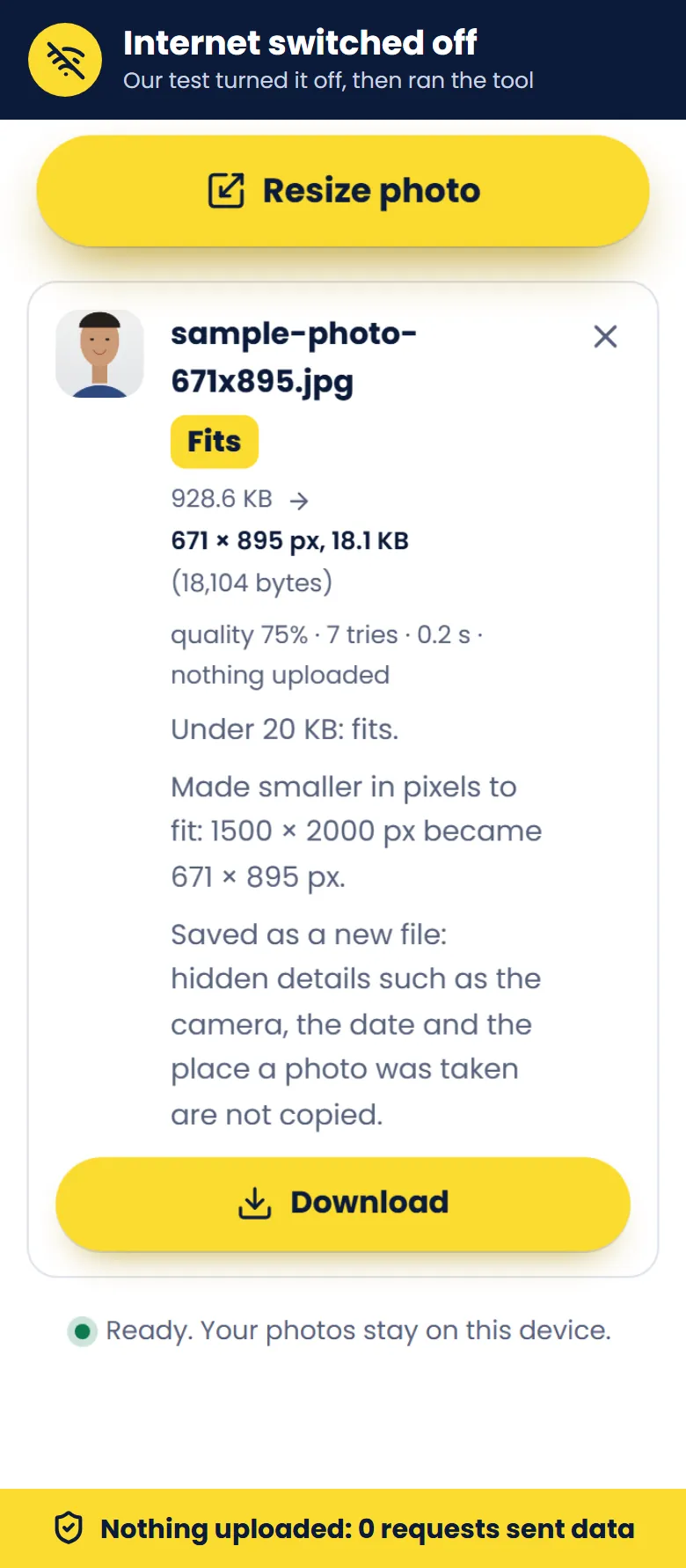
Your picture is resized inside your browser; it is never uploaded to us, and once loaded the page works with the internet switched off. That matters for photos of your face, your signature and your ID. Google's ad code runs on the page too, but our code never gives it your pictures. How we prove it shows how anyone can check.
Problems and fixes
- The photo looks blurry at 20 KB
- Crop away the background first, and take the photo again in better light against a plain wall; both leave more bytes for the face.
- The form says the file is too small
- The form wants a minimum too. Type it in the From box, such as 10 or 20, and resize again.
- The form says the pixels are wrong
- Choose Pixels or cm under Width and height and type the form's numbers, or use the exam's own page.
- The photo turned sideways
- Download the result from here again: the resizer turns phone photos the right way up.
Limits
- It can't add detail: a blurred or dark photo stays blurred or dark, only smaller.
- It doesn't change backgrounds or faces.
- At 20 KB, a full page of text won't be readable; use a PDF for documents.
Terms explained
- KB
- A kilobyte: about a thousand bytes of a file's size.
- Pixels
- The tiny dots a picture is made of; 688 × 917 means 688 across and 917 down.
- JPG quality
- How much detail a JPG keeps, from 1 to 100; lower means a smaller, softer file.
- DPI
- Dots per inch: how many pixels make an inch of paper when the picture is printed.
- Crop
- Keeping one part of a picture and cutting off the rest.
- Minimum and maximum
- The smallest and largest file a form accepts; 10 to 20 KB has both, "up to 20 KB" only a maximum.