What Excel to PDF does, and when you need it
Excel to PDF turns an Excel workbook (an XLSX file) into a PDF. It prints the sheets following the print settings saved in the file, on your own phone or computer. Your workbook is not uploaded, and there is no sign-up and no watermark.
A PDF is what offices, banks, schools and portals usually ask for. It is hard to change by accident, it looks the same on every phone, and the person who opens it does not need Excel. People turn workbooks into PDFs for:
- GST invoices and bills. Send a customer an invoice that is hard to change by accident, with your logo, rupee amounts and totals in place.
- Salary sheets and pay slips. Month-end sheets for the accounts office or for staff, with the heading row repeated on every page.
- Mark sheets and result lists. Grades, class lists and attendance for a school or college, or for a WhatsApp group.
- Statements and ledgers. Account books, fee registers and stock lists to share with your accountant or a partner.
- Budgets, quotations and reports. A family budget, a price list or a sales report that someone wants to read on a phone.
- Private sheets. Anything with salaries, bank details or customer lists that you would rather not upload to a website you don't know.
Excel itself can save a PDF (File > Save As, then choose PDF), and so can LibreOffice. This tool is for the times you don't have them at hand. That may be on a phone, on someone else's computer, or when a workbook arrived on WhatsApp or by email and you only need it as a PDF.
What happens on your device. An XLSX file is not a set of pages. It is a grid of cells, each with a number format, a font and borders, plus a few print settings. Excel works out the pages only when it prints. This tool does that work in your browser, in three steps you can watch on the file's row:
- Reading. An XLSX file is really a zip file. The tool opens it and reads the sheets, the values Excel saved, the styles, merged cells, column widths, row heights, pictures and print settings.
- Laying out. It decides what each cell shows, using its number format. It measures the text with the letter widths of a real font, then fills page after page the way the sheet's print settings say.
- Writing. It writes the PDF itself, with the fonts inside it, so the PDF looks the same everywhere. The text is real text that you can search and copy, not a picture of it.
The work runs in the background, in what browsers call a web worker, so the page itself stays free: the progress bar moves and the Stop button answers at once. Workbooks are converted one after another, each into its own PDF, so the memory in use stays low.
The tool prints the values Excel saved, so it does not need Excel. That also means we could not compare its PDFs with Excel's own, because we don't have Excel on our test computers. Real results shows what we did test, and What Excel to PDF can't do lists what is missing.
Converting a workbook on a phone, step by step
- Open this page in your phone's or computer's browser. There is nothing to install.
- Tap Choose Excel files and pick the workbook. If it came on WhatsApp or by email, save it to your phone first, then pick it from your files or downloads. On a computer you can also drop files onto the page.
- Wait while it works. The workbook's row shows "Reading the workbook", then "Laying out page 12", then "Writing the PDF, 12 pages". An invoice is done in a moment.
- Press Download. The PDF takes the workbook's name: salary-sheet.xlsx becomes salary-sheet.pdf.
- Read the row. It shows the pages, the size of the workbook and of the PDF, how long it took, and "nothing uploaded". For a workbook with several sheets it also says how many sheets were printed. Notes under it say anything that came out differently.
Android
Open this page in your browser and tap Choose Excel files, then pick the workbook from your files. If it came on WhatsApp or by email, save it to your phone first. Your browser saves the PDF with its other downloads, usually in the Downloads folder.
iPhone and iPad
Open this page in your browser, tap Choose Excel files and pick the workbook from your files. We have not tried it on an iPhone or iPad. Your browser decides where the PDF goes, so if you can't see it, look in the browser's downloads list or the Files app.
Windows, Mac, Linux, Chromebook
Click Choose Excel files, or drag workbooks from a folder and drop them anywhere on the page. Your browser saves the PDFs, usually in the Downloads folder.
Keep the page open. Keep this page open, with the screen on, until the PDF is ready. Browsers slow down or pause pages you are not looking at.
The four settings. Once you add a workbook, four settings appear above the list. Wide sheets: Fit the page or Full size. Numbers: 12,34,567 or 1,234,567. Paper: As saved, A4 or Letter. Grid lines: As saved, Print or Hide. Changing one converts your finished workbooks again. When we switched Numbers after converting, the workbook was done again in 1.5 to 2.8 seconds. The next sections explain what each setting does.
Several workbooks. Choose or drop them together. Each gets its own row, its own PDF and its own Download button.
Changed your mind? While a workbook is converting, its row has a Stop button. In our test, pressing Stop on a 20,000-row ledger showed "Stopped" 460 milliseconds later, less than half a second. Add the workbook again to convert it after all.
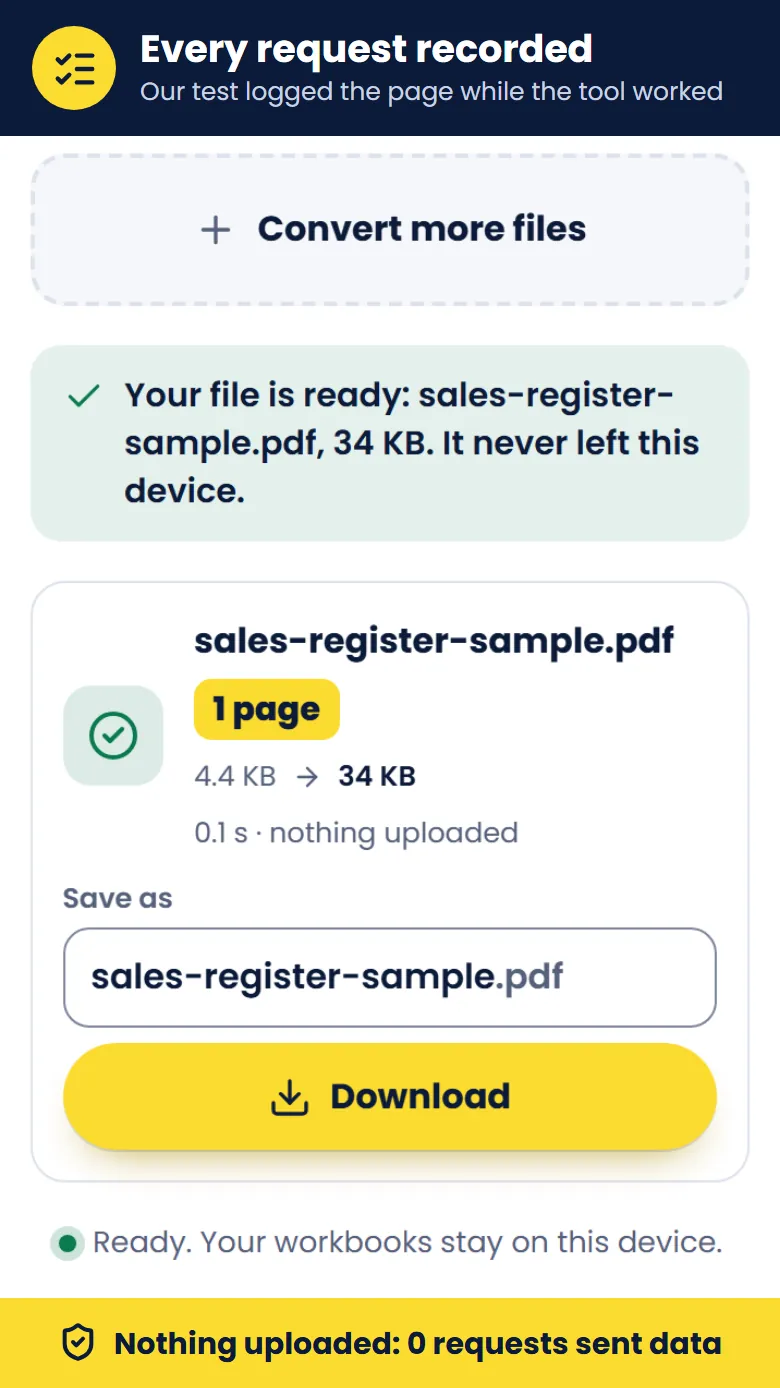
Try it first. Press "Try with a sample workbook" at the top of this page. It makes a shop's monthly sales register in your browser, with a merged title, rupee amounts, dates, borders, a Hindi line and a page-number footer, and converts it. In our tests it made a 1-page PDF of 34 KB in 0.2 to 0.3 seconds.
Which files work: XLSX, and what to do with XLS, CSV and ODS
Excel to PDF reads .xlsx workbooks, the format Excel has used for many years. A workbook saved by LibreOffice or downloaded from Google Sheets as an Excel file is .xlsx too. The file picker also lists .xlsm and template files (.xltx, .xltm), which are built the same way, and macros in them are never run. We tested .xlsx files only.
Other kinds of file are not read yet. They are not converted wrongly: the file's row says what it is and how to save it as .xlsx.
| File | What happens | What to do |
|---|---|---|
| .xlsx | Converted | Nothing |
| .xlsm, .xltx, .xltm | Accepted and read like .xlsx; not tested | Nothing |
| .xls, an older Excel file | Refused, with a message | In Excel, choose File > Save As > Excel Workbook (.xlsx), then add the new file |
| .xlsb, a binary workbook | Refused, with a message | Save it as Excel Workbook (.xlsx) in Excel |
| .ods, an OpenDocument spreadsheet | Refused, with a message | In LibreOffice, choose File > Save As > Excel 2007-365 (.xlsx) |
| .csv | Refused, with a message | A CSV holds values without any formatting. Open it in Excel or LibreOffice, format it, save it as .xlsx and convert that |
| A workbook locked with a password | Refused, with a message | In Excel, choose File > Info > Protect Workbook > Encrypt with Password, remove the password, save and add it again |
| A photo, a PDF or a Word file | "Only Excel workbooks (.xlsx) work here." | Use JPG to PDF for photos or Word to PDF for documents |
| A damaged file, or another kind of file renamed to .xlsx | "This file couldn't be read as an Excel workbook." | Download it again, or ask the sender for a fresh copy |
A Google Sheet. A link to a sheet cannot be used. Open the sheet in Google Sheets, download it as an Excel file (.xlsx), then add that file here.
Size. We set no limit on the size of a workbook or the number of workbooks. Your device's memory is the limit, and Very big sheets shows what that means in numbers.
Excel's page settings, followed
A sheet on screen has no pages. The settings that decide how it prints, which Excel keeps under Page Layout and Page Setup, are saved in the workbook. Excel to PDF reads them and follows them, so the PDF is paged the way the sheet says it should print. Here is each setting and what the tool does with it:
| Setting in Excel | What the PDF does |
|---|---|
| Paper size and orientation | Uses the saved paper and portrait or landscape. A workbook that names no paper is printed on A4. A US Letter page came out as 612 by 792 points, which is 8.5 by 11 inches (a point is 1/72 of an inch) |
| Margins | The saved margins, and the distance of the header and footer from the edge |
| Print area | Only the print area is printed. In our test, a print area of A1:C10 printed those cells and nothing outside them |
| Fit to pages wide and tall | Scales the sheet to fit, as set. A sheet set to fit 1 page wide, with the height left on Automatic, ran over 9 pages. Every page had all the columns, from the first ("Sr") to the last ("NetLast") |
| Adjust to a percentage | Uses the saved percentage. Excel allows 10% to 400% |
| Rows to repeat at the top | The heading rows are printed again at the top of every page. In that 9-page sheet, row 1 was on every page. Columns to repeat at the left are handled the same way, but we did not test them |
| Headers and footers | Left, centre and right parts, with the page number, number of pages, sheet name, workbook file name, today's date and time, and bold, italic and sizes. A different first page and odd and even pages are followed too. We tested the page numbers and the sheet name, not the other parts. Pictures in a header or footer are not drawn |
| Centre on page | Centres the sheet across the page, down the page, or both |
| Manual page breaks | Followed. In our test, breaks after rows 20 and 40 gave 3 pages that began with Row 1, Row 21 and Row 41 |
| Page order | Down, then over, or over, then down, as the sheet says |
| Print gridlines | Printed if the sheet says so; the Grid lines setting can print or hide them for every sheet |
| Blank pages | Pages with nothing on them are left out |
Fit to and page breaks. Microsoft says Excel ignores manual page breaks when you use the Fit to option, and so does this tool. In our test, a sheet set to fit 1 page by 1 page that also had a manual break printed as 1 page. With Fit to 1 page wide and the height on Automatic, the columns stay on one page and the rows can still go over more pages.
Page numbers. Footers like "Page 4 of 12" count through the whole PDF. In our five-sheet test workbook, one sheet began on page 4 of 12 and its footers ran from "Page 4 of 12" to "Page 12 of 12". A header that uses Excel's code for the sheet name printed each sheet's name. If a sheet sets its own first page number in Page Setup, the tool uses it, but we did not test that.
The Paper setting. As saved, the default, uses each sheet's own paper. A4 or Letter prints every sheet on that paper instead, which helps when a workbook was set for Letter and you need A4. The page breaks and any Fit to scale are worked out again for the new paper.
If a sheet prints more than you expect. With no print area set, the tool prints everything from cell A1 to the last cell that has something in it. A cell with only a border or a fill counts too. One stray value far down or far to the right, such as a note in cell Z500, makes the PDF much bigger. The fix is in Excel: select the cells you want, then choose Page Layout > Print Area > Set Print Area, save, and convert again.

Wide sheets: Fit the page or Full size
Many sheets are wider than a page: a budget with a column for each month from April to March, a register with thirty columns, a price list with many rates. Excel prints such a sheet over several pages across unless someone set it to fit. What Excel to PDF does depends on whether the sheet has page settings of its own:
- The sheet has its own settings. That means a print area, a Fit to option, a zoom other than 100%, or landscape. It is printed as set, and the Wide sheets setting does not change it.
- The sheet has none, and Wide sheets is on Fit the page, the default. If the sheet is wider than a portrait page, it is turned sideways. If it is still too wide, it is made smaller, down to 40% of its size. The row then says that the sheet was "printed sideways", or "printed sideways and made smaller".
- Still too wide at 40%. At 40%, ordinary text is less than half its size and hard to read. So the shrinking stops there and the columns go on over more pages across. The row says so. Our test sheet with 45 columns printed 2 pages across: columns 1 to 35 on the first, columns 36 to 45 on the second.
- Full size. The sheet is printed at 100% and upright. A wide sheet goes over more pages across, and the letters keep their real size.
Which to choose. Fit the page gives a quick, readable PDF of a sheet that nobody set up for printing. Full size suits a sheet you want at its real size, when you don't mind several pages across. For the best result, set the sheet up in Excel, because you know which columns belong together. In Excel's Page Setup, choose Fit to 1 page wide, or set a print area, then convert again.
Rupees, lakhs and number formats
Excel stores 12345678.5 as a plain number. A number format, such as #,##0.00, decides how it looks. Excel to PDF reads each cell's format and shows the number the same way. It handles the usual formats: commas, decimals, the ₹ sign, percentages, fractions and scientific notation. Negative numbers can be in red or in brackets. The accounting style puts ₹ at the left edge of the cell and shows a dash for zero. Formats with parts separated by semicolons, for positive, negative, zero and text, work too.
Lakhs or millions. India groups digits as 12,34,567, in lakhs and crores (a crore is 100 lakhs). Most of the world writes 12,345,678. Excel chooses by the region of the computer it runs on, and the workbook does not remember it. So this tool asks you, with the Numbers setting. It starts on 12,34,567. In our test, 12345678.5 in a cell with the format #,##0.00 printed as 1,23,45,678.50 on 12,34,567 and as 12,345,678.50 on 1,234,567. The setting also decides the short date (see the next section) and the currency sign of Excel's built-in Currency formats: ₹142.50 on the first, $142.50 on the second. A format with ₹ written into it prints ₹ either way.
Some measured examples:
| In the cell | Format | Printed |
|---|---|---|
| 12345678.5 | #,##0.00, with Numbers on 12,34,567 | 1,23,45,678.50 |
| 12345678.5 | #,##0.00, with Numbers on 1,234,567 | 12,345,678.50 |
| 1850 | [$₹-4009] #,##,##0.00 | ₹ 1,850.00 |
| 0.125 | 0.0% | 12.5% |
| 1.75 | # ?/? (a fraction) | 1 3/4 |
| 123456789 | 0.00E+00 (scientific) | 1.23E+08 |
| 5 | 0 "CURRENT" (your own words) | 5 CURRENT |
| 50100012345 | Text (@) | 50100012345 |
| 123456789012 | General | 1.23457E+11 |
Account, mobile and Aadhaar numbers. A number in a cell formatted as Text prints exactly as typed, which keeps long numbers whole. In a cell with the General format, a 12-digit number, as long as an Aadhaar number, printed as 1.23457E+11 in our test. Excel keeps only 15 digits of a real number, and Microsoft lists that as its limit. In our test, 1234567890123456789 in a cell with the format 0 printed as 1234567890123460000, rounded after 15 digits. To keep every digit of a 16-digit card number or an account number, format the cells as Text before you type the numbers.
When you see ########. Excel shows ##### when a number or a date does not fit in its column, and the PDF does the same. In our test, columns of Excel's usual width (8.43 characters) showed 2,47,512.53 and the date 07-10-2026 as ########. A date that works out to a negative number shows it as well. Numbers with no special format, which Excel calls General, first give up their decimals to fit. Text is different: it runs over into the empty cells beside it, and is cut off at a cell that has something in it.
To fix ########, make the column wider in Excel (on a computer, double-click the line between two column letters at the top), or choose a smaller font or fewer decimals. Then save and convert again.

Dates, times and 1904 workbooks
Excel stores a date as a number, the count of days from a start date, and the cell's format makes it look like a date. The date 7 October 2026 is stored as 46302. Excel to PDF counts days the same way. In our tests, 46302 printed as 07-10-2026 with the format dd-mm-yyyy, as 7-Oct-26 with d-mmm-yy, and as Wednesday with dddd. Formats with a time and the month spelled out, like 07/10/2026 14:30 and March 1, 2026, worked as well.
The short date. Excel's built-in Short Date follows the computer's region, so here it follows the Numbers setting: 07-10-2026 on 12,34,567, and 10/7/2026, month first, on 1,234,567. Keep it on 12,34,567 for readers in India, who would read 10/7/2026 as 10 July. A format that spells out the order, like dd-mm-yyyy or d-mmm-yy, is printed as written.
Times. A time is a fraction of a day. A time format shows it as 14:30, or with AM and PM. A format like [h]:mm adds up hours past 24, so a day and a half shows as 36:00.
Workbooks that count from 1904. Excel has two ways of counting days: from 1 January 1900, or from 1 January 1904. Some old workbooks use the second. The workbook says which one it uses, and Excel to PDF reads that, so the dates come out right. Microsoft gives the gap as 1,462 days. Its example is 5 July 2011, which is 40729 in the 1900 system and 39267 in the 1904 system. In our 1904 test workbook, the dates printed as 07-10-2026, 31-12-1999 and 02-01-1904.
29 February 1900. Excel counts 1900 as a leap year, which it was not. It does this to match an old spreadsheet program, Lotus 1-2-3, and it has kept it so that old files stay the same. Excel to PDF matches Excel: day number 60 prints as 29-02-1900, and day number 1 is a Sunday. You will meet this only in test sheets, because real dates since March 1900 are correct.
Workbooks with several sheets
A workbook often holds several sheets, shown as tabs at the bottom in Excel. By default, Excel to PDF prints every sheet that is not hidden, in the workbook's order, into one PDF per workbook. Each sheet gets a bookmark, the clickable contents list that most PDF readers show in a side panel. In our five-sheet test workbook, the bookmarks led to the Invoice sheet on page 1, the Wide sheet on page 2 and the Setup sheet on page 4. The workbook was 12 pages in all.
- Hidden sheets are not printed. In our test, the text of a hidden sheet was missing from the PDF. This is useful when a workbook has rates or working sheets that you don't want to send. If every sheet is hidden, the first one is printed so that you still get a PDF.
- Empty sheets are left out, and the row says how many had nothing to print.
- A chart sheet, a tab that holds only a chart, is printed on a page of its own, with the chart's grey box and title (see the chart note). We did not test a chart sheet.
- Macro sheets and dialog sheets, two old kinds of sheet, are left out, and the row says so.
Choose sheets. When a workbook has more than one sheet, its finished row has a Choose sheets button. Open it and you see a tick for every sheet, with hidden sheets and chart sheets marked. Tick the ones you want, press Convert these sheets, and the workbook is converted again with only those. If nothing is ticked, the page asks you to tick at least one. In our test, converting only the first of the five sheets took 1.97 to 2.14 seconds, including the click. The PDF went from 12 pages to 1.
This is a quick way to send one invoice from a workbook that also holds your price list and your accounts. It is also how you print a sheet that is hidden. The row says how many sheets were printed, for example "2 sheets of 3 printed".
Borders, colours, merged cells, pictures and charts
Excel to PDF draws the sheet from the formatting saved in the workbook:
- Borders and colours. Thin, medium, thick, double, dashed and dotted borders, and cell fills. A patterned fill is shown as the one colour it looks like from a little way off.
- Text. Fonts, sizes, bold, italic, underline, strikethrough and colours; wrapped text, text turned at an angle, indents, shrink to fit, and centre across selection. Text that is too long for its cell runs into the empty cells beside it.
- Merged cells, column widths and row heights as saved. Rows that Excel sizes to fit their text are sized from the text. Rows and columns you hid in Excel stay hidden.
- Excel tables. A range made with Format as Table is drawn with its style's header colour and banded rows. Our sales report test had an 18-column table.
- Conditional formatting. Cells coloured by a rule come out coloured. These rules work: values above or below a number, between two numbers, equal to something, containing some text, blank, duplicated, in the top or bottom 10, or above average. Colour scales and data bars work too. Rules written as a formula work for the common shapes, such as comparing a cell with a value or colouring every other row. In our mark sheet, FAIL showed in red from a rule, and a colour scale was drawn.
- Gridlines. Printed if the sheet says so. The Grid lines setting can print or hide them for every sheet.
- Links. Web links in cells stay clickable in the PDF. Links to another cell or sheet inside the workbook are not made.
Pictures. A logo or a signature is placed where it sits on the sheet, at its own size. Our GST invoice test had a logo. A picture or a chart that hangs over the last cells of the sheet is printed whole. Pictures in a format a PDF can't hold, such as EMF or WMF drawings, are shown as grey boxes, and the row says how many.
Charts. Charts are not drawn yet. Each chart shows as a grey box with the chart's own title. In our tests the titles were "Sales by item" and "Spending in 2025-26". The row says "1 chart shown as a grey box with its title". If you need the chart itself in the PDF, you could paste it into the sheet as a picture (in Excel, copy the chart and use Paste Special) and convert again. Pictures are drawn, but we have not tried this route. Some shapes and text boxes are drawn. Those that can't be drawn, and objects such as slicers and form controls, are left out, and the row counts them.
Fonts. Excel's fonts, such as Calibri and Arial, belong to Microsoft and can't be shared on a website. So each is drawn with a free, open font that has the same letter widths. Calibri is drawn with Carlito, Arial with Liberation Sans, Times New Roman with Liberation Serif, Courier New with Liberation Mono and Cambria with Caladea. A word takes the same room as in Excel, so cells and columns line up, while the letters have slightly different shapes. A font is downloaded only when a workbook uses it. As compressed files, Carlito is 37 KB regular, 37 KB bold, 39 KB italic and 45 KB bold italic, and Liberation Sans regular is 27 KB. A font the tool does not know is drawn like Calibri, or like a serif or fixed-width font when its name says so.
Hindi and other Indian languages
Indian scripts need more than letter widths. Letters join into conjuncts (two or more letters written as one shape), and vowel signs sit before, above or below the letter they belong to. The tool does this with HarfBuzz, a free text engine used by many browsers and apps, and with Noto fonts, free fonts made to cover the scripts of the world. It is the same engine and the same fonts as in our Word to PDF.
We tested one workbook with Hindi, Marathi, Bengali, Tamil and Gujarati text and ₹ amounts. It made a 1-page PDF of 42 KB in 0.1 to 0.3 seconds, and all 14 text cells were found as real, searchable text by two different PDF readers. Our mark sheet with a Hindi heading came out with all 104 text cells found as text, and the sample workbook has a Hindi line too. Marathi is written in the same script as Hindi, which is called Devanagari.
The fonts and HarfBuzz are downloaded only when a workbook has Indian text, so English workbooks don't wait for them. The first Hindi workbook downloads HarfBuzz once (431 KB, with two small helper scripts of 31 KB and 81 KB) and the Devanagari font (93 KB regular, 95 KB bold). Bengali is 93 KB, Tamil 35 KB and Gujarati 83 KB, all as compressed files. The same engine knows Punjabi, Odia, Telugu, Kannada and Malayalam, which we tested in Word to PDF but not in a workbook.
Your text must be Unicode. Phone keyboards and the Indian keyboards in Windows type Unicode, the standard way computers store the letters of every language, so most workbooks are fine. Older workbooks typed in fonts like Kruti Dev, Chanakya or Bamini are not. They hold English letters that only look Indian in that one font, so in a PDF they come out as English letters. The row tells you when a workbook uses such a font. Change the text to Unicode first, or retype it in a font such as Mangal or Nirmala UI.
Not drawn yet. Urdu, Arabic and Hebrew, Sinhala, Chinese, Japanese and Korean, Thai and Tibetan show as empty boxes, and the row names the script. A sheet set to run right to left is printed left to right.
Formulas: the results Excel saved
A formula, such as one that adds up a column, works out a value from other cells. When Excel saves a workbook, it keeps both the formula and its latest result. Excel to PDF prints the saved result. It does not work formulas out itself. We have not tested workbooks saved by LibreOffice or Google Sheets, so we can't say how they save results.
Some programs that create workbooks, such as scripts and some billing or accounting exports, write formulas without a result. Those cells have nothing saved to print, so they come out empty. The row tells you: "1 formula had no saved result, so its cell is empty in the PDF." Open the file in Excel or LibreOffice and save it again. That works the results out. Then convert the new file.
Because the tool prints what was saved, a total is as fresh as the last save. If someone changed numbers with a program that doesn't recalculate, open the workbook in Excel, check the totals and save before you convert. In all our test workbooks with formulas, the saved results printed as they should.
Very big sheets
An Excel sheet can hold 1,048,576 rows and 16,384 columns, Microsoft says. Ledgers, bank statements and stock lists can run to tens of thousands of rows. We tried two big ledgers, each with 8 columns:
- 20,000 rows (a 1.0 MB workbook) made 435 pages in 8.7 seconds, and the browser used about 0.31 GB more memory.
- 100,000 rows (a 5.1 MB workbook) made 2,174 pages in 28.1, 40.1 and 51.0 seconds in three runs, while other programs were also busy on the computer. The browser used about 1.25 GB more memory.
So a big sheet takes time and memory. From 100,000 filled cells, which is about 12,500 rows of 8 columns, the row shows a warning while it converts. The warning says it can take a minute or more, needs a lot of memory, and on a phone may stop before the PDF is ready. We have not tried big sheets on a phone. A sheet of over 6 million cells prints only its first rows, and the row says so.
How to cope:
- Set a print area in Excel, or use Choose sheets, to print only what you need. A smaller PDF is made faster.
- Use a computer, which has more memory than a phone, and close other tabs and apps first.
- Keep the page open with the screen on until it finishes.
- Press Stop if it takes too long. The page answers at once, because the work is in the background.
- If the converter stops with a memory message, split the workbook into smaller ones and convert each.
Real results
We converted these workbooks in Chromium, the open-source browser that Google Chrome is built on. The computer ran Windows 11 with 4 processor cores and was busy with other work at the same time, so times differ a little from run to run. The workbooks were made by scripts to look like everyday ones: an invoice, a salary sheet, a mark sheet, a sales report and long ledgers. None is anyone's real file. After each conversion, three PDF libraries (PyMuPDF, pypdf and PDFium, the one inside Chrome) opened the PDF. We checked that the fonts were inside it, that every page had something on it, and that every text cell of the workbook that should print was in the PDF's text. Your device may be faster or slower.
- 0.1 to 0.2 sfor a one-page GST invoice
- 8.7 sfor a 20,000-row ledger, made into 435 pages
- 8 of 8small test workbooks checked cell by cell had every printed text cell found as text in the PDF
- 0requests left this site in any test run (made without Google's ad code)
| Workbook | Time | Checked | |
|---|---|---|---|
| GST tax invoice with a logo, merged cells and rupee amounts, fitted to one A4 page, 11 KB | 1 page, 36 KB | 0.1 to 0.2 s | All 52 text cells found as text |
| Salary sheet for 42 people, landscape, heading rows repeated, "Page 1 of 2" footer, 11 KB | 2 pages, 32 KB | 0.1 to 0.2 s | All 189 text cells found as text |
| Class X mark sheet with a Hindi heading, grades and FAIL in red, 9.3 KB | 1 page, 41 KB | 0.1 to 0.2 s | All 104 text cells found as text |
| Family budget, April to March across, no page settings, with a Summary sheet and a pie chart, 11 KB | 2 pages, 24 KB | 0.1 to 0.2 s | All 49 text cells; the chart is a grey box with its title |
| Sales report: 240 sales in an 18-column Excel table and a chart, 30 KB | 6 pages, 55 KB | 0.3 to 0.8 s | All 2,190 text cells found as text |
| Workbook of 5 sheets: an invoice, a 45-column sheet, a 300-row setup sheet, a hidden sheet and an empty one, 53 KB | 12 pages, 83 KB | 0.6 to 1.0 s | All 1,283 text cells found as text |
| Page-settings test: manual breaks after rows 20 and 40, US Letter paper, a print area of A1:C10 and a fitted sheet with a break, 7.7 KB | 6 pages, 10 KB | 0.1 to 0.2 s | All 101 text cells found as text, and the expected text on each page |
| Workbook that counts days from 1904, 4.8 KB | 1 page, 5.0 KB | 0.1 s or less | Dates matched the expected ones |
| Hindi, Marathi, Bengali, Tamil and Gujarati text with ₹ amounts, 5.2 KB | 1 page, 42 KB | 0.1 to 0.3 s | All 14 text cells found as text |
| Ledger of 20,000 rows and 8 columns, 1.0 MB | 435 pages, 1.5 MB | 8.7 s | 2,859 text cells sampled, all found |
| Ledger of 100,000 rows and 8 columns, 5.1 MB | 2,174 pages, 7.5 MB | 28 to 51 s | 2,972 text cells sampled, all found |
Times are the ones the page showed on each file's row. The two ledgers were too big to check cell by cell, so a sample of their text cells was checked instead. For the 1904 workbook, the printed dates were compared with the expected ones.
Several at once. We added the nine small workbooks in the table together. They were converted one after another in 1.9 to 3.2 seconds in all. The browser as a whole used 431 to 440 MB when the page was ready and at most 538 to 541 MB while it worked.
Phone-sized screens. We repeated the tests with the screen set to 390 by 844 pixels with touch, the size of many phones. All nine small workbooks gave the same pages and the same PDF sizes as on the computer screen, with every text cell found. The sample workbook worked at 390 and at 320 pixels wide, and the page had no sideways scrolling. These were computer tests with a phone-sized screen, not real phones.
On a slower device. Chrome can make a page run 4 times slower, a rough stand-in for a slower phone. With that, converting on the page itself took 483 milliseconds for the GST invoice (159 at normal speed), 396 for the salary sheet (103) and 661 for the mark sheet (199). The sales report took 1,139 (296) and the 5-sheet workbook 1,306 (448). The invoice's time includes downloading its fonts.
Not tested. Safari, Firefox and real phones. Microsoft Excel and LibreOffice are not on our test computers, so we did not compare our PDFs with theirs.
Try it yourself: press "Try with a sample workbook" at the top of this page. It makes a shop's sales register in your browser, with rupee amounts, dates, a Hindi line and a footer, and converts it.
Try the samplePrivacy: your workbook is never uploaded
Most online Excel to PDF converters work by uploading. Your workbook goes to their server, is converted there, and the PDF comes back. For that time your salary sheet or your customers' list sits on a computer you don't control, and you have to trust that it is deleted afterwards.
PDFGuild works the other way round. Your own browser reads the workbook and writes the PDF, on your phone or computer, in a background worker. The tool has no upload step: it never sends your workbook or your PDF anywhere. The page's Content Security Policy, a rule that your browser enforces, lets it contact only this site and Google's ad service. Our code never gives your files to the ad code.
What the tool downloads from this site is the converter and the fonts, never anything about your file. The converter is made of small scripts, 276 KB in all before compression (Google's ad code comes on top of that). They come when you add your first workbook. Fonts come only when a workbook uses them (see Fonts and Hindi and other Indian languages). In our test runs, which left Google's ad code out, we checked every request the page made. No request left this site, and the only requests were plain downloads of the tool's own files. If the fonts can't be downloaded, the row says so and asks you to check your internet connection.
That matters for a salary sheet with names and bank details, a GST invoice with a customer's address, a mark sheet with children's names, or a ledger with your accounts. The PDF records the workbook's title, if the file has one, PDFGuild as the program that made it, and the date. It does not copy the author's name from the workbook.
You can look for yourself: open your browser's network panel while converting. You will see this site's own files being downloaded, and requests from Google's ad code, but no request that uploads your workbook. Our privacy policy has the details.
What Excel to PDF can't do
- Charts are not drawn. They show as a grey box with the chart's title. Sparklines are left out, and so are slicers and form controls. Icon sets from conditional formatting, the little arrows and traffic lights, are not drawn either.
- Only .xlsx workbooks (and .xlsm and templates, untested). Older .xls, .xlsb, .ods and .csv files and workbooks locked with a password are refused, with steps for saving them as .xlsx.
- Formulas are not worked out. The result Excel saved is printed. A formula with no saved result gives an empty cell.
- Right-to-left sheets are printed left to right. Urdu, Arabic, Hebrew, Sinhala, Chinese, Japanese, Korean, Thai and Tibetan are not drawn yet. Text in old fonts like Kruti Dev comes out as English letters.
- Row and column headings, the numbers and letters Excel can print around a sheet, are not printed, and neither are pictures in headers and footers.
- Fit the page stops at 40%. A wider sheet goes on over more pages across.
- Fonts look a little different, because Calibri, Arial and the rest are drawn with open fonts of the same letter widths.
- Very big sheets need a lot of memory. 100,000 rows of 8 columns took about 1.25 GB more in Chrome on a computer, and we have not tried them on a phone. A sheet of over 6 million cells prints only its first rows.
- Not compared with Excel's own PDFs. Column widths follow the print widths saved in the file, but we have no Excel to check against.
- Only Chromium was tested, with phone-sized screens on a computer. Safari, Firefox and real phones were not.
When another way is better. If you have Excel, its own Save As PDF follows Excel's own rules, draws charts and works with every Excel feature. LibreOffice, free to download, also opens older .xls, .ods and .csv files and saves a PDF. Spreadsheet apps on phones can usually print to a PDF as well. Online converters that take a file upload can be handy, but your workbook travels to a company's server. For sheets with salaries, accounts or customers' details, converting on your own device avoids that.
Tips for a good PDF, and fixes
Before converting, in Excel:
- Set a print area so only the cells you want are printed, and choose Fit to 1 page wide so no column is split off.
- Repeat the heading row on every page (Page Layout > Print Titles), so page 7 of a long list still shows what each column means.
- Widen any column that shows ########, or use fewer decimals.
- Use the Text format for account, mobile and Aadhaar numbers before you type them, so no digits are lost.
- Hide working sheets, or untick them in Choose sheets, so only the sheet people need is printed.
- Open and save the file in Excel if it was made by another program, so every formula has its result.
- Going the other way? PDF to Excel turns the tables in a PDF, such as a bank statement, back into a sheet.
After converting:
- Check the page count on the row against what you expect. A surprise is usually a stray cell far from your data or a column that spills onto an extra page.
- Open the PDF and scroll through it before you send it, as with any converter.
- Give the file a clear name, like priya-salary-march.pdf.
- To make the PDF smaller for a portal, use Compress PDF to 100 KB or Compress PDF. To put several PDFs in one file, use Merge PDF. To lock the PDF with a password, use Protect PDF.
If the row shows a message:
- "1 formula had no saved result, so its cell is empty in the PDF." Open the file in Excel or LibreOffice, save it, and convert again.
- "A sheet was too wide for the paper, so it was printed sideways." Choose Full size under Wide sheets to print upright, or set Fit to 1 page wide in Excel.
- "A sheet was too big to print in full here: its first rows were printed." Set a print area, or split the sheet into smaller ones.
- "The sheets chosen have nothing to print: their cells are empty." The sheets you ticked have nothing in them. Tick others.
- "This workbook has no sheets that can be printed." It holds only macro or dialog sheets. Open it in Excel and check that it has a normal sheet.
- "The fonts for this workbook couldn't be downloaded. Check your internet connection and try again." Check that you are online, then add the workbook again.
- "Something in this workbook stopped the conversion." Your file is unchanged. Save a fresh copy as .xlsx from Excel or LibreOffice and try that.
- "The converter stopped before the PDF was ready." The workbook may be too big for your device's memory. Close other tabs and apps, use an up-to-date browser, or use a computer.