What cropping a PDF does
Cropping changes the rectangular part of a page that a PDF viewer shows. If a scan has a wide border, for example, you can draw a smaller box around the useful area. The saved PDF opens with that box as the page's visible area, so the unwanted border is normally outside the view and the printed page area. Pages you did not choose stay in the file.
This tool saves a new PDF; it does not overwrite the file you selected. It keeps the original page content rather than turning every page into a photograph. That can preserve selectable text where the original already had text, though a photographed or scanned image does not gain searchable words through cropping. Review the saved copy in your intended viewer or print preview because viewers and printer settings can affect how a page is displayed or fitted to paper.
Cropping is not redaction. Content outside the visible box remains in the PDF and may be recovered. Never rely on a crop to remove an address, account number, signature or other private information. The distinction matters even when the hidden part no longer appears on screen.
How to crop a PDF
- Choose a PDF. Select it from your computer or phone, or drop it onto the tool on a computer. The first page opens in the large preview and its page cards appear below.
- Choose the visible area. Drag inside the page to draw a box, or drag its yellow edges and corners. You can also enter how many millimetres to cut from the left, right, top and bottom. The shaded area is outside the box.
- Choose the pages. Pick All, Odd, Even or Some, and decide whether the pages share a box or need individual boxes. Tap a page card or use the arrows to inspect another page.
- Check the preview. Keep page numbers, signatures, stamps and other important details comfortably inside the box. If the document has different page sizes, review each one before saving.
- Save and download. Press Crop PDF and download the finished copy. Open that copy and check its pages and any form controls. Your original is still available if you want to try again.
On a touch screen, use a finger to draw or move the box and its handles. The numeric fields are useful for small adjustments when a handle is difficult to place precisely. The Start again button resets the crop settings for the open PDF; it does not delete your original file.
Choose margins and the area to keep
The four fields describe the amount to cut from each edge as the page is shown in the preview, not the dimensions of the finished page. Setting the left field to 10 mm and leaving the other three at zero, for instance, moves only the left boundary inward. The line below the fields reports the approximate width and height that will remain on the page shown.
To use the box, drag a corner to change two edges together or drag a side to change one. Once the box has been made smaller, dragging its middle moves the kept area. On a computer you can also draw a new box from outside it. If the visual selection is nearly right but too close to a line of text, adjust the corresponding millimetre value and check the preview again.
Leave a little breathing room around content. A tightly fitted box can hide a handwritten note, a faint page number or a form field near the edge. The preview represents the existing visible page area, so a file that was cropped before may already have an edge outside the area you can select here. Return to an uncropped original when you need to recover that area.
Different viewers may describe page measurements in points, inches or millimetres, and rounded figures can differ slightly. If a printer must use a particular paper size, inspect its print settings too: cropping the PDF page is separate from choosing whether the printer fits, scales or centres it.
Crop all pages, a range, or individual pages
All applies the chosen settings across the document. Odd and Even select alternating pages, using the page positions in the PDF rather than any numbers printed on the pages. Some accepts page numbers and ranges such as 1-3, 5. The remaining pages are retained without that crop; the tool does not split them out or delete them.
With Same, the same four margin amounts are used on every selected page. This is useful for pages scanned on the same paper with the content in consistent positions. It is not necessarily the same physical rectangle on pages of different sizes: a 10 mm cut from each edge leaves a different sized area on a small page and a large page. If a selected page is too small for those margins, the tool asks you to reduce them or change the selection.
With Each page, select a page and set its crop separately. A page without its own adjustment starts from the shared box, so check each selected page instead of assuming it has no crop. The cards show which pages are selected and marked for cropping. You can switch between the shared and individual choices to compare the previews, but inspect them again before saving.
For a book scan, the inside margin may be on opposite sides of facing pages. One approach is to save a copy with the odd pages adjusted, then open that copy and adjust the even pages. Keep the original throughout. For a document where every scan is positioned differently, individual boxes and a careful page-by-page review may be more suitable.

Estimate white margins
Trim white margins examines a small rendering of the selected pages and suggests boundaries around visible marks. In Same mode it chooses a shared margin intended to include what it found on the examined pages. In Each page mode it can use a different suggestion for each page. The button reports its progress and can be pressed again to stop; if it has already examined some pages, review any suggested settings before saving.
An estimate is a starting point, not a promise that every important mark is included. Very pale ink, small pencil notes, faint stamps, thin rules and marks near the edge can be missed. Dirt, dark scanner borders, paper shadows or a background colour can have the opposite effect and make the suggested crop too generous. A page that looks blank to the estimate might still contain faint information. Check the visible box on every page, including pages described as blank.
Trim can also choose a different result for the same document if its contents, existing page boxes or selected pages differ. If it is not suitable, use Start again and draw or type the margins yourself. It is better to leave a small border than to cut through a line of a form. After downloading, open the output at a useful zoom level and check especially the first and last lines and the corners of each page.
Examples: scans, forms and pages with different sizes
A scanned receipt. A receipt photographed on a sheet of paper may occupy only part of a large page. Draw a box around the entire receipt, leaving the date, merchant, totals and any notes inside. A pale thermal print or tiny number can be difficult for an automatic estimate, so zoom the saved result and compare it with the original. Cropping can make the useful area easier to see, but it does not make faint printing darker.
An application form. A form may have a header, page number, instructions and signature area close to its edges. Start conservatively, use the arrows to inspect every page, and leave room for all of them. If the PDF is fillable, open the saved copy in the app you will use to fill it and check the controls. A field outside the visible area can remain in the file yet be difficult or impossible to use in a viewer.
A mixture of portrait and landscape pages. First decide whether every page really needs the same cut. A landscape page can have a different amount of white space and a different position for its text. Choose Each page when a shared margin does not suit both, then visit the page cards one at a time. If a scan is sideways, use Rotate PDF first and inspect the rotated copy before cropping.
A document for a size-limited portal. Crop to set what a reader sees; then check the downloaded file's size. Cropping does not promise a smaller PDF because the hidden contents are still present. If a size limit applies, try Resize PDF on a copy and check the quality and final size. Do not remove or obscure required information merely to meet a limit.
What happens to text, pictures, links and forms?
The tool changes page boxes instead of repainting the visible part as a new image. Text that was selectable in the source can therefore remain selectable in the kept area, and the original image data need not be resampled just to crop it. This is not optical character recognition: a page that was a photo of text remains a photo unless another tool adds a text layer.
PDFs can contain links, comments, highlights, form fields and bookmarks as well as the page artwork. The tool aims to preserve these structures, but an item located wholly or partly outside the new visible area may no longer be visible or usable. A link's destination or a form's appearance may also behave differently between viewers. Check the particular controls that matter in the downloaded file, especially before you send a form to someone else.
Some scans have existing page rotations or boxes that do not start at the document's original corner. The preview uses the page as displayed and the crop is applied to the chosen edges in that view. For complicated PDFs, a visual comparison with the source remains the right final check. If a required mark is clipped, go back to the original and make the boundary more generous.
Saving a changed PDF invalidates an existing digital signature. Keep the signed original if the signature must remain verifiable and arrange for a new signature after the final edit if needed. Cropping is also different from editing words, correcting a scan's perspective, or removing an annotation: use a tool made for that specific task.
Hidden edges, privacy and your original
The crop operation runs in your browser on your device, without sending the selected PDF to the site for processing. Your original remains where it was. The webpage may still load ordinary site resources and advertising over the network; processing locally does not mean that the page itself can never make a network request. See the site's privacy information for details about those services.
The distinction between hiding and deleting is separate from where processing happens. Even a locally processed crop can leave the full page content inside the resulting PDF. Someone using another PDF tool may be able to reveal or extract information outside the displayed boundary. A hidden address or handwritten note must therefore be treated as still present.
For confidential material, use a tool designed to securely redact and remove the underlying content, then independently inspect the resulting file before sharing. Merely covering information with a white shape, or hiding it with a crop, is not a substitute. Keep a safe copy of the original when a later review or correction may be necessary.
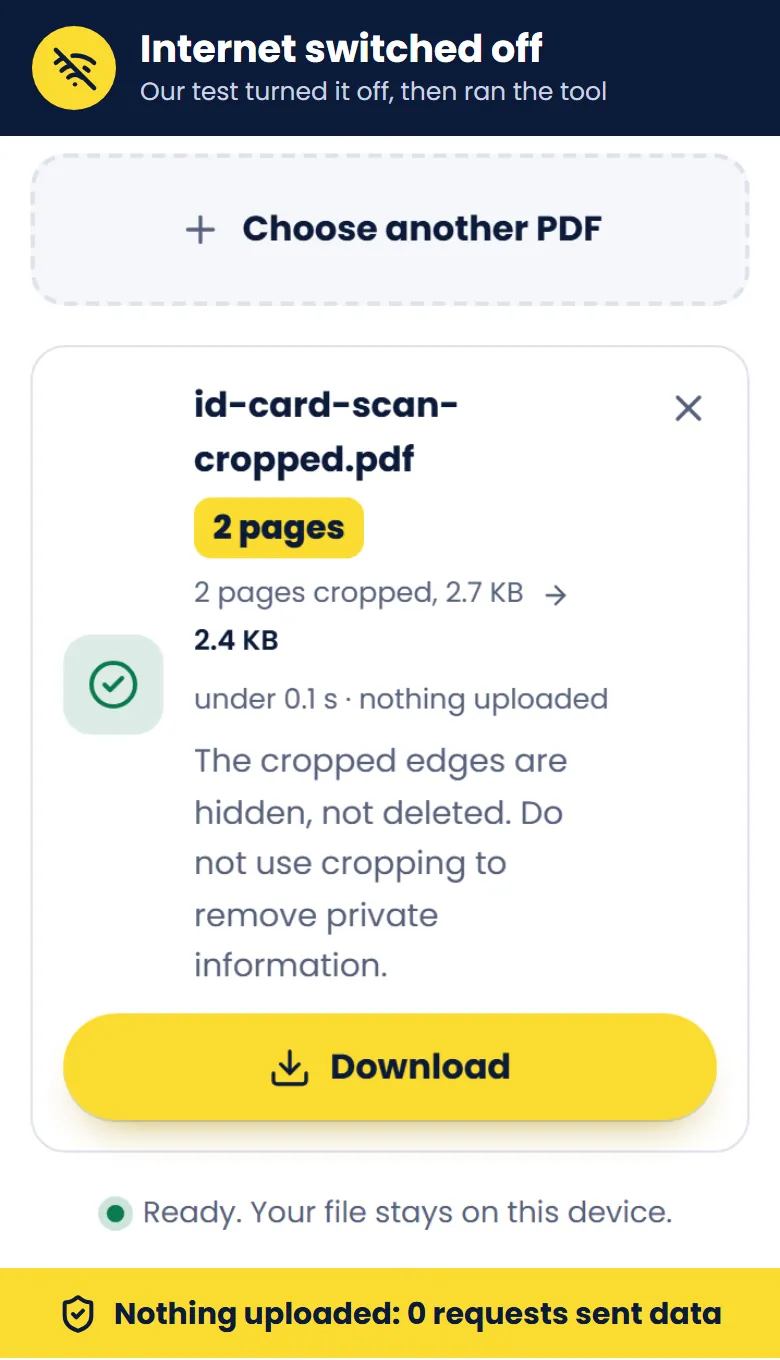
What we tested
We tested with a blank public UIDAI enrolment and update form, not anyone's completed application. The 2-page blank UIDAI form started at 423,843 bytes and the cropped copy was 417,599 bytes. We set 10 mm left, 15 mm right, 12 mm top and 8 mm bottom on both pages. In this test, page 1 was about 216 × 279 mm before the crop and about 191 × 259 mm afterwards. Those values are rounded; your pages and saved file size can differ.
We also used a constructed PDF with different page sizes, existing rotations, links, bookmarks and fields. The 6-page mixed test file retained 2 links, 3 bookmarks and 2 form fields after all six pages were cropped. An independent visual comparison checked the kept area on each page. This is evidence for those particular test files, not a guarantee for every PDF or every viewer; content and interactive controls near a crop boundary still need inspection.
We repeated the crop and save flow at desktop and phone-sized screen widths, and checked the resulting PDFs against their sources. A phone display has less space for precise handles, which is one reason the same margins are available as numbers. Actual speed and memory use vary with the device, document and other open apps; the figures above are file observations rather than speed promises.
Troubleshooting a crop
The Crop PDF button is unavailable. Select a PDF, choose at least one page and set a nonzero crop. If a margin is empty, negative or too large for the page, correct it. When using Some, enter a valid page number or range. Wait for an estimate or save already in progress to finish before making another change.
A page is smaller than the crop. A shared setting that fits one page may leave too little of a smaller page. Reduce the margins, select a different set of pages, or use Each page to give the smaller page its own box. Inspect landscape and rotated pages individually as well.
The preview or saved page cuts off a detail. Start from the original and move that edge outward. Automatic estimates can miss faint content, and small page cards may not show every detail. Check the downloaded PDF in another viewer at a larger zoom. Printing with an automatic fit setting may also change the apparent margins on paper.
The PDF will not open or the browser runs out of room. Check that the file is a readable PDF and, if it has an opening password, unlock an authorised copy first. A very large document may need more memory than the device has available. Closing other tabs or working with a shorter copy can help; the result still needs to be reviewed. If a PDF opens elsewhere but fails here, keep the source unchanged and try another suitable tool.
When to use another tool
- Removing confidential information: cropping hides edges but does not securely erase their content. Use secure redaction and verify the result.
- Changing words, fixing perspective or adding searchable text: this tool sets a rectangular visible area. It is not a text editor, perspective corrector or OCR service.
- Reordering, deleting or combining pages: use Organize PDF, Split PDF or Merge PDF for those jobs.
- A locked or signed PDF: unlock an authorised file first. Saving a crop changes the PDF, so an existing digital signature will no longer verify.
The tool opens one PDF at a time and crops rectangular page areas. It cannot automatically identify the subject of a photograph or guarantee that a margin estimate has kept all important details. Not all PDF viewers handle unusual page boxes, annotations or printing options in exactly the same way. Keep the source and check the output in the viewer or workflow where it will actually be used.