What Create ZIP File does, and when you need it
Create ZIP File packs the files and whole folders you add into one .zip file, in your browser. Nothing is uploaded, there is no sign-up, and we set no size limit: a 20 MB folder and a file of several GB are packed the same way. Your own files are never changed; the ZIP is a new file you download.
People use it when:
- A form or portal takes one file. Job, scholarship and tender portals often want all the papers in a single ZIP.
- An email has too many attachments. One ZIP is easier to attach, and to save at the other end, than twenty separate files.
- A folder must stay a folder. A ZIP keeps the folders inside it, so a project, a set of photos sorted by day or a client's papers arrive in the same order.
- Text needs to get smaller. CSV exports, logs, plain text and many PDFs shrink a lot when zipped, which helps under an upload limit.
- Another site asked them to sign up. Many online zip tools stop at 20 MB or so and ask for an account to go further. This one doesn't, because the work happens on your own device.
One thing to know first. Photos, videos, music and Office files are packed already, so zipping them saves almost nothing: a ZIP of phone photos is about the size of the photos. Which files shrink explains why, and Real results has our numbers.
How it works
Your browser reads each file in pieces, as a stream, so a big file is never held whole in the page's memory. Each piece goes through two steps:
- A check number. Every file in a ZIP carries a CRC-32, a short number worked out from all of its bytes; an unzip program works it out again and knows the file came out right. Ours is worked out by a small engine we wrote in Rust and run as WebAssembly, eight bytes at a time. On our test computer it checked 1,166 MB a second, about three times as fast as plain JavaScript.
- Squeezing. Files that can shrink are squeezed with deflate, the method every ZIP program understands, using the compressor built into your browser. If a squeezed file comes out no smaller, the original is stored instead, so a ZIP is never bigger than it has to be.
The squeezed pieces are kept by the browser, which puts big ones on your disk rather than in memory, and the ZIP is put together at the end: a header before each file, and a list of all the files at the end, which is what unzip programs read first. When the ZIP passes 4 GB or 65,535 files, the page writes the ZIP64 records those sizes need. (Sizes on your computer may be shown in GB or GiB, which differ: why a 1 TB drive shows 931 GB explains.) Nothing in this goes to a server: the page works the same with the internet switched off once it has loaded.
Real results from our tests
We zipped these test files with this page in Chromium 148, the open-source browser Google Chrome is built on, on a Windows 11 laptop with an Intel Core i7-1185G7 processor and 32 GB of memory, on 1 November 2026. Our scripts made the files to look like everyday ones (office papers, a server log, a video-sized file); none is anyone's real file. Times run from pressing Create ZIP to the finished row. Then Python's own zipfile module, which shares no code with the page, opened every ZIP and checked every file's CRC; Windows' own tar listed them, and PowerShell's Expand-Archive unpacked them, the 4,500 MB one aside, which .NET's ZIP reader read back instead.
| What we zipped | Before | ZIP | Time | What happened |
|---|---|---|---|---|
| An office folder: 54 files in 2 folders (PDFs, CSVs, letters, photos) | 62.5 MB | 50.4 MB | 1.6 s | 27 files squeezed and 27 stored as they were (photos and PDFs packed already) |
| A server log | 1 GB | 140 MB | 19.2 s | Squeezed to 13.7% of its size |
| A video-sized file that can't be squeezed | 600 MB | 600 MB | 1.5 s | Stored as it is, which is quick |
| A 4,500 MB backup file, with Just pack them | 4,500 MB | 4,500 MB | 7.5 s | Written as ZIP64; .NET read back all 4,718,592,000 bytes |
Every ZIP opened in Python's zipfile with every file's CRC correct, and Windows' own tar listed each one. PowerShell's Expand-Archive unpacked the office folder, the log and the video-sized file, each byte for byte the same as the original. And with the network switched off after the page had loaded, the office folder was zipped just the same.
Step by step
- Add the files. Press Choose files, or Choose a folder for a whole folder, or drop them on the page. You can add more in several goes: each file or folder shows as a row, with its size.
- Pick how to squeeze. Smart is right for most: it squeezes what shrinks and stores photos, videos and other packed files as they are. Squeeze every file tries all of them. Just pack them is the fastest, for files you only want kept together.
- Press Create ZIP. A bar shows how much has been read. The cross on the row stops it at any time.
- Download the ZIP. Type a name in the box by the Download button if you like; one folder gives the ZIP its name, otherwise it is files.zip.
On a phone, Choose files opens your gallery or Files app. Whether Choose a folder can pick a folder depends on the phone's browser; where it can't (iPhones, for one), add the files themselves. The ZIP goes to your Downloads (Files app, On My iPhone, Downloads, on an iPhone).

Zipping a whole folder
A folder keeps its shape inside the ZIP: the folder's name, the folders inside it and every file's place. Unzipped on another computer, it comes back the same.
- Choose a folder takes every file in the folder and the folders inside it. Your browser may ask whether to let the page see the files: it reads them on your device and sends nothing.
- Dropping a folder on the page does the same, and keeps empty folders too, which the button can't see.
- Several folders and loose files can go in the same ZIP: each folder stays a folder, and loose files sit at the top.
- Two files with the same name in the same place get " (2)", " (3)" added before their extension, so none is lost.
Hidden files that Macs and Windows add, such as .DS_Store and Thumbs.db, are packed if they are in the folder. To take them out of a ZIP afterwards, Compress ZIP File can drop them.
Which files get smaller
Zipping finds repeats and writes them more briefly. Files full of repeats shrink a lot; files that are packed already have none left to find.
| Kind of file | In a ZIP | Why |
|---|---|---|
| Text, CSV, logs, JSON, HTML | Shrinks a lot | Words and numbers repeat. Our test log shrank to 13.7% of its size. |
| PDFs | Shrinks a little, sometimes a lot | A PDF's pages are often packed already; one with plain parts shrinks more. To make a PDF itself smaller, use Compress PDF. |
| Photos (JPG, HEIC, WebP), videos, music | About the same | Packed already. Smart stores them as they are, which is also much faster. |
| Word, Excel and PowerPoint files (.docx, .xlsx, .pptx) | About the same | They are ZIPs themselves inside. |
| Other ZIPs, RAR, 7z | The same | Already squeezed. |
Zipping never changes what is in a file: every byte comes back exactly when it is unzipped. A photo isn't made smaller by being blurred, as reducing an image does. For a photo under a size in KB, Reduce Image Size in KB is the tool.
Big files, and ZIP64
We put no limit on the size or number of files. What limits a ZIP is your device:
- Free space. The browser keeps the ZIP being made on your disk before you download it, so leave room for about twice the files' size.
- A phone's memory. A phone browser may close a tab that holds a lot. On a phone, a few GB at a time works best; for more, use a computer.
- Time. Squeezing reads every byte. In our test a 1 GB server log took 19.2 seconds to squeeze, and a 600 MB video-sized file, stored as it is, 1.5 seconds. Storing packed files, with Smart or Just pack them, is much faster.
A plain ZIP can hold at most 4 GB and 65,535 files. Past either, this page writes ZIP64, the standard way ZIPs grow past them, with no setting to turn on. Current versions of Windows, macOS and 7-Zip read ZIP64; some older programs may not. Our 4,500 MB test ZIP opened in Python's zipfile, and .NET's ZIP reader, the one PowerShell's Expand-Archive uses, read back every one of its 4,718,592,000 bytes.
ZIPs for job, exam and government portals
Portals that take a ZIP usually say exactly what must be in it. A few minutes with their rules saves a rejected application:
- Read what may go inside. Many portals accept only PDF and JPG files in the ZIP. A Word file or a photo in HEIC may be refused even if the ZIP itself fits.
- Mind both limits. Some forms limit the whole ZIP and each file inside it. Shrink each PDF to its own limit first, with Compress PDF to 500 KB or the size the form names, and each photo with Reduce Image Size in KB; then zip them.
- Name the files clearly. "10th-marksheet.pdf" and "aadhaar-card.pdf" tell the person checking what each one is; "scan0001.pdf" doesn't. Rename before you add them: the names inside the ZIP are the names your files have.
- Don't put a ZIP inside a ZIP. Portals rarely open a ZIP within a ZIP. Add the files themselves.
- Keep one folder level, or none. A ZIP of loose files is the easiest to check. If you zip a folder, its name becomes the folder inside the ZIP.
If the portal wants the papers as one PDF instead of a ZIP, join them with Merge PDF.
Check a ZIP before you send it
Every file in the ZIP carries its check number, so an unzip program can tell whether it came out right. Two more checks take a minute and catch the usual mistakes:
- Look inside. Open the ZIP with ZIP File Viewer, or double-click it on a computer. Every file should be there, in the folders you expect, at the size you expect, and with no hidden extras such as .DS_Store or Thumbs.db.
- Check its size against the limit. The size on the result row is the size the portal sees. If it is a little over, take out what isn't needed, or shrink the biggest PDF; zipping again won't make it smaller.
The ZIP you download is a new file: your own files stay where they were, unchanged, so you can make another ZIP as often as you like.
Sending a ZIP
- Email. Gmail takes attachments up to 25 MB in all, and Outlook.com 20 MB; past that they offer a link to a cloud drive instead. Zip text and documents to fit; a ZIP of photos won't shrink much.
- WhatsApp sends documents up to 2 GB, and a ZIP goes as a document, with its files untouched, unlike photos sent as photos, which WhatsApp makes smaller.
- Forms and portals. Read the limit and the kinds of file the form takes: some want a ZIP, others want each file on its own. For a PDF under a size, use Compress PDF to 1 MB or the size the form asks for.
The person who gets it can open it with what their device already has: double-click on Windows and Mac, or the Files app on a phone. Unzip Files opens it in a browser too.
File names in any language
Names are written in UTF-8, with the flag that tells unzip programs so, which means Hindi, Tamil, Bengali or any other script comes back as it was in current programs. Very old ones may show such names as odd letters.
Two things still trouble Windows' own unzip, wherever the ZIP was made: names with characters Windows doesn't allow in a file name, such as : ? * or a quote mark, and very deep folders whose full path runs past about 260 characters. 7-Zip copes with more of both. For a ZIP going to an office, short, plain names are the safe choice.
Made on a Mac, opened on Windows
A Mac's own Compress adds a folder called __MACOSX to the ZIP, full of small files starting with ._ that Windows users see as clutter. A ZIP made here has no such folder: it holds only the files you added. A Mac's .DS_Store files go in only if they were in the folder you chose, and Compress ZIP File can take them out of any ZIP afterwards, along with the __MACOSX folder of a ZIP made elsewhere.
Private: your files stay on your device
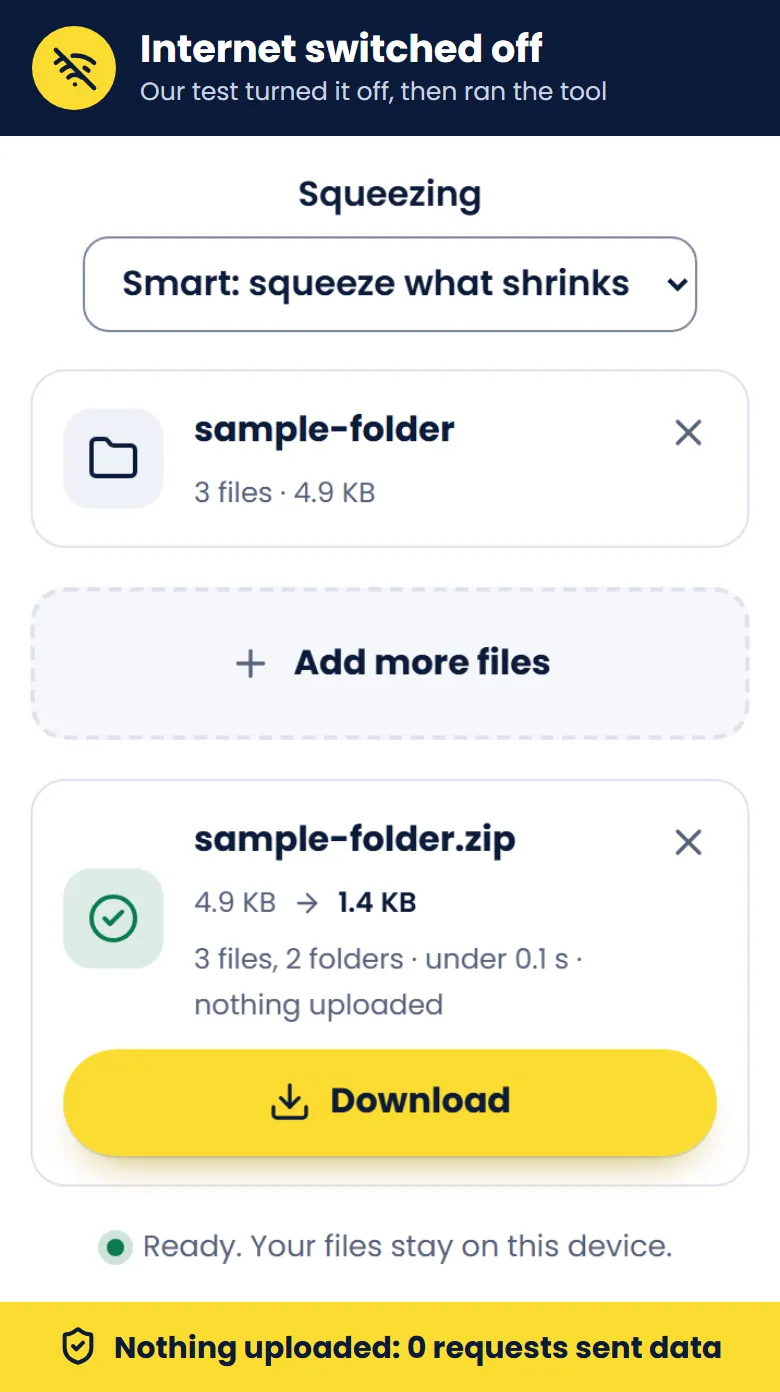
The page reads your files and makes the ZIP inside your browser. It has no upload step, and it works with the internet switched off once loaded, which is an easy way to see that your files are never uploaded. Google's ad code runs on the page too, but our code never gives it your files or their names. How we prove it shows how anyone can check.
Problems and fixes
- "This device ran out of room for the result."
- The disk is full, or the browser's share of it is. Free some space, or make two smaller ZIPs.
- "A file changed or was moved while it was being read."
- A file was edited, moved or deleted while the page read it. Add it again and create the ZIP once more.
- The phone's tab reloaded and the ZIP is gone
- The phone ran short of memory. Zip fewer files at once, close other apps, or use a computer for very big folders.
- The ZIP is hardly smaller than the files
- They are photos, videos or Office files, which are packed already. That is normal; see Which files shrink.
- Names look odd after unzipping
- An old unzip program that doesn't read UTF-8 names. Use the computer's own unzip, 7-Zip, or Unzip Files.
Limits
- No password yet. The ZIP is not locked. For a locked file, put the papers in one PDF and lock it with Protect PDF.
- No split ZIPs (.z01, .z02 …): the ZIP is always one file.
- ZIP only here: no RAR or 7z. For Linux and servers, Create TAR.GZ makes a .tar.gz, and GZIP Compressor squeezes a single file into a .gz.
- No adding to an existing ZIP. Unzip it, add the files to the folder, and zip the folder again.
- One squeezing level, the browser's own deflate: 7-Zip's highest settings can sometimes make text a little smaller, more slowly.
Other ways to make a ZIP
- Windows: right-click the files, Send to, Compressed (zipped) folder. Windows 11 also has Compress to ZIP file on the right-click menu.
- Mac: select the files, right-click, Compress.
- Android: many phone file managers, such as Samsung's My Files, can compress files you select.
- 7-Zip (free, Windows) has more settings, including passwords.
This page is useful where those aren't at hand: a borrowed or office computer you can't install on, a Chromebook, or a phone whose file manager has no zip option.
Terms explained
- ZIP
- One file that holds many files and folders, usually squeezed. Every computer and phone can open one.
- Deflate
- The squeezing method nearly every ZIP uses. It finds repeats and writes them more briefly, without losing anything.
- Stored
- Packed in a ZIP as it is, without squeezing: right for photos and videos.
- CRC-32
- A check number worked out from all of a file's bytes, kept in the ZIP so an unzip program can tell the file came out right.
- ZIP64
- The part of the ZIP standard for archives past 4 GB or 65,535 files.
- Lossless
- Nothing is lost: every byte comes back exactly. Zipping is lossless; making a photo smaller usually isn't.