What Remove Line Breaks does, and when you need it
Remove Line Breaks takes the line breaks out of the text you paste, type or open, and shows the result in a second box, ready to copy or download. A line under the result says how many breaks were removed. The box on top, with your own text, is never changed. It runs in your browser: your text is never uploaded and never saved, so closing the page forgets it.
Some jobs it is made for:
- Text copied from a PDF or a scanned book. It often comes with a line break at the end of every line, so that pasted into a form, an email or a document it looks broken into short pieces.
- An email or a message with hard wraps. Some emails and messages arrive with their lines broken at a fixed length.
- A list that must become one line. Names, items or numbers, one on each line, joined with commas.
- A box that does not take new lines. If a text field on a form or an app turns line breaks into odd signs or refuses them, join the lines first.
- An address or a poem on one line, with a space or a comma between the lines.
It does not open Word or PDF files, so copy the text out of them first. It cannot guess where paragraphs were if the text has no blank line between them. And it cleans only the line breaks and the spaces around them: it does not fix spelling, capitals, page numbers or columns.
Step by step: removing line breaks
It takes a few seconds, and the same steps work on a phone and on a computer:
- Put your text in the top box. Paste it with the Paste button, with Ctrl+V, or by pressing and holding in the box on a phone. You can also type it, choose Open a text file, or drop a text file anywhere on the page. To see how it works first, press Try a sample: it fills the box with two short paragraphs, wrapped at the end of each line, and replaces whatever was there.
- Choose what replaces each line break under "Replace each line break with": A space (the usual choice), Nothing, or A comma and a space. The result changes at once.
- Tick the boxes you need. "Keep blank lines between paragraphs" keeps each paragraph apart. "Remove extra spaces" tidies the spaces. "Join words split by a hyphen at the end of a line" mends words that a line end cut in two. All three are off to begin with.
- Read the result and the line under it. It says, for example, "5 line breaks removed." or "3 line breaks removed; 2 kept between paragraphs." If the text has no line breaks, it says "There are no line breaks in this text."
- Copy or download. Copy puts the whole result on the clipboard. Download saves it as a text file called text-without-line-breaks.txt, exactly as shown, with nothing added at the end.
- Clear when you finish. Clear empties the top box. If you opened a file, the x beside its name removes the file's text. The tool doesn't save your text, so closing or reloading the page also gives you an empty box.
What is removed, and how
The text is cut into lines and put back together without the breaks. The rules are written here in full, and the same rules are checked by our tests.
| Part | The rule | Example |
|---|---|---|
| A line break | A line feed, a carriage return, a Windows pair of the two (counted once), and the Unicode next line (U+0085), line separator (U+2028) and paragraph separator (U+2029). A vertical tab and a form feed are not line breaks | A Windows file's a, break, b has 1 line break |
| Blank lines | A line with nothing in it, or only spaces and tabs, is blank. Blank lines are dropped, at the start, the end and in between, so no extra space is left where they were | a, blank line, b becomes a b |
| Replace with | A space, nothing, or a comma and a space. A line keeps its own spaces, so a line that ends in a space joined with a space gives two, unless Remove extra spaces is on | With a comma and a space, red, green, blue on three lines becomes red, green, blue |
| Keep blank lines | The lines between two blank lines (a paragraph) are joined, and the paragraphs are kept apart by one blank line, however many there were | Two wrapped paragraphs stay two paragraphs, each on one line |
| Remove extra spaces | Every run of spaces, tabs and other spaces inside a line becomes one space, and each line is trimmed at both ends before the lines are joined | a b becomes a b |
| Join words split by a hyphen | When a line ends with a hyphen right after a letter and the next line starts with a small letter, the hyphen goes and the two parts are joined with nothing. A soft hyphen at the end of a line always goes. A word that is spelled with a hyphen is joined too when the line breaks after it (well-known, split after the hyphen), so check such words | exami-, break, nation becomes examination |
A few small texts show the rules at work. Each was run through the page's own code, with the options named in the second column and the others off:
| Text | Options | Result | The line says |
|---|---|---|---|
a, b, c on three lines | none | a b c | 2 line breaks removed. |
a, a blank line, b | none | a b | 2 line breaks removed. |
a and b split by a Windows break | none | a b | 1 line break removed. |
abc with a break at the end | none | abc | 1 line break removed. |
| Three blank lines and nothing else | none | (empty) | 3 line breaks removed. |
a, a space, a break, b | none | a, two spaces, b | 1 line break removed. |
a, a space, a break, b | Remove extra spaces | a b | 1 line break removed. |
red, green, blue on three lines | A comma and a space | red, green, blue | 2 line breaks removed. |
a, a vertical tab, b | none | a, a vertical tab, b (unchanged) | There are no line breaks in this text. |
Some things are not settled by any rule. The page cannot know which hyphens belong to a word, so Join words split by a hyphen is off to begin with. A text whose paragraphs are not separated by a blank line cannot be split back into paragraphs: the page sees one paragraph. And the result is always made from the text in the top box, which the page never changes, so you can try the choices one after another.
Real results from our tests
We tested Remove Line Breaks with headless Chromium 148, the open-source browser Chrome is built on, on a Windows laptop with an Intel Core i7-1185G7 and 32 GB of memory, on 10 October 2026. Other work was running on the laptop at the same time, so times vary a little from run to run: each time below is the middle one of 3 runs.
Removing is quick. It took 33 milliseconds or less to remove the line breaks from 500,000 characters of English, Hindi or a mix of English, Hindi, Tamil and emoji with every option on: lines joined, blank lines kept between paragraphs, extra spaces removed and split words joined, the most the page takes at once.
After a text is put in the box, the page waits 0.15 second before it changes it, so a burst of typing is changed once, and 0.4 second when the text has more than 400,000 characters. So the result of 500,000 characters showed between 0.43 and 0.45 second after the paste in our test. A result of more than 100,000 characters shows only its first 100,000 in the box, and says so, because showing a very long text is slow for the browser, most of all for Hindi and Tamil. Copy and Download take all of it.
Checked against a second program. We removed the line breaks from 3,000 random texts and 24 awkward ones with this page's code and again with a separate Python program, in all 24 combinations of the options: 3 ways to join, with and without keeping paragraphs, removing extra spaces and joining split words. That is 72,576 results, and all of them were the same. The texts had lines of English, Hindi, Tamil and emoji, spaces, tabs and no-break spaces, blank lines, hyphens and soft hyphens at the ends of lines, and every kind of line break.
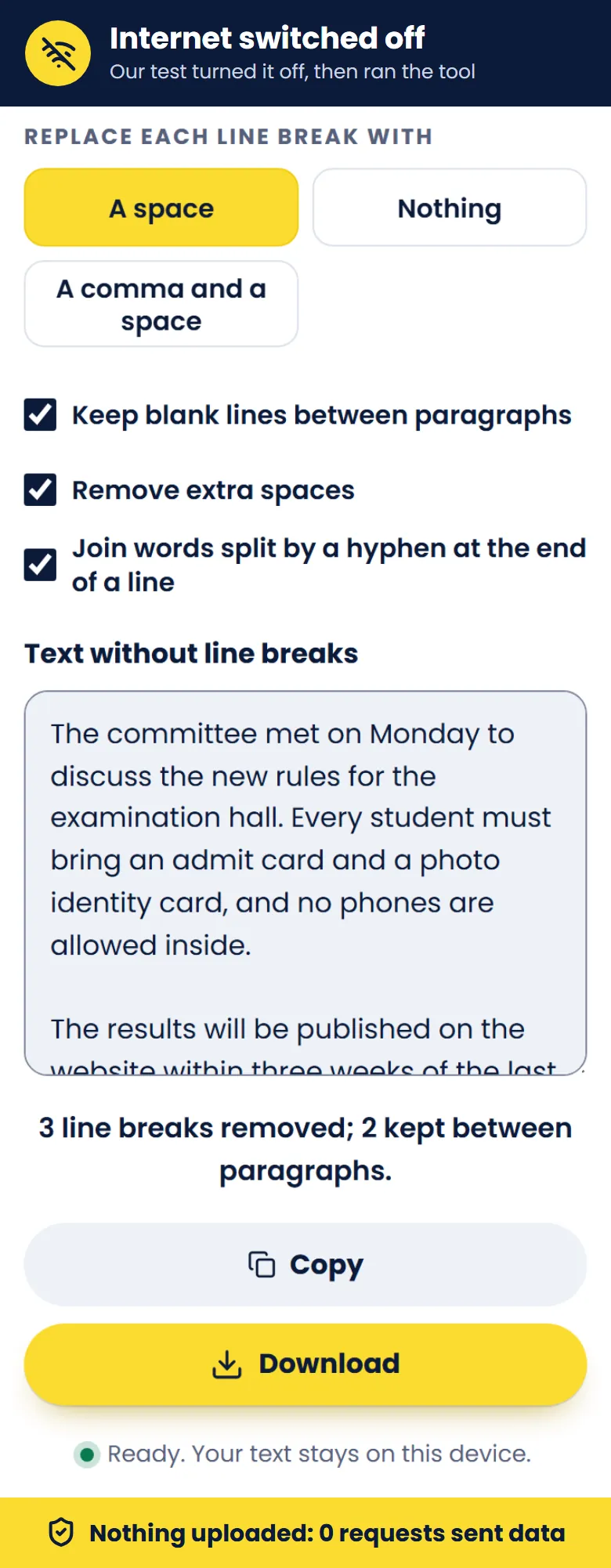
Size and offline. On a first visit the page downloads about 0.1 MB for the tool: the page, its styles, its script and the fonts, with Google's ad code not counted. In our test we switched the network off after the page had loaded and pressed Try a sample and turned on all three boxes: the result showed 0.2 seconds later in each of 15 runs.
Phone-sized screen. We also ran every test on a phone-sized screen in headless Chromium (390 × 844 pixels, with touch). Every button and box was 44 pixels high or more, and the page did not scroll sideways. These tests don't cover Safari or Firefox.
Try it yourself: press "Try a sample" at the top of this page. It puts two short paragraphs in the box, wrapped at the end of each line, with the word examination split by a hyphen. Turn on all three boxes: the result is two paragraphs, examination is whole again, and the page says 3 line breaks removed; 2 kept between paragraphs.
Try the sampleFixing text copied from a PDF
Text copied from a PDF, an email or a scanned book often arrives with a line break at the end of every line. A PDF page is laid out line by line rather than as flowing paragraphs, so text copied from it often keeps the ends of the lines. Pasted into a form or a document, such text breaks into short pieces. Remove Line Breaks puts it back together.
Here is the sample text, as it comes out of a PDF: two paragraphs, wrapped at the end of each line, with the word examination split by a hyphen.
The committee met on Monday to discuss the new rules for the exami-
nation hall. Every student must bring an admit card and a photo
identity card, and no phones are allowed inside.
(a blank line)
The results will be published on the website within three weeks
of the last paper.
The recipe, step by step
| Options on | The line says | What you get |
|---|---|---|
| None | 5 line breaks removed. | One paragraph, with the blank line gone. exami- nation is still split |
| Keep blank lines between paragraphs | 3 line breaks removed; 2 kept between paragraphs. | Two paragraphs, each on one line, with a blank line between them. exami- nation is still split |
| Keep blank lines, Remove extra spaces | 3 line breaks removed; 2 kept between paragraphs. | The same here, because this sample has no extra spaces. Text from a real PDF often does |
| All three boxes | 3 line breaks removed; 2 kept between paragraphs. | Two paragraphs, and examination whole |
The final result of the recipe is:
The committee met on Monday to discuss the new rules for the examination hall. Every student must bring an admit card and a photo identity card, and no phones are allowed inside.
The results will be published on the website within three weeks of the last paper.
For text from a PDF, that is a good starting point: Keep blank lines between paragraphs on, Remove extra spaces on, and Join words split by a hyphen on. Then read the result once, as the next part explains.
What to check
- Words with a hyphen of their own. If
well-knownwas cut after its hyphen, joining turns it intowellknown. Search the result for words you know have a hyphen. - Columns and tables. Text copied from a page with two columns, or from a table, comes in an order that depends on the PDF. Joining lines does not put it in order, so check the result against the PDF, or copy one column at a time.
- Page numbers, headings and footers that came along with the text stay in it, as they were.
- Scanned pages. A PDF made of scans holds pictures, not text, so there is nothing to copy.
If you want the PDF's text with its headings, lists and pictures kept, PDF to Word turns a PDF that has real text into a Word file, page by page. Remove Line Breaks is for when you want plain text that flows. We do not claim anything about how other programs copy text from a PDF.

Keeping paragraphs apart
A paragraph, for this tool, is the lines between blank lines. By default the blank lines go, with every other break, and the whole text becomes one line. Tick Keep blank lines between paragraphs and the tool joins the lines inside each paragraph and keeps the paragraphs apart with exactly one blank line, however many blank lines there were between them. Blank lines at the start and at the end of the text go.
Here is a text with five lines of words and blank lines of different sizes between them:
| The text | Keep blank lines on gives |
|---|---|
Line one, Line two, a blank line, Line three, Line four, three blank lines, Line five | Line one Line two, a blank line, Line three Line four, a blank line, Line five. The line says "4 line breaks removed; 4 kept between paragraphs." |
The count works like this. The breaks are the number of lines minus one (a Windows break counts once). Each gap between two kept paragraphs is a blank line, which is 2 breaks: the end of the last line and the blank line itself. Removed is the breaks minus the kept ones.
A letter, as an example
A letter in which the paragraphs are separated by blank lines works well. Dear Sir,, a blank line, I write to apply and for the post of clerk. on two lines, a blank line, Yours faithfully, and Ravi on two lines, give:
Dear Sir,
I write to apply for the post of clerk.
Yours faithfully, Ravi
The signature block was joined into one line, because the page cannot know that a name should stay on its own line. The line says "2 line breaks removed; 4 kept between paragraphs." If a part must stay on separate lines, join the rest and put that part back by hand.
A text with no blank lines
If your text has no blank line between its paragraphs, it is one paragraph for the tool, and with Keep blank lines on it comes out as one line. The page cannot tell where the paragraphs began. In that case, mark the paragraphs yourself with a blank line before you paste, or join them and press Enter where you want a new paragraph afterwards.

Joining words split by a hyphen
When a line is too long for the page, a document may cut a word at the end of the line and add a hyphen. After the lines are joined, you see the word in two pieces with a hyphen in the middle, like exami- nation. The option Join words split by a hyphen at the end of a line mends them.
The rule is exact:
- It joins when a line ends with a hyphen-minus (the ordinary - key) right after a letter, and the next line starts with a small letter. The hyphen goes and the two parts are joined with nothing, whatever you chose under "Replace each line break with".
- A soft hyphen, an invisible mark that says where a word may be split, at the end of a line always goes, whatever follows.
- It does not join when the next line starts with a capital, a digit or a sign, when the hyphen follows a digit or a space, or when the next line starts with a letter that has no small form, such as a Hindi letter.
| The end of one line and the start of the next | With the option on |
|---|---|
exami- and nation | examination |
inter and a soft hyphen, then national | international |
well- and known | wellknown (the hyphen belonged to the word) |
well- and Known | well- Known (a capital follows: not joined) |
pre- and 2020 | pre- 2020 (a digit follows: not joined) |
1- and 2 | 1- 2 (a digit before the hyphen: not joined) |
a -- and b | a -- b (a dash, not a split word) |
एक- and दूसरा | एक- दूसरा (Hindi has no small letters: not joined) |
The same pair of lines, con- and tinue, with the option off gives con- tinue.
Why it is off to begin with
The page cannot know whether a hyphen at the end of a line was added by the document to split a word or belongs to the word. The rule above is a good guess for ordinary text, and the third row shows where it goes wrong: well-known cut after its hyphen is joined into wellknown. Because a wrong join is harder to spot than a leftover hyphen, the option is off to begin with. Tick it when you are mending text from a PDF or a book, and read the result.
Scripts with no small letters, such as Hindi, are never joined by this option.
Lists, addresses and other uses
Removing line breaks is useful for more than text from a PDF.
A list on one line
Choose "A comma and a space" and a list with one item on each line becomes one line with commas:
| The text | Replace each line break with | Result |
|---|---|---|
red, green, blue on three lines | A comma and a space | red, green, blue |
red, green, blue on three lines | A space | red green blue |
red, green, blue on three lines | Nothing | redgreenblue |
red, a blank line, green, two blank lines, blue | A comma and a space | red, green, blue (blank lines are dropped) |
An address on one line
A postal address of three lines, Flat 4B, 12th Cross, MG Road and Bengaluru 560001, becomes Flat 4B, 12th Cross, MG Road, Bengaluru 560001 with a comma and a space, and Flat 4B, 12th Cross MG Road Bengaluru 560001 with a space. The comma choice is the one to use when every line ends without a comma of its own. (These are made-up addresses.)
A poem or a song on one line
Four lines, Roses are red, Violets are blue, Sugar is sweet and And so are you, become Roses are red Violets are blue Sugar is sweet And so are you with a space.
Hindi, Tamil, Chinese and other scripts
Hindi, Tamil and many other languages put spaces between words, so a space is the right choice, and हिंदी and पाठ on two lines become हिंदी पाठ. Chinese and Japanese are written without spaces between words: 你好 and 世界 on two lines become 你好世界 if you choose Nothing. Choose Nothing for Hindi or Tamil only when the line break itself cut a word in two, because then the two halves must join with no space: हिंदी and पाठ become हिंदीपाठ. Read the result either way. To go the other way, and put each item of a comma list on its own line, use Find and Replace with \n; then Sort Lines or Add Line Numbers can work on the lines.
Opening a text file
Choose Open a text file, or drop a file anywhere on the page, and the tool reads it on your device. These files open: .txt, .md, .csv, .tsv, .log, .json, .xml, .srt, .vtt, .html and other plain-text files, with up to 500,000 characters. The file's name and size appear below the box with an x. Press the x to remove the file's text. The file is read on your device and never uploaded. The result can be copied, or saved as a new text file; the file you opened is never changed.
- Letters. A file saved as UTF-8 (a byte order mark at the start is dropped) or as UTF-16 with a mark is read correctly, Hindi and Tamil included. A file that is not valid UTF-8 is read as Windows-1252, and the page says so: "This file isn't saved as UTF-8, so it was read as Windows-1252. If letters look wrong, save it as UTF-8 and add it again."
- Windows line breaks. A Windows file stores a break as two characters. The tool finds it and counts it as one break.
- Several files. Only the first one opens, and the page says so, for example "Opening a.txt only. Open the others one at a time."
- Not a text file. A Word, PDF or picture file renamed to .txt is not read, and the page says it doesn't look like a text file. A file named .docx, .pdf or .rtf gets this message: "Only text files (.txt and similar) can be opened here. For a Word or PDF file, copy its text and paste it into the box."
- Empty or too long. An empty file says it is empty. A file with more than 500,000 characters is not opened, and the page says how many characters it has.
For a Word or PDF file, open it in the program you normally use, select the text, copy it, and paste it into the box. A PDF whose pages are scans holds pictures, not text, so there is nothing to copy.
Private: your text stays on your device
Your text never leaves your device. The tool runs inside your browser and has no upload step: it never sends the text you type, paste or open anywhere, and it keeps no copy of your text, so closing the page forgets it. The page's Content Security Policy lets it contact only this site and Google's ad service, which pays for the site; our code never gives your text to the ad code. You can check it yourself in your browser's network panel (F12 on a computer): removing line breaks adds no request that carries your text. The site's menu does remember the last few tools you opened, on your device.
The text you tidy is often personal: a statement, a letter, a contract, a message or notes. This tool lets you join its lines without handing it over. Our privacy policy says what we collect, and How we prove it shows how you can check our claims yourself.
Once the page has loaded, it also works with the internet switched off. In our test we switched the network off after the page had loaded, pressed Try a sample and turned on all three boxes, and the result showed 0.2 seconds later in each of 15 runs (the real results above have the details).
Long texts
The tool takes up to 500,000 characters at once, about 500 KB of English text. What happens when a text is longer:
- A paste that would go over the limit is not added. This holds for Ctrl+V, for press and hold, and for the Paste button. The page says, for example: "That text is very long (550,000 characters), so it was not added. The box can hold 500,000 characters. Split it into smaller parts for faster results."
- A file with too many characters is not opened. The page says, for example: "long.txt has 550,000 characters, more than the 500,000 counted at once. Split it into smaller parts for faster results."
- A text that gets in some other way stays, unchanged. If text is dragged into the box, for example, it stays there, the result stays empty and the note says: "This text is very long (550,000 characters). Split it into smaller parts for faster results."
Joining lines is quick. In our tests it took 33 milliseconds or less to remove the line breaks from 500,000 characters of English, Hindi or a mix, with every option on. The slow part is the browser showing a very long text in a box, and Hindi and Tamil are the slowest.
That is why a result of more than 100,000 characters shows only its first 100,000 in the box, without cutting an emoji in half. The note says: "Showing the first 100,000 of 164,999 characters. Copy and Download take all of it." (the number depends on your text). Copy and Download always take the whole result. After a paste of 500,000 characters, the result showed between 0.43 and 0.45 second later in our test, because the page waits 0.4 second above 400,000 characters.
Tips
- For PDF text, turn on Keep blank lines between paragraphs, Remove extra spaces and Join words split by a hyphen, then read the result.
- Search the result for hyphens after joining split words, to find words that had a hyphen of their own.
- Use "A comma and a space" for lists. It works with one item on each line, and blank lines are dropped.
- Use "Nothing" only when a line break cut a word in two, or for scripts written without spaces.
- Turn on Remove extra spaces when lines end or start with spaces, so no double space is left where two lines meet.
- Paste as plain text. Text copied from a web page or a document can carry spaces and symbols you did not mean to include.
- Try the choices one after another. The top box is never changed, so you can change an option and see the new result at once.
- For a Word or PDF file, copy the text out of it first, and paste it into the box.
- Keep your own copy of the text. The tool keeps no copy of your text, so save anything you need before you close the page.
- Then fix the capitals. The Case Converter turns capitals into normal sentences.
- Check a limit. The Character Counter and the Word Counter count the joined text.
- See what changed: paste the text from before and after into Text Compare to check every join and every removed space.
Limits
- Text only. It works on typed, pasted or opened text. It does not open Word, PDF or picture files: copy the text out of them first.
- 500,000 characters at once about 500 KB of English text. A longer paste or file is not added, and the page says so. Showing a long text in a box is slow for the browser, most of all for Hindi and Tamil.
- Paragraphs need a blank line. A paragraph is the lines between blank lines. A text whose paragraphs have no blank line between them is one paragraph, and the page cannot tell where they were.
- Hyphens are guessed. A hyphen at the end of a line followed by a small letter is taken for a split word. A word spelled with a hyphen that happens to break there is joined too.
- No other cleaning. It does not fix spelling, columns, tables or page numbers that came with the text, and it does not change capitals.
- Your text is not kept. The text and the result are forgotten when you close the page.
- Browsers. Tested through our agentic testing workflow, in headless Chromium at phone and computer sizes. These tests don't cover Safari or Firefox, so we cannot promise how they behave.
Terms explained
- Line break
- What Enter puts into text. A computer may store it as one character or as two, and this tool counts it once.
- Paragraph
- Lines of text between blank lines.
- Hard wrap
- A line break put at the end of every line, as in text copied from a PDF or an email. The lines were not broken by you but by the program that made them.
- Hyphenation
- Splitting a long word with a hyphen at the end of a line, as in exami- and nation.
- Soft hyphen
- An invisible mark that says where a word may be split at the end of a line. This tool removes it when it joins the lines.
- Carriage return and line feed
- The two characters a Windows file uses for one line break. Other systems use one of them on its own.