What Find and Replace does, and when you need it
Find and Replace changes every place a word or a phrase appears in a text, at once. Type what to find and what to put in its place, and the changed text appears in the second box, ready to copy or download, with a line that says how many replacements were made. Leave Replace with empty to delete what you find. The box with your own text is never changed, so you can try again.
Three tick boxes decide what counts as a match: Match capital letters, Whole words only, and Use a regular expression, a small pattern language for finding things like phone numbers or dates. Typing \n in a box stands for a new line, so you can also split a list into lines or join lines into one. It runs in your browser: your text is never uploaded and never saved, so closing the page forgets it.
Some jobs it is made for:
- A name or a date changed throughout a letter, an application or a template.
- A word spelled two ways, such as colour and color, made the same.
- A list separated by commas put one item to a line, or the other way round.
- Unwanted words or symbols deleted everywhere, such as Rs. replaced with ₹.
- Numbers reformatted, such as phone numbers split into two groups of five, with a regular expression.
Step by step: replacing words
It takes a few seconds, and the same steps work on a phone and on a computer:
- Put your text in the top box. Paste it with the Paste button, with Ctrl+V, or by pressing and holding in the box on a phone. You can also type it, choose Open a text file, or drop a text file anywhere on the page.
- Type what to find in Find. The page waits for it: until Find has something in it, the note says "Type what to find."
- Type the new words in Replace with, or leave it empty to delete every match.
- Tick the boxes you need. All three are off at first: capital letters don't matter, a match can be part of a longer word, and what you type is plain text.
- Read the line under the result, for example "2 replacements made." or "Not found in the text."
- Copy or download the result.
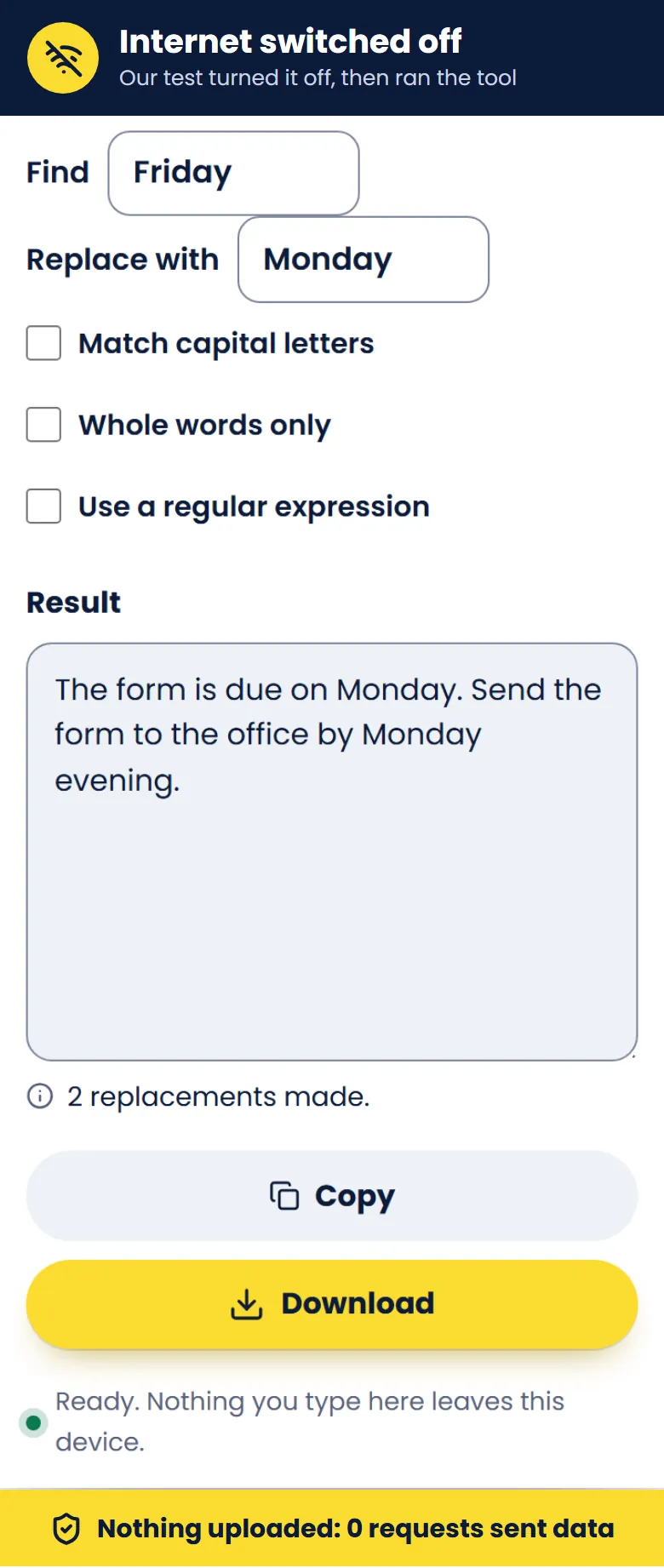
Press Try a sample: the box fills with The form is due on Friday. Send the form to the office by Friday evening., Find gets Friday and Replace with gets Monday. The result says Monday twice, and the page says 2 replacements made.
How it finds and replaces, exactly
The tool looks through the whole text from the start and replaces every match, not only the first. The rules are written here in full, and the same rules are checked by our tests.
| Part | The rule | Example |
|---|---|---|
| Every match | All the places the words appear are replaced, and counted | The sample: 2 replacements made |
| Capital letters | Off at first: capitals don't matter, accented letters included. Tick Match capital letters to change only the exact form | cat finds Cat, cat and CAT; école finds ÉCOLE |
| Part of a word | Off at first, a match can be inside a longer word. Tick Whole words only to match only a word on its own | cat to dog: category becomes dogegory, unless Whole words only is ticked |
| A whole word | The match must not have a letter, a digit or an underscore of any script right before or after it | भारत in भारत, भारत महान is found twice |
| Plain text | Without Use a regular expression, every character means itself, dots and brackets included | . in a.b.c finds the 2 dots |
| New line and tab | \n typed in Find or Replace with stands for a line break, \t for a tab and \\ for one backslash | Find , , replace with \n: one item a line |
| Delete | With Replace with empty, every match is taken out | these deleted from remove these words please |
| Nothing found | The text stays as it was, and the note says "Not found in the text." | A spelling that doesn't appear |
Matches don't overlap: once a part of the text is replaced, the search goes on after it. What you put in is never searched again, so replacing a with aa doubles each a once, and does not run on for ever.
Real results from our tests
We tested Find and Replace with headless Chromium 148, the open-source browser Chrome is built on, on a Windows laptop with an Intel Core i7-1185G7 and 32 GB of memory, on 1 November 2026. Other work was running on the laptop at the same time, so times vary from run to run: each time below is the middle one of 3 runs.
Replacing is quick. It took 3 milliseconds or less to replace a short word everywhere in 500,000 characters of English, Hindi or a mix of English, Hindi, Tamil and emoji, matching whole words only, the most the page takes at once.
After a text is put in the box, the page waits 0.15 second before it works, so a burst of typing is worked on once, and 0.4 second when the text has more than 400,000 characters. So the result of 500,000 characters of English showed between 0.50 and 0.52 second after it was put in the box in our test. A result of more than 100,000 characters shows only its first 100,000 in the box, and says so, because showing a very long text is slow for the browser; Copy and Download take all of it.
Checked by our tests. Every example on this page is one of our tests, run on the page's own code. They cover capitals with the box on and off, whole words in English and Hindi, special characters as plain text, groups put back with $1 to $3, \n and \t typed in both boxes, a bracket left open, and taking the numbers off a numbered list.
Size and offline. On a first visit the page downloads about 0.1 MB for the tool: the page, its styles, its scripts and the fonts, with Google's ad code not counted. In our test we switched the network off after the page had loaded and pressed Try a sample: the result showed 0.2 seconds later or less in each of 15 runs.
Phone-sized screen. We also ran the tests on a phone-sized screen in headless Chromium (390 × 844 pixels, with touch). That is not a real phone. Every button, box and tick box was 44 pixels high or more, and the page did not scroll sideways. These tests don't cover Safari or Firefox.
Try it yourself: press "Try a sample" at the top of this page. It puts a sentence with Friday twice in the box, with Friday in Find and Monday in Replace with. The result says Monday twice, and the page says 2 replacements made. Then tick Match capital letters and type friday in Find: the page says Not found in the text.
Try the sampleNew lines and tabs: splitting and joining lines
The two boxes are one line each, so a line break can't be typed into them. Instead, type a backslash and an n, \n, and the tool reads it as a line break; \t is a tab. To find a real backslash followed by n, type two backslashes: \\n.
- A comma list to one item a line: find
,(a comma and a space) and replace with\n.red, green, bluebecomes three lines:red,greenandblue. - Lines to a comma list: find
\nand replace with,. Two linesaandbbecomea, b. Remove Line Breaks does this too, and can keep paragraphs apart. - Spaces to tabs, for a spreadsheet: find a space and replace with
\t, then paste the result into a sheet.
Once the items are on their own lines, Sort Lines can put them in order, Remove Duplicate Lines can take out the repeats, and Reverse Text can put them last line first.

Regular expressions, in plain words
Tick Use a regular expression and Find reads a pattern instead of plain words. The patterns are JavaScript's, the same as many programs use. A few pieces cover most needs:
.means any one character, so.ina.b.cnow matches all 5 characters.\dis a digit from 0 to 9 (not Hindi digits), and\d{5}is five of them.\sis a space, a tab or a line break;\s?means one or none.?makes the character before it optional:colou?rfinds colour and color.( )around part of a pattern makes a group, and$1,$2up to$9in Replace with put each group back.\.is a real dot; any special character is made plain with a backslash before it.
Two things work differently from some programs. ^ and $ mean the start and the end of the whole text, not of each line: ^Dear on two lines that both start with Dear changes only the first. To match the start of every line, use (^|\n) and put $1 back, as the next section shows. And $1 means a group only with Use a regular expression ticked: in plain text, $1 is just a dollar sign and a 1.
If a pattern can't be read, for example a bracket left open, the text stays as it was and the page says: "That regular expression can't be read. Check its brackets and special characters."
Ready-made patterns
Tick Use a regular expression for these. Each was checked on the example shown:
| To do this | Find | Replace with |
|---|---|---|
Split 10-digit numbers into two groups: 98765 43210 to 98765-43210 | (\d{5}) (\d{5}) | $1-$2 |
Turn dates round: 2026-10-30 to 30/10/2026 | (\d+)-(\d+)-(\d+) | $3/$2/$1 |
Rs. and Rs to ₹: Rs. 500 and Rs.700 to ₹500 and ₹700 | Rs\.\s? | ₹ |
| Both spellings: colour and color | colou?r | the word you want |
Take the numbers off a numbered list: 1. Buy milk to Buy milk | (^|\n)\d+\. | $1 |
Rename numbered files: file1.txt to doc-1.txt | file(\d+) | doc-$1 |
Check the note after each change: if it says more or fewer replacements than you expected, the pattern matched something else too. The top box keeps your original, so a wrong pattern costs nothing.
Opening a text file
Choose Open a text file, or drop a file anywhere on the page, and the tool reads it on your device. These files open: .txt, .md, .csv, .tsv, .log, .json, .xml, .srt, .vtt, .html and other plain-text files, with up to 500,000 characters. The file's name and size appear below the box with an x; press the x to remove the file's text. The file is read on your device and never uploaded. The result can be copied, or saved as a new text file; the file you opened is never changed.
- Letters. A file saved as UTF-8 (a byte order mark at the start is dropped) or as UTF-16 with a mark is read correctly, Hindi and Tamil included. A file that is not valid UTF-8 is read as Windows-1252, and the page says so: "This file isn't saved as UTF-8, so it was read as Windows-1252. If letters look wrong, save it as UTF-8 and add it again."
- Windows line breaks. A Windows file stores each line break as two characters. The tool reads the pair as one line break, so a line break found with \n is found in a Windows file too.
- Several files. Only the first one opens, and the page says so, for example "Opening a.txt only. Open the others one at a time."
- Not a text file. A Word, PDF or picture file renamed to .txt is not read, and the page says it doesn't look like a text file. A file named .docx, .pdf or .rtf gets this message: "Only text files (.txt and similar) can be opened here. For a Word or PDF file, copy its text and paste it into the box."
- Empty or too long. An empty file says it is empty. A file with more than 500,000 characters is not opened, and the page says how many characters it has.
For a Word or PDF file, open it in the program you normally use, select the text, copy it, and paste it into the box. A PDF whose pages are scans holds pictures, not text, so there is nothing to copy.
Private: your text stays on your device
Your text never leaves your device. The tool runs inside your browser and has no upload step: it never sends the text you type, paste or open anywhere, and it keeps no copy of it, so closing the page forgets it. The page's Content Security Policy lets it contact only this site and Google's ad service, which pays for the site; our code never gives your text to the ad code. You can check it yourself in your browser's network panel (F12 on a computer): finding and replacing adds no request that carries your text. The site's menu does remember the last few tools you opened, on your device.
Text you edit is often personal: a letter, a contract, a list of names or a message. This tool lets you change words in it without handing it over. Our privacy policy says what we collect, and How we prove it shows how you can check our claims yourself.
Once the page has loaded, it also works with the internet switched off. In our test we switched the network off after the page had loaded and pressed Try a sample, and the result showed 0.2 seconds later or less in each of 15 runs.
Long texts
The tool takes up to 500,000 characters at once, about 500 KB of English text. What happens when a text is longer:
- A paste that would go over the limit is not added. This holds for Ctrl+V, for press and hold, and for the Paste button. The page says, for example: "That text is very long (550,000 characters), so it was not added. The box can hold 500,000 characters. Split it into smaller parts for faster results."
- A file with too many characters is not opened. The page says, for example: "long.txt has 550,000 characters, more than the 500,000 counted at once. Split it into smaller parts for faster results."
- A text that gets in some other way stays, unchanged. If text is dragged into the box, for example, it stays there, the result stays empty and the note says: "This text is very long (550,000 characters). Split it into smaller parts for faster results."
Replacing is quick. In our tests it took 3 milliseconds or less to replace a short word everywhere in 500,000 characters of English, Hindi or a mix of English, Hindi, Tamil and emoji, matching whole words only. The slow part is the browser showing a very long text in a box, so a result of more than 100,000 characters shows only its first 100,000, without cutting an emoji in half, and the note says so, for example "Showing the first 100,000 of 164,999 characters. Copy and Download take all of it." Copy and Download always take the whole result.
Tips
- Check the count. The note says how many replacements were made; compare it with what you expected. To see beforehand how often a word appears, use Word Frequency Counter.
- Tick Whole words only for short words, so
catdoesn't changecategory. - Include the space when deleting a word, as in
these, so no double space is left. - Use \n for a new line, and \t for a tab.
- Try a regular expression on a short sample first, then paste the whole text.
- Do one change at a time. Copy the result into the top box to make a second change on top of the first. To take email addresses, links or numbers out of a text rather than change them, use Extract Emails; to turn titles into web-address slugs, use Text to Slug.
Limits
- One search at a time. For several changes, copy the result back into the top box and run the next one.
- No step-by-step choice. Every match is replaced; you can't skip some of them.
- Start of line.
^and$mean the start and end of the whole text; use(^|\n)for each line. - Groups up to $9.
$10is read as group 1 followed by 0. - Digits are 0 to 9.
\ddoesn't match Hindi or other scripts' digits. - 500,000 characters at once, about 500 KB of English text. Text only: copy text out of Word or PDF files first.
Terms explained
- Match
- A place in the text where what you are looking for appears.
- Whole word
- A match with no letter, digit or underscore right before or after it.
- Case sensitive
- Treating capital and small letters as different. Match capital letters makes the search case sensitive.
- Regular expression
- A pattern that describes text, such as five digits or a word with or without a u.
- Group
- A part of a regular expression in brackets, which $1 to $9 put back in the replacement.
- Escape
- A backslash before a character that changes its meaning, as in \n for a new line or \. for a real dot.