What WebP to JPG does, and when you need it
WebP to JPG saves your WebP pictures again as JPG files. It all happens inside your browser, so your pictures are never uploaded, and there is no sign-up and no watermark. Each picture gives a new JPG, and your WebP files are not touched. You can convert one picture or many at once.
WebP is a newer picture format that websites use to keep their files small. When you save a picture from a website, you often get a .webp file. Then the trouble starts: some apps, older programs and many upload forms only take JPG. A JPG opens almost everywhere, so converting is the quick way out. People use this page for:
- Application and exam forms. Many job, exam and college portals ask for a photo or a signature as a JPG or JPEG. A picture saved from the web as .webp can be refused with a message about the file type. Convert it here, then upload the JPG.
- Sending a picture to someone. A relative, a friend or a print shop may have a phone, a program or a printer that can't open WebP. A JPG is the safe choice.
- Documents and slides. Some word processors, slide programs and editing apps don't take WebP pictures. A JPG can be placed almost anywhere.
- Listings and profile photos. Marketplaces, social profiles and office or school systems often name JPG among the file types they take.
- Stickers. WhatsApp stickers are WebP files. You can turn one into an ordinary picture, though its see-through parts become a flat colour and a moving sticker gives only its first frame.
- Hidden details. The JPG does not carry the camera, the date or the GPS place that were stored inside the WebP, which helps before you share a picture in public.
Want a PDF? You may not need to convert at all: JPG to PDF takes WebP pictures too and puts them into one PDF. To go the other way, from JPG to WebP, use JPG to WebP.
To keep every pixel instead, as a lossless file, a JPG can then be turned into a PNG with JPG to PNG.
Real results from our tests
We converted test pictures with this page in headless Chromium 148, the open-source browser Chrome is built on, on a Windows laptop with an Intel Core i7-1185G7 and 32 GB of memory, on 9 October 2026. Our own script drew the pictures to look like real ones (a photo with the camera, date and place stored inside, a logo on a see-through background, a moving WebP and a moving GIF); they are smoother than many real photos, so your own files may give other sizes. Sizes and times are the ones the page showed on each picture's row. We ran each single-picture test three times on a computer busy with other work, and the time from pressing Convert to the end varied (the 2000 × 1500 photo took 0.3 to 0.4 seconds).
| Picture | Before | After | Time | What happened |
|---|---|---|---|---|
| Photo saved from a website, 2000 × 1500 | 69 KB | 207 KB | 0.1 s | 3 times bigger at quality 90; GPS place and camera left out |
| The same photo at quality 70 | 69 KB | 101 KB | 0.2 s | 47% bigger |
| Logo on a see-through background, 800 × 800 | 18 KB | 29 KB | 0.1 s | See-through parts made white |
| Moving WebP, 3 frames, 400 × 300 | 11 KB | 4.8 KB | under 0.1 s | First frame saved as a still picture |
| Moving GIF, 3 frames, 400 × 300 | 8.5 KB | 4.9 KB | under 0.1 s | First frame saved as a still picture |
A WebP from a website has already been squeezed hard once, so the JPG is usually bigger: it keeps the look of the WebP in a format almost every app can open. A separate program (Pillow) compared every JPG with its WebP: at quality 90 the average difference was under 1 level out of 255 (0.73 for the photo), see-through parts came out exactly white, the moving pictures gave their first frame, and no JPG held the camera, the date or the GPS place.
The moving pictures went the other way. One still frame is smaller than three frames, so the moving WebP (11 KB) became a 4.8 KB JPG and the moving GIF (8.5 KB) a 4.9 KB one. Converting all four pictures together (107 KB in all) took 0.48 seconds from pressing Convert, in both of the two runs we made.
On a phone-sized screen (Chromium made to look like a phone, 390 pixels wide, on the same laptop, not a real phone) the photo took 0.1 seconds on its row too, and 0.3 to 0.5 seconds from pressing Convert. Memory: the browser's busiest process used about 200 MB with the page open and nothing converted, and at most 247 MB while converting.
Try it yourself: press "Try with sample pictures" at the top of this page. It draws two WebPs in your browser (a landscape photo and a round logo on a see-through background), so you can try everything without your own files.
Try the samplesStep by step: converting WebP to JPG
Here is the whole way, from a WebP you saved to a JPG you can upload or send:
- Choose your pictures. Press Choose WebP pictures at the top of this page and pick your files. You can also drop them anywhere on the page, or paste pictures you copied. Not sure yet? Press Try with sample pictures: it draws two WebPs in your browser.
- Look at the list. Every picture gets a row with its name and size. The × on a row takes that picture out, and Clear all appears once you have two or more. Add more pictures adds to the list.
- Set the options, or leave them. Quality starts at 90, which suits most pictures. Background is the colour behind any see-through parts, white to start. Size keeps every picture at its size, or limits the width. Choosing the JPG quality and See-through and moving WebPs explain each one.
- Press Convert to JPG. The button tells you how many pictures it will convert, such as Convert 3 pictures to JPG. They are converted one at a time on your device. A bar shows the progress, the line under the box says "Working on 3 files. Nothing is uploaded.", and Stop on the picture being converted ends its work.
- Read each row. A finished row shows a small preview, the size before and after, the size in pixels, the time, and a note when something happened, such as "See-through parts are now white, as a JPG can't keep them."
- Download. Press Download on a row, or "Download all 3 as ZIP" once two or more are done. A JPG has the name of its WebP with .jpg at the end: holiday.webp becomes holiday.jpg.
- Changed your mind about an option? Nothing is converted again by itself. Each finished picture offers a button such as "Redo at quality 70" and keeps its first download until you press it. With two or more, "Apply to all 3 files" redoes them together.
Why pictures come as WebP
WebP is a picture format made by Google. It can be lossy (it leaves out some detail to save space) or lossless (it keeps every pixel), it can have see-through parts, and it can move like a GIF. Its big selling point is size: at about the same look, a WebP is often noticeably smaller than a JPG. Smaller pictures make web pages load faster and use less mobile data, so more and more websites, shops and apps send WebP.
You may never have chosen WebP. Some sites send the WebP version of a picture to browsers that can show it, and when you press Save image as, your browser keeps what it received: a .webp file. The picture looks fine in your browser. But a form that wants a JPG, or a program that does not know WebP, may refuse it.
The format is not the problem. The places that don't know it are. Newer apps handle WebP well, but older programs, some print shops and many forms still expect a JPG, which has been the usual photo format for a very long time. Converting gives them what they expect. Here is how the two formats compare:
| WebP | JPG | |
|---|---|---|
| Photos | Yes | Yes |
| See-through parts | Can have them | Cannot |
| Moving pictures | Can move, like a GIF | One still picture only |
| File size for the same look | Often smaller | Often bigger |
| Where it opens | Most browsers and newer apps | Almost every device and program |
What this means when you convert: a JPG can't keep see-through parts or movement, and it is usually bigger than the WebP it came from. In our test, a 69 KB WebP photo became a 207 KB JPG at quality 90. The gain is not size. It is that the JPG opens almost anywhere.

How the conversion works, rule by rule
No picture goes to a converter somewhere else. Your browser can already open a WebP and write a JPG, so this page uses those two skills. For each picture it does the following, one picture at a time, in the background so the page stays smooth:
- Reads the file and looks inside it: its size in pixels, whether it holds hidden details or see-through parts, and how many frames it has.
- Opens the picture, turned the right way up if it carries a note about how the camera was held.
- Draws it on a blank canvas in memory, with the Background colour behind it.
- Saves it as a JPG at the quality you chose, as a new file for you to download.
Your WebP file is never changed. These are the exact rules:
- Size in pixels. The JPG has the same width and height as the WebP, unless you choose Max width. A 2000 × 1500 WebP gives a 2000 × 1500 JPG.
- Max width. Pictures wider than the number you type are made smaller, keeping their shape. None is made bigger. The number can be 16 to 16384, and 1600 is filled in for you. At a Max width of 1600, a 4000 × 3000 picture becomes 1600 × 1200, a taller 3000 × 4000 picture becomes 1600 × 2133, and a 1200-pixel-wide picture stays as it is. The width is what counts, not the height.
- Quality. From 40 to 100 in steps of 5, starting at 90. Higher is sharper and gives a bigger file. A quality number means different things in different programs, so 90 here is not exactly 90 elsewhere.
- Background. A JPG has no see-through parts, so they get the Background colour: White, Black or one you pick. It only matters for pictures that really have see-through parts.
- Moving pictures. Only the first frame is saved, as a still picture.
- Colours. Your browser turns the picture's colours into standard screen colours (sRGB) when it opens it. The JPG carries no colour profile, because almost every viewer reads a JPG as sRGB anyway.
- Hidden details. The camera's make and model, the date, the GPS place, XMP notes and text comments are not copied.
- Names. holiday.webp becomes holiday.jpg. A file that is already a JPG gets "-converted" so it can't be mistaken for the original: photo.jpg becomes photo-converted.jpg. In a ZIP, two files with the same name become animated.jpg and animated (2).jpg.
- Other pictures. The page takes any picture your browser can open, such as JPG, PNG and GIF, and makes a JPG of it with the same options.
Here is the whole thing on one small example. You have logo.webp, 800 × 800 pixels, with see-through corners. You leave Quality on 90, Background on White and Size on Keep size. You get logo.jpg, also 800 × 800, with white corners, and its row says "See-through parts are now white, as a JPG can't keep them." Our test logo did exactly this: an 18 KB WebP became a 29 KB JPG.
Choosing the JPG quality
The Quality slider runs from 40 to 100 in steps of 5 and starts at 90. A JPG leaves out fine detail to save space, and the quality says how much. Under the slider, the page tells you in words what your choice means:
| Quality | What the page says | A good use |
|---|---|---|
| 95 to 100 | Best quality, biggest file. | A picture you want to keep at its best |
| 85 to 90 | Sharp, with a much smaller file than 100. | Most pictures. This is where it starts. |
| 70 to 80 | Smaller file, fine for sharing and websites. | WhatsApp, email, uploads with a size limit |
| 40 to 65 | Smallest file: fine details may blur. | When size matters more than looks |
Why not 100? A WebP from a website has already lost some detail. A higher quality cannot bring that detail back. It only makes a bigger file. That is why 90 is a good start: in our test its JPG differed from the WebP by under 1 level out of 255 on average, which the eye does not notice.
What it does to the size. Our 69 KB WebP photo became a 207 KB JPG at quality 90 and a 101 KB one at quality 70, about half as big. But even at 70 the JPG was bigger than the WebP. So expect a JPG from a photo to be bigger than its WebP whatever you pick, and use the quality to keep it from growing too much. The other lever is Max width: fewer pixels mean a smaller file.
Picking a quality for a form with a size limit. This page does not aim for an exact size such as 100 KB. Try 70 first and look at the size on the row. If it is still too big, set a smaller Max width, or lower the quality again, and press the Redo button. Each try takes a moment, and you keep the earlier download until you press it.
Convert from the WebP, not from a JPG. Every time a JPG is saved again as a JPG, a little more detail is lost. If you want a second version at another quality, go back to the WebP instead of converting the JPG again.
See-through and moving WebPs
See-through parts. A WebP can have parts you can see through: the empty space around a logo, the edge of a sticker, a soft shadow. A JPG can't, because every pixel in it needs a colour. So the page fills those parts with the Background colour: White to start, Black, or any Colour you pick. When you pick Colour, a colour box appears, starting at yellow.
Which one to choose? A dark logo or dark text looks best on White. A white or light logo would vanish on white, so pick Black or a colour. If the picture is going onto a coloured slide or page, pick that colour. Soft edges, such as a shadow that fades out, blend into the Background you pick, so choose the colour the picture will sit on.
The row tells you when this happened: "See-through parts are now white, as a JPG can't keep them." It says so only when the picture really had a see-through pixel. A WebP with none ignores the Background, and changing the Background offers a Redo button only on pictures that had see-through parts. In our test, the see-through area of an 800 × 800 logo came out exactly white, and the logo went from 18 KB to 29 KB.
A JPG cannot keep see-through parts in any way. If you need them, keep the WebP.
Moving WebPs. A WebP can hold several frames, like a GIF. A JPG holds one picture. So only the first frame is saved, as a still picture, and the row says so: "This was a moving picture of 3 frames. Only the first frame was saved, as a still picture." Our 3-frame moving WebP (11 KB) became a 4.8 KB JPG, and a separate program confirmed that the JPG showed the first frame. A moving GIF is treated the same way.
The page can't choose another frame. The first frame is not always the best-looking one of a sticker or a short clip. If you want a different frame, pause the picture on it and take a screenshot, or use a program that can export single frames.
Privacy and hidden details
Your pictures are never uploaded. This tool has no upload step. The conversion runs in your browser, and our code never sends your pictures anywhere. The page's Content Security Policy lets it contact only this site and Google's ad service. Google's ad code runs on the page too, as on every page of this site. It is separate from the converter, and our code never gives your files to the ad code.
What we saw when we watched. We watched the page's network requests while it converted pictures in our tests, with Google's ad code left out of the test so that only our own code showed. The only requests were for the converter's own two small files, from this site. No request went to another site, and none carried a picture.
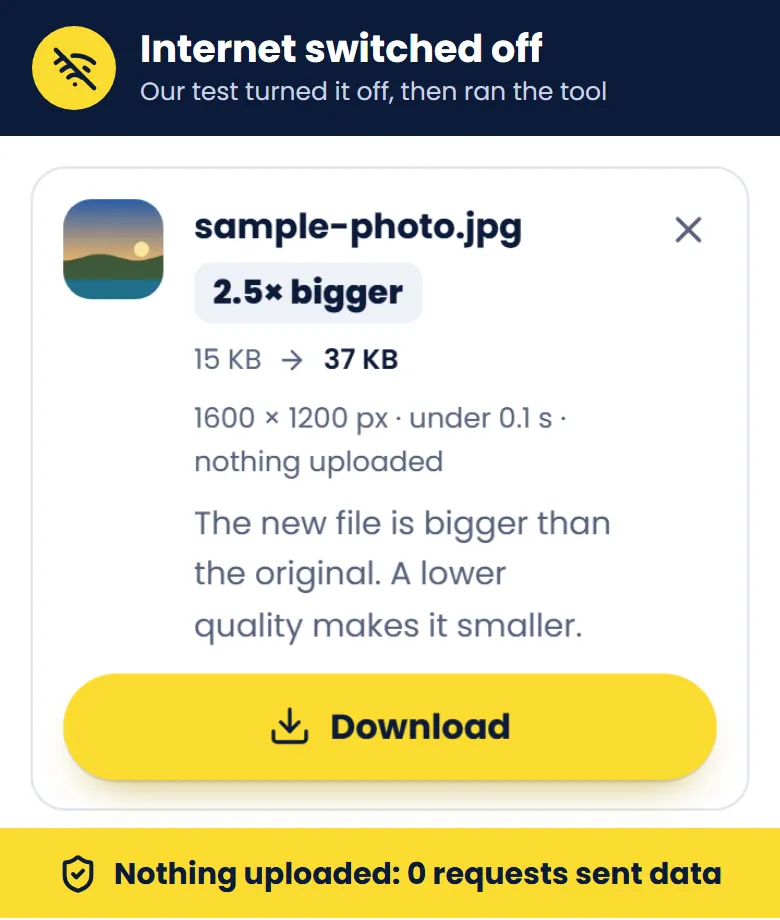
Check it yourself. Once the page has loaded, turn off Wi-Fi and mobile data, press Try with sample pictures and convert them. It still works, because your browser does the converting. In our test, the sample photo (a 15 KB WebP) became a 37 KB JPG of 1600 × 1200 pixels, and the conversion finished 0.8 seconds after we switched the network off. On a computer you can also open your browser's network panel (F12) and watch: it lists every request the page makes, and none of them carries your picture. You will see Google's ad requests there too, which are not ours.
Hidden details are left out. A picture can carry notes you can't see: the camera's make and model, the date, and often the exact place where it was taken (GPS). These are called EXIF. There can also be XMP notes and text comments. The JPG is a new file written by your browser, and none of these are copied. In our test, the WebP photo had the camera, the date and a GPS place inside, and a separate program (Pillow) found no EXIF, no XMP and no GPS in the JPG. The row tells you when this happened: "Hidden details were left out, including the place it was taken (GPS), the camera and the date."
That is useful before you post a picture in public. But what you can see in the picture is still in it, such as a face or a name on a card, so look before you share. The details are gone from the JPG for good, so keep the WebP if you need them.
Our privacy policy has the details, and How we prove no upload shows how anyone can check.
Converting many pictures at once
Choose, drop or paste as many WebP files as you like, and add more later with Add more pictures. Press Convert and the page works through them one at a time, in the order of the list, so it never opens them all at once. Each row shows its own progress, and a tag at its top right says how the size changed, such as "3.0× bigger" or "55% smaller".
You stay in charge while it works. Every row has a × in every state: on a waiting picture it removes it, and on the picture being converted it stops the work and removes it. The picture being converted also has a Stop button, which leaves it in the list with "Stopped. Press Convert to try it again." Clear all empties the list.
When two or more pictures are done, "Download all 4 as ZIP" gives one file, named like webp-to-jpg-4-files.zip. The ZIP holds exactly the JPGs you see on the rows, byte for byte the same as the single downloads, and it does not squeeze them further, so its size is the JPGs' sizes added up plus a little. When two files would get the same name, the second one gets (2). In our test, a moving WebP and a moving GIF, both called animated, came out as animated.jpg and animated (2).jpg.
In our test, four pictures (a photo, a logo, a moving WebP and a moving GIF, 107 KB together) took 0.48 seconds from pressing Convert, and the browser's busiest process peaked at 245 to 247 MB.
One bad file does not stop the others. In our tests, a WebP cut in half, a text file named .jpg, an iPhone HEIC photo and a PDF in the same list each got a calm note, and the good pictures still converted. You can mix formats too: the moving GIF in our test became a JPG just like the WebPs.
Using it on a phone
There is nothing to install. Open this page in your phone's browser, tap Choose WebP pictures and pick your files from the picker your phone shows. The conversion runs on the phone, so your pictures use no mobile data, and once the page has loaded it works with the connection switched off.
Finding the WebP. A picture you saved from a website or a chat is usually in your phone's Downloads, or in a folder of the app that saved it. If the picker shows only your photo gallery, look for a Files or Downloads choice in it.
Sending the JPG. The JPG is saved by your browser, usually in Downloads. From there you can attach it in WhatsApp or email, or choose it in the upload box of a form.
What we tested, and what not. The page fitted every width from 320 to 1280 pixels in our layout check, with no sideways scrolling, in light and dark colours. The 2000 × 1500 photo took 0.1 seconds on its row on our phone-sized screen, with the browser's busiest process at 173 to 177 MB. But that was Chromium made to look like a phone, on a laptop. We did not test on a real phone, in Safari or in Firefox, so a real phone may be slower.
Memory. A phone has less memory than a computer. To stay safe, the page saves a very large picture smaller, and its row says so. The limit is 16 million pixels (about 4000 × 4000) on an iPhone or an iPad, and on a device that reports 2 GB of memory or less. Safari on iPhone and iPad can draw about that many pixels at once, which is why we use it there, but we did not test it. If a row says the picture is too big for the browser's memory, close other tabs, or choose Max width under Size, and try again.
A tip for long lists. Stay on the page while it works. Some phones pause a page that is in the background, and the conversion waits until you come back.
Problems and quick fixes
- "This picture can't be opened: the file ends early." The file was cut off, usually while it was being copied or downloaded. Nothing can be saved from it. Download or copy the original again, then add it.
- "This file can't be opened as a picture." The file may be damaged, or may not be a picture at all, for example a text file renamed to .webp. Try the original file again.
- "Some files were skipped." Only pictures work here. A PDF, a document or a video in your selection is left out, and the pictures are added as usual.
- "This is a HEIC photo" or "a TIFF picture." HEIC is the iPhone's own photo format, and this browser can't open HEIC or TIFF. On an iPhone, Settings > Camera > Formats > Most Compatible makes the camera save JPG photos. A TIFF should be saved as PNG or JPG first.
- The JPG is bigger than the WebP. That is normal, as the guide explains in Why pictures come as WebP. A lower quality makes it smaller, a smaller Max width makes it smaller still, and the WebP itself can stay if the place you send it to takes WebP. The row says: "The new file is bigger than the original. A lower quality makes it smaller."
- The background is white, and I wanted another colour. Pick Black or Colour under Background. The finished picture then offers a Redo button, for example "Redo on black".
- A moving sticker gave only one picture. A JPG can hold only one picture, so only the first frame is saved. See See-through and moving WebPs for a way to get another frame.
- The JPG looks soft or blurry. Raise the quality to 90 or 95, and check that Size is on Keep size, or that your Max width is not small. If the WebP itself was small or soft, the JPG cannot add detail.
- "This picture is too big for this browser's memory." Close other tabs and try again, or choose Max width under Size. Changing an option gives such a picture another go.
- "The converter couldn't be downloaded." You opened the page without a connection, so its small converter file did not load. Connect to the internet, reload the page and try again.
- The Convert button is missing or grey. It appears once you have added a picture. It is grey while pictures are being converted, and when the Max width is outside 16 to 16384 pixels (the page says so under the box). When every picture is done it goes away, and if you then change an option so that a finished picture would come out different, it comes back as Convert again.
- A picture comes out sideways. The page follows the note a camera writes about how it was held. We checked all eight such notes on JPG photos, but not on WebP files. If a JPG comes out sideways, turn it in any picture viewer.
- I can't find the downloaded file. Look in your browser's Downloads list, or the Downloads folder of your phone or computer. Some browsers ask where to save each file.
Limits
- See-through parts can't stay. A JPG has none. They become White, Black or the colour you pick. To keep them, keep the WebP.
- Moving WebPs become still. Only the first frame is saved.
- The JPG is often bigger. Especially for photos that were made small as lossy WebPs. See Choosing the JPG quality.
- No exact size target. You choose the quality and the Max width, and the row shows the size you got. The page does not aim for a number such as 50 KB or 100 KB.
- No editing. It does not crop, brighten, straighten or add text. It can only make a picture narrower with Max width.
- HEIC and TIFF are not opened by this browser. Each gets a calm note saying so.
- Colours become standard screen colours (sRGB), and the JPG carries no colour profile. That looks right on almost every screen. For careful print work, use a photo editor.
- Very large pictures are saved smaller when a device has little memory. The most pixels a picture may have is 16 million on an iPhone, an iPad, or a device that reports 2 GB of memory or less, 32 million on a device that reports 4 GB or does not report its memory, and 64 million on a device that reports more. No side is longer than 16,384 pixels. The row says when a picture was made smaller.
- Browsers. We tested only Chromium 148, the engine behind Chrome and Edge, in a headless browser, at computer and phone-sized screens. We did not test Safari, Firefox or real phones. Another browser writes JPGs with its own tools, so sizes may differ a little from ours, and a very old browser cannot convert at all.
Other ways to turn WebP into JPG
This page is not the only way, and it is not always the best one. Here are the main ways in general terms, and what each is good for:
- A photo editor or paint program. Many can open a WebP and Save as or Export a JPG. This is the best way when you also want to crop, brighten, set an exact size, or pick one frame of a moving WebP. Older programs may not open WebP at all.
- Your phone's gallery or an editing app. Some can save a picture as JPG after you open it. The menus differ from phone to phone, so we give no steps here.
- A screenshot. Open the picture and take a screenshot. It is quick, but a screenshot is only as sharp as your screen shows the picture, and its file type depends on your device.
- Command-line tools. Free programs run from a text window can convert a whole folder with one command. They are good for thousands of pictures, but you have to install them and type commands.
- Online converters that upload. They work on any device, but your picture travels to someone else's computer, and some limit the number or size of pictures. A picture that is never uploaded needs no promise that it will be deleted.
- Asking for a JPG. Some websites and senders can give you the picture in another format, or send it as a JPG on request.
This page fits best when you want it quickly, without installing anything, for one picture or many, and with your pictures staying on your device. Another way fits better when you need to pick a frame, crop, hit an exact size, or keep see-through parts. If you only want a PDF, JPG to PDF takes WebP pictures as they are. To make smaller WebP files from JPGs, there is JPG to WebP, and PNG to JPG works the same way as this page for PNG pictures.
Terms explained
- WebP
- A picture format made by Google for small files on websites. It can be lossy or lossless, can have see-through parts and can move.
- JPG or JPEG
- The usual format for photos, opened by almost every phone, computer and program. It is lossy. JPG and JPEG are the same thing.
- Lossy and lossless
- A lossy picture leaves out detail the eye hardly notices to save space. A lossless one keeps every pixel exactly.
- Quality
- The number that says how much detail a JPG keeps. Higher means sharper and a bigger file.
- Animated (moving)
- A picture made of several frames shown one after the other, like a GIF or an animated sticker. A JPG holds just one.
- Transparency (alpha)
- See-through parts of a picture. WebP and PNG can have them. JPG can't, so they are filled with a colour.
- Pixel
- One tiny dot of a picture. A 2000 × 1500 picture has 2000 dots across and 1500 down.
- Megapixel
- A million pixels. A 12-megapixel photo is 4000 × 3000 pixels.
- EXIF
- Hidden notes a camera writes into a picture: make and model, settings, date, often the GPS place, and which way the camera was held.
- sRGB
- The standard set of colours for screens. Almost every viewer assumes a JPG uses it.
- ZIP
- One file that holds many files. Your phone or computer can open it.