What PNG to JPG does, and when you need it
PNG to JPG saves each of your PNG pictures again as a JPG: a new file, next to your original. It all happens inside your browser, so your pictures are never uploaded, and there is no sign-up and no watermark. You choose how sharp the JPG should be (its quality), what colour goes behind any see-through parts, and, if you want, a smaller width. Convert one picture or many, then download them one by one or all together in a ZIP.
People usually need it for one of these reasons:
- A form that only takes JPG. Exam, job, college and government portals often ask for a photo, a signature or a scanned certificate as a JPG, and many add a size limit in KB. A PNG may be refused, or may be far bigger than the limit.
- A smaller file to send. A photo saved as a PNG can be huge. In our test a 22.3 MB PNG photo became a 2.15 MB JPG, which is much easier to send by email or chat.
- A photo that an app saved as PNG. Some editing apps, scanners and design tools save photos as PNG by default. Saving them as JPG brings the size down.
- A screenshot for a form. Screenshots on many phones and computers are PNG files. If the portal wants a JPG, convert them here, but read Screenshots, scans and text first: a JPG of a screenshot can come out bigger than the PNG.
- A signature or logo on a white page. A signature saved with a see-through background becomes an ordinary picture with a white background, which suits most forms. See-through backgrounds become white explains how.
The page also takes other kinds of pictures, such as WebP or GIF, and saves them as JPG too. WebP pictures from websites have a page of their own, WebP to JPG. For the other direction, use JPG to PNG. And if what you need is one PDF made of your pictures, use PNG to PDF instead.
PNG or JPG: which one do you need?
PNG and JPG both store pictures, but they are made for different jobs. A PNG keeps every pixel exactly as it was and can have see-through parts. A JPG leaves out detail that the eye barely notices, so its files are smaller, and it can't have see-through parts. This table is a quick guide.
| Kind of picture | Usually better as | Why |
|---|---|---|
| A photo of people, places or things | JPG | Smooth changes of colour are what a JPG stores well. Our 22.3 MB test photo became a 2.15 MB JPG. |
| A screenshot of an app, a chat or a web page | PNG | Sharp letters and flat colours stay crisp in a PNG. As a JPG the file can be bigger and the letters softer. |
| A scanned page or certificate | Either; JPG if the form asks | A scan has a little grain, which makes a PNG big. A JPG at quality 90 was about half the size in our test, but zoom in on small print before you upload. |
| A logo, icon or drawing | PNG | Clean edges, and it can keep a see-through background. |
| A signature or sticker with a see-through background | PNG, unless the form wants JPG | A JPG can't keep see-through parts. They become white, or the colour you pick. |
| Anything a form says must be a JPG | JPG | The form decides. Convert, then check the size on the row. |
The rule of thumb: photos are usually better as JPG, and pictures made on a screen, like screenshots, text, logos and drawings, are usually better as PNG. Every row on this page shows the size before and after, so you see straight away whether the JPG came out smaller. If it did not, you can lower the quality, or keep the PNG when the form allows it.
Real results from our tests
We converted test pictures with this page in headless Chromium 148, the open-source browser Chrome is built on, on a Windows laptop with an Intel Core i7-1185G7 and 32 GB of memory, on 9 October 2026. Our own script drew the pictures to look like real ones (a 12-megapixel photo, a phone screenshot, a logo on a see-through background, a scanned page, a picture with 16 bits per colour); they are smoother than many real photos, so your own files may give other sizes (the smooth 16-bit gradient shrank far more than a real 16-bit photo will). Sizes and times are the ones the page showed on each picture's row, with the window at 1280 × 900 pixels. We timed the main test three times on a computer busy with other work, and the time from pressing Convert to the end varied (the 22.3 MB photo took 1.0 to 1.3 seconds at quality 90).
| Picture | Before | After | Time | What happened |
|---|---|---|---|---|
| Photo saved as a PNG, 4000 × 3000 | 22.3 MB | 2.15 MB | 1.0 s | 90% smaller at quality 90 |
| The same photo at quality 70 | 22.3 MB | 668 KB | 0.7 s | 97% smaller |
| The same photo at quality 100 | 22.3 MB | 18.0 MB | 1.3 s | 19% smaller |
| Phone screenshot, 1080 × 2400 | 166 KB | 234 KB | 0.1 s | 41% bigger: screenshots are often smaller as PNG |
| The same screenshot at quality 70 | 166 KB | 157 KB | 0.1 s | 5% smaller |
| Logo on a see-through background, 800 × 800 | 32 KB | 29 KB | under 0.1 s | See-through parts made white |
| Grey scanned page, 1240 × 1754 | 1.13 MB | 551 KB | 0.1 s | Still grey |
| Colour gradient with 16 bits per colour, 1200 × 800 | 2.16 MB | 33 KB | 0.2 s | Saved with 8 bits per colour |
A separate program (Pillow) compared every JPG with its PNG. At quality 90 the average difference was under 2 levels out of 255 (1.94 for the scanned page, 0.63 for the screenshot), the see-through parts of the logo and of a signature came out white, within 0.2 of a level out of 255 (and black when we picked Black), grey pictures stayed grey, and no JPG held hidden notes from its PNG.
Memory: the peak of the browser's busiest process was about 200 MB with the page open and nothing converted, and between 362 and 385 MB while it converted the 22.3 MB photo at quality 90 (415 MB at quality 100).
Try it yourself: press "Try with sample pictures" at the top of this page. It draws two PNGs in your browser (a landscape photo and a round logo on a see-through background), so you can see the background colour at work.
Try the samplesStep by step: converting PNG to JPG
Here is the whole way, from your PNG to a JPG you can upload or send:
- Add your pictures. Press "Choose PNG pictures" at the top of this page and pick one or many. You can also drop pictures anywhere on the page, or paste them. No picture at hand? "Try with sample pictures" draws two in your browser.
- Look at the list. Every picture gets a row with its name and size, and a × to take it out. "Clear all" appears once there are two or more.
- Set the options. They appear once you have added pictures. Quality starts at 90 (Choosing the JPG quality has the sizes we measured). Background is the colour that replaces see-through parts: White, Black or a Colour you pick. Size is "Keep size", or a "Max width" that makes wider pictures smaller and never makes one bigger.
- Press Convert. The button says "Convert to JPG", or "Convert 3 pictures to JPG" when you have three. The pictures are converted one after another. A Stop button appears on the one being converted, and a line under the list says "Working on N files. Nothing is uploaded."
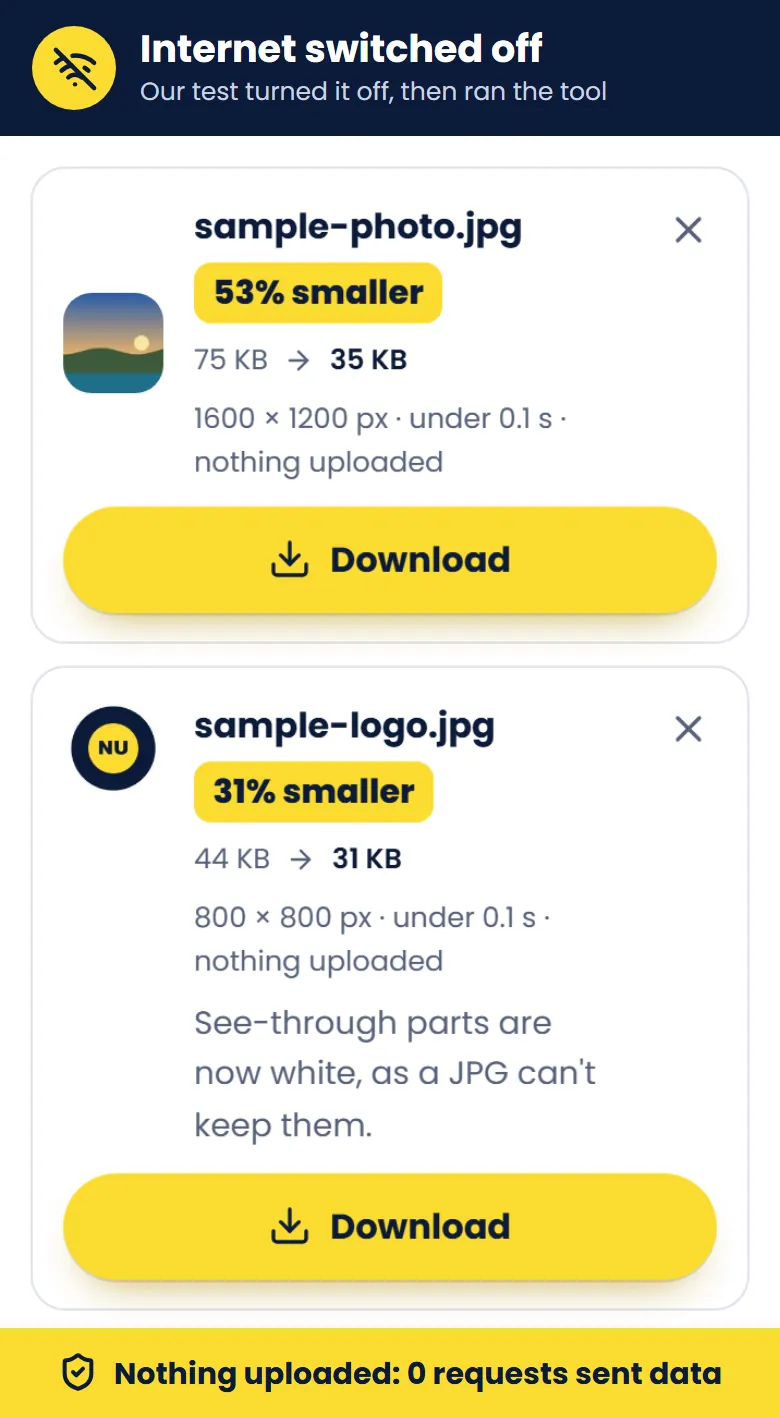
- Check the rows. A finished row shows a small preview, the size before and after (for example "22.3 MB → 2.15 MB" and "90% smaller"), the size in pixels, the time, and short notes about anything that changed.
- Download. Press Download on a row, or "Download all N as ZIP" once two or more are finished. A file called photo.png is saved as photo.jpg.
Changed your mind? If you move the slider or change the background or the size after converting, nothing is redone by itself. Each finished picture that the change would affect offers a button such as "Redo at quality 70" and keeps the file you already have. With two or more, "Apply to all N files" does them together.
Keep your original PNGs. Every time a picture is saved as a JPG, a little detail is lost for good, so if another form wants a different size, start again from the PNG, not from the JPG you made.

How the conversion works, and its exact rules
There is no server and no extra program. Your browser opens each PNG the way it opens any picture on the web, draws it, and saves it again as a JPG with its own JPG saver. The page does a few small jobs around that, in a helper the browser starts for it (a web worker), one picture at a time. These are the rules, with small examples.
- A new file every time. Your PNG is never changed. A file called holiday.png is saved as holiday.jpg. If you add a file that is already a JPG, such as logo.jpg, the new copy is called logo-converted.jpg, so it never has the same name, and its row says "It was already a JPG: this is a new copy at quality 90."
- Quality is the browser's own JPG setting. The slider goes from 40 to 100 in steps of 5, and starts at 90. The same picture at a different number gives a different file size, as the quality part shows.
- See-through parts get a background colour. A JPG must have a colour in every pixel, so the page paints your chosen colour behind the picture. A pixel that is fully see-through becomes exactly that colour. A pixel that is only partly see-through mixes with it: black that is half see-through, over white, comes out mid grey. The page looks at every pixel, and only when it finds one that is not fully solid does the row say "See-through parts are now white, as a JPG can't keep them." A PNG that is solid everywhere is converted without that note.
- Size. "Keep size" saves every picture with the pixels it had. "Max width" takes a number from 16 to 16384. A picture wider than that is made smaller and keeps its shape: 4000 × 3000 with a Max width of 1600 becomes 1600 × 1200, and a tall 3000 × 4000 becomes 1600 × 2133. A picture that is already 1200 wide stays 1200 wide. The row says "Made smaller: 4000 × 3000 to 1600 × 1200 pixels."
- Colours. A PNG may store 16 bits for each colour (65,536 levels) instead of the usual 8 (256 levels). The JPG always has 8, and the row says so. Grey pictures stay grey. Colours in another colour profile are changed to sRGB, the standard every screen assumes, when the browser opens the picture. The browser's saver adds an sRGB profile to the JPG; the page takes it out again, because every viewer assumes sRGB anyway.
- Hidden details stay behind. Camera make and model, the date, the GPS place, XMP notes and the text notes some apps put into PNG files are not copied. The row says "Hidden details were left out" when the original had them.
- Moving pictures give one frame. An animated GIF or WebP becomes a still picture of its first frame, and the row says how many frames it had. We tested a GIF and a WebP. The page's code treats an animated PNG the same way, but we did not test one.
- Pictures too big for your device are made smaller. The row says so. Very big pictures has the limits.
- What it accepts. Anything your browser calls a picture: PNG, JPG, WebP, GIF, BMP and more. Files that are not pictures, like a PDF, are skipped with a calm note, and the rest go on. HEIC and TIFF pictures cannot be opened by the browser we tested, and the row says what to do.
Choosing the JPG quality
The Quality slider runs from 40 to 100 in steps of 5 and starts at 90. A higher number keeps more detail and makes a bigger file. The words under the slider change as you move it, and this table repeats them.
| Quality | What the page says | A good choice for |
|---|---|---|
| 95 to 100 | Best quality, biggest file. | Pictures you will edit again or print large, when size does not matter. |
| 85 to 90 | Sharp, with a much smaller file than 100. | Forms, documents and photos you want to keep sharp. 90 is where the page starts. |
| 70 to 80 | Smaller file, fine for sharing and websites. | Photos to send by chat or email, or to put on a website. |
| 40 to 65 | Smallest file: fine details may blur. | Only when a small size matters more than looks. |
Here is what the same 4000 × 3000 test photo, a 22.3 MB PNG, gave at three settings: 18.0 MB at quality 100 (only 19% smaller), 2.15 MB at quality 90 (90% smaller) and 668 KB at quality 70 (97% smaller). Quality 100 is not "no loss": it is still a JPG, and it saved far less than 90. Most of the saving comes between 100 and 90, which is why 90 is the starting point.
A phone screenshot behaved differently. The 166 KB PNG became 234 KB at quality 90 (41% bigger) and 157 KB at quality 70 (5% smaller). So the right number depends on the picture. Look at the sizes on the row, not only at the slider.
If a form says "under 200 KB" or similar. This page has no button for an exact size, so you get there in small steps. Convert at 90 and read the size on the row. If it is too big, move the slider to 80 and press "Redo at quality 80", then try 70. If it is still too big, set a smaller Max width under Size, and redo. Each redo keeps the earlier file, so you can compare and download the one that fits. Leave a little room under the limit, and stop when the picture still looks clear: names and numbers on a certificate are the first things to blur, so zoom in on them before you upload.
Always convert from your PNG, not from a JPG you made earlier. Every new JPG loses a little more.
See-through backgrounds become white
Some PNG pictures have parts that are see-through. In an editing app you see them as a grey and white chequered pattern. Logos, stickers, signatures and cut-out photos often have them. A JPG has nothing like that: every pixel must have a colour. So when this page finds see-through parts, it paints a background behind them. The starting choice is White. You can pick Black, or Colour, which opens a colour picker.
The row tells you when it happened: "See-through parts are now white, as a JPG can't keep them." A picture with no see-through pixels gets no such note, even if it is a PNG that has a see-through channel.
- White is usually right for forms, documents and printing. A signature with black or blue ink on a see-through background comes out as ink on white paper.
- Black is for white or light pictures, like a white logo, that would disappear on white.
- Colour is for a picture that will sit on a coloured page. Pick the colour of that page and the picture blends in.
What we measured. Our test logo, 800 × 800 pixels and round with see-through corners, went from 32 KB to 29 KB, and the row said its see-through parts were now white. A separate program checked the see-through area of the logo and of a test signature (a small PNG with one see-through colour): it came out white, within 0.2 of a level out of 255, and black when we picked Black.
Soft edges. The edge of a logo is usually soft: the pixels along it are only partly see-through. They mix with the background colour, as in the half-see-through black example in How the conversion works. A dark logo on white gets a clean edge. A white logo converted on white disappears, and a logo converted on white and then placed on a dark page may show a thin light outline. If you know where the picture will go, pick the colour of that place.
Changed your mind about the colour? Pick another and press the "Redo on black" (or similar) button on the row. Only pictures that had see-through parts are offered it, because the others would not change.
If you must keep the see-through parts, do not convert. Keep the PNG. WebP also keeps them: JPG to WebP takes PNGs too, though not every form or app accepts WebP.
Screenshots, scans and text
Screenshots and pages of text are where a JPG most often disappoints. A PNG stores flat colours and sharp edges exactly. A JPG works on small squares of the picture and simplifies each one. That suits the smooth changes in a photo, but it leaves faint smudges around sharp edges like letters. The lower the quality, the stronger the smudges.
What we measured. Our phone screenshot (1080 × 2400 pixels, 166 KB as a PNG) became 234 KB at quality 90, which is 41% bigger, and 157 KB at quality 70, only 5% smaller. So the JPG was bigger, or hardly smaller, and softer. When the page sees a result like that, the row says: "Pictures like screenshots, drawings and signatures are often smaller as PNG than as JPG. A lower quality makes the JPG smaller."
If the portal takes PNG, keep the PNG. If it insists on JPG, convert at 90 or higher and check the small text.
Scans. Our grey scanned page (1240 × 1754 pixels) went from 1.13 MB to 551 KB at quality 90, which is 52% smaller, and stayed grey: a separate check found no difference between its red, green and blue values. A likely reason it shrank so much is the grain every scan has. A PNG must store each grain exactly; a JPG does not. Of all our test pictures, the scan also differed most from its PNG (1.94 levels out of 255 on average at quality 90, against 0.63 for the screenshot). That is still small, but it is the one to look at closely. Zoom in on names, dates and numbers before you upload a scanned certificate, an Aadhaar or PAN copy or a marksheet.
For a scan that a form wants as a JPG, a good order is: quality 90, check the size, then lower the quality in steps only if the size demands it. Lowering the width makes text softer too, so try quality first.
Privacy and hidden details
Your pictures are converted on your own device. The converter has no upload step: your browser opens each PNG, saves the JPG, and hands it to you to download. Our code never sends your files anywhere.
The page does show ads. Its Content Security Policy, a rule the website gives your browser, also lets the page contact only this site and Google's ad service, which shows the ads that keep the tools free. Our code never gives your files to the ad code.
What we checked. We ran the converter in Chromium on a computer and on a phone-sized screen and logged every request the page made, with Google's ad code left out. While pictures were converted, the only requests were two small helper files from this site (imgconvert-worker.js and imgconvert-core.js), fetched with no body, and none carried a picture. We also loaded the page, switched the network off, and converted the built-in sample: it was converted 0.5 seconds after we switched the network off. You can check it yourself. On a computer, press F12, open the Network tab and convert a picture.
Hidden details are left out. A picture can carry notes you do not see: the camera's make and model, the date, the exact place where a photo was taken (GPS), and notes that some apps write into PNG files. The JPG made here is a new file, and those notes are not copied. When the original had them, the row says "Hidden details were left out, including the place it was taken (GPS), the camera and the date," or "Hidden notes in the file were left out." Our check of every JPG we saved found no EXIF, no XMP, no text notes and no colour profile in any of them. This also works for a photo you add as a JPG: the new copy has no GPS place.
What stays. Everything you can see in the picture, including names, numbers and faces. Look at the JPG before you send it.
On a shared computer, for example in a cyber cafe, delete the downloaded JPGs when you are done and close the page. We never receive your pictures, but the downloaded JPGs stay in that computer's downloads folder until you delete them.
Our privacy policy has the details, and How we prove no upload shows the checks.
Converting many pictures at once
Pick or drop as many PNGs as you like in one go, or add more later with "Add more pictures". Each gets its own row. Press Convert once and the pictures are converted one after another by the helper in the background. The row of the picture being converted shows its stage (Reading, Opening the picture, Converting, Saving as JPG), and rows waiting their turn say "Waiting".
- Take any picture out with its ×, even while it is being converted. "Clear all" removes everything.
- Stop ends the picture being converted. Its row goes back to "Stopped. Press Convert to try it again."
- A damaged file or a PDF in the batch does not stop the others. It gets a calm note on its own row. In our tests, broken files and a PDF in the same batch left the good pictures converted.
- Download all N as ZIP appears once two or more pictures are finished. The ZIP is called png-to-jpg-6-files.zip for six pictures, and holds exactly the JPGs, byte for byte the same as the single downloads. It stores them as they are without squeezing them further, because a JPG is already compressed. If two pictures would have the same name, the second becomes photo (2).jpg.
- Changing an option afterwards never redoes finished pictures by itself. Each one offers its own "Redo ..." button, and with two or more the button "Apply to all N files" does them together. The main button then says "Convert N again".
What we measured. Six PNGs together (a screenshot, a logo, a signature, two 16-bit pictures and a scan, 3.59 MB in all) took 0.76 seconds in one run and 1.34 seconds in another from pressing Convert to the last file, on a computer busy with other work. The browser's busiest process peaked between 257 and 289 MB.
Very big pictures
A picture is big in two ways: its file size, and its number of pixels. A 12-megapixel picture is 4000 × 3000 pixels, which is 12 million. Our test PNG photo of that size was 22.3 MB. At quality 90 it took 1.0 second on its row, and 1.02, 1.23 and 1.26 seconds in three runs from pressing Convert. The browser's busiest process peaked between 362 and 385 MB. On the phone-sized screen (a Chromium made to look like a phone, not a real phone) the row said 1.2 seconds and the peak was 296 to 302 MB.
The memory rule. A picture takes memory in proportion to its pixels, not its file size. So the page limits how many pixels it converts at full size, by what your device is trusted with:
- 64 million pixels when the browser says the device has more than 4 GB of memory.
- 32 million pixels when it says 4 GB. The page assumes this when the browser says nothing.
- 16 million pixels when it says 2 GB or less, and on every iPhone and iPad. We chose this for iPhones and iPads because Safari there is known to draw at most about 16.7 million pixels on one canvas. We have not tested Safari or an iPhone.
A picture with more pixels than your limit is opened smaller straight away, so it never uses the memory of its full size, and it is saved at that size. The row says so, for example: "This picture has 48.0 megapixels, more than this device can safely convert at full size, so it was saved at 6531 × 4898 pixels." We saw exactly that when we made the page believe the device has 4 GB and gave it a 48-megapixel picture (8000 × 6000). Our own computer reported 32 GB, so there the 64-million limit applied. No side is ever longer than 16,384 pixels.
If the browser still runs out of memory, the page tries again at half the pixels, up to two more times. If that fails too, the row says: "This picture is too big for this browser's memory. Close other tabs and try again, or pick a max width under Size." A Max width such as 1600 makes the picture much smaller before it is saved, so it needs less memory, and a picture that failed gets another go after you change an option.
Converting PNG to JPG on a phone
This works in your phone's browser, with no app to install. Tap "Choose PNG pictures", pick from your files or photos, set the quality, and tap Convert. The list of pictures fits the screen, and the Convert button stays at the bottom while you scroll. Your browser saves the JPGs in its downloads, where you can open them from the browser's downloads list.
- Screenshots on many phones are PNG files, so they are a common thing to convert. Read Screenshots, scans and text first, because a JPG of a screenshot can come out bigger.
- Mobile data. The converter's first visit is about 0.1 MB to download (the page, its styles and its scripts, compressed; Google's ad code not counted). Once the page has loaded, converting your pictures uses no data, because nothing is uploaded.
- Memory. Phones have less than computers, so the page converts fewer pixels at full size on them. Very big pictures are saved smaller, and the row says so. Closing other tabs helps. See Very big pictures.
- HEIC photos. The browser we tested cannot open the iPhone's own format, HEIC, and the row says so. On an iPhone, Settings > Camera > Formats > Most Compatible makes the camera save JPG photos in future.
What we tested. We ran the page in Chromium made to look like a phone (a 390 × 844 pixel screen, with touch and double pixel density). The 22.3 MB photo became 2.15 MB, as on the computer, and took 1.2 seconds on its row. That is not a real phone. A real phone may be slower, and we have not tested Safari or Firefox, so we cannot promise how they behave.
Problems and quick fixes
- "This file can't be opened as a picture." The file may be damaged, or not a picture at all, for example a PDF that someone renamed to .png. Try it in a picture viewer. If it opens there, save it again from the viewer as a PNG and add it again.
- The row says the file "ends early". The picture seems to have been cut off while it was copied or downloaded. In our test no part of such a PNG could be opened, so nothing is saved for it. Copy or download the original again.
- "Some files were skipped". Only pictures work here, and the pictures among your files go on. To turn PDF pages into JPG pictures, use PDF to JPG.
- The HEIC or TIFF note. The browser cannot open these. For HEIC, see Converting PNG to JPG on a phone. For TIFF, save the picture as PNG or JPG in the program that made it.
- The JPG is bigger than the PNG. This happens with screenshots, drawings and signatures. Lower the quality and press the Redo button, or keep the PNG if the form takes it.
- The JPG is still too big for the form. Lower the quality in steps, then set a smaller Max width. Choosing the JPG quality has the method.
- The background is the wrong colour, or a white logo has disappeared. Choose another Background (a white logo needs Black or a colour) and press the Redo button on the row. Only pictures that had see-through parts are affected.
- A logo has a faint outline. Its soft edges mixed with the background colour. Pick the colour of the place where the logo will go. See See-through backgrounds.
- The colours look a little different. The browser changes other colour profiles to sRGB, and a 16-bit picture is saved with 8 bits. Very vivid colours may change a little. Compare both pictures on the same screen.
- Small text looks soft. Raise the quality to 95, or keep the PNG.
- The Convert button is missing or grey. It appears once you have added a picture. It is grey while pictures are being converted, and when the Max width is outside 16 to 16384 (the hint under Size says so). When every picture is done it goes away, and if you then change the quality, the background or the size so that a finished picture would come out different, it comes back as Convert again.
- Nothing seems to download. Look in your browser's downloads list. Some browsers ask before saving several files at once; "Download all N as ZIP" gives you one file instead.
- "The converter couldn't be downloaded" or "This browser is too old to convert pictures". For the first, the small helper file could not be fetched, usually because the connection was lost: connect to the internet and try again. For the second, update the browser or try another one.
Limits
- A JPG cannot have see-through parts. They become white or the colour you pick. To keep them, keep the PNG.
- A JPG is lossy. Some detail is lost every time a picture is saved as one, even at quality 100. Keep your PNG.
- No exact target size. You cannot ask for "under 100 KB". You lower the quality and the Max width in steps and read the size on the row.
- No editing. The page does not crop, turn, brighten or remove backgrounds, and it does not read text in pictures (OCR).
- 16 bits per colour become 8, and other colour profiles become sRGB.
- Moving pictures give their first frame. We tested a GIF and a WebP, not an animated PNG.
- Hidden details are never copied. That protects your privacy, but it also means a photographer's copyright note in a picture does not reach the JPG.
- Very big pictures are saved smaller on devices with little memory, and the row says so.
- HEIC and TIFF cannot be opened by the browser we tested.
- Browsers. We tested the page only in Chromium, with a computer-sized and a phone-sized screen. We have not tested real phones, Safari or Firefox.
Other ways to turn a PNG into a JPG
You do not have to use this page. Here are the other usual ways, in general terms:
- The picture programs on your computer. Most can open a PNG and save or export it as a JPG, for example Paint on Windows and Preview on a Mac. They are fine for one picture at a time. The quality choices differ from program to program.
- Photo editors such as GIMP or Photoshop. They give more control: you can choose the exact background, edit the picture first, set an exact size in pixels and convert in batches with scripts. They take longer to learn and have to be installed.
- Phone gallery and editing apps. Some can save or export a picture as JPG. What they offer depends on the app and the phone.
- Command-line tools such as ImageMagick convert hundreds of pictures with one command. They suit people who are comfortable with a terminal.
- Websites that upload your pictures. They work in any browser, and some are good, but your pictures go to a company's server, and free versions may limit the number or size of pictures or add a watermark. For ID cards, certificates and bank papers, converting on your own device is the safer habit.
- Check the form again. Some forms that say JPG take PNG too. If yours does, you do not need to convert at all, and a screenshot stays sharper as a PNG.
What this page adds is simple: nothing is uploaded, many pictures go at once, you choose the quality and the background, and every row shows the size before and after.
Terms explained
- PNG
- A picture format that keeps every pixel exactly (it is "lossless"). Common for screenshots, logos and drawings. It can have see-through parts.
- JPG or JPEG
- The usual format for photos. It makes files small by leaving out detail the eye barely notices (it is "lossy"). JPG and JPEG are the same thing.
- Quality
- The 1 to 100 setting for how much detail a JPG keeps. Higher means a sharper picture and a bigger file. This page offers 40 to 100.
- Lossy and lossless
- Lossless keeps everything, so you can get the same picture back. Lossy throws some detail away for good to make the file smaller.
- See-through (transparent)
- A part of a picture that shows what is behind it. PNG can have it, JPG cannot. Also called transparency or alpha.
- Pixel and megapixel
- A pixel is one dot of a picture. A megapixel is a million of them: a 4000 × 3000 picture has 12 megapixels.
- Bits per colour
- How finely each colour is stored. Most pictures use 8 bits (256 levels). Some PNGs use 16 (65,536 levels). A JPG always has 8.
- sRGB
- The standard set of colours that screens and browsers assume. Pictures in other colour profiles are changed to it.
- KB and MB
- The sizes this page shows: 1 KB is 1,024 bytes and 1 MB is 1,024 KB.
- EXIF
- Hidden notes a camera writes into a photo: make and model, date, often the GPS place, and how the phone was held.