What the JSON Formatter does, and when you need it
JSON is how most apps and websites pass data around: names and values in curly brackets, lists in square ones, all as plain text. Programs write it as one long line, which is quick for a computer and hard for a person. This page does three things with it:
- Pretty-prints it, also called beautifying: one item a line, each level indented, so you can read it, find a value and see how it nests.
- Minifies it: every space and line break between items taken out, for the smallest file to send or store.
- Checks it: if the JSON has a mistake, the page says what it is and exactly where, with the line, the column and a ^ under the place, instead of guessing.
Where it helps:
- An API's response copied from Postman, a browser's network panel or a log, so you can read what came back.
- A config file such as package.json or an app's settings, before you save a change: one missing comma stops a program from starting.
- Data exported from an app, to see what it holds before you load it somewhere else.
- JSON for a developer or a portal: check it first, so a mistake is found by you and not by their system.
The page never changes what your JSON says, only how it is laid out. It reads and writes it in your browser: nothing is uploaded, and nothing is kept once you close the page.
How to format JSON, step by step
- Paste your JSON in the box, or press Try a sample to see a minified order.
- Press Format JSON, or Ctrl+Enter in the box.
- Or choose files: press Choose files, or drop .json files anywhere on the page. Each one is formatted at once, in a row of its own, so a folder of exports goes through in one go.
- Pick Pretty or Minified, and for Pretty, 2 spaces, 4 spaces or a tab.
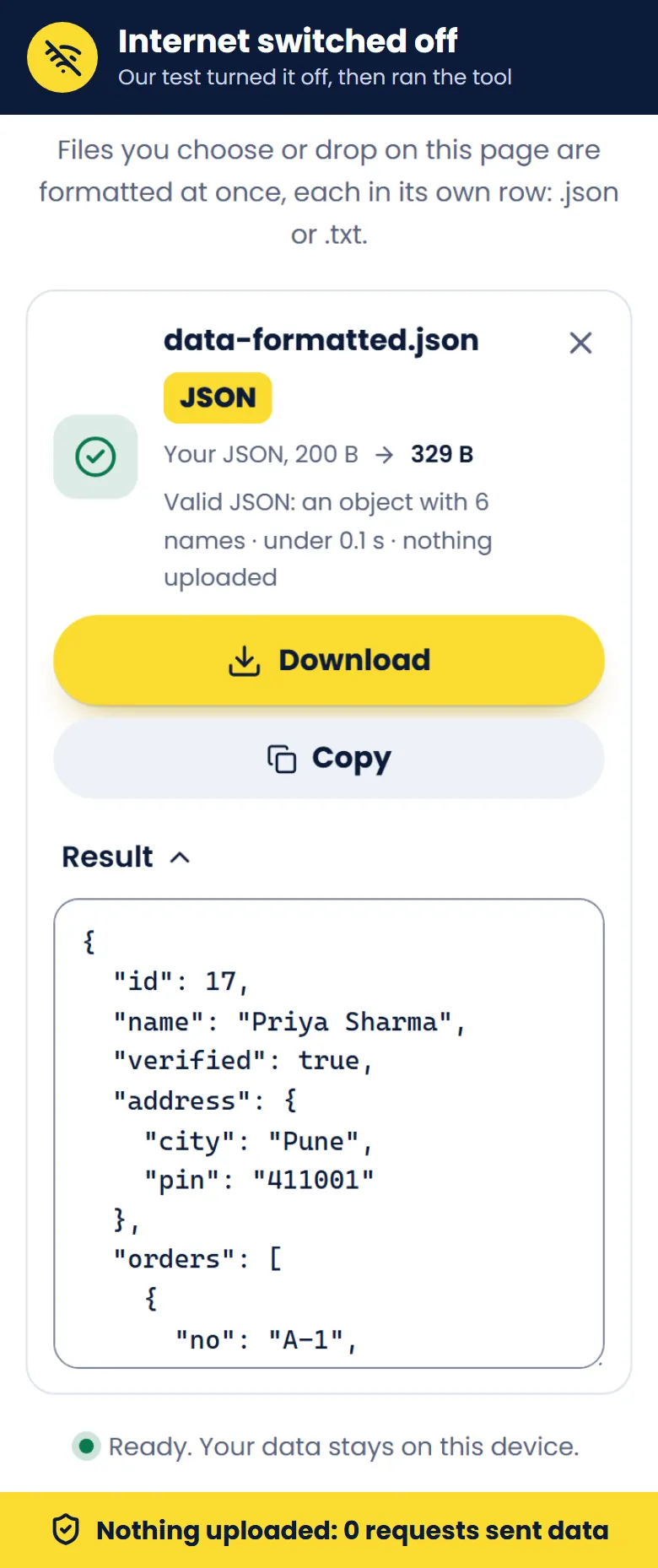
- Read the line on the result. It says the JSON is valid and what it is, such as “Valid JSON: an object with 6 names” for the sample, or names the mistake and where it is.
- Copy or Download. A file is saved under its own name: orders.json becomes orders-formatted.json, or orders.min.json when minified; JSON you pasted is saved as data-formatted.json or data.min.json. Two or more results can be saved together with Download all as ZIP.
The × on a row takes it away, and Clear all empties the list.
What formatting changes, and what it keeps
Formatting changes only spaces and line breaks. Everything else stays as you wrote it:
| Part | What happens |
|---|---|
| Pretty | One item a line, indented by 2 or 4 spaces or a tab, with a space after each colon; empty lists and objects stay [] and {}. It is the layout of JSON.stringify and Python's json.dumps with an indent |
| Minified | No spaces or line breaks at all |
| Numbers | Exactly as written: 1.50 stays 1.50, 12345678901234567890 keeps every digit, 1e5 stays 1e5 |
| Text | Hindi, emoji and other letters as they are; only quotes, backslashes and control characters are escaped, so \u0905 becomes अ |
| Order of names | Kept as in your JSON, never sorted |
| A name used twice in one object | Both kept, in order, and the result says so (many programs keep only the last) |
| What counts as valid | JSON as RFC 8259 defines it: double quotes, no comments, no comma after the last item, no NaN or Infinity, one value; nesting up to 500 levels |
Common JSON mistakes and their messages
A mistake is shown with its line and column, the line itself with a ^ under the place, and, for text in the box, Show in the box puts the cursor there. The messages for the usual mistakes:
| Mistake | What the page says |
|---|---|
{"a": 1,} | There is a comma after the last name and value here. JSON doesn't allow that: remove the comma. |
{'a': 1} | Names must be in double quotes ("name"), not single quotes. |
{a: 1} | Names must be in double quotes: "a". |
{"a": 1 "b": 2} | A comma is missing before this name. |
[1, 2 | The JSON stops before it is finished: the [ on line 1, column 1 is never closed with ]. |
{"a": True} | true and false are written in small letters in JSON: true. |
{"a": None} | None isn't allowed in JSON. Use null, or a number. |
// note | JSON can't hold comments (// or /* */). Remove the comment. |
[007] | Numbers can't start with 0 in JSON (like 007). Put it in quotes to keep the 0: "007". |
| A text with a line break in it | The text that starts on line 1, column 7 runs into a line break. Is its closing quote missing? (A line break inside text is written \n.) |
{"a":1} {"b":2} | There is more after the end of the JSON. One JSON text holds one value: to keep several, put them in [ ] with commas between them. |

Real results from our tests
We tested JSON Formatter with headless Chromium 148, the open-source browser Chrome is built on, on a Windows laptop with an Intel Core i7-1185G7 and 32 GB of memory, on 1 November 2026. Other work was running on the laptop at the same time, so times vary a little from run to run: each time below is the middle one of 3 runs, each in a fresh browser.
Checked against Python. Our test gave the page every file of our test set for this tool, 15 that it should convert and 13 with mistakes, with the usual options and again with changed ones, and then the 50 MB file: 57 files in all. For every converted file, Python's json module read each saved file back and found the same values as in the original, names in order and a name used twice included, numbers to the last digit; and the text was, byte for byte, what Python's json.dumps writes with the same indent, or the minified form. Each of the 13 files with mistakes was refused, as Python refuses it too, with the page's message naming the mistake.
Speed and memory. The test files were made up for these tests: a list of orders, of 1 MB, 10 MB and 50 MB. The time is from choosing the file to its finished row, and the memory is what the whole browser added while it worked. “Page kept waiting” is the most that a timer on the page, set to tick every 50 milliseconds, was ever late: the work runs in a background worker, so the page itself stays free to answer a tap or a click.
| File | Time | Result | Memory added | Page kept waiting |
|---|---|---|---|---|
| A 1.0 MB JSON file | 0.1 s | 1.3 MB | 0 MB | 68 ms |
| A 10 MB JSON file | 0.5 s | 13 MB | 168 MB | 12 ms |
| A 50 MB JSON file | 3.1 s | 66 MB | 732 MB | 17 ms |
| A 1.0 MB JSON file, on a phone-sized screen with the processor slowed 4 times | 0.3 s | 1.3 MB | 5 MB | 123 ms |
| A 10 MB JSON file, on a phone-sized screen with the processor slowed 4 times | 1.1 s | 13 MB | 181 MB | 130 ms |
What the numbers mean: a 50 MB file took 3.1 seconds on the laptop, and the page was never kept waiting for more than 17 milliseconds while it worked, far too little to notice. With the processor slowed 4 times, roughly a mid-range phone, a 10 MB file took 1.1 seconds, and the page was never kept waiting for more than 130 milliseconds: on a phone, a big result's box starts closed and is filled when you open it, so the finished row appears at once.
Pretty or minified, and which indent
Pretty is for reading, checking and comparing. 2 spaces is the most common layout: JavaScript projects, most style guides and most APIs' examples use it. 4 spaces is common in Python projects and makes deep nesting easy to follow on a wide screen. A tab lets each person's editor choose how wide an indent looks, and is the smallest of the three.
Minified is for sending and storing, where nobody reads the file. The page's sample is 329 bytes pretty with 2 spaces, 421 with 4 spaces, 283 with tabs, and 200 bytes minified: about 39% smaller than 2 spaces. A big export shrinks in the same way, because a pretty file is mostly spaces at the start of lines.
Changing the choice never redoes a finished result by itself: each one made before the change says so, and offers a button such as “Redo with 4 spaces”, or “Apply to all” for many files at once.
Big files: up to 200 MB
The formatting runs in a background worker, a separate part of the browser, so the page stays free to scroll and click while a big file is read. In our tests a 50 MB file, a list of orders, took 3.1 seconds on a laptop, and the page was never kept waiting for more than 17 milliseconds. A big file needs memory, though: the browser used 732 MB more while it worked, so on a phone or an older computer a file of a few tens of MB is the comfortable size. A file is read and written in pieces, and the bar on its row shows how far it has got; Stop, or the × on the row, ends the work at once.
The result box shows the start of a big result, the first 20,000 characters, so the page doesn't slow down drawing millions of them. Download always saves all of it. Copy works up to 10 MB: more than that would stall the app you paste into, so the page asks you to download it instead. Files over 200 MB are not started, because a browser tab would run out of memory; split them first, or use a program on a computer. On a phone, a big result's box starts closed, so its row, with Download and Copy, appears at once: tap Result to see the start of it.
Reading JSON from an API or an app
Most JSON people want to read comes from somewhere else: an API's answer, an app's export, a log line. To get it here:
- From a browser: open the developer tools (F12 on a computer), go to the Network panel, click the request, and copy its Response.
- From Postman or a similar tool: copy the response body, or save it as a .json file and drop the file here.
- From a log: copy just the JSON part. If each line of the log is its own JSON object, that is JSON Lines, which the page reports as more after the end of the JSON: put the objects in [ ] with commas between them, or format one line at a time.
An API's answer often holds an access token or a customer's details, so read the privacy section below before you paste one anywhere.
Valid JSON, and what a program expects
“Valid” here means the text follows the rules of JSON, RFC 8259: the brackets close in order, names are in double quotes, there are no comments and no comma after the last item. It doesn't mean the JSON has what a particular program expects. A shop's API may need a name called price with a number, and valid JSON with "price": "180", a text, can still be refused by it.
That second check needs the program's own description, often a JSON Schema, which this page doesn't read. What the page does is make the data easy to compare with the description by eye: format it pretty, and every name and value sits on its own line.
Why long numbers are kept as written
JSON itself puts no limit on a number's digits, but many programs read numbers the way JavaScript does, as a binary number good to about 15 or 16 digits. An order ID of 12345678901234567890 then comes back as 12345678901234567000, and 0.1 + 0.2 shows as 0.30000000000000004. A formatter that reads your JSON that way and writes it again can quietly change your data.
This page never turns a number into a binary one: it keeps the digits you wrote, exactly. 1.50 stays 1.50 rather than 1.5, and 1e5 stays 1e5 rather than 100000. So formatting is safe for IDs, prices and coordinates, and the formatted file says the same as the original.
When a name is used twice
JSON allows an object to use the same name twice, as in {"a": 1, "a": 2}, but programs disagree on what it means: most keep only the last value, some the first, and a few refuse it. A formatter that keeps only one hides the problem from you.
This page keeps both, in their places, and the line on the result says which name is used twice and on which line, so you can decide which one to remove. The checks of our tests compare the result with Python's own reading of the same file, names in order, both copies included.
Private: your data stays on your device
Your JSON never leaves your device. The converter runs inside your browser, in a background worker on your own phone or computer, and has no upload step: it never sends your file or the text you paste anywhere. The page's Content Security Policy lets it contact only this site and Google's ad service, which pays for the site; our code never gives your files to the ad code. You can check it yourself in your browser's network panel (F12 on a computer): converting a file adds no request that carries it.
Nothing you paste is run as code. The JSON is read by our own small reader, written for this site, which only reads text: there is no eval and no step that runs anything from the file.
That matters for JSON: API responses and config files often hold keys, tokens and customers' details. Don't paste a live key or token into a website you don't control, and if one has been pasted somewhere, change it. A formatter with no upload step is the safer choice, because your JSON never reaches a server where it could be logged or kept.
Compared with formatters that upload your data
| This page | A formatter that uploads | |
|---|---|---|
| Where your JSON goes | Nowhere: it is formatted in your browser | To the site's server, and you can't see what is kept |
| Big files | Up to 200 MB, in a background worker | Often limited by the upload size |
| Numbers | Every digit kept as written | Some read numbers as JavaScript does and round long ones |
| A mistake | Named, with its line, column and a ^ | Varies; some only say the JSON is invalid |
| Offline | Works once the page has loaded | Needs the internet for every file |
| Sign-up | None | Sometimes, for big files |
Many good formatters run in the browser too; the point is to know where your data goes before you paste it.
Tips
- Minified for sending, pretty for reading: the same data, about 40% smaller without the spaces.
- Check before you send JSON to a portal or a developer: a comma in the wrong place is quicker to fix before than after.
- Watch for a name used twice in one object: the page keeps both and says so, but many programs keep only the last, so remove the one you don't mean.
- Long numbers are safe here. An ID like 12345678901234567890 keeps every digit; some tools read it as a JavaScript number and turn it into 12345678901234567000. Keep such IDs in quotes in your own data.
- To open the data in Excel, make it a table with JSON to CSV; for data that came as XML, start with XML to JSON.
- From a spreadsheet, or for a system that needs XML: CSV to JSON makes JSON from a sheet saved as CSV, and JSON to XML turns JSON into XML.
- To see what changed between two versions, format both the same way and compare them with Text Compare. To escape one piece of text for a JSON string, with its quotes and line breaks, use JSON Escape.
Limits
- Files up to 200 MB. Bigger files are not started: a browser tab would run out of memory.
- No repairs. A mistake is shown, not fixed for you: you decide what the JSON should say.
- JSON only: comments (JSONC, JSON5) and JSON Lines (one object on each line) are reported as mistakes.
- No sorting of names, and no schema check: it checks that the JSON is valid, not that it has the names a program expects.
- Nesting deeper than 500 levels (an object or list inside another, 500 times over) isn't read.
JSON terms, explained
- JSON
- JavaScript Object Notation: data written as text, with names and values in { } and lists in [ ]. It is defined by RFC 8259.
- Pretty-print or beautify
- Laying JSON out with one item a line, each level indented, so a person can read it.
- Minify
- Taking out every space and line break between items, for the smallest file; the data stays the same.
- Validate
- Checking that a text is valid JSON, and saying where it isn't.
- Object and array
- An object is names and values in { }; an array is a list of values in [ ].
- Escape
- A backslash code inside text, for a character that can't be written as it is: \n for a line break, \" for a quote, \u0905 for the Hindi letter अ.