What ZIP File Viewer does, and when you need it
ZIP File Viewer shows what a ZIP, TAR or TAR.GZ file holds, in your browser, without unpacking it onto your device. Nothing is uploaded and there is no sign-up. You see every file with its folder and size, and pictures, text files and PDFs open on the page when you press View. Nothing is saved until you press a Download button, and the archive itself is never changed.
People use it when:
- A ZIP came from someone they don't know. See what is inside before anything lands on your device.
- They are looking for one file. Read the names and sizes, view a picture or two, and save only the one you want.
- They want to check a ZIP before sending it. Make sure the right papers are in it, in the right folders, with no hidden extras.
- Their phone shows a ZIP as an unknown file. The viewer opens it in the browser, with no app to install.
To save every file at once, Unzip Files has Save all to a folder; the viewer is for looking first.
How it works
A ZIP keeps the list of its files at its end, so the viewer reads only that list at first: even a ZIP of several GB is listed in a moment. When you press View, it reads just that one file from the ZIP, unsqueezes it with the decompressor built into your browser, and checks its CRC-32, the check number every file in a ZIP carries, in a small engine we wrote in Rust and run as WebAssembly. Then it shows the file under its row.
A TAR.GZ has no such list: it is one squeezed stream. The viewer unsqueezes it with your browser's own gzip, then reads the TAR's file headers one after another; that takes a little longer, and the time grows with the file's size.
Real results from our tests
We opened these test archives with this page in Chromium 148, the open-source browser Google Chrome is built on, on a Windows 11 laptop with an Intel Core i7-1185G7 processor and 32 GB of memory, on 1 November 2026. Python made the archives from files our scripts made up; none is anyone's real file.
| What we did | Archive | Time | What happened |
|---|---|---|---|
| Opened a ZIP of 3,002 files in 43 folders | 1.73 MB | Listed in 0.26 s | “3002 files · 43 folders · 7.03 MB unpacked”; the first 500 rows shown, with Download all for the rest |
| Pressed View on a photo in a ZIP of photos | 5.86 MB | Shown in 1.0 s | The photo appeared under its row; nothing was saved |
The viewer reads only the archive's table of contents to list it, so even thousands of files show at once. A file is unsqueezed only when you press View or Download, and View shows it under its row without saving anything to your device.
Step by step
- Choose the file, a ZIP, TAR or TAR.GZ, or drop it on the page. The list appears with a line at the top saying how many files and folders there are and how big they are unpacked.
- Press View on a picture, a text file or a PDF. A picture or text shows under its row; press Hide to fold it away. A PDF opens in a new tab.
- Save what you need with the Download on its row, or save them all at once from the buttons at the top.

What the list shows
- The summary line: how many files and folders the archive holds, and how much room they take unpacked. A ZIP of text is often far smaller than its unpacked size; a ZIP of photos is about the same.
- Each file: its name, the folder it sits in, and its size once unpacked.
- Locked files are marked with a lock, and files packed in a way this page can't open say which way it was. The rest can be viewed and saved.
- Big archives list their first 500 files on the page, with a note of how many more there are; the buttons at the top save all of them.
Folders themselves aren't rows: each file shows the folder it is in, which keeps a long list readable.
What you can view
| Kind of file | What View does |
|---|---|
| Pictures: JPG, PNG, GIF, WebP, AVIF, BMP, ICO, SVG | Shows the picture under its row, fitted to the page |
| Text and code: TXT, CSV, JSON, XML, HTML, Markdown, logs, source code | Shows the text, up to its first 200 KB; download it for all of it |
| Opens in a new tab, in your browser's own PDF viewer | |
| Word, Excel, videos, music and the rest | No View button; download the file to open it |
HTML files are shown as text, never as a working page, so nothing in them runs. SVG pictures are shown as pictures, the way browsers show them safely, without running anything inside them.
Packed and unpacked sizes: what they tell you
Two sizes matter for an archive: its own size, which is what you download, email or upload, and the unpacked size on the summary line, which is the room its files take once they are out. Comparing them tells you what is inside before you look:
- Much smaller than unpacked, a tenth or less: mostly text, CSV, logs or code, which zipping squeezes a lot.
- About the same: photos, videos, music or Office files, which were packed already. A 3 GB ZIP of phone photos needs about 3 GB of room to unpack.
- Unpacked far bigger than seems possible, such as a 1 MB ZIP that says 100 GB: a ZIP made to fill a disk. Don't unpack it.
Each file's own size in the list is its unpacked size, so you can see which ones will take room once saved.
Finding one file in a big archive
Archives of results, photos or software can hold thousands of files. To find one:
- Search the page. On a computer press Ctrl+F (Cmd+F on a Mac) and type part of the name, a roll number or a date; on a phone, use Find in page in the browser's menu. Each row shows its folder too, so typing a folder's name finds its files.
- View it to be sure it is the right one, if it is a picture, a text file or a PDF.
- Download it from its row. Only that file is read and saved.
The page lists the first 500 files of a very big archive. If yours is further down, Unzip Files saves them all to a folder, where your computer's own search finds it.
Reading a WhatsApp chat export
WhatsApp's Export chat, with media, makes a ZIP: the messages as a text file and the photos, voice notes and documents beside it. The viewer opens it like any ZIP. Press View on the text file to read the messages, up to its first 200 KB on the page, and on the photos to see them, without saving the whole export to your device. It all stays on your phone or computer, which matters for a private chat.
The text file's name and layout come from WhatsApp, and change with its versions and your phone's language; the viewer shows it exactly as WhatsApp wrote it.
Before you unzip, or before you send
A look inside answers the questions that matter before you unpack or send a ZIP:
- Is everything there? For an application, check each paper is in the list, once, with a sensible name.
- Is it the right version? View the photo or the CSV to make sure it is the one you meant.
- Are there extras? Macs add a __MACOSX folder and .DS_Store files, and Windows adds Thumbs.db. They are harmless, but Compress ZIP File can take them out before you send.
- Will it fit? The archive's own size is what a portal or email checks, not the unpacked size shown here.
TAR and TAR.GZ files
Software downloads and server backups often come as .tar.gz or .tgz rather than ZIP. The viewer opens them the same way: the list, the sizes, and View for pictures and text. Links inside a TAR (shortcuts to other files) are left out, and a note at the top says how many. To save their files, Extract TAR.GZ has the same buttons; to make one, Create TAR.GZ.
Google Takeout, phone backups and photo albums
Google Takeout, which exports what you keep with Google, delivers it as ZIP files of 2 GB each unless you choose bigger ones. Photo libraries and phone backups often come the same way. Before downloading or unpacking every part:
- Open one part in the viewer to see how it is laid out: Takeout puts each service in its own folder, with albums as folders inside Google Photos.
- View a few photos to find the album or year you are after.
- Save only what you need from that part, file by file, or all of it with Unzip Files.
Takeout also adds small .json files beside photos, holding dates and places. View shows them as text; they aren't needed to see the photos.
Checking a CSV or JSON file before you use it
Exports from banks, shops and accounting software often come zipped. View shows a CSV or JSON as plain text, up to its first 200 KB, which is enough to answer the usual questions before you open it in Excel or load it anywhere:
- Is it the right export? The first line of a CSV names its columns, and the dates in the rows show the period it covers.
- Commas or semicolons? Exports made with European settings separate values with semicolons, which some programs need to be told.
- Do the letters look right? The viewer reads text as UTF-8. Accented letters or Indian scripts that show as � mean the file was saved in an older character set; a spreadsheet program can usually still open it right.
Your data from Instagram, Facebook and others
When you ask a service for a copy of your data, it usually sends a ZIP of folders: messages, posts, followers and the like, as HTML or JSON files, with your photos and videos beside them. The viewer shows how it is laid out in a moment, and lets you view the photos and the JSON files without unpacking thousands of files. HTML files show here as text, never as working pages. To read them as pages, unzip the export with Unzip Files and open its main HTML file in your browser.
These exports hold private messages. Here they are read on your device and go nowhere else; take care where else you open them.
Before you delete the originals
A ZIP made as a backup is worth a look before you delete the files it holds. Check the number of files and the unpacked size on the summary line against the folder you zipped, and view a few files from different folders. Each file you view is checked against its CRC-32 as it comes out. To check every file, save them all with Unzip Files: each one is checked as it is saved, and a damaged one is named.
Safety
Viewing only reads: no file in the archive is run, installed or opened by anything but the browser's picture and text display. Still, look at the names before you save anything from a ZIP you didn't expect:
- A file ending in .exe, .bat, .cmd, .scr, .js, .vbs or .apk in a ZIP that should hold documents is a warning sign.
- A name like "invoice.pdf.exe" pretends to be a document.
- A small ZIP that says it is hundreds of GB unpacked is made to fill a disk. The viewer unpacks nothing but the file you view, so it shows you the number safely.
On a phone
Choose the file opens your phone's files; ZIPs from WhatsApp are in its Documents folder on Android, and in the Files app once saved there on an iPhone. Pictures fit the phone's width when viewed, and long text scrolls inside its box. A PDF opens in a new tab; on some phones it is downloaded instead, and opens in your PDF app.
With a keyboard or a screen reader
Every button can be reached with Tab and pressed with Enter or Space. Each View button says whether its preview is open, and changes to Hide while it is. Pictures are described by their file name, and screen readers hear the summary line once the list is ready. The browser's own search, Ctrl+F, finds names in the list.
View, or unzip?
Both pages open the same ZIPs, and both keep your files on your device; the difference is what you want at the end. Use this viewer when you only need to look: to check what a ZIP holds before you save it, to read a CSV or a text file, or to see a photo. Nothing lands in your Downloads unless you press Download. Use Unzip Files when you want the files themselves, all of them at once or a few, saved to your device with their folders. And for a .tar.gz or .tgz package, Extract TAR.GZ lists and saves its files the same way.
Private: the archive stays on your device
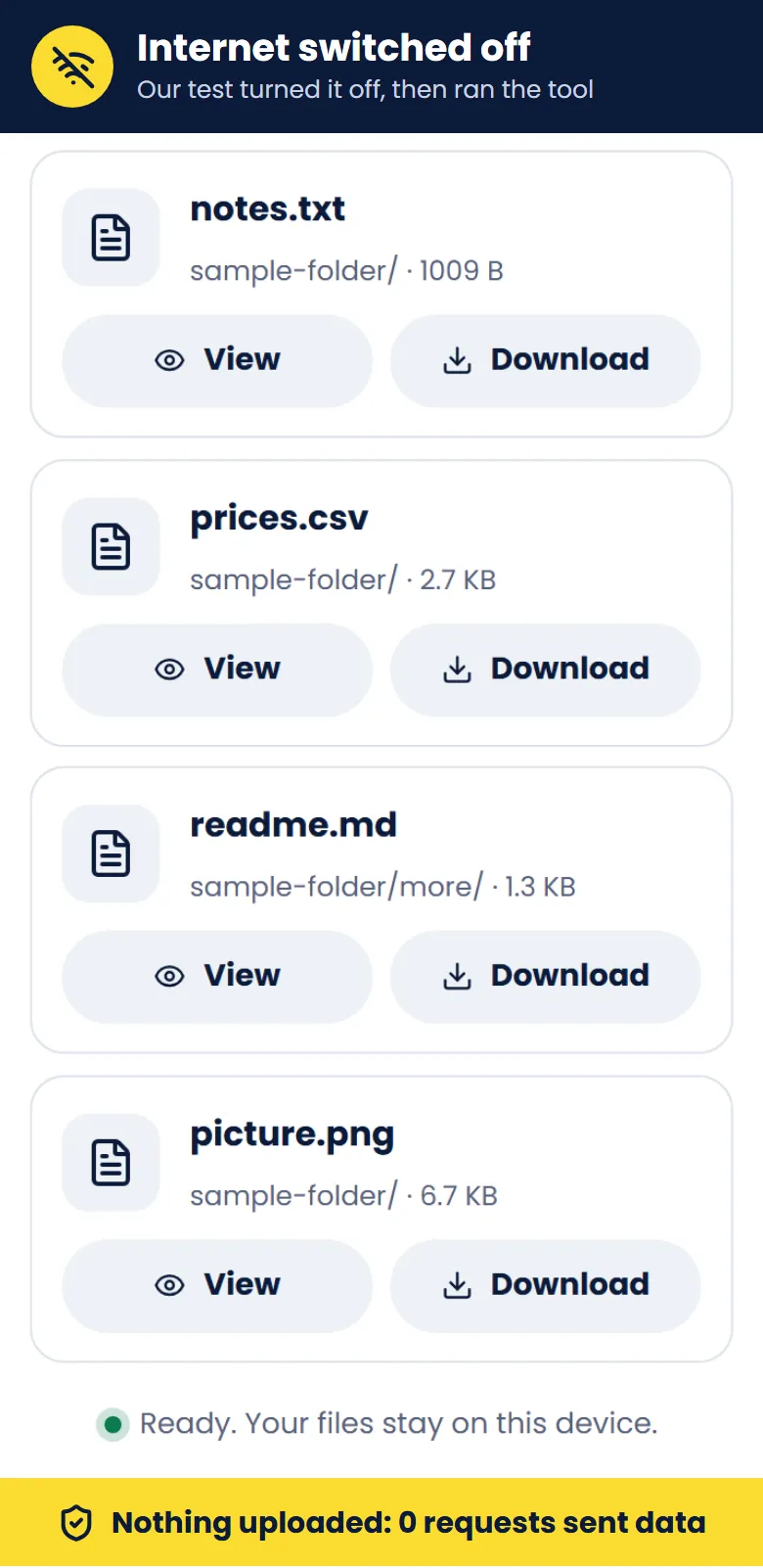
The archive is read inside your browser, and a viewed file is shown from your device's memory; nothing is uploaded, and once loaded the page works with the internet switched off. Google's ad code runs on the page too, but our code never gives it your files or their names. How we prove it shows how anyone can check.
Messages, and what to do
- "This file isn't a ZIP file, or it is damaged."
- It may not be an archive at all, or the download was cut short. Download it again.
- "This is a RAR file" or "a 7-Zip (.7z) file"
- The viewer opens ZIP, TAR and TAR.GZ only. 7-Zip opens RAR and 7z.
- A picture shows nothing when viewed
- The file may be damaged. Download it and open it with your gallery.
- A photo has no View button
- HEIC photos from iPhones and RAW camera files can't be shown by most browsers, so they have only Download.
- "Locked with a password"
- The viewer can't open locked files yet; 7-Zip can, with the password.
Limits
- It views; it doesn't edit, rename or delete files inside an archive.
- No view for Word, Excel, videos or music; download those.
- Text shows its first 200 KB.
- No passwords, RAR or 7z yet; .tar.bz2 and .tar.xz aren't read either.
Other ways to look inside a ZIP
- Windows: double-click a ZIP to see its files like a folder.
- 7-Zip lists any ZIP, RAR, 7z or TAR without unpacking it.
- Phones: some file managers show a ZIP's files before extracting.
The viewer is handy where those don't show pictures and text without unpacking, or on a device where you can't install anything.
Terms explained
- Archive
- One file holding many files and folders: a ZIP, TAR, TAR.GZ, RAR or 7z.
- Unpacked size
- How much room the files take once they are out of the archive.
- Preview
- Seeing a file on the page without saving it to your device.
- CRC-32
- A check number each file in a ZIP carries, so the viewer can tell its bytes are right.
- TAR.GZ
- A TAR archive squeezed with gzip, common for Linux and software downloads; .tgz is the same.