What Create TAR.GZ does, and when you need it
Create TAR.GZ packs the files and folders you add into one .tar.gz file, in your browser: a TAR archive, squeezed with gzip, the same kind of file the tar command makes on Linux and Macs. Nothing is uploaded, there is no sign-up, and we set no size limit. Untick Squeeze it for a plain .tar.
People use it when:
- A server or hosting panel wants a .tar.gz to unpack a website, a theme or a backup.
- A developer or a Linux user asked for one. It is the usual way to share code and data between Linux machines.
- They are on Windows or a Chromebook and don't want to use a command line.
- Many small text files need to travel as one: a TAR.GZ is often a little smaller than a ZIP for those.
For sending files to people on Windows, Macs and phones, a ZIP is the better choice; Create ZIP File makes one.
How it works
A TAR puts each file after the one before, with a 512-byte header in front holding its path, size, date and permissions, and pads each file to a multiple of 512 bytes; two empty blocks mark the end. The page writes those headers itself and joins them with your files without copying them, so even big files are never held whole in memory. Then the browser's own gzip compressor squeezes the whole TAR as one stream, while a bar shows how much has been read.
Names too long for the old 100-character field are split into a prefix and a name where they can be, and otherwise written in a PAX record, the modern way TAR keeps long names and sizes over 8 GB. Every Linux and Mac tar, 7-Zip and Python reads both.
Real results from our tests
We packed these test files with this page in Chromium 148, the open-source browser Google Chrome is built on, on a Windows 11 laptop with an Intel Core i7-1185G7 processor and 32 GB of memory, on 1 November 2026. Our scripts made the files to look like everyday ones; none is anyone's real file. Python's tarfile module, which shares no code with the page, then opened each archive and read every file in it back.
| What we packed | Before | TAR.GZ | Time | What happened |
|---|---|---|---|---|
| The office folder: 54 files in 2 folders | 62.5 MB | 50.4 MB | 2.9 s | Python's tarfile read back all 65,528,520 bytes |
Python's tarfile opened the archive and read every file back: 54 files and 2 folders, 65,528,520 bytes, exactly the original folder. Like a ZIP, a TAR.GZ squeezes text well and leaves photos and PDFs about the same, so this folder of mixed office files came out a little smaller.
Step by step
- Add the files: Choose files, Choose a folder, or drop them on the page. Each file or folder shows as a row with its size.
- Leave Squeeze it ticked for a .tar.gz, or untick it for a plain .tar.
- Press Create TAR.GZ. The bar shows how much has been squeezed; the cross stops it.
- Download it. One folder gives the file its name; otherwise it is files.tar.gz. Type another name in the box if you like.

ZIP or TAR.GZ: which to make
| If the files go to | Make |
|---|---|
| People on Windows, Macs or phones, by email or WhatsApp | ZIP: everyone can open it |
| A Linux server, a hosting panel or a developer | TAR.GZ, unless they asked for ZIP |
| A form or portal | Whatever it names; usually ZIP |
| Many small text or code files, to be as small as possible | TAR.GZ is often a little smaller |
| Someone who needs one file out of a big archive | ZIP: one file can be taken out without unsqueezing the rest |
Uploading to a server or hosting panel
- Pack the site's folder here, so its folders arrive as they are.
- Upload the .tar.gz with your hosting panel's file manager or by SFTP. One file uploads much faster than thousands of small ones.
- Unpack it there. Most hosting file managers, cPanel's among them, have an Extract button for .tar.gz. With a command line, in the folder:
tar -xzf site.tar.gz.
The folder you packed becomes a folder on the server. To unpack the files straight into the current folder instead, pack the files themselves, not their folder.
With a command line on the server, tar -tzf site.tar.gz lists what is inside before you unpack, and tar -xzf site.tar.gz -C /var/www/site unpacks it into a folder you name instead of the current one.
Why one archive uploads faster than many files
Every file sent by FTP, SFTP or a hosting file manager has its own small round trip: asking for it to be created, sending it, closing it. For a few big files that is nothing; for a website of thousands of small files, those round trips take longer than the bytes themselves, and one failed file in the middle is easy to miss. One .tar.gz is a single upload of one file, squeezed smaller on the way, and it either arrives whole or the upload says it didn't.
Themes and plugins: check what the site takes
Not every upload box takes a .tar.gz. WordPress's Upload Plugin and Upload Theme take ZIP files only, and many other site builders and online stores do the same: make a ZIP with Create ZIP File for those. Hosting file managers, servers and developer tools usually take both. When a page doesn't say, a ZIP is the safer choice.
A worked example: putting a small website online
Say a small business site is a folder called "shop-site" on a Windows laptop: index.html, a css folder, a js folder and an images folder with about 400 pictures. The hosting plan has cPanel.
- Pack it. Choose a folder, pick "shop-site", leave Squeeze it ticked, and press Create TAR.GZ. The result is shop-site.tar.gz: the HTML, CSS and JavaScript shrink a lot; the pictures hardly change.
- Upload one file. In cPanel's File Manager, open public_html and upload shop-site.tar.gz. One file goes up much faster than 400 small ones, and can't arrive half-done without the upload saying so.
- Unpack it. Select the file and press Extract. A folder "shop-site" appears inside public_html.
- Put it where it belongs. If the site must be at the top of public_html rather than in a folder, move its files up, or next time pack the files inside "shop-site" rather than the folder itself.
- Tidy up. Delete the .tar.gz from the server once unpacked, so nobody can download it.
What to leave out when sharing a project
- Passwords and keys. A file called .env, config files with database passwords, and private keys should never go into an archive you send or upload where others can reach it. Remove them from the copy you pack.
- Downloaded libraries. A node_modules or vendor folder can hold tens of thousands of files that the other person can download again from the project's list of packages.
- Build output and caches, such as dist, build or __pycache__ folders, which are made again from the code.
- The .git folder, unless the history is wanted; it can be bigger than the code.
The simplest way: copy the folder, delete what shouldn't go from the copy, and pack the copy.
How the other person opens it
- Linux and Mac: a double-click, or
tar -xzf file.tar.gz. - Windows 11: recent updates open .tar.gz in File Explorer. Windows 10 needs the tar command or 7-Zip.
- Phones: rarely on their own. Extract TAR.GZ opens it in any browser.
If you aren't sure what the other person uses, send a ZIP, or send the link to Extract TAR.GZ along with the file.
A quick backup before you change something
Before editing a project or a set of documents, pack the folder into a .tar.gz with today's date in its name, such as "report-2026-10-31.tar.gz", by typing the name in the box by the Download button. If the changes go wrong, the archive gives back every file exactly as it was. A ZIP does the same job; a TAR.GZ keeps paths in the form Linux and Macs expect.
Check the archive before you send it
Open the new .tar.gz in ZIP File Viewer, which reads TAR.GZ files too: the list shows every file with its folder and size, and you can view text and pictures. Make sure the top folder is the one you meant, that nothing private slipped in, and that the size is what you expect. gzip keeps a check number for the whole archive, so a copy damaged on the way is caught when it is unpacked.
Folders and paths
- A folder keeps its shape: its name and every folder inside it, written as paths such as "site/css/style.css".
- Empty folders are kept when you drop a folder on the page; the Choose a folder button can't see them.
- Paths use forward slashes, as Linux expects, whatever system you pack on.
- Two files with the same path get " (2)" added, so none is lost.
Permissions and dates
A browser doesn't see a file's Linux permissions, so the page writes the usual ones: files can be read by everyone and written by their owner (644), and folders can also be opened (755). That suits websites and documents. A script that must run on the server needs its permission set there, with chmod +x script.sh. Each file's date is the date your device gives it. No owner is written (user 0); when an ordinary user unpacks the archive, tar makes that user the owner. To carry permissions and owners exactly, from one Linux machine to another, pack with tar on the machine itself.
Long names, and names in any language
Old TAR headers hold 100 characters of name and 155 of folders. Longer paths, common in code and node_modules folders, are kept in PAX records, so nothing is cut short. Names are written in UTF-8, so Hindi, Tamil and every other script come out as they were on Linux and Macs.
.tar or .tar.gz
A plain .tar isn't squeezed: it is the files end to end, a little bigger than the files themselves, and very quick to make. Choose it when the files are photos, videos or other packed files, where squeezing gains nothing, or when the receiving system asks for .tar. Otherwise keep Squeeze it ticked. For a single file, such as one log or one database dump, GZIP Compressor makes a plain .gz, without a TAR around it.
What shrinks
gzip squeezes text, code, CSV, logs, HTML and SQL a lot, and PDFs a little. Photos, videos, music and ZIPs inside the TAR hardly change. Because a TAR.GZ squeezes all files as one stream, repeats across files help: a folder of similar small files, such as a website's pages, squeezes better than each file would on its own.
Big files
We set no limit. Files over 8 GB, too big for the old TAR size field, get their size in a PAX record. The browser keeps the squeezed result on your disk while it is made, so leave room for it. Squeezing reads every byte, so big folders take time; a plain .tar is much quicker. On a phone, a few GB at a time works best.
Is a TAR.GZ smaller than a ZIP?
Usually not by much. We packed the same office folder both ways on 1 November 2026: the ZIP from Create ZIP File came out at 50.43 MB and the TAR.GZ from this page at 50.41 MB, a difference of less than a tenth of one per cent. Both squeeze with deflate, so the size depends on the files, not the format.
There are small differences in how they squeeze. A ZIP squeezes each file on its own, so one damaged file doesn't spoil the rest, and you can take one file out without unsqueezing everything. A TAR.GZ squeezes the whole folder as one stream, which can save a little more when there are thousands of small, similar files, such as the source files of a project, but has to be read from the start to reach any file. So choose by who will open it: a TAR.GZ for Linux servers, hosting control panels and developer tools; a ZIP for people on Windows, Macs and phones.
Whichever you choose, look inside before you send it: open the TAR.GZ with Extract TAR.GZ, or a ZIP with ZIP File Viewer, and check that every folder you expected is there, with nothing extra.
Private: your files stay on your device
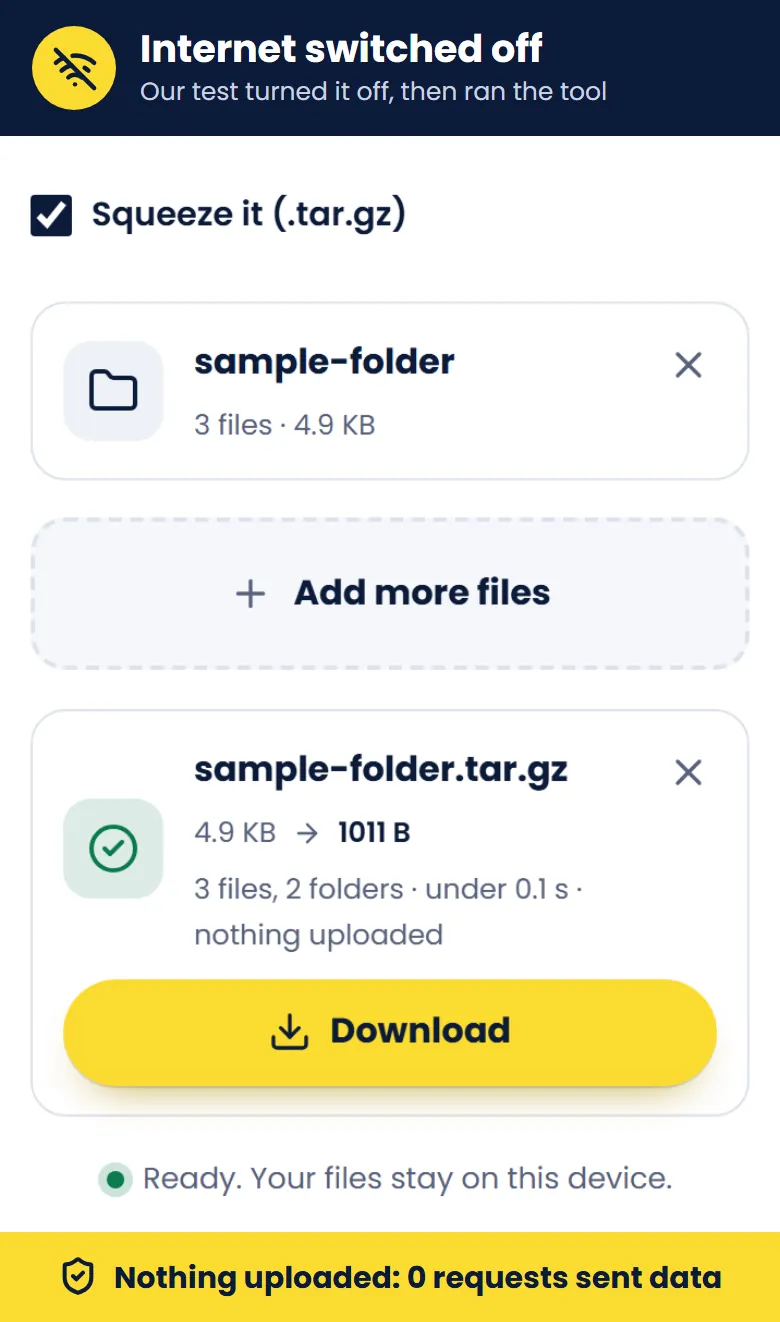
The archive is made inside your browser; nothing is uploaded, and once loaded the page works with the internet switched off. Google's ad code runs on the page too, but our code never gives it your files or their names. How we prove it shows how anyone can check.
Problems and fixes
- The server says "not in gzip format"
- The file was unpacked as .tar.gz but made as a plain .tar, or the other way round. Use
tar -xf, which works out which it is. - Files unpacked into an extra folder
- You packed the folder, so it comes back as a folder. Pack the files inside it instead.
- A script won't run on the server
- Set its permission there:
chmod +x script.sh. - "This device ran out of room for the result."
- Free some disk space, or pack fewer files at once.
- The other person can't open it on Windows
- Windows 10 opens .tar.gz only with the tar command or 7-Zip. Send a ZIP instead, made with Create ZIP File.
- The archive is much bigger than expected
- Photos and videos don't shrink, and a node_modules or .git folder may have gone in. Look inside with ZIP File Viewer.
Limits
- gzip only: no .tar.bz2, .tar.xz or .tar.zst.
- No links (shortcuts) or Linux permissions from your device: files and folders only, with the usual permissions.
- One squeezing level, the browser's own.
Other ways
- Windows 10 and 11:
tar -czf archive.tar.gz folderin Command Prompt. - Mac and Linux:
tar -czf archive.tar.gz folderin Terminal. - 7-Zip on Windows, in two steps: a .tar, then gzip.
The tar command on Windows, in detail
Windows 10 and 11 include tar, the same command Linux and Macs have. In Command Prompt or PowerShell, in the folder above the one to pack:
tar -czf site.tar.gz sitemakes site.tar.gz from the folder "site": c is create, z is gzip, f names the file.tar -tzf site.tar.gzlists what is inside, without unpacking.tar -xzf site.tar.gzunpacks it into the current folder.
This page does the first of those without the command line, on any device with a browser, and shows the size and a bar as it works.
Terms explained
- TAR
- Files put end to end, each with a 512-byte header; not squeezed.
- gzip
- A way of squeezing one file or stream with deflate, losing nothing.
- .tar.gz, .tgz
- A TAR squeezed with gzip.
- PAX
- The modern form of TAR headers, for long names and big sizes.
- Permissions (644, 755)
- Who may read, write and run a file on Linux.
- Tarball
- An everyday name for a .tar or .tar.gz file.
- SFTP
- The usual way to copy files to a server safely, over SSH.