What Unzip Files does, and when you need it
Unzip Files opens a ZIP in your browser, lists every file and folder in it with its size, and saves the ones you want: one at a time, or all of them at once. Nothing is uploaded, there is no sign-up, and we set no size limit, so a ZIP of several GB opens as easily as a small one. The ZIP itself is never changed.
People use it when:
- A phone or a borrowed computer won't open a ZIP. Some phones open ZIPs only in an app you don't have; an office computer may not let you install one.
- They need one file from a big ZIP. A college sends a 400 MB ZIP of every result, and you need only your own sheet. Save just that file, without unpacking the rest.
- They want to see what is inside first. The list shows every name and size before anything is saved, which is wise with a ZIP from someone you don't know.
- Another site asked them to sign up to open a ZIP over 20 MB or so. This one doesn't, because the work happens on your own device.
To look inside without saving anything, and see pictures and text right on the page, ZIP File Viewer does that. For .tar.gz, .tgz and .gz files, use Extract TAR.GZ.
How it works
A ZIP keeps a list of its files at its very end: each name, size, check number and where its bytes begin. The page reads only that list first, so even a ZIP of several GB shows its files in a moment, without reading the rest.
When you save a file, the page reads just that file's bytes from the ZIP and, if they were squeezed with deflate, unsqueezes them with the decompressor built into your browser. As the bytes come out, a small engine we wrote in Rust and run as WebAssembly works out the file's CRC-32, its check number, and compares it with the one the ZIP kept. A file whose number doesn't match is called damaged instead of being saved quietly broken.
On a computer with Chrome or Edge, Save all to a folder writes each file straight into a folder you pick, as it comes out, so even very big files never sit in memory. Other browsers download the files one after another.
Real results from our tests
We opened these test ZIPs with this page in Chromium 148, the open-source browser Google Chrome is built on, on a Windows 11 laptop with an Intel Core i7-1185G7 processor and 32 GB of memory, on 1 November 2026. Python's zipfile module made the ZIPs, as another program would, from files our scripts made to look like everyday ones; none is anyone's real file. We then compared every byte that came out with the original.
| What we did | ZIP | Time | What happened |
|---|---|---|---|
| Opened a ZIP of a 1 GB server log, made by Python, and saved the log | 143 MB | Listed in 0.06 s; saved in 32.8 s | The 1,073,741,906-byte log came out byte for byte the same as the original |
Listing is quick because the page reads only the ZIP's table of contents, at its end; a file is unsqueezed only when you save it. Most of the 32.8 seconds went into unsqueezing and writing 1 GB. We compared the saved log with the original by their SHA-256 hashes, and they matched.
Step by step
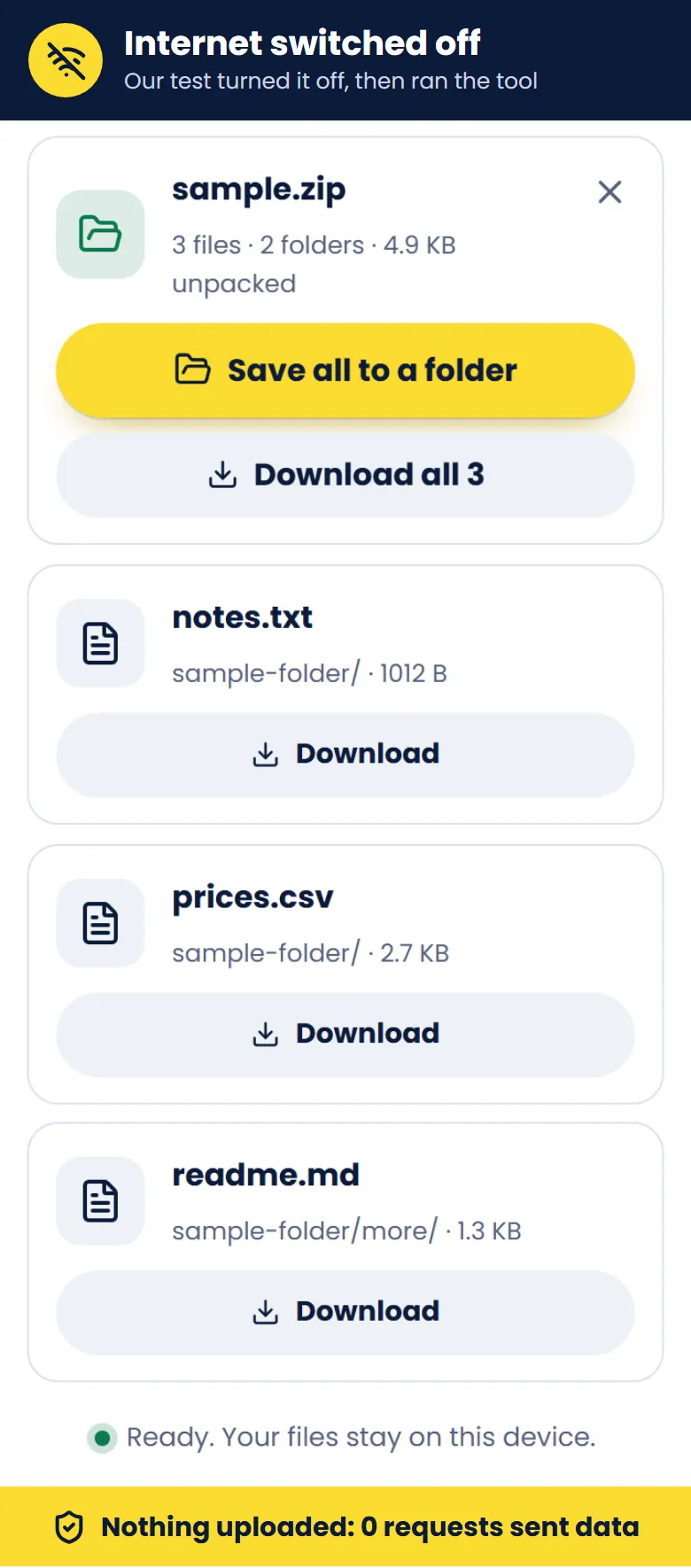
- Choose the ZIP, or drop it on the page. Its files are listed at once: each name, the folder it is in, and its size, with how many files and folders there are and how big they are unpacked.
- Save one file with the Download button on its row.
- Or save them all. On a computer with Chrome or Edge, Save all to a folder asks for a folder and writes every file into it, folders and all. Download all saves them one after another to your Downloads.
To open another ZIP, press Open another ZIP or drop it on the page; the cross on the list takes the ZIP away.

Saving every file
- Save all to a folder (Chrome and Edge on computers) is the best way: pick a folder, allow the page to save into it, and each file goes straight there, in its own folders, while the button shows how much is done. The browser asks for the folder each time; the page can't see any other folder on your computer.
- Download all works in every browser. It saves the files one after another to your Downloads, without their folders. The first time, the browser may ask whether to allow the page to download several files: say yes.
- One file at a time, with each row's Download, is handy when you need only a few.
A name Windows refuses, such as one with a colon or a question mark, or one ending in a dot, is saved with those characters changed to an underscore when it goes into a folder, so every file can be written.
Taking out just one file
A ZIP doesn't have to be unpacked whole. Say a college sends one ZIP with every student's result sheet, 400 MB of PDFs, and you need only yours:
- Open the ZIP. Its list shows in a moment, however big it is.
- Find your file. On a computer, press Ctrl+F (Cmd+F on a Mac) and type part of its name, such as your roll number; on a phone, use the browser's Find in page. Each row also shows the folder the file is in.
- Press Download on its row. Only that file is read from the ZIP, checked and saved, which takes a moment even in a big ZIP.
The saved file has its own name, without the folders it sat in, so a file called "results/2026/A-123.pdf" in the ZIP is saved as A-123.pdf.
ZIPs from WhatsApp and email
- WhatsApp on Android keeps documents in Internal storage, Android, media, com.whatsapp, WhatsApp, Media, WhatsApp Documents. If Choose a ZIP doesn't show it, open the chat, tap the ZIP to save it to Downloads first, and choose it from there.
- WhatsApp on an iPhone: open the ZIP in the chat, tap Share, then Save to Files, and choose it from the Files app.
- Email: download the attachment first, then choose it here. Gmail blocks some kinds of file even inside a ZIP, such as programs, so a ZIP of programs may not arrive at all.
Several ZIPs from Google Drive or Takeout
Download a big folder from Google Drive and it can arrive as several ZIPs with the same name and -001, -002 and so on at the end. Google Takeout does the same with an account's photos and mail. These are not parts of one ZIP: each is a whole ZIP holding some of the files. Open each one here and save its files into the same folder, and together they make the whole folder again.
A ZIP inside a ZIP is just another file in the list. Save it, then open it here too.
Every file checked
Every file in a ZIP carries a CRC-32, a check number worked out from all its bytes when it was zipped. The page works the number out again as the file comes out and compares the two. If even one byte differs, because the ZIP was cut short in a download or damaged on a pen drive, the file is called damaged instead of being saved quietly broken.
A ZIP cut short loses its list of files, which sits at its end, and the page says so: download it again. A ZIP that opens but has a damaged file still lets you save the others.
Big ZIPs
We set no limit. Because only the list at the end is read first, a ZIP of several GB opens in a moment, and ZIP64, the form ZIPs take past 4 GB or 65,535 files, opens like any other.
- Saving needs room for each file you save, on your device.
- Very many files show the first 500 on the page, with a note of how many more there are; Save all to a folder and Download all take every one of them.
- On a phone, saving a file of several GB can be more than a phone browser manages; save fewer at a time, or use a computer.
ZIPs locked with a password
Unzip Files can't open files locked with a password yet. They are listed with a lock and the words "Locked with a password", and every file that isn't locked can still be saved. To open the locked ones, use Windows' own Extract All, which asks for the password for older-style locks, or 7-Zip, which opens both older locks and AES ones. If you made the ZIP yourself and forgot the password, no tool can honestly promise to open it.
RAR, 7z, TAR.GZ and other kinds
- RAR and 7z are other archive kinds. The page recognises them and says so, rather than calling them damaged. 7-Zip opens both.
- .tar.gz, .tgz, .tar and .gz open in Extract TAR.GZ.
- Split ZIPs (.zip with .z01, .z02 …) are one ZIP in several parts; join them with the program that made them first.
- Unusual squeezing. Nearly every ZIP uses deflate or stores files as they are, and both open here. A few programs can use others, such as Deflate64, BZIP2, LZMA or Zstandard; such files are listed with the method's name and can't be opened here.
Names in any language
Current ZIP programs write names in UTF-8 and mark them so; the page reads Hindi, Tamil, Urdu or any other script as it was written. Older Windows programs wrote names in an old MS-DOS character set without saying so: the page reads those too, so "café.txt" doesn't come out as nonsense. A ZIP made on a Mac often has UTF-8 names without that mark, and the page reads those as well.
Is it safe to open a ZIP from someone else?
Opening a ZIP here only reads it: nothing inside is run, and files are saved only when you press a button. The list shows every name before you save anything, so look for surprises: a file ending in .exe, .bat, .scr or .apk in a ZIP that should hold documents is a warning sign. Don't open such a file unless you trust where it came from.
A ZIP can also be made to unpack to something enormous. The page shows how big the files are unpacked before you save them, so a 10 MB ZIP that says "50 GB unpacked" is easy to spot, and nothing is unpacked until you ask.
Unzipping on a phone
Choose a ZIP opens your phone's files: on Android, look in Downloads or WhatsApp's folder; on an iPhone, in the Files app. Each file's Download saves it to your Downloads (Files app, On My iPhone, Downloads, on an iPhone), and Download all saves them one after another. Phones keep one file per download, without folders.
After unzipping
- Dates. A ZIP keeps each file's date, but files saved by a browser carry the day you save them. The date in the ZIP is shown nowhere else here; 7-Zip keeps it if you need it.
- The ZIP stays. Unzipping doesn't change or delete the ZIP. Delete it yourself once you have what you need, to free the space.
- To send some of the files on, put the ones you need into a new ZIP with Create ZIP File. A ZIP that came stored, without squeezing, can be made smaller as it is with Compress ZIP File.
- PDFs too big to send? Compress PDF makes them smaller; Merge PDF joins several into one.
Sending the files on
A ZIP often arrives as a step on the way to something else: a form that wants PDFs, a portal that wants a photo under a size, a colleague who needs one file. Once the files are out, the right next tool depends on the job:
- A PDF that is too big for a form or an email: Compress PDF makes it smaller, or Compress PDF to 200 KB fits a size the form names.
- Several PDFs that should be one: Merge PDF joins them in the order you choose.
- A photo or a signature for an exam or job form: Reduce Image Size in KB brings it to the size and the pixels the form asks for.
- The files again as a ZIP, but smaller: Compress ZIP File squeezes a ZIP that was stored without squeezing.
Each of these works the same way as this page: in your browser, without uploading the file.
Private: the ZIP stays on your device
The ZIP is read inside your browser and the files are saved straight to your device; there is no upload step, and once loaded the page works with the internet switched off. Google's ad code runs on the page too, but our code never gives it your files or their names. How we prove it shows how anyone can check.
Messages, and what to do
- "This file isn't a ZIP file, or it is damaged."
- It may be a different kind with a .zip name, or not an archive at all. If you downloaded it, download it again.
- "This file is damaged: part of it is missing or changed."
- The ZIP was cut short or a file's bytes changed. Download it again, or ask the sender to send it again.
- "This is one part of a ZIP split over several files."
- Join the parts with the program that made them, then open the whole ZIP.
- "This is a RAR file" or "a 7-Zip (.7z) file"
- Open it with 7-Zip.
- "Locked with a password"
- See Locked ZIPs.
- Download all saved only the first file
- The browser blocked the rest. Allow the page to download several files when it asks, or save each file from its row.
Limits
- No passwords yet, and no RAR or 7z.
- Save all to a folder needs Chrome or Edge on a computer; other browsers save files one by one, without their folders.
- The page shows the first 500 files of a big ZIP; saving all takes every one.
- It can't repair a damaged ZIP; it tells you which files are damaged.
Other ways to unzip
- Windows: double-click the ZIP to look inside, or right-click and Extract All.
- Mac: double-click the ZIP.
- Android: Files by Google and most file managers open ZIPs.
- iPhone: tap the ZIP in the Files app.
This page helps where those don't: a phone without such an app, a computer you can't install on, a ZIP you want to check before unpacking, or one with names in Indian scripts that an old program shows wrongly.
Terms explained
- Unzip, extract
- To take the files out of a ZIP, as they were before it was made.
- Central directory
- The list of files at the end of a ZIP, which is why a big ZIP can be listed without reading all of it.
- Deflate
- The squeezing nearly every ZIP uses; unsqueezing it gives back every byte exactly.
- CRC-32
- A check number kept for every file, so its bytes can be checked as they come out.
- ZIP64
- The part of the ZIP standard for archives past 4 GB or 65,535 files.
- Unpacked size
- How much room the files take once they are out of the ZIP.