What this page does, and who needs it
This page makes a PDF smaller until it is under 50 KB, which is 50,000 bytes. You need it when an upload form refuses your PDF as too big and the limit is 50 KB or less. You choose the file, a program inside your browser works on it, and you get a new copy whose name ends in -50KB.pdf. Your original is never changed.
50 KB is very small, so something has to give. A scanned page is a picture, and fitting it into 50 KB means keeping far fewer of its dots. The page keeps as many as the limit allows and tells you in one word, Sharp, Good, Readable or Rough, how clear your pictures stayed. If a file cannot reach 50 KB, it says Over and gives you the smallest copy it could make.
In our tests one scanned page of 1.03 MB came out at 45 KB and stayed Readable. Four pages did not stay clear, and twenty different pages did not fit. So which page do you need?
- One or two pages, and a limit of 50 KB or less: use this page.
- "Between 50 KB and 300 KB", as NEET and JEE Main ask for certificates: 50 KB is the smallest size allowed, so use Compress PDF to 300 KB. See 50 KB as a minimum.
- 100 KB or 200 KB: use Compress PDF to 100 KB or 200 KB. They give pages more room, so pictures stay clearer.
- A long typed document, such as a book or a report: it may never reach 50 KB. See When it says Over.
If the form wants your photo or signature as a JPG under a size, not a PDF, use Reduce Image Size in KB.
What fits in 50 KB
Think of 50 KB as one budget that every page of your PDF shares. One page gets all of it, two pages about half each, four pages about a quarter each, and twenty pages only 2.5 KB each. That is why the number of pages decides almost everything here.
We measured it in Chromium 148, the open-source browser Google Chrome is built on, on a Windows 11 computer (Intel Core i7-1185G7, 31.7 GB of memory) that was busy with other jobs. Our test scans were made by our own scripts to look like office scans at 300 dots per inch, so your papers will give different numbers. In the table, ppi means pixels per inch, the dots of picture across one inch of the page. The page shrinks pictures down to about the ppi shown, and leaves alone a picture that is already near it or below it. More dots make a sharper and bigger file.
| Test file | Before | After | Pictures | Time |
|---|---|---|---|---|
| 1-page colour scan | 1.03 MB | 45 KB, under | Readable, 72 ppi | 1.1 s |
| 2-page colour scan | 2.05 MB | 47 KB, under | Readable, 56 ppi | 4.4 s |
| 4-page colour scan | 4.08 MB | 44 KB, under | Rough, 43 ppi | 5.2 s |
| 6-page colour scan | 6.14 MB | 48 KB, under | Rough, 38 ppi | 6.4 s |
| 4-page grayscale scan | 6.81 MB | 47 KB, under | Rough, 44 ppi | 3.2 s |
| Phone-style photo of a letter, 1 page | 3.23 MB | 47 KB, under | Readable, 83 ppi | 2.4 s |
| 20 different scanned pages | 20.5 MB | 88 KB, Over | Rough, 30 ppi | 13.5 s |
Sizes are written the way this page shows them, in 1,024-byte units (see How 50 KB is counted). Time runs from choosing the file to the result, so treat it as rough. Every file that fitted came out between 45,338 and 48,686 bytes. The 20 different pages did not fit: even at the strongest setting, 30 ppi, they ended at 88 KB.
One or two pages is where 50 KB works, and four pages is where Rough begins. Going from one page to two, and from two to four, each took away a little under a quarter of the sharpness (72, 56, then 43 ppi), and six pages kept 38.
A 42-page scan of 46.0 MB also went under 50 KB, to 45,338 bytes. That is a trap in the test file: it holds only four different page pictures, repeated, so once shrunk it fitted like four pages. Do not expect 42 different pages to fit. We use it only for time and memory: 47.1 seconds, and 145 MB for the engine, the part that does the shrinking. The other scans needed 39 MB to 93 MB, and across all ten files the browser tab peaked at 233 MB to 399 MB.
When 50 KB is a minimum, not a limit
Some exam forms use 50 KB the other way round: the PDF must be between 50 KB and 300 KB, so 50 KB is the smallest file they take. A file under 50 KB breaks that rule, and this page is the wrong tool. These are the two we checked:
- NEET (UG) 2026. In the NTA Information Bulletin, Chapter 3, printed page 16 (page 21 of the PDF file), point d, the category certificate, Class 10 certificate and marksheet, CGPA conversion certificate, disability certificate (PwD, PwBD, UDID), address proof and NRI or OCI proof must be PDFs between 50 KB and 300 KB. Last checked: 2026-10-08.
- JEE (Main) 2027. In the NTA Information Bulletin, page 8, Step 2, the scanned Class 10 (or equivalent) certificate or marksheet must be a PDF between 50 KB and 300 KB, and so must the disability or UDID certificate. Last checked: 2026-10-31. The photo and signature are JPGs: JEE Main Photo and Signature Resizer makes them.
Every file this page made that fitted was under 50 KB however a website counts, so under their minimum. For those forms use Compress PDF to 300 KB, which aims just under 300 KB and keeps far more detail. Limits change with every notice, so treat this as a pointer, not the rule, and read the current bulletin for your exam.
NEET or JEE Main? Do not use 50 KB. Use the 300 KB page.
Open the 300 KB pageWhere a 50 KB limit comes from
On 2026-10-08 we searched government and exam notices for an official form that sets 50 KB as the most a PDF may be. We could not find one that we could verify. That does not prove none exists: universities, state boards, companies and small portals set their own limits. If your form says "PDF up to 50 KB", this page is for you.
The 50 KB limits we could verify belong to pictures. The IBPS guidelines for scanning and uploading documents (CRP PO/MT-XV) ask for a photograph of 20 KB to 50 KB, with 200 × 230 pixels preferred, and for the Class 10 certificate as a PDF of no more than 500 KB, a job for Compress PDF to 500 KB. Last checked: 2026-10-08. For the photograph itself, Resize Image to 50 KB and IBPS Photo and Signature Resizer make the JPG, and a signature or photo under 20 KB is a job for Resize Image to 20 KB.
So read the line for your exact slot. Check the file type (a photo slot wants a JPG, a document slot a PDF), whether it says "up to" or "between", whether it says KB or MB (2 MB is about 40 times bigger than 50 KB), and whether one limit covers all your papers.

How the page fits a file into 50 KB
Nobody can tell in advance how small a PDF will get, so the page tries, measures and adjusts, all inside your browser:
- First try with its Recommended setting, a balance for screens and normal printing.
- Find the edges. If that is too big, it tries the strongest setting, which keeps pictures at 30 ppi, and says Over if even that is too big. If the first file fitted, it tries the gentlest setting, in case the best quality fits.
- Close in between the closest result that fits and the closest that does not, until one lands within 15% under 50 KB.
- Keep the best: after six tries at most, the sharpest result that fits.
In our tests the page made 2 to 5 tries, and only 2 for the three files that said Over. Each try is a full pass over the file, so big files take longer.
Only pictures lose detail: each gets fewer dots per inch and is saved with more squeezing. Text, fonts and drawings keep every detail, so typed words stay sharp and searchable. They are only packed more tightly, without any loss, and identical objects, such as a picture used twice, are stored once. That saves a little, but it is why typed PDFs have a smallest size.
Getting one page under 50 KB
One page is where 50 KB works best, and what you do before you open this page matters:
- One page per upload, if the form allows it. One page kept 72 ppi and two kept 56. Every page you leave out gives the rest more room. A Class 10 marksheet is often one page, and an Aadhaar copy can have its front and back on one page.
- Crop to the paper. Our phone-style photo of a letter on a table went from 3.23 MB to 47 KB at 83 ppi, with the school name, certificate number and body text all readable. But the table's wood pattern still showed around the paper, and the wood cost bytes the letter could have used. Many phone scanner apps can crop.
- Start from your first scan. A copy already shrunk for another form has lost detail for good.
- Try grayscale if the form allows it. With no colour to store, more of the budget can go to sharpness. Our grayscale and colour scans were different documents (44 ppi against 43), so we cannot say how much it helps.
Say a form wants your Class 10 marksheet as one PDF under 50 KB. Scan the page flat, crop it, add it here and read the word after Pictures. Then zoom in on the new file and check the roll number, marks and dates before you upload.

How a page looks at 50 KB
The result tells you in one word how clear the pictures stayed. This is what each word means, with what we got at 50 KB:

| Result says | Pictures kept at | At 50 KB in our tests |
|---|---|---|
| Sharp | 150 ppi and up | Not reached |
| Good | 100 to 149 ppi | Not reached |
| Readable | 45 to 99 ppi | One page (72 ppi), two pages (56), the phone-style photo (83) |
| Rough | Under 45 ppi | Four pages (43 and 44), six pages (38), twenty pages (30) |
We also looked at page 1 of some results at about normal zoom on a computer screen, next to the original scan.
| Copy under 50 KB | What we saw |
|---|---|
| 1-page colour scan, Readable (72 ppi) | The heading and every line of body text were readable, slightly soft. The colour photo kept its colours and shapes. |
| 6-page colour scan, Rough (38 ppi) | The heading was readable. The body text blurred into grey lines and could not be read. The photo kept rough colours. |
| Phone-style photo of a letter, Readable (83 ppi) | The school name, the certificate number and the body text were all readable, a little soft. The table's wood pattern still showed around the paper. |
We did not look at the other results one by one. Be careful with a Readable close to 45: twenty different pages under 300 KB kept 46.5 ppi and said Readable, yet their body text was smudged and hard to read. The word is a guide, and your own eyes are the real test. If your row has no Pictures part at all, the PDF has no pictures to shrink, and if it says Pictures unchanged, the page left its pictures as they were.
When it says Over 50 KB
Over means the file cannot get under 50 KB. You still get the smallest copy the page could make, with a Download button, and the row suggests a bigger size or fewer pages. It happens for two reasons.
Typed PDFs. A PDF made on a computer is mostly real text, fonts and drawings. We keep those exactly, and fonts take room that no setting can win back. We tried two typed files with no pictures:
| Typed PDF, no pictures | Before | Smallest | Time |
|---|---|---|---|
| 24 pages of dense text, 2 fonts | 121 KB | 101 KB | 0.3 s |
| 120-page book with 6 fonts, tables and line drawings | 528 KB | 428 KB | 0.3 s |
Scans with many different pages. Our 20 scanned pages ended at 88 KB with the strongest setting already used. What to do, from the easiest:
- Send only the pages they ask for. Take them out of the file with Split PDF, then add that file here. Fewer pages means more room per picture.
- Upload in parts, if the form has several slots. Each file gets its own 50 KB. Split PDF can save each page as its own PDF.
- Ask whether a bigger size is allowed. If it is, use Compress PDF to 100 KB or bigger.
- For a typed page or two, try making the page a picture with PDF to JPG and then JPG to PDF, and shrink that here. The words stop being searchable text. We have not measured this at 50 KB, so check the result carefully.
If the new copy is not smaller than the original, the page says "This PDF can't get any smaller" and gives no download. Use your original.
Photos and signatures are usually JPGs
On the forms we checked, the small limits belong to the passport photo and the signature, which go up as separate JPG pictures: 10 to 200 KB and 10 to 100 KB in the NTA bulletins above, and 20 to 50 KB for the IBPS photograph. This page works on PDFs only, so it cannot shrink a JPG. Use the form's own instructions, or a photo editor on your phone.
If a form wants the picture inside a PDF, put it into a PDF with JPG to PDF first, then add that PDF here. One photographed page gets the whole 50 KB: our phone-style photo stayed Readable at 83 ppi. A signature inside a scanned page gets as soft as the rest of the page. We did not look at signatures in the 50 KB results, so check yours before you upload.
50 KB or a bigger limit?
If a form says "up to 100 KB" or "between 50 KB and 300 KB", aim at the biggest size it accepts, not 50 KB. More room makes a big difference:
| Scan | Limit | What we got |
|---|---|---|
| 1-page colour scan | 50 KB | Readable, 72 ppi |
| 1-page colour scan | 300 KB | Sharp, 159 ppi |
| 1-page colour scan | 500 KB | Sharp, 207 ppi |
| 20 different scanned pages | 50 KB | Over, smallest 88 KB |
| 20 different scanned pages | 300 KB | Readable, 46.5 ppi |
| 20 different scanned pages | 1 MB | Readable, 72.5 ppi |
The single page went from Readable to Sharp with 300 KB. Twenty pages that could not fit in 50 KB fitted in 300 KB, only just above the Rough line, and by 1 MB their body text was readable. The 100 KB and 200 KB pages used a different sample, so their numbers are not here.
Each common size has its own page: 100 KB, 200 KB, 300 KB, 500 KB, 1 MB and 2 MB. Resize PDF does the same job and can change the paper size too. With no limit at all, our PDF compressor lets you choose a quality level instead.
Compressing on a phone
The page runs in your phone's browser, so there is nothing to install. Tap Choose PDF files, pick your PDF from your phone's storage, and wait. The new file is saved the way your browser saves any download, usually in a Downloads folder.
We tested with a phone-sized screen, 390 × 844 with touch turned on, in Chromium on a computer. That imitates a phone. It is not one. The two files we tried gave the same sizes and words as on the computer: the one-page scan 45 KB, Readable, in 1.9 seconds, and the phone-style photo 47 KB, Readable, in 2.2 seconds. We have not tested real phones, Safari or Firefox, and a real phone may have less memory to spare. Keep the page open until the result appears, and for a big scan close other tabs and apps: fitting a size keeps your original in memory between tries, so it needs more memory than a plain compress.
How 50 KB is counted
A kilobyte is 1,000 bytes to some programs and 1,024 to others, and websites use either. We use the stricter count: here 1 KB is 1,000 bytes, so "under 50 KB" means 50,000 bytes or fewer. That is also under 50 KB on a site that counts 1,024, so there is no reason to ask for 45 KB "to be safe".
The sizes this page shows are in 1,024-byte kilobytes, like most file apps. One of our results was 48,686 bytes: this page shows 48 KB, some apps show 47.5 KB and others 48.7 KB. All are the same file, and all are under 50 KB. The page stops looking once a result is within 15% under the limit, which for 50 KB means 42,500 to 50,000 bytes, or after six tries.
Your papers stay private
A document that has to fit a tiny slot is often an identity paper: an Aadhaar card, a PAN card, a marksheet, a bank page. Many online compressors upload the file to their own computers first. This tool has no upload step. A program in your browser reads, shrinks and saves your file on your own phone or computer, so your file is not sent to us.
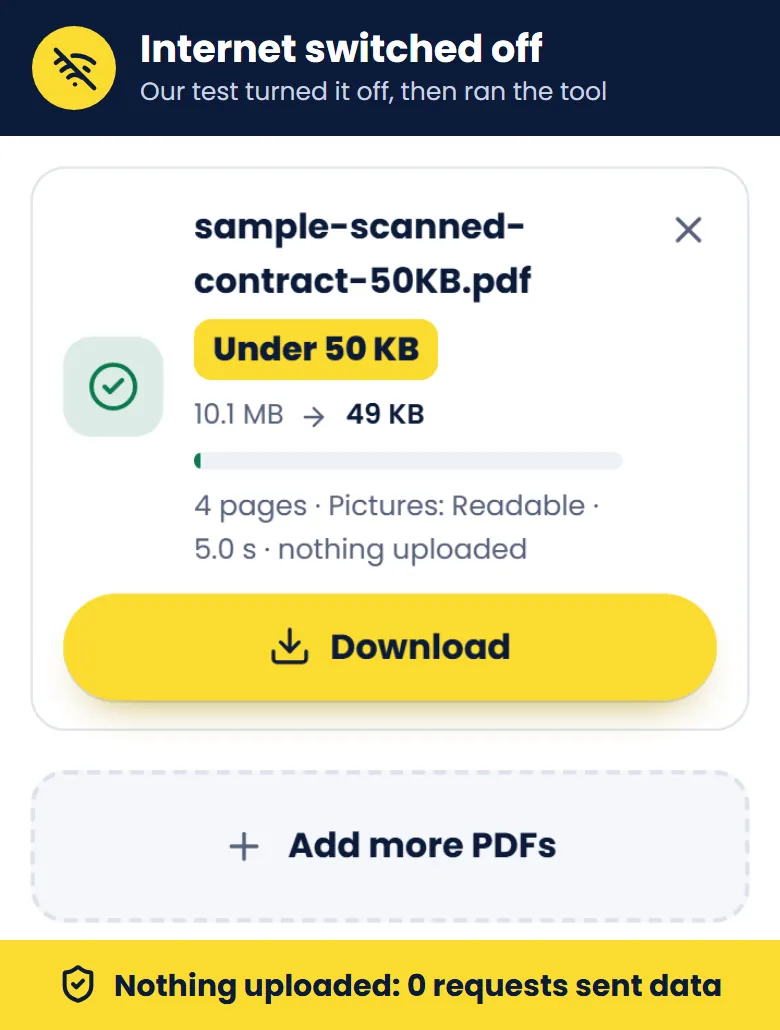
There is no account, no sign-up and no watermark. The page may show ads, which pay for the free tools. Once the page says Ready, the work needs no internet. We tested that on the main compressor, which uses the same engine, not on this page. Our privacy policy has the details.
If something goes wrong
- Nothing happens when you choose a file. Wait until the line under the box says Ready. Only PDF files work here. If it says "This tool couldn't start in this browser", try an up-to-date browser. We tested only in Chromium.
- "This PDF is locked with a password." Remove the password first with Unlock PDF, which needs the password, then add the unlocked copy here.
- "This file can't be read as a PDF." It may be damaged, or not a PDF. Try opening it first, and scan or download it again if it does not open.
- "This file needs more memory than your browser allows." Close other tabs and apps, or use a computer with more memory. A file over 2 GB is turned away, so split it first.
Limits
- Typed PDFs have a smallest size set by their text and fonts, and many scanned pages share one 50 KB: see When it says Over.
- PDFs only. It does not shrink JPG photos, and it does not read the words in a scan: a scanned page stays a picture.
- A digital signature stops being valid when the file changes, and the result row warns you. A signature scanned as part of a page is only a picture and stays.
- A PDF that has editing restrictions but opens without a password can be shrunk here, but the new copy opens without those restrictions, and the result row says so.
- It only makes files smaller. If a form needs a minimum size, as NEET and JEE do, it cannot add size to reach it, so scan again at a higher quality.
- We tested in Chromium 148 only, with computer and phone-sized screens, not on real phones, Safari or Firefox.
Other ways to get a small PDF
If this page cannot do it, these general ideas may help. We have not measured them here, so test them on your own file. Scan again with a lower quality, or in grayscale instead of colour: many phone scanner apps and office scanners have both. Look for a "reduce file size" choice when you save or export a PDF: editors and office suites often have one, usually asking for a quality level, not a size, so you may need several tries. And think before using an online compressor that uploads: many do, and then your Aadhaar or marksheet sits on someone else's computer.