What Sign PDF does, and when you need it
Sign PDF puts your signature on a PDF, inside your browser. You draw it with a finger, a pen or a mouse, or you type your name in a handwriting style, or you take a photo of the signature you made on paper. Then you drag it onto the right line of the right page, add the date and your initials if the paper asks for them, and save a new copy. The copy is named after your file with -signed added, so agreement.pdf becomes agreement-signed.pdf.
You need it when a paper reaches you as a PDF, by email, WhatsApp or a download, with a line that says "sign and send back". The usual way is to print the paper, sign it with a pen and scan it again. That needs a printer and a scanner. Here you sign on the screen instead. Some common papers:
- Offer letters and joining forms. The company sends a PDF and wants a signed copy back.
- Rental agreements. The owner and the tenant sign on the last page, and some agreements also want initials at the bottom of every page.
- School and college forms. Admission forms, consent letters for a trip, fee forms and no-objection letters.
- Consent and declaration forms. A medical consent, an undertaking, or a declaration for a bank or insurance form.
- Everyday office papers. A leave application, a vendor agreement, a non-disclosure agreement or a reimbursement claim.
What you place is a picture of your signature, drawn on top of the page. It looks like a signature made with a pen, but it is a picture. The page underneath is not changed: its text, pictures, links, bookmarks and form fields stay as they were. A picture of a signature is not a digital signature. Picture or digital signature explains the difference, and what to do when an office asks for the other kind.
Nothing is uploaded. Your PDF, your signature and the finished copy stay on your phone or computer. There is no sign-up, and we add no watermark to your document.
You do not need this page in two cases. If the sender gives you their own signing link, use that link. And if the PDF has boxes to type in, fill them in your PDF reader first: Sign PDF puts your signature on top of the page, and it does not type into boxes.
Signing a PDF on your phone, step by step
The steps are the same on a phone and on a computer. Where a computer user clicks, you touch.
- Choose your PDF. Press Choose a PDF and pick the file. If it came on WhatsApp or by email, save it to your phone first, then pick it from Downloads or Files. On a computer you can also drop the file onto the page. To practise first, press Try with a sample PDF.
- Press Signature. A window opens with three ways to make it: Draw, Type and Photo. Draw is shown first.
- Draw your signature. Sign inside the box with your finger. If you slip, press Undo to take back the last stroke, or Clear to start again. Choose Blue or Black ink.
- Press Use this signature. It appears on the page you are looking at, picked, with a small handle on its corner.
- Drag it into place. Put your finger on the signature and move it onto the signature line. Pull the corner handle to make it bigger or smaller. It keeps its shape. To go to another page, use the arrows above the page or touch one of the small page pictures (they sit under the page on a phone and beside it on a computer).
- Add the date. Press Date. Today's date appears on the page. Drag it next to your signature.
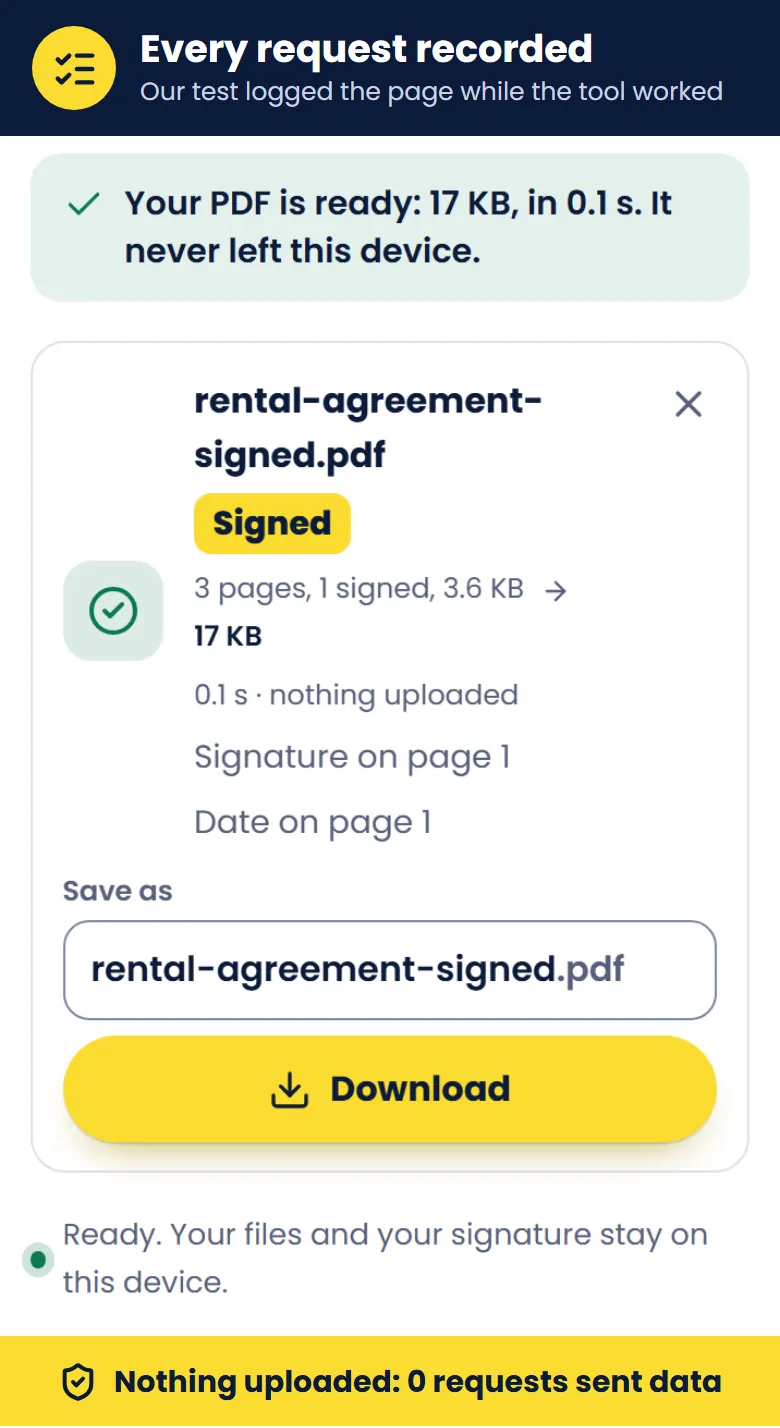
- Press Save signed PDF. A bar shows the work, then the result appears with the new size, the time it took and the words "nothing uploaded".
- Press Download. The signed copy is saved to your device.
Where the file goes. The download works like any other download from your browser. On an Android phone with Chrome it normally goes to the Downloads folder. On an iPhone with Safari it normally lands in Downloads in the Files app. We have not tested on real phones, so if you can't find it, open your browser's list of downloads. From there you can attach it to an email or a WhatsApp message.
If you change anything after saving, the result is cleared and the Save button comes back, so the file you download always matches what is on the page. To sign a different PDF, press Change PDF. The places you set on the first PDF are cleared, but the signature you made stays ready until you close the page.
An example: signing a rental agreement
The sample PDF is a 3-page rental agreement, made in your browser when you press Try with a sample PDF, so nothing is downloaded. Its last page has a line for the owner's signature and a line for the tenant's, a date line under each, and a line for the place. Every page has the word Initials at the bottom right. Here is one way to sign it as the tenant:
- Go to page 3 with the arrow above the page.
- Press Signature, draw yours and press Use this signature. Drag it onto the Tenant's signature line.
- Press Date and drag it onto the date line under your signature.
- Press Text, type your city, for example Pune, and drag it onto the Place line.
- Press Initials, make them and drag them onto the Initials line at the bottom right. Then press Put on every page.
- Press Save signed PDF, then Download.
We ran nearly these steps in our tests. A drawn signature, the date and initials on all 3 pages were saved in 0.1 seconds. When we ticked the box to remember the signature, it came back after we reloaded the page.
Try it yourself: press "Try with a sample PDF" at the top of this page. It makes the rental agreement above, so you can practise without your own file.
Try the sampleThree ways to make your signature: draw, type or photo
The first time you press Signature (or Initials), a window opens with three ways to make it. Each one ends the same way: a picture of your signature with a see-through background, so that no white box covers the page. Once it is made, pressing Signature again puts another copy on the page you are looking at. To make a new one, select your signature and press Change signature.
| Way | Best for | Good to know |
|---|---|---|
| Draw | A signature that looks like yours | Works with a finger, a pen or a mouse. Has Undo and Clear. Needs nothing from the internet once the page has loaded. |
| Type | A quick, tidy signature, and Hindi | Two handwriting styles. Their fonts are downloaded when you open Type, so it needs the internet at that moment. |
| Photo | The signature you already have on paper | Choose a photo or scan. The paper is taken away. Has Contrast and Turn buttons. Needs nothing from the internet once the page has loaded. |
Draw. Your finger leaves a smooth line, and its width follows how fast you move, a little like ink. A pen on a screen also adds its pressure, if your device reports it. The page keeps your drawing and fits it to the box again if the box changes size, for example when the screen turns. Undo takes back the last stroke only, so you can fix the end of a signature without redrawing all of it. Sign across most of the box: it is easier to draw neat curves in a big space than in a small one.
Type. Type your full name and both styles show it at once, so you can compare. Flowing is the Great Vibes font and takes English (Latin) letters only. Handwritten is the Kalam font and takes English letters and Devanagari, so it can write Hindi and Marathi: typing राम gives a handwritten राम. Tamil, Bengali, Arabic and other scripts show in your device's own font, not as handwriting, and the page tells you to use Draw instead.
The fonts are not part of the page's first download. They load only when you use Type, and they come from this site itself: Great Vibes is 42,800 bytes, Kalam's English letters 22,336 bytes and its Devanagari letters 109,320 bytes. If the internet is off, the page says the handwriting styles couldn't be downloaded and shows your device's own font. Come back online and open Type again, or use Draw.
Photo. Choose a photo or scan of your signature on paper. The page takes the paper away and keeps the ink. The next section tells you how to get a clean result.
Ink. Choose Blue or Black. Blue looks like a ballpoint pen and stands out from the black print of most documents. For a photo there is a third choice, As in photo, which keeps the colour of your own pen.
Initials are made the same way, in a window called Make your initials. See Initials on every page.
Getting a clean signature from a photo
A photo is a good way to keep the look of your real signature. For a clean result:
- Sign on plain white paper with a dark pen. A black or dark blue ballpoint works best. Pale ink makes the job harder, and printed lines on the paper may be taken for ink.
- Take a close, sharp photo in good light. Hold the phone straight above the paper, near a window, so that your hand and the phone do not throw a shadow. Make the signature fill most of the picture.
- Press Signature, then Photo, then Choose a photo. A scan from a scanner or a scanner app works too.
- Look at the preview. The paper should be gone and only the ink should show. If the picture is sideways, press Turn.
- Use the Contrast slider if needed. If specks or shadow from the paper still show, move Contrast to the right: this keeps only the darker marks. If thin lines of your signature are missing or broken, move it to the left.
- Press Use this signature.
How the page does it: it measures how bright the paper is in many small patches, not in one go. That way a shadow across one corner does not turn your signature grey. Anything darker than the paper right next to it becomes ink, and the paper becomes see-through. A big photo is first made smaller, to at most 1600 pixels on its longer side, before it is worked on.
Our test used a picture we made ourselves to look like a phone photo: a 3000 × 2000 pixel JPG (207,662 bytes) of a blue ballpoint signature, with a shadow, some noise and a tilt. It is not a photo from a real phone. The page said "The paper is taken away", and the signature kept the blue of the pen when we chose As in photo. We also tried a second picture we made, a black signature on clean white like a flatbed scanner gives (a 93,987 byte PNG). Both made-up signatures went onto a PDF, and both signed files passed our checks.
If the page finds no ink, it says "No signature found in this picture. Try a clearer photo, or move Contrast to the left." If the picture can't be opened at all, it asks you to try a JPG or PNG photo. Your photo is worked on inside your browser and is not sent anywhere.

Placing it: drag, resize, the date and other words
Everything you add sits on a large picture of the page, and a small card for every page shows what is on it. Touch a thing to pick it. A corner handle and a small cross appear, and the panel under the page (beside it on a computer) shows what you can do with it.
- Move. Drag it with a finger or the mouse. It stays inside the page and can't be pulled off the edge.
- Resize. Pull the handle on its corner. The shape stays the same, so a signature is never squashed.
- Use the keyboard. Press Tab to reach a thing on the page. The arrow keys move it a little, and Shift with an arrow moves it 10 points (a point is 1/72 of an inch, about a third of a millimetre). The plus and minus keys make it bigger and smaller. Delete removes it, and Escape lets go of it.
- Remove. Press Remove, or the small cross that shows beside a thing when it is picked. Only pressing the cross itself removes it. A drag never does.
When you add another thing of the same kind, it starts where you last moved one of that kind, at the same spot measured as a share of the page. That is handy for a date that has to appear in the same spot on several pages. Pressing Signature again after you have made your signature puts a copy of it on the page you are looking at, so you can sign several pages one by one. To put one thing on many pages at once, use Put on every page: see Initials on every page.
The date. Press Date and choose a style: 08/10/2026, 08-10-2026, 8 Oct 2026, 8 October 2026 or 2026-10-08 (these show 8 October 2026). The date comes from your device's clock, so check that your phone shows the right day. Every style puts the day before the month, or starts with the year. If you need the month first, type it yourself in the Words box. The date is real PDF text, so it can be searched.
Other words. Press Text to write a name, a place or a short note on a form that has no boxes to fill in. Choose Blue or Black. The words are one line in Helvetica, a standard PDF font. It takes English letters, letters with accents such as é and ü, digits and common punctuation. If a character can't be drawn, the page lists it. The rupee sign ₹ is one of them, so write Rs. or INR instead. For a Hindi word, such as a place name, you can type it in the Type tab of Signature or Initials, in the Handwritten style, where it becomes a picture instead of text.
Turned and cropped pages. A scanned page is sometimes saved sideways, or with a crop box (the part of the page a reader shows). Places are kept on the page as it appears on your screen, after its turn and inside its crop box. We checked this on a 4-page file. It has an A4 page turned 90 degrees, an 800 × 1000 point page with an offset crop box, and a 600 × 900 point page turned 270 degrees with a crop box. All 6 places we measured were drawn where we had put them.
Initials on every page
Long agreements and some forms want your initials at the bottom of each page. Press Initials and make them the same three ways as a signature. If you typed your name for the signature, the Type tab starts with your initials already: Priya Sharma becomes PS.
Drag the initials to a quiet corner of one page, usually the bottom right. Then press Put on every page. A copy goes on every other page, at the same distance from the nearest edges. So a bottom right corner stays a bottom right corner, even on a page of another size. To use only some pages, press Some pages, type pages like 1-3, 5, and press Put. Pages that already have a copy are skipped.
Each copy is its own thing. Drag one and only that copy moves. Remove takes away one copy, and Remove from every page takes away all of them. Change initials replaces them on every page. The same buttons work for a signature or a date, so you can put a date on each page too. They are not shown for a one-page PDF.
How fast is it? On a computer, putting initials on all 42 pages of a 46.0 MB scan took 236 to 254 milliseconds in four runs, from pressing the button until every page card showed them. The 60-page scan took 259 milliseconds, and a 24-page report 255 and 290 milliseconds in two runs. Saving that 42-page scan with initials on every page took 0.3 to 0.6 seconds, as the result row showed. On a simulated phone screen, copying took longer: Real results has the numbers.

Remembering your signature on this device
By default nothing is kept. Close the page and your signature is gone, and next time you make it again.
If you will sign often, tick Remember it on this device in the window where you make the signature. The picture of your signature (or initials) is then kept in your browser's local storage, a small store that every website has inside your browser. It stays on that device and in that browser, and our code never sends it anywhere. Next time the Signature button already shows your signature, ready to use.
We tested the whole round: tick the box, save, reload the page, and the signature came back on the Signature button. Pressing Forget it removed it. With the box left unticked, nothing was stored at all.
To delete it, press Forget it. The link appears under the buttons whenever something is saved. You can also clear this site's data in your browser's settings. Your signature on the page you are looking at stays there until you close it.
Leave it off on a shared or office computer, or in a cyber cafe. The next person who opens this page in the same browser could use your signature. If you ticked it by mistake, press Forget it. A browser may refuse to keep it, for example in a private window or when site data is blocked. If yours does, the page says "This browser wouldn't keep it", and the signature is gone when you close the page. Our privacy policy says the same.
A picture of a signature, or a digital signature (DSC or Aadhaar eSign)
The word "signature" means different things. Sign PDF puts a picture of your signature on the page. A digital signature is something else. Before you start, find out which one your paper asks for.
| About | A picture (this page) | DSC | Aadhaar eSign |
|---|---|---|---|
| What it is | Your drawn, typed or photographed signature, placed on the page. | A digital signature certificate (DSC): a digital signature made with a certificate and a secret key. For Class 2 and Class 3 certificates the key must be kept on a crypto token, a secure device in your own custody. | An online electronic signature service. You are checked by e-KYC, with a biometric (such as a fingerprint) or a one-time password (OTP). |
| Who gives it | You make it. Nobody checks it. | A licensed Certifying Authority. The CCA says to approach any one of the licensed ones. | An eSign service provider, which today means a licensed Certifying Authority. |
| What protects it | Nothing. It carries no certificate, and anyone who gets the PDF could copy the picture. | A digital signature changes with the content of the document, so a document changed after signing shows as changed. | Only the document's hash, a short fingerprint of it, is sent. The signing key is made in a hardware security module and destroyed after one use. |
| Can you do it here? | Yes | No | No |
The Controller of Certifying Authorities (CCA) is the government office that looks after digital signatures in India. Last checked: 2026-10-08. On that day we read its eSign page, its FAQ and its list of eSign notifications. The FAQ says that digital signatures are at par with handwritten signatures under the Information Technology Act, 2000, and the eSign page calls eSign legally recognised. That is said about digital signatures, not about a picture of a signature. Rules and providers can change, so check the CCA's site for the latest.
For the curious, the Act is No. 21 of 2000. Aadhaar-based eSign was notified on 27 January 2015 (G.S.R. 61(E)), and a notice of 1 March 2019 (S.O. 1119(E)) added e-KYC services other than Aadhaar. The Act does not apply to some kinds of documents, and a notice of 26 September 2022 (S.O. 4720(E)) changed that list. We could not read the current list, so we don't repeat it here.
How to tell which you need.
- If the instructions say "sign and send back", "signed copy" or "scan and upload", they want a signature on the page. Whether a picture of a signature is accepted is up to the person or office that asked for it. If you are not sure, ask them.
- If they say "digital signature", "DSC", "Class 3" or "Aadhaar eSign", you need that kind. This page can't make it. Get it from a licensed Certifying Authority or an eSign service provider.
- If your document is a legal one, such as a sale deed or a will, ask the office that will receive it, or a lawyer, which kind of signature it needs. This guide is information, not legal advice.
PDFs that already have a digital signature
Some PDFs arrive already signed with a digital signature: an agreement e-signed through DocuSign or Aadhaar eSign, an offer letter, or a certificate signed with a DSC. That signature covers the file exactly as it was when it was signed. As the CCA says, a digital signature changes with the content. When anything is added, even your picture, the file is no longer the one that was signed, and a PDF reader shows the old signature as broken or invalid.
So this page checks for one. When a PDF opens, the page reads the signature flags of its form, using the same PDF reader that draws the pages. If a flag is set, it shows a yellow note: "This PDF already has a digital signature." When you save, the result row says it again: "name has a digital signature. A changed copy no longer carries a valid signature." The engine also reports a signature field that holds a signature, even if the flag is missing.
We tested the warning with a stand-in file, a one-page offer letter of 2,408 bytes with the same markers a signed PDF carries but no real certificate. The yellow note showed right after it opened, and the result row said it again after saving. We have not tested a PDF signed with a real certificate.
What to do:
- If the sender wants a digital signature, sign with the tool the sender used: the DocuSign link, the eSign service or your DSC software. Don't use this page.
- If you only need a picture of your signature on a signed copy, you can save one here. The new copy no longer proves the first signature, so keep the original signed file and send both if someone needs to check it.
What stays as it was in your PDF
Your signature is added on top of each page. The page itself is not redrawn:
- Text stays text. In our checks, on every page where we put something, every letter of the original text was still there and could be found.
- The page looks the same. Only in and right beside the places where we put a signature, date or initials did the page change. Pages with nothing added looked the same as before.
- Links, bookmarks and form fields stay. A 24-page report kept all 24 bookmarks and 47 links, and a form kept its 4 fields.
- Each page keeps its size and turn. That includes pages turned 90 or 270 degrees and pages with a crop box.
- The date and your words are real text, so they can be searched. The signature is a picture.
- Screen readers skip what we add. The marks are tagged as decoration, so a screen reader does not read them out.
The file size. A drawn signature with initials and a date added about 25 to 35 KB to the tiny files in our tests. A 2,403 byte file became 28,579 bytes in one run, and 38,274 bytes in a later run on a phone screen. A typed signature adds less. The same 2,403 byte file with only a typed "Ramesh" signature on one page became 9,669 bytes, and a 3,401 byte form with a typed राम became 5,936 bytes. A signature made from a photo added more: 2,408 bytes became 45,565 bytes. On bigger files the change is hard to see. A 46.0 MB scan went from 48,263,122 to 48,282,628 bytes. A file can even come out a little smaller: a 201,675 byte report was saved as 195,377 bytes. The saved copy is a newly written file, and we did not look into why this one shrank. If a portal limits the file size, you can make the signed copy smaller with Compress PDF to 200 KB or Resize PDF.
How it works, in plain words
- Your browser opens the PDF. A PDF reader built into the page (pdf.js, a PDF reader made by Mozilla) draws the big picture of each page and the small page cards. The file is read on your device.
- Your signature becomes a picture. However you make it, it is trimmed to the ink and kept in one colour, with a see-through background. In PDF terms the picture carries a soft mask, a second layer that says how see-through each dot is. That is why no white box shows around your signature.
- You place things on the picture of the page. Each place is kept in points on the page, as a reader shows it, so what you see is what gets saved.
- On Save, a program writes the new PDF. It is our own program, written in Rust and compiled to WebAssembly, a way of running fast programs inside a browser. It runs in a background worker so the page doesn't freeze. It draws your pictures and words over the pages and leaves everything already there as it was. The date and your words are written as text in Helvetica.
- You download the copy. The new PDF is made in your device's memory and saved by your browser. It is never sent to a server.
Real results from our tests
We tested Sign PDF on 8 October 2026 in Chromium 148, the open-source browser Chrome is built on. Playwright 1.60 drove it, on a Windows 11 computer with an Intel Core processor and 8 logical processors. The computer was also busy with other work while we measured, so your device may be faster or slower. "Phone" below means a simulated screen 390 or 320 pixels wide and 844 tall, with simulated touch and a sharp 2× screen. We have not tested Safari, Firefox or a real phone. Our test drew each signature by moving a mouse or a simulated finger along a made-up path, so it is a scribble, not a real hand. The pages were served with the site's real security headers, so the Content Security Policy was on. We left Google's ad code out of every test page.
The times in the table are the ones the result row shows, from pressing Save signed PDF to the file being ready. Every run passed its test and our checks.
- 0.3 to 0.6 sto save a 42-page, 46.0 MB scan signed on every page
- 0.2 to 0.3 sto put initials on all 42 pages of that scan (236 to 254 ms)
- 0.1 to 0.3 sto open a test PDF and draw its first page, in 11 of our 12 final runs (124 to 348 ms)
- 0requests to another site or carrying data, in all our runs (Google's ad code left out)
| PDF, and what we added | Pages | Before | After | Time |
|---|---|---|---|---|
| The page's sample, a rental agreement: drawn signature, date, initials on all pages | 3 | 3.6 KB | 28.9 KB | 0.1 s |
| A file with turned and cropped pages: drawn signature, date, initials on all pages | 4 | 2.3 KB | 27.9 KB | 0.2 s |
| The same file on a simulated 390 pixel phone screen, by touch | 4 | 2.3 KB | 31.1 KB | 0.3 s |
| The same file, typed "Ramesh" (Flowing) on page 2, which is turned 90 degrees | 4 | 2.3 KB | 9.4 KB | 0.1 s |
| A form with 4 fields: राम typed in the Handwritten style | 1 | 3.3 KB | 5.8 KB | 0.1 s |
| A letter carrying a stand-in digital signature: a signature from a photo, and the date | 1 | 2.4 KB | 44.5 KB | 0.4 s |
| A report with 24 bookmarks and 47 links, on a 768 pixel wide screen: drawn signature, date, initials on all pages | 24 | 197 KB | 191 KB | 0.3 s |
| The same report: a signature from a clean black-on-white picture, initials on all pages | 24 | 197 KB | 183 KB | 0.3 s |
| The same report with the internet switched off: drawn signature and date | 24 | 197 KB | 188 KB | 0.6 s |
| A scan of 60 pages: drawn signature, date, initials on all pages | 60 | 3.42 MB | 3.43 MB | 0.4 s |
| A colour scan of 42 pages: drawn signature, date, initials on all pages | 42 | 46.0 MB | 46.0 MB | 0.6 s |
The 42-page scan was saved in four runs, and the page said 0.3 to 0.6 seconds across them. In our final round of runs, opening took 124 to 348 milliseconds for every file except the 60-page scan, from choosing the PDF until the large page was drawn. The 60-page scan took 1,750 milliseconds to open.
How we checked. We checked every saved file against its original with pdfium (the PDF engine inside Chrome), pypdf and poppler, three free PDF tools. Every check passed. The pages, their sizes and turns were the same. On the pages where we had put something, the page changed only in and right beside the places where we had put it, and something was drawn in each place. Pages with nothing on them looked the same as before. On the pages where we put something, every letter of the original text was still there, and the numbers of links, bookmarks and form fields matched the original. Every signature picture had its soft mask: 43 on the 42-page scan (the signature once, and the initials on each of 42 pages), 61 on the 60-page scan and 25 on the 24-page report. Where we added a date, it was found as text in the saved page, and where we asked for blue ink, the ink came out blue.
On phone screens. Drawing, dragging, pulling the corner, typing and saving all worked by simulated touch. The 4-page file opened in 137 milliseconds on the 390 pixel screen and 124 on the 320 pixel one. Putting initials on every page took longer on the 390 pixel screen. For the 4-page file it took 1,132 to 1,305 milliseconds in three runs, and for the 60-page scan 1,119. We think the cause is that the strip of small page cards is drawn again, which takes time. The 320 pixel run took 254 milliseconds, so it varies. On the 390 pixel screen the 60-page scan, with a typed "Ramesh" and initials on every page, was saved in 281 milliseconds, with the page saying 0.1 seconds.
Memory. We measured the whole browser, as Windows reports it (the page, the graphics helper and the rest), about four times a second, so this is more than the tool alone. With the 4-page file it used 683 MB idle and 688 MB at its peak while saving. With the 60-page scan it was 723 and 740 MB, and with the 46.0 MB scan 1,229 and 1,368 MB. Earlier runs on that scan gave 1,181 to 1,197 MB idle and 1,290 to 1,342 MB at the peak. So saving the biggest file took roughly 110 to 145 MB more than doing nothing.
Files that can't be signed. A PDF with a password was refused in 335 milliseconds with "Locked with a password. Unlock it first, then add it again." A damaged PDF (the first 600 bytes of a real one) was refused in 184 milliseconds with "This file can't be read as a PDF. It may be damaged." Neither hung the page.
Privacy: your PDF and signature are never uploaded
The papers people sign often hold private details: an address, a salary, an account number. With PDFGuild they stay on your device:
- Everything happens in your browser. The page reads your PDF, makes your signature and writes the signed copy on your phone or computer.
- No upload step. The tool never sends your files anywhere, and your signature stays on your device too. The page's Content Security Policy, a rule the page gives your browser, also lets it contact only this site and Google's ad service, which shows the ads. Our code never gives your files to the ad code. In every test run, with Google's ad code left out, our test would have failed on any request to another site or any request carrying data. None happened.
- Even the fonts come from this site. The handwriting fonts for Type are files on pdfguild.com, not on another company's server.
- No account. There is no sign-up, and your document gets no watermark of ours.
Check it yourself. On a computer, open your browser's developer tools (F12 in most browsers) and watch the Network tab while you sign a PDF. You will see the page's own files load, and the requests of the ad code. You will not see your PDF or your signature uploaded.
Without internet. Once this page has loaded, switch off mobile data or Wi-Fi. Draw still works: in our offline test, a drawn signature and the date on a 24-page report saved fine, in 0.6 seconds. Photo uses nothing from the internet either, though our offline test used Draw. Type needs its fonts, so it needs the internet when you open it, and the page tells you if they couldn't be downloaded.
The page also loads Google's ad code, which shows the advertisements that keep the tools free. Our code never gives your files to the ad code, and our privacy policy explains the ads. The only thing our own code keeps is the signature you ask it to remember, in your own browser: Remembering your signature on this device.
Signing on Android, iPhone and computer
There is nothing to install: the page runs in an up-to-date browser, with no app, extension or account.
Android
Open this page in Chrome and press Choose a PDF. Pick the file from Downloads or your file manager. Draw with your finger. The signed copy normally goes to your Downloads folder.
iPhone and iPad
Open this page in Safari and press Choose a PDF. Save a PDF from Mail or WhatsApp to the Files app first, then pick it there. The signed copy usually goes to Downloads in the Files app.
Windows, Mac, Linux, Chromebook
Click Choose a PDF, or drop the file anywhere on the page. Draw with the mouse, or with a pen or touch screen if you have one. You can also move things with Tab and the arrow keys.
We tested in Chromium only, with simulated phone screens and simulated touch. We did not test Safari, Firefox or a real phone, so the notes above for iPhone and for other browsers describe how browsers usually behave, not something we saw.
On a small screen. The page is built for it. We checked screens 390 and 320 pixels wide, and the page did not scroll sideways. The big picture of the page fills the width, so pull the corner handle to make a small thing, such as the date, easier to touch. On a small screen, a browser may move a touch near a tiny item, such as a date, onto its Remove cross (we saw this in Chromium). The page copes with it: it drags the item when your finger is on it, and removes it only when the cross itself is pressed.
Big files on a phone. A phone has less memory than a computer, and the file must fit in it. We tested a 46.0 MB, 42-page scan on a computer, not on a phone. If a big scan fails on your phone, try a computer.
What Sign PDF can't do
- It is not a digital signature. It can't make a DSC or an Aadhaar eSign signature, and it can't keep an existing digital signature valid.
- It has no undo after you place something. You can only press Remove. (The drawing box does have Undo and Clear.)
- The date and your words are English letters only. Letters with accents, digits and punctuation, in Helvetica. There is no Hindi date or place name as text, and no rupee sign. Your signature itself can be Hindi when typed in the Handwritten style, or in any script when you draw it or use a photo.
- One PDF at a time. Press Change PDF for the next one.
- A PDF with a password to open must be unlocked first. Use Unlock PDF with the password. Nothing here guesses or removes a password.
- Typed styles need the internet when you open Type, to download their fonts. Draw and Photo need nothing from the internet once the page has loaded.
- The signature is a picture. It can't be searched or copied as text, and anyone who gets the signed PDF could copy the picture.
- It doesn't fill in form boxes. It can add words on the page, but it doesn't type into a PDF's fillable fields, and it doesn't sign into a PDF's own signature field. It draws your picture on the page, where you drag it. Fill the boxes in your PDF reader first.
- It signs PDFs only. It doesn't make a separate signature image for an exam or job form that asks for a JPG.
- It is not a signing service. It doesn't send a document to other people to sign, and it keeps no record of who signed when.
- Memory. We set no size limit, but the file has to fit in your device's memory. Phones have less than computers. We tested a 46.0 MB scan on a computer, not on real phones.
- Browsers. We tested in Chromium only. Other modern browsers should work, but we have not tested them.
When something goes wrong
These are the messages and problems people are most likely to meet, with what to do.
- "Only PDF files work here." The file is not a PDF. Put photos into a PDF with JPG to PDF, or turn a Word file into one with Word to PDF, then sign the PDF.
- "Locked with a password. Unlock it first, then add it again." Open it with Unlock PDF, using the password, then bring the unlocked copy here.
- "This file can't be read as a PDF. It may be damaged." Download or export the file again. If it came by WhatsApp or email, ask for it to be sent again.
- "This PDF couldn't be opened." The browser could not read it for another reason. Try the same steps with a fresh copy, or on a computer.
- The Save signed PDF button is grey. Nothing is on the page yet. Press Signature and place it.
- It isn't where you want it. Drag it again, or select it and use the arrow keys. Pull its corner to change the size. Touch the page picture of another page to see what is on it.
- Put on every page is missing. It shows only when a thing is picked, and only for a PDF with more than one page.
- "No signature found in this picture." Try a clearer, closer photo, or move Contrast to the left. If the paper or shadow shows, move it to the right.
- Type shows a plain font, not handwriting. The fonts couldn't be downloaded, usually because the internet is off, or the script has no handwriting style. Try again online, or use Draw.
- "These can't be drawn" under Words. Date and Text take English letters, digits and punctuation only. Remove the other characters.
- "Something went wrong, and nothing was saved" or "Something went wrong, and no file was made." Your original file is unchanged. Press Save again. With a very big file, close other tabs and apps first, or try on a computer.
- "These files are too big to handle in this browser's memory." The device ran out of room for the file. Close other tabs and apps and try again, or use a computer, which usually has more memory than a phone.
- "Editing restrictions" in the result row. Some PDFs open without a password but ask readers not to edit or print. If yours has such restrictions, the result row says "had editing restrictions. The new PDF opens without them." We did not test a file like this.
- Part of your signature is hidden in the saved file. In the PDF format, the boxes of a fillable form sit above the page, so a reader draws a box over anything under it. We did not test this, but it is why we say to keep your signature beside a box. Move the signature, or fill the box first.
- The yellow note about a digital signature. Read PDFs that already have a digital signature.
- Your signature is gone the next day. Nothing is kept unless you tick Remember it on this device. Make it again.
Other ways to sign a PDF
Sign PDF is one choice among several. Here are the others, in general terms, so you can pick what suits your paper:
- Print, sign with a pen, scan. The oldest way, and what many offices still expect. A phone scanner app turns the page back into a PDF. It uses paper and takes longer, but it is the right choice when an office asks for ink on paper.
- Built-in tools. Some computers and phones can sign a PDF in their own viewer or markup tool, and some free PDF readers have a sign or fill-and-sign tool. These usually put a picture of your signature on the page, like this page does. They are a good fit if you already use one and trust it with your file.
- Services that collect signatures. Online e-signature services, DocuSign is one well-known example, send a document to each signer, record who signed and when, and keep the finished file. They are the better choice when several people must sign.
- A DSC or Aadhaar eSign. When an office or a portal wants a digital signature, get a DSC from a licensed Certifying Authority, or use Aadhaar eSign through an eSign service provider. Picture or digital signature explains these.
Many online tools that sign PDFs upload your file to their servers. That is a fair way to work, but it means your agreement leaves your phone. Here your file stays on your phone.
If your paper changed since the last version you read, look at what changed before you sign. Compare PDF puts two versions side by side and shows every change in the text.
Tips
- Read the paper first. Find out what kind of signature it needs, and on which pages, before you start.
- Sign a little bigger than looks right. A signature that is a little too big is easier to read than one that is too small. Keep it above the line, not across the printed words.
- Keep it off form boxes. The boxes of a fillable form are drawn above the page in PDF readers, so a box could hide part of your signature. Put it beside or under the box.
- Check the date. It comes from your device's clock. Look at it before you save.
- Use the signature you normally use. If the office compares it with the one on your ID or in your bank records, draw it the way you usually sign.
- Put initials in a quiet corner. The bottom right corner is usually empty. Check one page, then press Put on every page.
- Check the saved file. Open the -signed copy, scroll through it and look at every page you signed.
- Keep the original. The new file has -signed in its name and your original is never changed.
- Mind the size. In our tests a drawn signature with initials and a date added about 25 to 35 KB to small files, and a typed signature added less. If a portal has a limit, check the size of the signed copy.
- Don't tick Remember on a shared computer. It is handy on your own phone.
- Send it only to the people who need it. Anyone who has the signed PDF could copy the picture of your signature.
Need more before you sign? Merge PDF joins papers into one file, Organize PDF removes or moves pages, Add Page Numbers numbers a long agreement, and Add Image to PDF puts a stamp or seal on a page.