What Compress ZIP File does, and when you need it
Compress ZIP File makes a new, smaller copy of a ZIP, in your browser. Nothing is uploaded, there is no sign-up, and we set no size limit. Files that were stored in the ZIP without squeezing are squeezed; files squeezed already are copied as they are; and the junk files Macs and Windows add can be taken out. Your ZIP is not changed: the smaller one is a new file, named with -compressed.
People use it when:
- A ZIP is just over a limit for an email or a portal, and was made by a program that stored its files without squeezing them.
- A ZIP came from a Mac with a __MACOSX folder and .DS_Store files the portal doesn't want.
- A backup ZIP of text, CSVs or logs is much bigger than it needs to be.
Honestly, first: most ZIPs are squeezed already, and most ZIPs of photos, videos or PDFs can't get much smaller by zipping again. The result tells you plainly when that is so. ZIPs of PDFs and photos shows what does make those smaller.
How it works
Each file in a ZIP is either stored, kept as it is, or squeezed with deflate. The page reads the ZIP's list of files and treats each one by what it is:
- Stored files that can shrink, such as text, CSV, PDF or HTML, are taken out, checked against their CRC-32, the check number the ZIP keeps for them, and squeezed with the compressor built into your browser.
- Files squeezed already are copied across byte for byte, without unsqueezing them. Squeezing them again with the same method wouldn't make them smaller, and copying keeps them exactly as they were.
- Photos, videos and other packed files stored as they are stay stored with Smart, because squeezing them gains nothing. Squeeze every file, photos too tries them anyway.
- Junk files are left out when that box is ticked.
The check numbers are worked out by a small engine we wrote in Rust and run as WebAssembly. Files copied across keep the check number they had, which any unzip program tests when it opens the new ZIP. Then the new ZIP is written, with ZIP64 records when it passes 4 GB or 65,535 files.
Real results from our tests
We compressed these test ZIPs with this page in Chromium 148, the open-source browser Google Chrome is built on, on a Windows 11 laptop with an Intel Core i7-1185G7 processor and 32 GB of memory, on 1 November 2026. Python's zipfile module made them, as another program would, from files our scripts made up; none is anyone's real file. Python then opened each new ZIP and checked every file in it.
| ZIP | Before | After | Time | What happened |
|---|---|---|---|---|
| A year of sales CSVs, stored without squeezing, with a Mac's junk files | 13.1 MB | 2.27 MB | 1.0 s | 83% smaller; all 12 CSVs squeezed; 2 junk files taken out |
| A ZIP of 6 photos | 5.86 MB | 5.86 MB | 0.09 s | About the same size: photos are packed already, and the page said so |
Python opened both new ZIPs and every file's CRC was correct. For the photos the page said why the ZIP stayed the same: “Its files were squeezed already, so it can't get much smaller. Photos, videos and PDFs inside don't shrink by zipping again.”
Step by step
- Choose the ZIP, or several, or drop them on the page.
- Leave "Take out the files Macs and Windows add" ticked unless you need them, and Squeezing on Smart.
- Press Compress ZIP. Each ZIP gets a row with its size before and after, how much smaller it is, and what was taken out.
- Download the new ZIP. Its name ends in -compressed; type another in the box by the button if you like.

Which ZIPs get smaller
| The ZIP holds | Made by | Gets smaller? |
|---|---|---|
| Text, CSV, logs, JSON, code | A program that stored files without squeezing | Yes, often a lot |
| Text, CSV, logs, JSON, code | Windows, a Mac, 7-Zip or most programs | No: they squeeze already |
| Photos, videos, music | Any | Hardly: they were packed before they were zipped |
| PDFs | Any | A little, if stored; to really shrink them, compress each PDF |
| Anything, with a __MACOSX folder | A Mac | By the size of the junk, often small |
Some programs store files without squeezing, to be quick or because they were set to. Those are the ZIPs this page shrinks most.
Where stored ZIPs come from
Windows, Macs and phones squeeze when they zip, so their ZIPs rarely get much smaller here. The ZIPs that do are made by:
- Programs set to store, such as zip -0 on Linux, or 7-Zip and WinRAR with Store chosen as the level.
- Scanner, camera and backup software that stores to be quick, since squeezing takes time.
- Scripts and websites that put files together into a ZIP on the fly, many of which store them.
If you still have the files themselves, zipping them again with Create ZIP File gives the same result as compressing the ZIP here.
Smart, or Squeeze every file?
Smart squeezes what can shrink and keeps photos, videos, music, other archives and Office files as they are, which is right for nearly every ZIP. Pictures that aren't packed, such as BMP files and many TIFF scans, and WAV sound files shrink, and Smart squeezes those too.
Squeeze every file, photos too tries every file. A JPG or an MP4 usually comes out no smaller, and when one does come out no smaller it is kept as it was, so trying costs only time. Use it when the ZIP holds unusual files whose names don't say what they are.
A worked example: a year of sales CSVs
A shop's twelve monthly sales CSVs came in a 13.1 MB ZIP that someone had made without squeezing, with a Mac's __MACOSX folder and a .DS_Store file inside. Compress ZIP File made it 2.27 MB, 83% smaller, in 1.0 seconds, and took the 2 junk files out. Python then opened the new ZIP, and every one of the 12 CSVs matched its check number. The same twelve files, attached to an email, went from more than 13 MB to just over 2 MB.
Stored or squeezed: how to tell before you try
Open the ZIP in ZIP File Viewer and compare two numbers: the ZIP's own size, which your computer or phone shows, and the unpacked size on the viewer's summary line.
- About the same, and the files are text, CSV or logs: they were stored without squeezing. This page will shrink the ZIP, often to a small part of its size.
- Much smaller than unpacked: the files were squeezed already. Compressing again saves little.
- About the same, and the files are photos, videos or PDFs: they were packed before they were zipped. See ZIPs of PDFs and photos.
Trying costs nothing: the page makes a new ZIP and shows both sizes, and you keep the old one.
The junk files Macs and Windows add
- __MACOSX folder, and files starting with ._
- A Mac's ZIPs carry extra details for each file in a folder of their own, which other systems don't use.
- .DS_Store
- A Mac's note of how a folder was laid out on screen.
- Thumbs.db
- Windows' small pictures of a folder's photos.
- desktop.ini
- Windows' note of a folder's icon and settings.
None of them is part of anyone's papers, and taking them out changes nothing else. A portal that checks what is inside a ZIP may refuse them, which is the best reason to drop them.
Making a ZIP of PDFs or photos smaller
Zipping can't shrink what is packed already, but the files themselves can be made smaller:
- Take the files out with Unzip Files.
- Make each one smaller. PDFs with Compress PDF, or to a size a form names with Compress PDF to 1 MB and the other sizes. Photos with Reduce Image Size in KB.
- Zip them again with Create ZIP File.
That way a ZIP of scanned papers can come down a long way, because a scan's pictures can be made smaller with little visible change. A ZIP of videos is best shared as a link to a cloud drive instead.
Getting a ZIP under an upload limit
- Check what is inside with ZIP File Viewer: the biggest files are the place to start.
- Take out what isn't needed. Extra copies, old versions and junk files.
- Compress the biggest files themselves, as above, and zip again.
- Split across uploads if the form allows several ZIPs: make two with Create ZIP File.
Email: Gmail takes attachments up to 25 MB, Outlook.com 20 MB. WhatsApp sends documents up to 2 GB.
Why a ZIP can be bigger than its files
Every file in a ZIP carries a small header with its name, and the ZIP ends with a list of all of them: about a hundred bytes per file, plus its name twice. For a few big files that is nothing; for thousands of tiny files it adds up. And squeezing a file that is packed already can make it a few bytes bigger, which is why this page, like good ZIP programs, keeps such files stored as they are.
So a ZIP of photos is usually a little bigger than the photos, never much smaller, and compressing it again can't change that. If a ZIP is bigger than you expect, look inside: a video or a folder of phone photos is usually the reason.
Check the new ZIP before you send it
- Read the result row. It shows the size before and after, and how many junk files and locked files there were.
- Look inside the new ZIP with ZIP File Viewer: every file should be there, in the same folders.
- Keep the old ZIP until the new one has been received; the page never changes or deletes it.
Every file the page squeezed was tested against its check number on the way out of the old ZIP, and got a new one worked out as it went in. Files copied as they were keep their own, so any unzip program can test every file in the new ZIP, which is what Unzip Files does as it saves them.
ZIPs with locked files
A file locked with a password is copied into the new ZIP exactly as it was, still locked, with the same password. The page can't unlock it, so it can't squeeze it either; the result row says how many locked files were copied this way. The other files are squeezed as usual.
Nothing is lost
Squeezing in a ZIP is lossless: every file comes out of the new ZIP exactly as it went into the old one, byte for byte, which each file's check number lets an unzip program confirm. Photos aren't made blurrier and documents aren't changed; only the way they are packed changes. Folders and file names stay as they were. Each file's date is kept as it was in the old ZIP.
Files to leave alone
Some files are ZIPs inside with strict rules about how they are packed, and packing them again can stop them working:
- EPUB e-books and OpenDocument files (.odt, .ods): they must start with a small file stored exactly as it was, which a new ZIP doesn't keep.
- Android apps (.apk) and Java programs (.jar): they are signed, and a repacked one is refused.
- Word, Excel and PowerPoint files: they are squeezed already, so there is nothing to gain.
The page takes .zip files; keep it to ZIPs you or someone else made to hold files.
Several ZIPs at once, and phones
Add several ZIPs and press Compress ZIP once: each gets its own row, with its own sizes and Download, and the line over them says how much they came to in all. On a phone, Choose ZIP files opens your Downloads or WhatsApp's documents, and each new ZIP is saved to your Downloads. A phone can compress big ZIPs too, but one of several GB may be more than a phone browser manages; a computer is quicker for those.
Under an email or upload limit
The most common reason to make a ZIP smaller is a limit: Gmail and Outlook.com both allow 25 MB of attachments to an email, and many portals and forms allow far less. Compress ZIP File helps most when the ZIP holds text, spreadsheets or CSVs that were stored without squeezing, as in our test, where 13.1 MB of CSVs became 2.27 MB.
When a ZIP is mostly photos, PDFs or videos, squeezing the ZIP again can't help much, because those files are packed already. Make the files inside smaller instead, then zip them again:
- PDFs: Compress PDF, or Compress PDF to 1 MB for a fixed size.
- Photos: Reduce Image Size in KB, or JPG to WebP for smaller pictures that keep their look.
- Many files: send them in two or three ZIPs, each under the limit, and number the ZIPs so the person knows they belong together.
- Chat apps: WhatsApp, Telegram and most chat apps send a ZIP as a document. Each app has its own size limit, so check it in the app before you split anything.
Private: the ZIP stays on your device
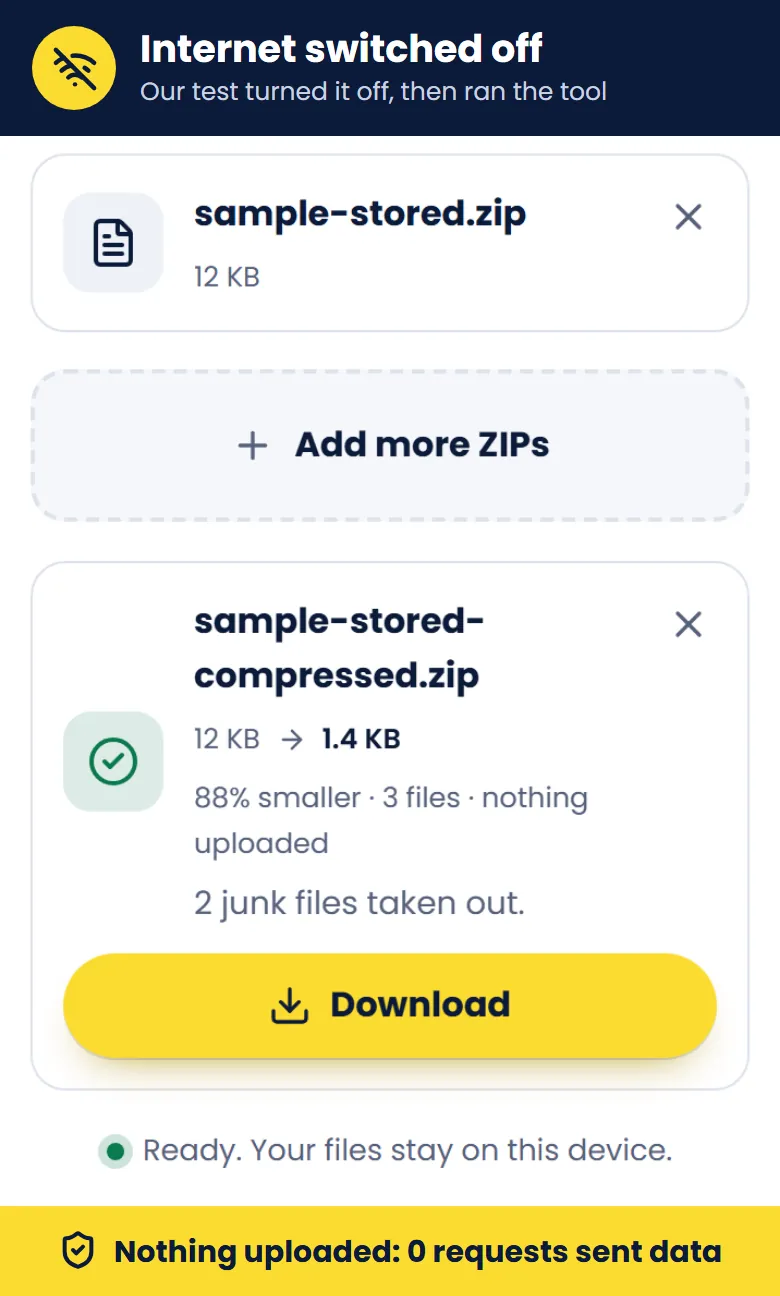
The ZIP is read and the new one made inside your browser; nothing is uploaded, and once loaded the page works with the internet switched off. Google's ad code runs on the page too, but our code never gives it your files or their names. How we prove it shows how anyone can check.
Messages, and what to do
- "Its files were squeezed already, so it can't get much smaller."
- See ZIPs of PDFs and photos.
- "Its files don't squeeze much: photos, videos and PDFs are packed already."
- The stored files were packed already. Compress the files themselves instead.
- "This file isn't a ZIP file, or it is damaged."
- Download it again; a RAR or 7z is named as such.
- "This file is damaged: part of it is missing or changed."
- A file in the ZIP failed its check. Ask for the ZIP again.
Limits
- It squeezes with the browser's own deflate, at one setting. 7-Zip's highest settings, or other methods than deflate, can make text a little smaller.
- It doesn't change the files themselves; a PDF stays the size it is.
- ZIP only: no RAR or 7z.
- Locked files are copied as they are, not squeezed.
Other ways
On a computer, unzip the ZIP and zip the folder again with Windows' Compressed (zipped) folder or a Mac's Compress; both squeeze what can be squeezed. 7-Zip's Ultra setting squeezes harder, slowly. This page does the same in one step, keeps locked files as they are, and takes the junk out, on any device.
Terms explained
- Stored
- Kept in a ZIP as it is, without squeezing.
- Deflate
- The squeezing nearly every ZIP uses, which loses nothing.
- Compression ratio
- How much smaller the ZIP is than its files: a ZIP at 20% of the files' size is 80% smaller.
- Lossless
- Every byte comes back exactly. Zipping is lossless; making a photo smaller usually isn't.
- CRC-32
- The check number a ZIP keeps for each file.