What JSON to CSV does, and when you need it
JSON is how apps and websites hand out data: names and values in curly brackets, lists in square ones, often nested several levels deep. A CSV file is a table written as text, one row a line, which Excel, Google Sheets and nearly every business program open. This page turns JSON into a table by fixed rules, shown below: each object of a list becomes a row, and its names become the columns.
Where it helps:
- An export from an app or a website, such as orders, students, payments or form responses, to open in Excel or Google Sheets.
- An API's answer, to make a report, a chart or a mail merge from it.
- An import into an accounting program or a database that reads CSV.
- Checking data at a glance: a table shows a missing value or an odd one faster than nested JSON does.
The file is read in your browser, in a background worker, and never uploaded. The result is a .csv file that opens in Excel with a double-click, Hindi and other letters included.
How to convert JSON to CSV, step by step
- Paste JSON in the box, or press Try a sample for a made-up school's students, and press Convert to CSV (or Ctrl+Enter).
- Or choose files: press Choose files, or drop .json files anywhere on the page. Each one is converted at once, in a row of its own.
- Pick the options: the delimiter, how lists inside the data are written, and whether the file is marked as UTF-8 for Excel. They are explained below.
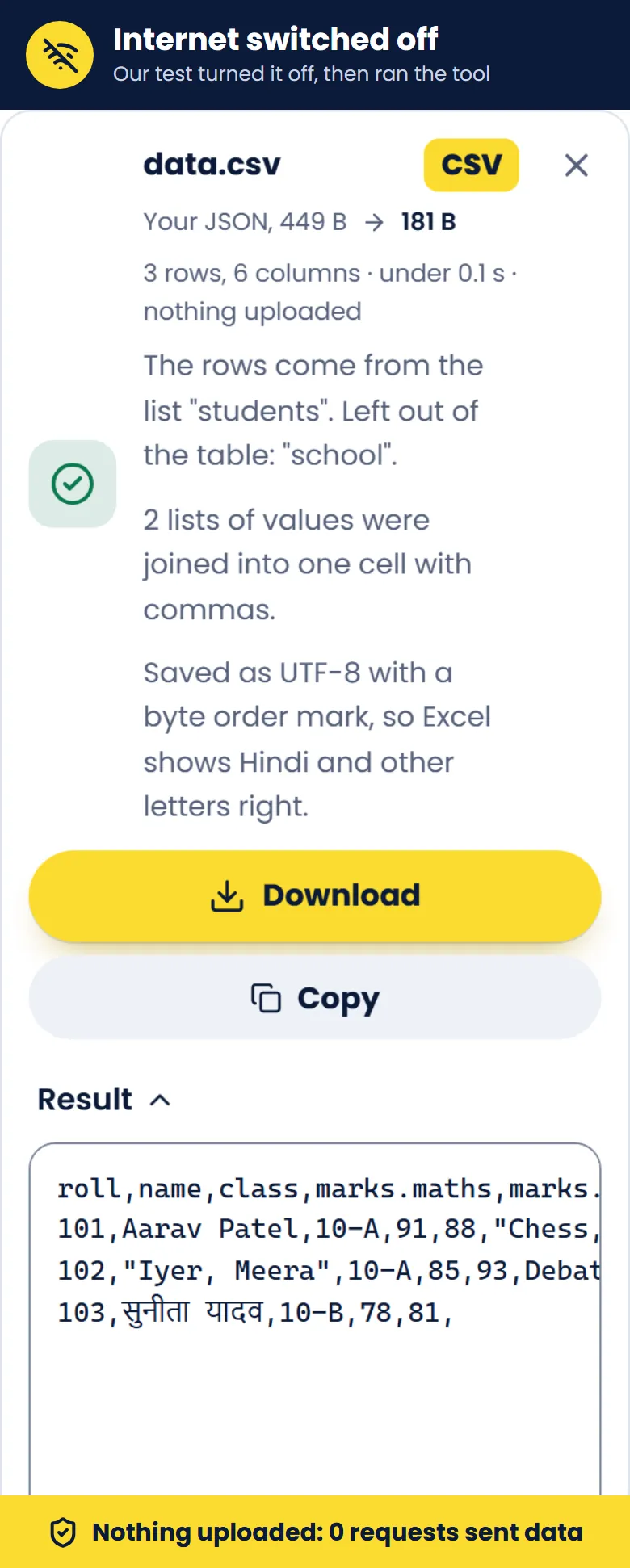
- Read the line on the result: for the sample, “3 rows, 6 columns”, with which list the rows came from and what was left out of the table.
- Copy or Download. A file keeps its name, so students.json becomes students.csv; JSON you pasted is saved as data.csv. Two or more results can be saved together with Download all as ZIP.
- Open it: double-click the .csv to open it in Excel, or import it in Google Sheets.
How JSON becomes a table: the rules
Every file is turned into a table by the same rules, and the result says which list the rows came from:
| In the JSON | In the CSV |
|---|---|
A list of objects [{...}, {...}] | One row each, with a header row of column names |
An object holding a list of objects {"count": 2, "results": [...]} | The rows come from the first such list; the other top-level names are left out, and the result names them |
| Any other object, or a single value | One row |
A list of lists [[1, 2], [3, 4]] | Rows as they are, with no header row |
A nested object "address": {"city": "Pune"} | A column named with dots: address.city |
A list of values "clubs": ["Chess", "Music"] | Join in one cell: Chess, Music. One row per item: a row each |
| A list of objects inside a row | Join in one cell: the list as JSON text. One row per item: a row each, with columns like items.qty |
| Two lists in one row, with One row per item | Lined up item by item: the first items share a row, then the second; other cells repeat on every row, and a shorter list leaves its cells empty |
| Names missing from some rows | Empty cells. Columns are in the order they first appear, across all rows |
null, {} and [] | Empty cells |
true and numbers | As written: true, 1.50, 12345678901234567890 (every digit kept) |
| A name used twice in one object | The cell gets the last value, and the result says so |
| A cell with the delimiter, a quote or a line break | Put in quotes, with quotes doubled, as RFC 4180 says |
| Line ends | CRLF, as RFC 4180 and Excel use |
| UTF-8 for Excel | A byte order mark (BOM) at the start, so Excel shows Hindi and other letters right. Plain UTF-8 leaves it out, for programs that don't expect it |
Opening the CSV in Excel and Google Sheets
A double-click opens the CSV in Excel. Keep UTF-8 for Excel on: it puts a byte order mark, an invisible mark, at the start of the file, which is how Excel knows the file is UTF-8. Without it, Excel reads the file in its older code page and Hindi, Tamil or emoji turn into strings of odd letters. Plain UTF-8 leaves the mark out, for programs and scripts that don't expect it. In countries where the comma is the decimal mark, Excel expects semicolons: choose Semicolon there.
Excel also changes some values as it opens a CSV. A long number such as an account number or a 12-digit ID is shown as 1.23457E+11, and digits after the 15th become zeros; a PIN code or phone number with a 0 in front loses it. The CSV itself holds every digit, as the JSON had it. To keep them in Excel, open a blank sheet and use Data, From Text/CSV, then set those columns to Text before loading. Google Sheets: File, Import, and turn off converting text to numbers.

Real results from our tests
We tested JSON to CSV with headless Chromium 148, the open-source browser Chrome is built on, on a Windows laptop with an Intel Core i7-1185G7 and 32 GB of memory, on 1 November 2026. Other work was running on the laptop at the same time, so times vary a little from run to run: each time below is the middle one of 3 runs, each in a fresh browser.
Checked against Python. Our test gave the page every file of our test set for this tool, 14 that it should convert and 13 with mistakes, with the usual options and again with changed ones, and then the 50 MB file: 55 files in all. For every converted file, the page's rules were applied a second time to what Python's json module read, and Python's csv writer, with RFC 4180's quoting and line ends, wrote the same bytes as each saved CSV, with the byte order mark exactly when it was asked for. Each of the 13 files with mistakes was refused, as Python refuses it too, with the page's message naming the mistake.
Speed and memory. The test files were made up for these tests: a list of orders, of 1 MB, 10 MB and 50 MB. The time is from choosing the file to its finished row, and the memory is what the whole browser added while it worked. “Page kept waiting” is the most that a timer on the page, set to tick every 50 milliseconds, was ever late: the work runs in a background worker, so the page itself stays free to answer a tap or a click.
| File | Time | Result | Memory added | Page kept waiting |
|---|---|---|---|---|
| A 1.0 MB JSON file | 0.2 s | 0.5 MB | 0 MB | 4 ms |
| A 10 MB JSON file | 0.7 s | 4.7 MB | 154 MB | 10 ms |
| A 50 MB JSON file | 3.4 s | 24 MB | 466 MB | 6 ms |
| A 1.0 MB JSON file, on a phone-sized screen with the processor slowed 4 times | 0.3 s | 0.5 MB | 8 MB | 121 ms |
| A 10 MB JSON file, on a phone-sized screen with the processor slowed 4 times | 1.0 s | 4.7 MB | 165 MB | 109 ms |
What the numbers mean: a 50 MB file took 3.4 seconds on the laptop, and the page was never kept waiting for more than 6 milliseconds while it worked, far too little to notice. With the processor slowed 4 times, roughly a mid-range phone, a 10 MB file took 1.0 seconds, and the page was never kept waiting for more than 121 milliseconds: on a phone, a big result's box starts closed and is filled when you open it, so the finished row appears at once.
Nested data and lists
A nested object becomes columns named with dots: "marks": {"maths": 91, "science": 88} gives the columns marks.maths and marks.science. Lists need a choice, because a cell holds one value. In the sample, Aarav's "clubs": ["Chess", "Music"] can be written two ways:
- Join in one cell: one row per student, with
Chess, Musicin the clubs cell. Best for a report or a mail merge, where each person is one line. A list of objects, such as an order's items, is written into its cell as JSON text. - One row per item: a row for each club, so Aarav has two rows, Chess and Music, with his other cells repeated, and the 3 students make 4 rows. Best when each item is what you count, such as one line per order item: an order with 2 items gives 2 rows, with columns like items.sku and items.qty.
The result says how many rows were made and why. Changing the choice never redoes a finished result by itself: it says it was made before the change and offers a button such as “Redo with One row per item”.
Big files: up to 200 MB
The work runs in a background worker, a separate part of the browser, so the page keeps responding while a big file is read. In our tests a 50 MB file, a list of orders, took 3.4 seconds on a laptop, and the page was never kept waiting for more than 6 milliseconds. A big file needs memory, though: the browser used 466 MB more while it worked, so on a phone or an older computer a file of a few tens of MB is the comfortable size. Stop, or the × on a row, ends the work at once.
The result box shows the start of a big result, the first 20,000 characters; Download always saves all of it, and Copy works up to 10 MB. Files over 200 MB are not started, because a browser tab would run out of memory. Excel has a limit of its own: a sheet holds at most 1,048,576 rows, Microsoft's figure, so a longer table opens cut short in Excel, though the CSV holds every row. On a phone, a big result's box starts closed, so its row, with Download and Copy, appears at once: tap Result to see the start of it.
When the JSON has a mistake
JSON with a mistake isn't guessed at. The row names the mistake with its line and column and shows the line with a ^ under the place; for JSON in the box, Show in the box puts the cursor there. The usual ones are a comma after the last item, single quotes, a missing comma, a comment, and Python's True or None from a print.
One kind needs a word of its own: JSON Lines, one object on each line with nothing around them, as many logs and exports are written. It isn't one JSON value, so the page says “There is more after the end of the JSON”. Put the objects in [ ] with a comma at the end of each line but the last, and it converts. To check JSON on its own, with the same messages, use JSON Formatter.
A worked example: the sample school
The sample is a made-up school: {"school": "Sunrise Public School", "students": [...]}, three students, each with a roll number, a name, a class, marks in maths and science, and a list of clubs. With the usual options it becomes this table:
| roll | name | class | marks.maths | marks.science | clubs |
|---|---|---|---|---|---|
| 101 | Aarav Patel | 10-A | 91 | 88 | Chess, Music |
| 102 | Iyer, Meera | 10-A | 85 | 93 | Debate |
| 103 | सुनीता यादव | 10-B | 78 | 81 |
The rows come from the list "students", and the result says that "school" was left out of the table, since it isn't part of any row. The marks became two dot columns, Aarav's two clubs share a cell, Sunita's empty list is an empty cell, and Meera's name, which has a comma, is put in quotes in the CSV, as RFC 4180 says, so Excel keeps it in one cell.
Which list becomes the rows
A table needs one list of rows, and JSON from an API rarely starts with one. The page looks in this order: a list at the top is the rows; an object's first list of objects is the rows, with the object's other names left out and named in the result; anything else is one row. So an answer like {"count": 2, "page": 1, "results": [{"id": "A-1", "total": 429.50}, ...]} gives a table of the results, with the columns id and total, and the note “Left out of the table: "count", "page"”.
If the list you want isn't the first, cut the JSON down to that list before converting, or paste just that part in the box. A list of lists, such as [[1, 2], [3, 4]], is written as rows as it is, with no header row.
Reports, charts and mail merge
Once the data is a table, the usual tools take over. In Excel, select the table and choose Insert, PivotTable to add up the totals by class, by city or by month, or Insert, Chart for a chart. For a mail merge, Word's Mailings, Select Recipients, Use an Existing List takes the CSV, and each column name becomes a field you can put in the letter, such as name or marks.maths.
Short, plain column names make all of this easier. They come from the JSON's own names, so a deeply nested export gives long dot names like customer.address.city; you can rename the header cells in the sheet, which changes nothing else. When the same export comes every week, keep the options the same each time, so the columns come out in the same order and a report built on them keeps working.
Tips
- Keep UTF-8 for Excel on whenever the data has Hindi or other letters and will be opened in Excel.
- Choose One row per item for order lines and the like, Join in one cell for one line per person.
- Import, don't double-click, when the data has long IDs or PIN codes, and set those columns to Text.
- To check or tidy the JSON first, use JSON Formatter; for data that came as XML, start with XML to JSON.
Private: your data stays on your device
Your JSON never leaves your device. The converter runs inside your browser, in a background worker on your own phone or computer, and has no upload step: it never sends your file or the text you paste anywhere. The page's Content Security Policy lets it contact only this site and Google's ad service, which pays for the site; our code never gives your files to the ad code. You can check it yourself in your browser's network panel (F12 on a computer): converting a file adds no request that carries it.
Nothing you paste is run as code. The JSON is read by our own small reader, written for this site, which only reads text: there is no eval and no step that runs anything from the file.
Compared with converters that upload your file
| This page | A converter that uploads | |
|---|---|---|
| Where your file goes | Nowhere: it is converted in your browser | To the site's server |
| Size | Up to 200 MB | Often a few MB |
| Hindi in Excel | Readable: the file is marked as UTF-8 | Varies |
| Nested data and lists | Dot columns; lists joined or one row per item, your choice | Varies |
| Long numbers | Every digit as written | Some round them |
| Offline and sign-up | Works once loaded; no sign-up | Needs the internet; sometimes an account |
Limits
- Files up to 200 MB. Bigger files are not started: a browser tab would run out of memory.
- JSON Lines (one object on each line, with no [ ] around them) isn't read: put them in [ ] with commas between them.
- One table. Only one list becomes rows; other top-level names are left out (the result names them).
- Names with dots like
a.blook the same as a nestedaholdingbin the header. - Nesting deeper than 500 levels (an object or list inside another, 500 times over) isn't read.
JSON and CSV terms, explained
- JSON
- JavaScript Object Notation: data written as text, with names and values in { } and lists in [ ].
- CSV
- Comma-separated values: a table written as text, one row a line.
- Nested
- An object or a list inside another one, like an address inside a customer.
- Flatten
- Turning nested names into columns, like address.city for the city inside an address.
- Delimiter
- The character between cells: a comma, a semicolon, a tab or a pipe (|).
- BOM
- The byte order mark: an invisible mark at the start of a file that tells Excel it is UTF-8.