What PDF to Excel does
PDF to Excel turns the tables inside a PDF into an Excel file. It is made for papers that arrive as PDFs but that you want to sort, filter and add up: bank statements, salary slips, GST invoices and mark sheets. Each PDF you add becomes one .xlsx file, the format Excel saves, and the tables in it become sheets, the tabs along the bottom of a spreadsheet.
The difference from copying and pasting is in the cells. Text copied out of a PDF often arrives as words: ₹1,23,456.00 looks like an amount, but a spreadsheet treats it as a word, and a SUM over a column of such words gives 0. Here an amount is stored as a number and a date as a date, so SUM, sort and filter work straight away. Numbers, rupees and dates you can add up shows exactly what is read and how.
People use it for:
- Bank statements. See where a month's money went, add up UPI payments, find one payment among hundreds of rows, or hand the rows to your accountant.
- Salary slips. Put several months side by side to see how earnings and deductions changed, for tax filing or for the income details on a loan form.
- GST invoices. The items, HSN codes and CGST and SGST lines of a tax invoice, ready to copy into your books.
- Mark sheets and result lists. Marks in cells you can sort, total and average.
- Profit and loss statements and credit card statements. Amounts in brackets or with a minus sign after them become proper negative numbers.
How it works, in one line: your browser reads the words in the PDF with pdf.js (Mozilla's PDF reader, the one built into Firefox), finds the tables, and writes the Excel file itself. Your file is never uploaded, there is no sign-up and there is no watermark. When it finishes, a small preview shows under your file: the first 6 rows and 7 columns of the biggest table on the first sheet that has one. So you can see that it came out right before you download it.
It reads the text inside a PDF. A PDF made on a computer, such as a statement downloaded from net banking, has that text. A scan or a photo is only a picture and has none: see Scanned statements: why no cells come out.
To make a PDF from a sheet instead, use Excel to PDF.
Converting a bank statement to Excel on your phone, step by step
All you need is the statement as a PDF file on your phone. If your bank emailed it, save it from the email first; it usually goes to your Downloads folder. Then:
- Open this page and add the PDF. Tap Choose PDF files and pick your statement. On a computer you can also drop the file anywhere on the page. No PDF at hand? Tap "Try with a sample bank statement". It makes a two-page statement of a made-up bank, with 34 transactions, right on your device.
- Look at the row it makes. Each PDF gets a row with a picture of its first page, its name, its pages and its size. Tap the × on the right to take one out. You can add more PDFs, and each one makes its own Excel file.
- Type the password if it asks. A locked statement shows a password box on its own row. Type the password and tap Open. It is used on your phone only. A PDF that is still locked when you press Convert is left out, and the result tells you so.
- Choose how pages are joined. The choice is called "A table over several pages". One sheet (joined up) suits most statements. A sheet a page keeps every page apart. Bank statements over many pages explains both.
- Tap Convert to Excel. With several PDFs the button counts them, like "Convert 3 PDFs to Excel". A bar shows the page being read, like "Page 12 of 60". Tap Stop if you change your mind: the pages read so far are kept, and you can download them.
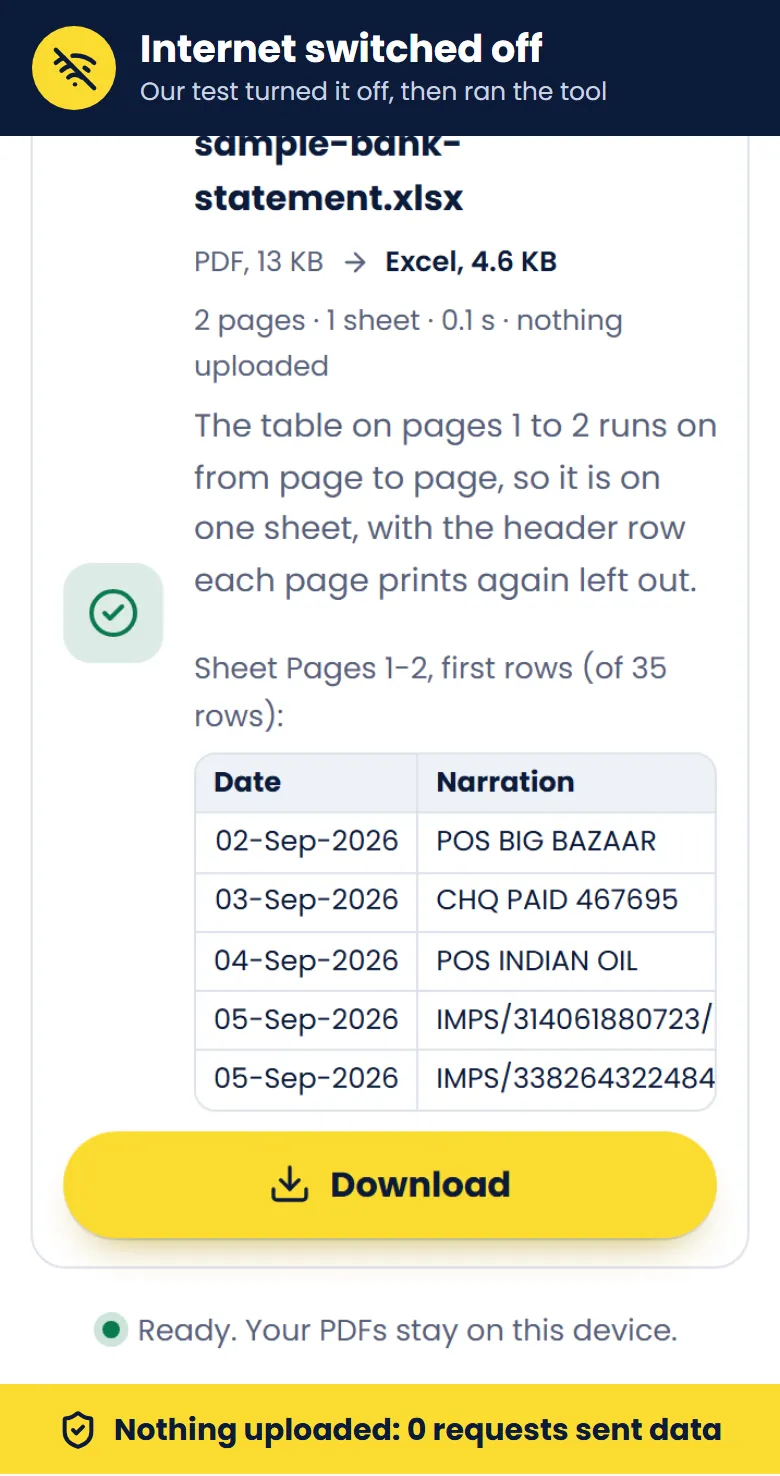
- Read the result. Under your file you see the PDF size and the Excel size, the pages, the sheets, the seconds, and "nothing uploaded". Notes mention anything that needs a second look: joined pages, scans, sideways pages, Hindi text. Below them is a small preview: the first 6 rows and 7 columns of the table.
- Tap Download. The file keeps your PDF's name and ends in .xlsx, so statement.pdf gives statement.xlsx. With several PDFs there is also Download all (ZIP), one file that holds all the Excel files.
If you change the joined-pages choice after converting, the old results go and the Convert button comes back, so the file you download always matches your choice.
Where does the file go? That depends on your phone and your browser. In Chrome on Android it should go to your Downloads folder, and on an iPhone it should go to Downloads in the Files app. Tap the file there and open it with a spreadsheet app such as Excel, Google Sheets or WPS Office. We have not tried this on real phones, so if you cannot find the file, look in your browser's list of downloads. Phones can slow down or pause a page you are not looking at, so keep the page open with the screen on until the file is ready.
Bank statements over many pages
A bank statement is one long table cut into pages. Page 2 starts with the same heading row as page 1, and the bank's name and "Page 2 of 5" print on every page. If all that ended up in your sheet, you would have to delete it by hand before you could sort or add up. So the choice called "A table over several pages" decides what happens:
- One sheet (joined up). This is the default. A table that runs on from page to page becomes one table on one sheet, named like Pages 1-3. The heading row that each later page prints again is left out. So are the lines that every page repeats, such as the bank's name or "Page 2 of 5", after the first page. A line such as "carried forward" or "continued" is kept, after the table.
- A sheet a page (as printed). Each page gets a sheet of its own, named Page 1, Page 2 and so on, just as it was printed. Choose this when the pages differ from each other, or when you want to check one page against the PDF.
Two pages are joined only when they look like one table: the columns line up, and the heading row is the same, or there is none. If page 5 starts a different table, it gets a sheet of its own. The result tells you which pages it joined, in words like "The table on pages 1 to 3 runs on from page to page, so it is on one sheet, with the header row each page prints again left out."
Everything else on the page is kept too. The bank's name, the account holder, the account number, the statement period and the opening balance become rows of their own above the table, and a closing balance becomes a row below it. They are not mixed into the table, so a SUM over a column does not pick them up. Our sample statement has exactly this shape: two pages, 34 transactions, the heading printed again on page 2. With One sheet it gives a single sheet named Pages 1-2, whose table has 35 rows, the heading and 34 transactions.
What we measured. We converted a made-up savings statement of 3 pages both ways. One sheet gave one sheet named Pages 1-3 (a 5,422-byte file). A sheet a page gave three sheets named Page 1, Page 2 and Page 3 (6,771 bytes). A made-up 60-page statement with 2,280 transactions became one sheet of 2,281 rows, the heading and 2,280 transactions, and every cell was right. Joined ten times into a 600-page statement, it became one sheet of 22,801 rows. Real results has the times.
How long can a sheet be? An Excel sheet holds at most 1,048,576 rows (Microsoft's list of Excel limits, last checked: 2026-10-09). Our statements have about 38 transactions a page, and at that rate the limit is about 27,600 pages away. The page does not check the limit itself. If you ever have a PDF with more rows than that, choose A sheet a page, so that no sheet gets that long.
How tables are found: with lines and without
A table in a PDF is not really a table. The PDF only knows words placed at spots on the page, and lines drawn between them. To make cells, the converter has to work out which words belong in which row and which column. It does this in two ways and uses the one a page needs.
Tables drawn with lines. Many statements draw a grid. Lines that touch each other make a table: the columns are where the lines run down, the rows are where lines run across. This also works when only the lines between the columns are drawn, or when a box has just one line under its heading. If a band between two lines holds several rows of amounts or dates, the band is cut into rows by its lines of text.
Tables without lines. Statements printed from a bank's website often have no lines at all. Then the converter looks for rows that hold an amount or a date, and for the columns their words line up in: the strips of the page that no word crosses. Those rows anchor the table. Up to three lines of headings just above them are taken in as its heading, and a heading written on two lines is joined into one row.
Then come the finer points, which are where simple tools go wrong:
- Heading rows stay headings. They are bold in Excel and stay text, never numbers. A heading over two columns, like "Amount" over Debit and Credit, becomes a merged cell. In our tests a GST invoice gave 11 merged cells and a mark sheet 6.
- A cell can have several lines. A narration that wraps onto a second line, such as a long UPI or NEFT description, stays in one cell instead of becoming extra rows. A line with nothing in the date or amount column, but text in a text column, carries on the row above it.
- Lines around the table stay out of it. A summary box above a credit card statement, a shop's address above an invoice, or a line like "Invoice No.: ... Date: ..." is kept as a row of its own above or below the table, not mixed into it.
- Two tables on a page are two tables. Our test page with a Semester I table and a Semester II table side by side gave two tables on the sheet, one under the other with an empty row between. A salary slip also gave two: the employee's details, and the earnings and deductions side by side in four columns.
- Text that is not a table is kept. Its lines become rows too, in the order they sit on the page. On a page of running text in two columns, such as a newsletter, one column is read after the other.
- Columns get a sensible width, set from the longest text in each, so you do not start by dragging them wider.
If nothing in a PDF looks like a table, each line of its text becomes a row, and the result says so. Because tables are found from how the page looks, the converter does not need to know your bank. The other side of that is that a layout it has never met can fool it. When a table comes out wrong says what to do then.

Numbers, rupees and dates you can add up
A spreadsheet is only useful when its cells have the right type. Here is how each cell is decided. Amounts written the Indian way (1,23,456.78, with a comma after the first three digits and then after every two) and the Western way (123,456.78) are both read. Here are common writings and what the cell holds. A ruled test table of made-up payments used these writings, with ₹, Rs., INR, /-, Dr, brackets and %, and all its cells came out right:
| Written in the PDF | Stored in the cell as | Shown in the cell as |
|---|---|---|
| 1,23,456.00 | the number 123456 | with commas and two decimals |
| ₹ 12,34,567.50 | the number 1234567.5 | with "₹ " in front |
| Rs. 1,23,45,678.90 | the number 12345678.9 | with "Rs. " in front |
| ₹1,500/- | the number 1500 | with ₹ in front and /- after |
| 1,250.00 Dr | the number minus 1250 | as 1,250.00 Dr (a plus amount shows Cr) |
| (1,250.00) | the number minus 1250 | in brackets |
| 4.5% | the number 0.045 | as 4.5% |
| 01-04-2026 | the date 1 April 2026 | as 01-04-2026 |
| 50100012345678 | text, left as it is | all 14 digits |
The cell holds a plain number, and a number format (the rule for how a number is dressed on screen) remembers the ₹ sign, the brackets, the Cr or Dr, or the /- after the amount. So your sheet looks like the statement, and the cell still adds up. The converter also reads Rs, INR and $ in front of an amount, a minus sign before it or after it, and the proper minus sign some PDFs use. Dr means debit, money going out, and Cr means credit, money coming in. A balance of 1,250.00 Dr is stored as minus 1250, and a Cr balance as a plus number.
The heading of a column does not change a number. A column headed "Withdrawal (Dr)" with plain amounts like 1,500.00 holds plus numbers, and a SUM over it gives the total withdrawn. An amount keeps the decimals it was written with, so 250.00 still shows 250.00 and not 250.
Dates become dates. These writings are read as dates: 02-04-2026, 02/04/2026, 02.04.2026, 2026-04-02, 2 Apr 2026, 02-Apr-2026, 2nd April 2026 and April 2, 2026, with a time after them if there is one. The cell shows the date in the same style as the PDF, so 02-Apr-2026 stays 02-Apr-2026. A year written with two digits is read as 20 and those digits up to 29, and as 19 and those digits from 30, so 15-08-75 is 1975.
Underneath, Excel stores a date as a day number counted from 1 January 1900. For example, 5 July 2011 is 40729 (Microsoft's page on Excel's date systems, last checked: 2026-10-09), and our converter gives 40729 for that date too. Because a date is a number underneath, you can sort by date and filter by month.
Is 03-04-2026 the 3rd of April or the 4th of March? The converter reads the day first, the usual way in India. It changes its mind for a column only when the column proves it: if some date in the column has a number over 12 in the second place and none has one in the first, the whole column is read month first. If every date in a column could be read either way, the day comes first.
What stays text. Some numbers are really names. Turning them into numbers would drop a leading 0 or the last digits, so these stay text, exactly as printed:
- Any run of 12 or more digits, such as an account number or a UPI reference. Nobody adds these up, and a spreadsheet number keeps only 15 digits (Microsoft's list of Excel limits, last checked: 2026-10-09), so the longest of them would lose their end.
- A number that starts with 0, like the HSN code 0402.
- Every plain number in a column whose heading names a reference or a code: Ref, Chq, Cheque, UTR, Txn ID, Code, HSN, SAC, PIN, A/c, Acct, Mobile, Phone, Roll, Reg, Aadhaar, PAN, UAN, IFSC, Folio, NEFT, IMPS or "No.". A serial number column (S.No, Sr. No, Sl. No) stays numbers.
- A number beside a label such as "Account No.", in the account details above a table.
In our rupee test table the 14-digit account number and a 10-digit mobile number stayed text. Dates before 1 March 1900 stay text too, because Excel's day numbers are off there. A cell the converter does not recognise as a number or a date stays text, exactly as the PDF printed it. Nothing is dropped or changed.
The lakh commas. The number format we write for 1,23,456.00 is #,##0.00. Microsoft's page on number formats (last checked: 2026-10-09) says Excel separates thousands by commas for such a format, and says nothing about lakh grouping. We have not opened our files in Excel, Google Sheets or WPS Office, so we cannot promise that lakh commas show on screen: in Excel it will most likely show 123,456.00. Either way the cell holds the number 123456, and that is what adds up.
GST invoices, salary slips and mark sheets
Statements are the most common job, but the same method reads other papers made of tables. These are our made-up test files, none of them a real person's paper. Each was converted on a computer, and every cell of the Excel file was compared with what the PDF says:
- A GST tax invoice with ruled lines, with HSN codes, CGST and SGST columns and heading cells that span several columns: 1 table found, all 84 cells right, 49 of them numbers, and 11 merged heading cells. A column headed HSN stays text, so a code like 0402 keeps its leading 0.
- An invoice with no lines and columns close together: 1 table found, 36 of 36 cells right.
- The same invoice as a scan with a hidden text layer (OCR, explained in the section on scans): the cells come from that text, and all 36 were right.
- A salary slip with the employee's details above and the earnings and deductions side by side below them: 2 tables found out of 2, all 44 cells right, 12 numbers and 1 date (the joining date). The 12-digit UAN and the 14-digit bank account number stayed text.
- A mark sheet with headings over two columns: 1 table found, 6 merged cells, all 56 cells right.
- A profit and loss table with amounts in brackets and with minus signs after them: all 32 cells right.
- A credit card statement with a summary box above the transactions, over 2 pages: all 156 cells right, with the summary box kept out of the table.
A few habits make these sheets more useful:
- Keep the Total row out of your SUM. If the PDF's table ends with its own Total or Grand Total row, that row is in the sheet as a row of numbers. Add up the item rows only, or you will count the total twice. Then compare your sum with the printed total, which is a good check.
- Salary slips come one a PDF. To see a year side by side, convert the slips together (each gets its own Excel file), then copy the rows you want into one sheet.
- Invoices keep codes as text. HSN and SAC codes, PIN codes and invoice numbers in columns headed that way stay text, so they sort and match as you expect. Quantities, rates, taxable values and tax amounts become numbers.
- Mark sheets have merged headings. A heading such as "Theory" over two columns becomes a merged cell above them. If your spreadsheet app complains about merged cells when you sort, select only the rows of marks and sort those.

Sideways and turned pages
Wide statements are often printed on a landscape page, which is wider than it is tall. Some PDFs hold a wide table lying on its side on an upright page, and some pages are saved turned a quarter of the way round. PDF to Excel reads all of these upright.
What matters is how the page looks when you open the PDF:
- The text reads upright. The converter just reads it. This is true even when the file stores the page turned (a /Rotate instruction of 90 or 270 degrees) to get there. Nothing needs saying, so there is no note.
- The text shows sideways. The converter reads the page turned upright, and the result says so, in words like "Page 1 has its text set sideways, so it was read turned upright".
We tested these on made-up files. A wide statement on a landscape page, the same statement drawn sideways on an upright page, and the same statement drawn sideways but saved with a /Rotate turn that shows it upright each gave an Excel file with all 216 cells right. The sideways one showed the note above, and the one saved with /Rotate needed none. The ruled table with rupee amounts, on a page turned by 90 degrees and on one turned by 270 degrees, gave all 54 cells right each time, with the same sideways note.
A page that is upside down because it was scanned that way is a scan, and a scan has no text to read: see Scanned statements. Rotate PDF can turn such pages upright to read them yourself, but that does not give them any text for this tool.
Hindi, Urdu and other scripts in a statement
Statements often carry names and narrations in Hindi or another Indian language. Here is what to expect.
Numbers and English text are not affected. Amounts, dates, account numbers and English words are read the same way whatever else is on the page.
Hindi and Marathi letters can come out wrong. Many PDFs do not store the letters you read. They store shapes, and in scripts where letters join, such as the vowel signs of Devanagari, a program cannot always tell which letters made a shape. So pdf.js, the reader we use, may give back letters in the wrong place or miss one. On a made-up Hindi statement with 70 cells, 67 were right. The 3 wrong cells were Hindi words: in one, the vowel sign was in the wrong place, and in two, a letter was missing. The numbers and the English words were all right.
When the converter sees Hindi, Marathi, Bengali, Assamese, Punjabi, Gujarati, Odia, Tamil, Telugu, Kannada or Malayalam letters in a PDF, it warns you under the file: "This PDF has text in Hindi or Marathi. PDFs often store these letters in a way that can't be read back in full, so some letters may be missing or out of place in the cells. Numbers and English text are not affected. Check that text against the PDF." Only Hindi was measured for this tool, so we cannot say how often the other scripts go wrong. The warning is shown for all of them to be safe.
What to do. Keep the sheet for the numbers and dates, which are the part you add up. For names and narrations in Hindi, look at the PDF and correct the few cells by hand. If you only need the English narration and the amounts, you do not need to do anything.
Urdu and Arabic are written from right to left. The converter puts their words and letters back in reading order, from right to left, and keeps numbers and English words inside them running left to right. A small made-up table with Urdu names came out with all 9 cells right. That is one small file, so treat it as a good sign, not a promise.
Scanned statements: why no cells come out
A scan is a picture of a page. It looks like text to you, but inside the PDF there are only coloured dots, with no letters to read. PDF to Excel reads the text inside a PDF. It does not read pictures: it has no OCR (optical character recognition, the reading of letters from a picture). So a scanned statement gives no cells, and the page says so instead of giving you an empty sheet.
How to tell: try to select a word in the PDF on your phone. If you can pick out single words, it has text. If a whole page is selected like a photo, it is a scan. Photos of a statement taken with a camera are pictures too, and this page takes PDF files only.
What happens when you try:
- The whole PDF is a scan. No Excel file is made. The result says: "This PDF is a scan: a picture of text, with no text in it to put in cells. This tool reads the text inside a PDF; it doesn't read pictures (it has no OCR), so no Excel file was made." A 42-page colour scan of 46.0 MB took 3.0 seconds to reach this answer on our test computer, so you do not wait long to find out.
- Some pages are scans. Say a PDF has 3 pages of text and 2 scanned pages. We tested exactly this: the Excel file had 3 sheets, Pages 1-3 with the table, and Page 4 and Page 5, which only say that they are scans. The result says "Pages 4 and 5 are scanned (pictures of text), with no text to put in cells, so their sheets only say so. This tool doesn't read pictures."
- A scan with a hidden text layer. Some scanner apps and office scanners add invisible, recognised text under the picture, called a text layer or OCR layer. The converter reads that text. The result says "This PDF is a scan with its text recognised (OCR). The cells come from that recognised text, so check them for its mistakes." Recognised text can misread digits, so check every amount.
- Text that cannot be read back. A few PDFs have fonts that do not say which letters they draw, so the text would come out as nonsense. Those pages get a sheet that says the text can't be read.
What to do instead. Ask for a text version. Many net banking sites and apps let you download your statement as a PDF, and that file is made of text, not a picture. A statement printed to PDF from a web page in Chrome also has real text: two of our test statements were made that way, from made-up bank pages, and both came out with every cell right. If you can only get a scan, run it through an OCR scanner app or program first, then bring the text PDF it makes here, and check the amounts against the original.
Real results
We tested in Chromium 148, the open-source browser Google Chrome is built on, driven by Playwright 1.60, on Windows 11. The computer has an Intel Core i7-1185G7 (4 cores) and 32 GB of memory, shared with other test jobs. We did not test Safari, Firefox, Edge or any real phone. "Phone" below means a screen 390 pixels wide with touch switched on. "Slow phone" means the same screen with Chrome's processor slowed 4 times, which is a simulation, not a real phone. The page we tested was a build without Google's ad code.
The 24 test files are made-up statements, invoices, salary slips and mark sheets: every name, bank and amount is invented. We read every Excel file back with openpyxl, a Python program for reading Excel files, and compared each cell with the right answer. Numbers had to be stored as numbers and dates as dates.
- 17,330cells checked in 24 test PDFs, all right
- 27 of 27tables found in those PDFs
- 0.86 sfor a 60-page statement with 2,280 transactions
- 0requests to another site, and none that send anything, in the whole test
| Test PDF | Tables found | Cells right |
|---|---|---|
| Savings statement with ruled lines (3 pages, 8.1 KB) | 1 of 1 | 322 of 322 |
| Statement without lines (2 pages, 5.3 KB) | 1 of 1 | 240 of 240 |
| Statement printed from a web page in Chrome (2 pages, 61 KB) | 1 of 1 | 420 of 420 |
| Internet banking statement, narrations over 2 or 3 lines (2 pages, 56 KB) | 1 of 1 | 672 of 672 |
| Credit card statement with a summary box (2 pages, 4.1 KB) | 1 of 1 | 156 of 156 |
| Wide statement on a landscape page (1 page, 4.0 KB) | 1 of 1 | 216 of 216 |
| GST invoice with ruled lines (1 page, 45 KB) | 1 of 1 | 84 of 84 |
| Invoice without lines (1 page, 2.4 KB) | 1 of 1 | 36 of 36 |
| Salary slip, details, then earnings and deductions side by side (1 page, 52 KB) | 2 of 2 | 44 of 44 |
| Mark sheet (1 page, 58 KB) | 1 of 1 | 56 of 56 |
| Profit and loss table (1 page, 40 KB) | 1 of 1 | 32 of 32 |
| Rupee table with every writing of an amount (1 page, 50 KB) | 1 of 1 | 54 of 54 |
| Long statement, 2,280 transactions (60 pages, 206 KB) | 1 of 1 | 13,680 of 13,680 |
These 13 are part of the 24 files. The other 11 were also all right: more statements, the sideways and turned pages, a scanned invoice with a text layer, an Urdu table and some small pages with two tables. Together that makes 17,330 of 17,330 cells and 27 of 27 tables. Sizes are in KB of 1,024 bytes.
An honest note. We fixed mistakes while building the tool using these same files, so there is no untouched set left. The 100% above is a result on files we tuned the tool with. It is not a promise for your statement, which may be laid out in a way we have never seen.
Three more cases from the same test: the Hindi statement had 67 of 70 cells right (see Hindi, Urdu and other scripts), a locked statement converted with every cell right once its password was typed, and pressing Stop on a 600-page statement stopped it after 218 milliseconds, keeping exactly 38 transactions for every page already read.
Next, time and memory. Time runs from pressing Convert until the result shows. Memory counts every process of the test browser, not only the tool, so it also holds the browser itself: the "added" figure is the most it grew while converting.
| Test PDF and screen | Excel file | Time | Memory added |
|---|---|---|---|
| Sample bank statement (2 pages), computer | 4.6 KB | 0.13 s | 23 MB |
| Savings statement (3 pages), computer | 5.3 KB | 0.14 s | 24 MB |
| Long statement (60 pages), computer | 90 KB | 0.86 s | 80 MB |
| Long statement (600 pages), computer | 722 KB | 15.7 s | 240 MB |
| Long statement (60 pages), phone | 90 KB | 1.85 s | 80 MB |
| Long statement (600 pages), phone | 722 KB | 14.4 s | 247 MB |
| Long statement (60 pages), slow phone | 90 KB | 11.5 s | 89 MB |
On the slow phone the sample bank statement took 1.12 seconds and the savings statement 1.46 seconds. A 129-page book with a few tables gave 127 sheets in 3.2 seconds on the computer. A book is not what this tool is for: pages without a table become sheets of text lines, so use PDF to Word or PDF to Text for books and letters.
The times above come from a quiet computer. When the same computer was busy with other work, the runs were 2 to 14 times slower: the 60-page statement took 12.2 seconds instead of 0.86. So times depend on the device, and a busy phone will be slower. Memory also depends on the PDF: the browser grew by about 240 MB on the 600-page statement, and we did not try a real phone, so we cannot say what size a phone will manage.
Try it yourself: press "Try with a sample bank statement" at the top of this page. It makes a statement on your device, and you can see the Excel file come out in a moment.
Try the sampleOpening the Excel file in Excel, Google Sheets or WPS
The file is a standard .xlsx, so apps that open .xlsx files should open it: Microsoft Excel, Google Sheets, WPS Office and LibreOffice, on a phone or a computer. One honest note: we checked our test files by reading every cell back with openpyxl, but we have not opened them in Excel, Google Sheets, WPS Office or LibreOffice. If an app ever shows a repair message or a blank sheet for a file made here, please tell us (see When a table comes out wrong).
- On a phone. Tap the file in your Downloads or Files app and choose an app that edits spreadsheets. Google Sheets and WPS Office will open it, and so will Excel if you have it. Formulas are easier on a bigger screen, so for serious work move the file to a computer.
- On a computer. Double-click the file, or drag it into a spreadsheet window. Google Sheets can open a file you upload to your Google Drive, but that upload is your own choice, and from that moment the file is on Google's servers, not only on your device.
What you will see:
- Headings in bold and, where the PDF had a heading over two columns, a merged cell above them.
- Numbers lined up to the right and dates in the style of the PDF. Text, such as narrations and account numbers, lines up to the left. If an amount is lined up to the left, it was left as text: see When a table comes out wrong.
- One sheet per page or per joined run of pages, named Page 3 or Pages 1-3, along the bottom. Sheet names follow Excel's rules: at most 31 characters, none of / \ ? * : [ ] (Microsoft's page on renaming a worksheet, last checked: 2026-10-09).
Add up a column. Click an empty cell under the amounts, type =SUM( , select the cells of the column and press Enter. Leave out the PDF's own Total row, if it has one, and compare your result with it. Many spreadsheet apps also show the total of the cells you select in a bar at the bottom.
Sort and filter. Select the table, open the Data menu and choose Filter (Excel) or Create a filter (Google Sheets). Each heading gets a small arrow. Sort by date, newest first, or filter to one narration word such as UPI. Dates sort correctly because they are real dates. If your app warns about merged cells when you sort, select only the rows below the headings.
Very large sheets. Google says a spreadsheet created in or converted to Google Sheets can hold up to 20 million cells (Google's file size limits, last checked: 2026-10-09). The long statement with 2,280 transactions has far fewer cells than that. Excel allows 1,048,576 rows and 16,384 columns on a sheet, and a cell can hold at most 32,767 characters (Microsoft's list of Excel limits, last checked: 2026-10-09). The converter cuts a cell's text at that character limit.
The file format is called Office Open XML, standard ECMA-376, also known as ISO/IEC 29500 (Ecma International's page on the standard, last checked: 2026-10-09). The file is written by this page itself, in your browser, as a ZIP of small text files, without any outside program.
When a table comes out wrong
Tables in PDFs are laid out in a hundred ways, and the converter has to guess from how the page looks. Most statements come out right, but a layout it has never met can come out wrong. We used all 24 of our test layouts while building the tool, so we cannot tell you how often it happens on yours. Here is how to check, and what to try.
1. Check before you rely on it. Compare a few things with the PDF: the number of transactions, the first and last rows, and the total of one column. The preview under your file shows the first rows right away. In the sheet, select a column of amounts and read its total. If the total and the PDF agree, the sheet is very likely right.
2. Try A sheet a page. If pages were joined wrongly, or a page with a different heading got mixed into the others, choose A sheet a page and convert again. Each page then stands on its own, as it was printed.
3. Look at what went wrong.
- Two columns became one, or one became two. This happens when words are close together, like a long description touching the next column, or when a column is nearly empty. Fix it in your spreadsheet: use its split-text-to-columns option on the Data menu, or join two cells with a formula.
- A row is cut in two. A narration that wrapped onto a second line can sometimes land in a row of its own. Cut the text and paste it into the row above.
- A line of text sits between tables. Lines that are not part of a table are kept as rows of their own. They are there on purpose: a bank's note or a summary line. Delete any row you do not want.
- An amount is left as text. It is left-aligned and does not add up. The usual reason is that its column heading names a reference or a code, like Ref or No., so plain digits there stay text. Another is a number that starts with 0, or one with 12 or more digits. If you need such a column as numbers, change the type in your spreadsheet.
- A date is left as text. It is written in a style we do not read, or it is before 1 March 1900. Dates in the styles listed in Numbers, rupees and dates are read.
- A sheet only says the page is a scan or cannot be read. That page has no text to put in cells: see Scanned statements.
- Hindi words look odd. See Hindi, Urdu and other scripts. Check them against the PDF.
4. Tell us. Use the Contact page to describe the layout: what the bank or form is called, whether it has lines, what went wrong. Please do not send the statement itself, because it is private. A description of how the page looks is enough for us to try to make the converter better.
Privacy: your statement is never uploaded
A bank statement shows your balance, your salary, who you pay and where you shop. A salary slip shows your pay and your employer. Many online converters upload such papers to their servers to convert them. PDF to Excel works the other way round: everything happens on your own phone or computer.
- Reading happens in your browser. pdf.js reads the words and lines of each page there, and the page works out the tables from them.
- The Excel file is written in your browser too. The page itself puts the workbook together, and a ZIP of several workbooks is also made there. Then the file is saved straight to your device.
- Your password stays on your device. If a statement is locked, the password you type is used by the PDF reader inside your browser to open it. It goes nowhere else.
- There is no upload step. The tool never sends your files anywhere. The page's Content Security Policy, a rule your browser enforces, lets it contact only this site and Google's ad service. Our code never gives your files to the ad code.
- No account. There is no sign-up and no watermark.
You can look for yourself: open your browser's network panel (on a computer, press F12 and choose Network) before you convert, then convert. You will see the page's own files load, and Google's ad code too, but the tool has no upload step, so no request carries your PDF. In our own test, on a build without Google's ad code, the page made no request to another site and no request that sent anything out, from adding a file to the download.
The reading code, pdf.js, loads when the page opens. It fetches a few extra data files, such as font and character tables, from this site only when a PDF needs them. So keep your connection on until your file is ready. We have not tested converting with the connection switched off, so we make no promise about it. Our privacy policy has the details.
What PDF to Excel can't do
- It cannot read pictures. There is no OCR. A scanned statement gives no cells, and a scan that already has a hidden text layer gives that text, with its mistakes.
- It cannot promise every letter of Hindi and other Indian scripts. Letters that some PDFs store as shapes can come out wrong. On our Hindi test 67 of 70 cells were right, and the result warns you.
- It keeps the table, not the look. Charts, pictures, colours, fonts, cell borders and links are not carried over. The sheet holds the words, numbers and dates.
- It cannot bring formulas. A PDF holds only the results of a calculation, never the formulas. Totals arrive as numbers, and you add formulas yourself.
- Unusual layouts can still go wrong. Columns can be joined or split, or a row cut in two. Check one total against the PDF.
- You may not see lakh commas. The value is right, but Excel will most likely draw it as 123,456.00. We have not checked Excel, Google Sheets or WPS Office.
- Only .xlsx files come out. There is no CSV or older .xls file.
- Very long PDFs use a lot of memory. The browser grew by about 240 MB on our 600-page statement. We did not try a real phone, so we cannot say what size a phone can manage.
- It does not check Excel's row limit. A sheet holds at most 1,048,576 rows.
- It reads PDF files only. It does not take photos, Word files or other formats, and we have not tested Safari, Firefox, Edge or real phones.
Other ways to get a table into a sheet. There is no single best way, and each has its own cost:
- Download the statement from your bank in a spreadsheet format. Many net banking sites and apps offer statements as Excel or CSV (a plain-text spreadsheet) as well as PDF. That file was never a PDF, so it is the cleanest source if yours offers it.
- Use a spreadsheet's own PDF import. Some versions of Excel can bring a table in from a PDF. Check what yours offers.
- Copy and paste for a small table. Select the table in a PDF reader and paste it into a sheet. It works for a few rows, but the cells arrive as text, and you must fix them by hand.
- Upload-based online converters. Many are well made, and some read scans too. But your statement then travels to their servers, which is the thing this page avoids, and free plans of upload-based tools often limit file size or the number of tasks.
- An OCR program or scanner app for scans. It turns a picture into text first. Check every digit afterwards, because OCR can misread them.
Tips for clean sheets
- Download the e-statement, do not scan or screenshot it. A PDF made on a computer has text. A photo of a printout does not, and this tool cannot read it.
- Type the password on the PDF's row. It is used on your device only. If you want a copy of the statement with no password for other sites, Unlock PDF makes one, when you know the password.
- Use A sheet a page for mixed PDFs. If the file holds a statement and other papers, or pages with different tables, each page then stays on its own sheet.
- Check one total against the PDF. It takes little time and tells you whether to trust the rest. Keep the PDF too: it is your proof.
- Convert one month at a time, then combine in the sheet. Several PDFs at once give one Excel file each, which you can copy into one sheet. You can also try Merge PDF first and convert the joined file. We did not measure that, so check that the months landed on one sheet.
- Delete the rows you do not need (the opening lines, notes at the bottom) before you add up or sort, so they do not get in the way.
- Want plain words, not a table? PDF to Text takes the text out as a .txt file. For a letter, CV or report you want to edit, use PDF to Word.
- Keep the screen on while a long statement converts, so the browser is less likely to pause the page.