What PDF to Text does
PDF to Text takes the words out of a PDF and gives them to you as plain text. You can copy all of it with one button, or save it as a .txt file. Plain text is only letters, numbers and line breaks, with no fonts, colours or pictures, so almost any app on any phone or computer can open it. The work happens in your browser. Your PDF is not uploaded, and there is no sign-up.
The PDF needs real text inside it. A PDF saved from a Word file, a bank's website or an office program has real text, and this tool can read it. A scan is different. It is only a photo of paper, with no text to take out. Scanned PDFs: why no text comes out shows how to tell the two apart.
You can also select words in a PDF reader and copy them. For a line or two, that is the quickest way. For a whole document it often goes wrong: lines break in the middle of a sentence, page numbers land inside your paragraphs, two columns get mixed up and a table turns into a jumble of numbers. This tool looks at where every word sits on the page and puts the text back in the order a person would read it. People use it for:
- Notices and circulars. A housing society notice, a school or college circular or an office memo, copied into a WhatsApp message or an email.
- Letters and certificates. Text pasted into an online form or an application, so you do not have to type it again.
- Question papers and study notes. Text you want in a notes app, where you can search it, or in a translator.
- Bank and card statements. A statement as plain rows you can read, search, or paste into a spreadsheet. For sums, sorting and filters, PDF to Excel is the better tool.
- Reports and books. A long document as one text file, which any text app can search with its Find option.
- Quoting. One paragraph of a letter or circular, copied into your reply.
You can convert one PDF or many at once. Each PDF becomes its own .txt file, and the page shows the first lines of each one so you can see at once whether the text looks right.
How it works, in plain words. Your browser opens the PDF with pdf.js, Mozilla's PDF reader. pdf.js hands over every word with its place on the page, its size and its font. Our own code then joins the words that sit at the same height into lines, finds columns and tables, decides where each paragraph starts and writes the text. All of this runs on your phone or computer. The sections below explain each step.
Converting a PDF to text on your phone, step by step
Here is exactly how the page works:
- Choose your PDF. Tap Choose PDF files and pick the PDF from your phone's files or Downloads folder. On a computer you can also drop PDFs anywhere on the page. Each PDF gets a row with a small picture of its first page, its number of pages and its size. To try the tool first, tap "Try with a sample PDF". The page makes a small 2-page report on your device.
- Type the password if the row asks. A locked PDF says "Locked with a password." Type the password on that row and press Open. It is used only on your device, to open the file.
- Pick how to write the text. Paragraphs is already chosen and is best for pasting. Lines and Layout are explained in Paragraphs, lines or layout. A short line under the choices says what the chosen one does.
- Tap Convert to text. With several PDFs the button counts them, like "Convert 3 PDFs to text". On a long list it stays at the bottom of the screen. A bar shows which page is being read, and a Stop button ends the work early.
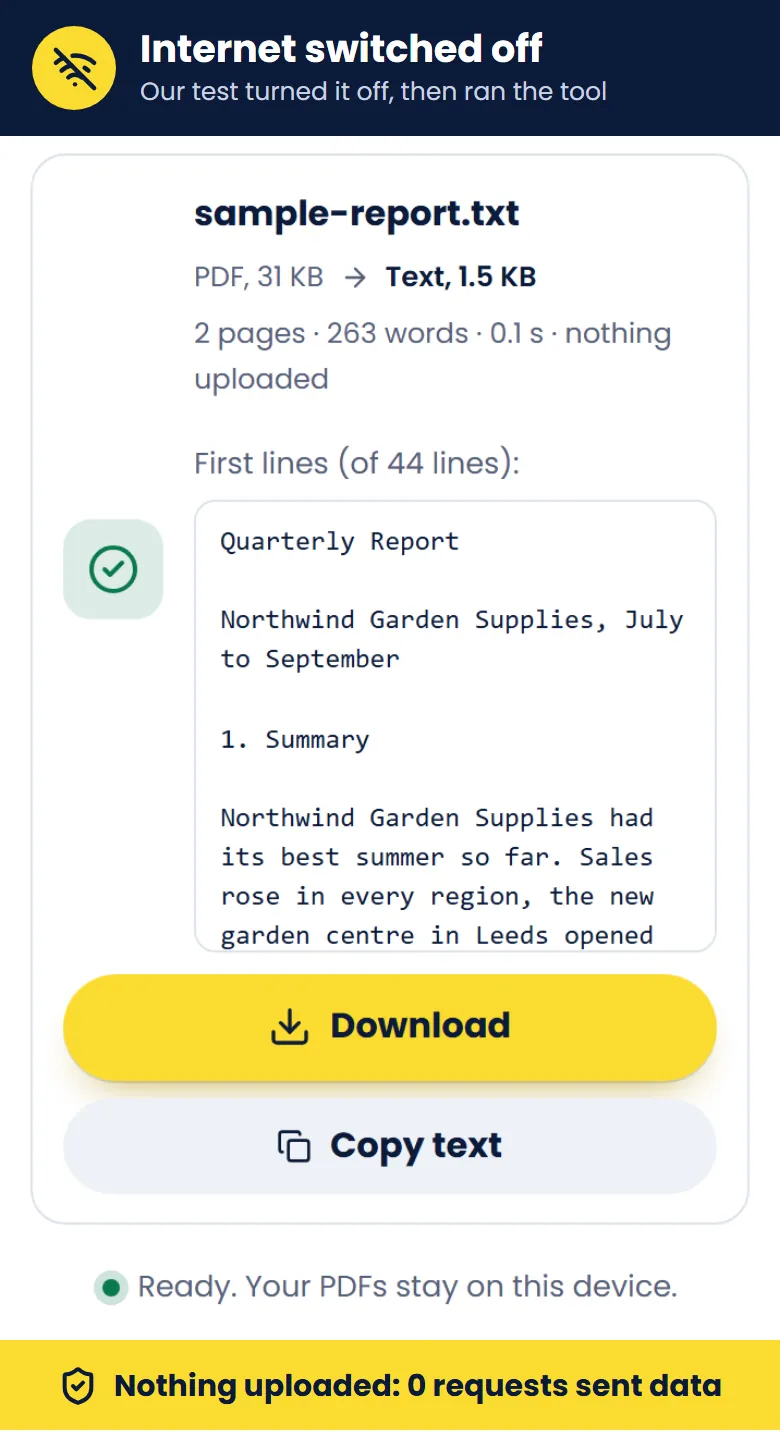
- Copy or download. The result shows the new file's name (your PDF's name with .txt), the size of the PDF and of the text, the number of pages and words, the seconds it took and the words "nothing uploaded". Under that you see the first lines of the text. Tap Copy text to put all of the text on your clipboard, or tap Download to save the .txt file.
Your PDF is not changed. If you pick another way of writing the text after converting, or add or remove a PDF, the old results go and the Convert button comes back, so what you copy always matches the choice on the screen. Copy or download what you need before you change anything. With several PDFs you get one .txt file each, and Download all (ZIP) saves them together in one ZIP file. If two PDFs have the same name, the second text file gets a number, like notice (2).txt, so none overwrites another.
Android
Open this page in your browser, such as Chrome. The .txt file normally goes to your Downloads folder, and the Files app can open it, or you can open it from the browser's list of downloads. To paste the text instead, tap Copy text, then touch and hold in WhatsApp, Gmail or any other app and choose Paste.
iPhone and iPad
Open this page in your browser and pick the PDF from the Files app. If the PDF came in Mail or WhatsApp, save it to Files first. The .txt file usually lands in Downloads in the Files app, and a tap opens it. Copy text and Paste work the same way as on Android.
Windows, Mac, Linux, Chromebook
Click Choose PDF files, or drag PDFs onto the page. The .txt file goes to your Downloads folder, and a double-click opens it in Notepad on Windows or TextEdit on a Mac.
We tested the page on phone-sized screens in Chromium, the engine Chrome is built on. We did not test real phones, Safari or Firefox, so the exact place where a file lands depends on your phone and browser. A PDF with hundreds of pages is easier on a computer, which usually has more memory than a phone.
Paragraphs, lines or layout: which one to pick
All three ways read the words in the same order. They differ in how the lines are written. You pick one before you press Convert to text.
| Way | What it writes | Best for |
|---|---|---|
| Paragraphs (to paste), the default | Each paragraph on one line, with a blank line between paragraphs. The lines of a paragraph are joined, and so is a paragraph cut by a page break. Page numbers are left out. So is a header or footer that repeats on more than one page, after its first time. | Pasting into a message, an email or a form, and reading |
| Lines (as printed) | Each line as the PDF breaks it, in reading order. In a PDF of two pages or more, a marker like "--- Page 1 of 2 ---" shows where each page starts. Page numbers and headers stay. | Checking the text against the PDF, line by line and page by page |
| Layout (spaced) | Each line spaced as it sits on the page, so columns and tables stay side by side, with the same page markers. Best seen in a fixed-width font. | Statements, forms and anything where the place of a word matters |
In Paragraphs and Lines, a table's cells are cut by tabs, and so are the parts of a line with a wide gap in it, such as "Name: Priya" and "Date: 12 May" on one line. Tables and bank statements as text explains why.
What we saw. The page's own sample is a 2-page quarterly report with headings, paragraphs, bullet points, a picture, a small table and a numbered list. Here is its text in the three ways. A byte is about one letter of English text.
- Paragraphs: 1,548 bytes in 44 lines, and the result counted 263 words.
- Lines: 1,619 bytes in 52 lines, and the result counted 279 words, with a "--- Page 1 of 2 ---" marker for each page.
- Layout: 1,962 bytes in 46 lines.
Paragraphs shows fewer words than Lines (263 against 279) because it leaves out the page numbers and any header or footer that repeats. We checked each text against a second program that reads PDFs, and every word that program found in the PDF was in our text, in all three ways. The checker did not count the page numbers and repeats that Paragraphs leaves out on purpose.
A second test file was text-letter.pdf, a 2-page housing society notice we made. It has a paragraph that runs across the page break, bullet and numbered lists, and a header and page number on both pages. Paragraphs gave 1,664 bytes in 32 lines (294 words), with the cut paragraph on one line. Lines gave 1,791 bytes in 51 lines. Layout gave 1,989 bytes in 42 lines. Again every word was there.
Layout is a close copy of the page, not an exact one. It works out the width of an ordinary letter on each page and uses spaces to put every piece of text at about the right place. A fixed-width font is one where every letter takes the same width, like Courier New or Consolas. In a font where an "i" is thinner than an "m", the columns will not line up. Opening a .txt file on a phone or computer says what to do.
Reading order: two columns, headings and lists
A PDF does not store a document as paragraphs. It stores letters and words, each with a place on the page, a size and a font. The order in which you read them has to be worked out. This tool reads the words with pdf.js, then groups words that sit at the same height into lines, and groups lines into paragraphs, lists, columns and tables. Some PDFs draw a word twice, a hair apart, to fake bold type. The tool keeps such a word once.
Two columns. When several lines in a row are cut by the same gap into two stretches of real text, the page is read as two columns. The whole left column comes first, then the whole right column. Without this, a newsletter would read as one line from the left column, one from the right, one from the left, and so on. In our test, a one-page village newsletter in two columns, with a small table in it, came out with the left column first and then the right, in Paragraphs.
Where a new paragraph starts. In Paragraphs, lines are joined into one paragraph only while they carry on from each other: the same column, the same size and boldness, the usual space between lines, no indent, and the line above ran right up to the edge of the text. A new paragraph starts at:
- a heading, which is usually bigger or bold
- a list item, starting with a bullet, a number such as 1. or (a), or a roman number
- a first line that starts further in than the lines around it
- a change of size or boldness
- a gap bigger than the normal space between lines
In the housing society notice, every bullet and every numbered item came out on one line each, in the right order. A list item's mark and its words stay together on that line.
A paragraph cut by a page break. If a paragraph runs to the bottom of a page and the next page starts with a small letter, as it does in the middle of a sentence, Paragraphs joins the two pieces. In the notice, the paragraph cut by the page break came out as one line.
Headers, footers and page numbers. In Paragraphs, page numbers at the top or bottom of a page, such as "2", "Page 2" or "Page 2 of 5", are left out. A line at the top or bottom that repeats on more than one page, such as an organisation's name, is kept the first time and left out after that. Lines and Layout treat them as ordinary text and keep all of them.
Words split at the end of a line. If a line ends with a hyphen and the next line starts with a small letter, the two are joined with no space between them. The hyphen stays, so a word like "inter-national" can appear. Look out for these when you copy.
Pages printed sideways. Some wide statements are printed sideways on a tall page. The tool notices text that runs sideways and reads the page turned upright, and the result says so, for example "Page 1 has its text set sideways, so it was read turned upright." In our tests, turned pages and a page of Urdu text, which is written from right to left, came out in the right order.
What we did not test. The order is worked out from where the words are. Unusual layouts, such as text boxes, captions beside pictures, three or more columns and notes in the margin, were not tested and may come out in a different order. If the order looks wrong, try Lines or Layout and read the first lines in the result before you copy.

Tables and bank statements as text
A table in a PDF is only words placed in rows and columns, sometimes with lines drawn around them. In Paragraphs and Lines the tool finds tables in two ways. If the page draws lines, it uses them. If it does not, it looks for words that line up in columns, with gaps no word crosses. Layout does not look for tables. It keeps every word where it sits.
What you get depends on the way you chose:
- Paragraphs and Lines: each table row is one line, and its cells are separated by tabs. A tab is the invisible gap that the Tab key makes. Spreadsheet programs such as Excel and Google Sheets cut pasted text at tabs, so a table pasted into a sheet falls into its columns. A cell with two or three lines in it, like a long bank narration, becomes one line inside its row.
- Layout: the cells stay in place, with spaces between them, so the columns line up in a fixed-width font.
We checked this on bank statements and other tables that we made ourselves, with made-up names, banks and amounts. In our run of 25 test PDFs, every table row of every file came out right: in Paragraphs on its own line with its cells in order, and in Layout with its cells in place. Some examples:
| Test statement | Rows that came out right |
|---|---|
| A 60-page bank statement with 2,280 transactions | 2,280 of 2,280 |
| An internet-banking statement printed from a web page, with no lines drawn and narrations over 2 or 3 lines | 96 of 96, with each narration joined into its row |
| A credit card statement with a summary box above the transactions | 52 of 52 |
| A savings statement with ruled lines and a header repeated on each of its 3 pages | 46 of 46 |
These are our own test files, and we adjusted the tool while we tested with them, so this is not a result on documents it had never seen. Your bank's statement may be laid out differently. Look at the first lines in the result, and check a few amounts and dates against the PDF before you rely on the text.
When text is not enough. A text file cannot add up a column, sort by date or filter by amount. For that, use PDF to Excel, which puts each table in a sheet with numbers stored as numbers and dates as dates. Choose PDF to Text when you only need to read the statement, search it or paste a few rows.
Locked statements. Banks often email statements locked with a password. Type the password on the PDF's row, and the same text comes out as from an unlocked copy. We tested this with a letter locked with a password (AES-256, a strong kind of PDF lock): a wrong password gave "That password didn't work", and the right one gave the same 1,664 bytes of text as the unlocked letter.
Hindi, Tamil, Urdu and other scripts
English text and numbers come out reliably. Text in Indian scripts is harder, and the reason is in the PDF, not in your phone. A PDF does not always remember which letter a shape on the page stands for. It may only remember the shapes. Hindi, Tamil and the other Indian scripts join letters and add small marks (vowel signs) around them, and many PDFs store those marks and joined letters in a way that cannot be read back in full. When that happens, some letters come out missing or in the wrong place.
We tested Hindi. A one-page Hindi bank statement we made, printed from Chrome, gave 221 words, and 89% of the words that a second PDF reader found were in our text. Its table had 14 rows, and 11 came out exactly right. The 3 wrong rows were the same Hindi words that went wrong in our PDF to Excel test. In one row the vowel sign in बिल भुगतान (bill payment) came out in the wrong place, in front of the first letter. In two rows कार्ड से खरीद (purchase by card) lost a joined letter. The numbers and English words in the file were right. A second Hindi document from our test set, one page with 197 words, got the same warning.
The warning. When a PDF has more than a few words in an Indian script, the result says so, for example: "This PDF has text in Hindi or Marathi. PDFs often store these letters in a way that can't be read back in full, so some letters may be missing or out of place. Numbers and English text are not affected. Check that text against the PDF." If some letters are certainly missing, the note says that too. The tool gives this warning for these scripts and the languages that use them:
- Devanagari: Hindi or Marathi
- Bengali: Bengali or Assamese
- Gurmukhi: Punjabi
- Gujarati, Odia, Tamil, Telugu, Kannada and Malayalam
We measured only Hindi for this tool. We have not measured the other scripts, so do not read the 89% as a number for them. Some PDFs in these scripts may read back well and others badly, and you cannot tell before you try.
Urdu and Arabic. These are written from right to left. PDFs often store them as the shapes drawn on the page. The tool turns the shapes back into letters and puts the words in the order they are read. We tested a page of Urdu, which came out in the right reading order. We did not test Arabic.
What to do with Indian-script text.
- Read the first lines in the result against the PDF before you copy.
- Check names, numbers and dates twice. They matter most, and numbers and English words are not affected by the problem.
- Keep the original PDF, and use the text as a help, not as the final copy, for anything official.
- If you must have exact Hindi text, type the lines that came out wrong yourself, or ask whoever made the PDF for the original document.
Scanned PDFs: why no text comes out
A scanned PDF is a photograph of paper, put in a PDF. It looks like a document, but it holds only a picture. There are no letters inside to take out, just dots of colour. Phone scanner apps, office copiers and photographed certificates all make scans. Turning a picture of text back into real text is called OCR, short for optical character recognition. This tool has no OCR. It reads the text inside a PDF and does not read pictures.
How to tell. Open the PDF in a reader and try to select a word with your finger or mouse. If single words light up, the PDF has real text. If the whole page is selected as one block, or nothing is selected, it is usually a scan.
When you convert one, the tool does not pretend. Here is what we saw:
- A PDF that is all scan. A 42-page colour scan of 46.0 MB gave no text file. The row said: "This PDF is a scan: a picture of text, with no text in it to take out. This tool reads the text inside a PDF; it doesn't read pictures (it has no OCR), so no text file was made." It took 2.66 seconds to find out.
- A PDF with some scanned pages. We joined a 2-page letter and a 2-page scan into a 4-page PDF. The row said: "Pages 3 and 4 are scanned (pictures of text), with no text to take out, so the text file only says so for those pages. This tool doesn't read pictures (no OCR)." The text file kept the real text of the letter, and put a short note where each scanned page would be.
- A scan with a hidden text layer. Some scanning apps and copiers run OCR and hide the recognised text behind the picture. The tool is written to use that hidden text and to say so: "This PDF is a scan with its text recognised (OCR). The text comes from that recognition, so check it for its mistakes." We did not include such a file in this tool's test run.
A page that is mostly one big picture with only a few real words on top of it is also treated as a scan. Text that is hidden on an ordinary page, where the page is not a recognised scan, is left out.
What you can do with a scan. We do not have OCR, so here are other ways, in general terms. Many recent phones can pick the text out of a photo of a page, and so can some camera and photo apps. Google Drive can turn a scanned PDF or a photo into a Google Doc with text, and Adobe Acrobat has a text recognition feature. Some of these work on your device and some send the file to a company's servers, so choose with care for an ID card or a bank statement. For Indian scripts, any OCR can make mistakes, so check the result. If your scan is a PDF, PDF to JPG on this site can turn its pages into pictures, which a phone app can then try to read.
Copying the text into WhatsApp, email or a form
Tap Copy text under a result and the whole text goes to your clipboard, which is the place where your phone or computer keeps what you copied. The button says "Copied" for a moment and a short message appears. Then open the other app, touch and hold in the box and choose Paste. In our test on a computer, the copied text was exactly the same as the text in the downloaded file.
Use Paragraphs for pasting. Each paragraph is a single line, so the text flows to fit your message or form. With Lines, every printed line becomes a line of your message, which breaks the sentences wherever the PDF did.
If the button says the browser didn't allow copying. Browsers let a page write to the clipboard only on secure pages, the ones whose address starts with https. This site is one. Some browsers or settings may still refuse, and then the page says "This browser didn't allow copying. Download the file instead." Download the .txt file, open it and copy from there. Source: MDN, Clipboard writeText. Last checked: 2026-10-09. We tried the Copy text button in Chromium on a computer only.
Very long texts. We saved the text of a 600-page statement (1.68 MB) as a file, but did not try to copy it. A messaging app or a form may refuse or cut a very long paste, so paste only the part you need, or send the .txt file. For an extremely long text the page shows only the Download button.
Check after you paste. Look at the things that cost you if they are wrong: names, account and reference numbers, amounts, dates and phone numbers. Line breaks are also worth a look, since an app may change them. If you paste a table into a spreadsheet, each tab starts a new cell, so a row falls into its columns.
Opening a .txt file on a phone or computer
A .txt file holds plain text only, so almost every app can open it. Windows opens it in Notepad, a Mac in TextEdit, and an Android phone or an iPhone in its Files app or in a notes app. Google Docs, Word and other word processors open it too. Once it is open you can search it with the app's Find option, copy parts of it, or send it to someone.
Hindi and other scripts show up. The file is saved as UTF-8, a way of storing text that holds every script, with a byte order mark at the start. That mark is three invisible bytes (EF BB BF) that tell an app "this file is UTF-8", so it does not guess wrongly. We add it so that Notepad and phone apps show Hindi and other scripts correctly. In UTF-8 the mark is only a signature, and it is optional. Source: Unicode FAQ on UTF-8 and byte order marks. Last checked: 2026-10-09.
Windows line ends. The file also uses Windows line ends (CRLF, a carriage return and a line feed), so that Windows programs show each line on its own row. We checked every saved test file for both. In the housing society notice's text file, 31 of its 31 line ends were CRLF.
Layout needs a fixed-width font. In Word or Google Docs, select all the text and choose a font such as Courier New, in which every letter is equally wide, and the columns line up. A notes app on a phone may show the text in a variable-width font, and then Layout will look uneven. Layout lines can also be wider than a phone screen, so you may need to scroll sideways.
Long lines. Paragraphs writes each paragraph as one long line. Phone apps wrap such lines to fit the screen on their own. In Notepad on a computer, turn on Word Wrap in the View or Format menu if a line runs off the edge. In the result on this page, the box with the first lines wraps long lines, except in Layout, where it scrolls sideways to keep the columns in place.
Real results
We ran the tool on our own test PDFs in Chromium 148, the open-source browser that Chrome is built on, driven by the Playwright testing tool without a visible window. The computer ran Windows 11 on an Intel Core i7-1185G7 processor with 4 cores and 32 GB of memory, and it was also running other work. The page was served with its real security headers. Time is counted from pressing Convert to text until the result shows. Your device may be faster or slower.
- 2.4 sfor the text of a 129-page book, in Paragraphs
- 14.1 sfor a 600-page bank statement of 2.00 MB, in Paragraphs
- 100%of the words a second PDF reader found were in our text, for 25 test PDFs
- 12.9 sfor the same book with Chrome slowed 4 times, to act like a slower phone
| File and way | Pages | PDF size | Text made | Time |
|---|---|---|---|---|
| The page's own sample, a quarterly report (Paragraphs) | 2 | 31 KB | 1,548 bytes | 0.13 s |
| Housing society notice (Paragraphs) | 2 | 3.5 KB | 1,664 bytes | 0.20 s |
| Village newsletter in two columns (Paragraphs) | 1 | 2.5 KB | 1,247 bytes | 0.12 s |
| Savings statement with ruled lines (Paragraphs) | 3 | 8.1 KB | 4,749 bytes | 0.33 s |
| The same statement (Layout) | 3 | 8.1 KB | 9,447 bytes | 0.17 s |
| Annual report of a cooperative society (Paragraphs) | 6 | 50 KB | 5,765 bytes, 979 words | 0.49 s |
| One-page Hindi document (Paragraphs) | 1 | 36 KB | 2,931 bytes, 197 words | 0.18 s |
| A 129-page book (Paragraphs) | 129 | 486 KB | 339,528 bytes, 58,129 words | 2.38 s |
| The same book (Lines) | 129 | 486 KB | 350,869 bytes, 59,544 words | 2.60 s |
| The same book (Layout) | 129 | 486 KB | 368,136 bytes | 3.03 s |
| A 60-page bank statement with 2,280 transactions (Paragraphs) | 60 | 206 KB | 175,830 bytes, 15,115 words | 1.64 s |
| A 600-page statement (Paragraphs) | 600 | 2.00 MB | 1,757,454 bytes (1.68 MB), 151,069 words | 14.1 s |
| The same 600-page statement (Layout) | 600 | 2.00 MB | 3,340,091 bytes (3.19 MB) | 8.5 s |
| A 42-page colour scan (Paragraphs) | 42 | 46.0 MB | No text file: the scan message | 2.66 s |
The statements, invoices, letters and newsletters in this table were made by us, with made-up names, banks and amounts. The book, the annual report and the Hindi document come from our folder of test documents. The 600-page statement was made by joining the 60-page statement ten times, so it has the same text ten times over. On the first run it took 14.1 seconds and on a second run 15.9 seconds. Layout was quicker on it (8.5 seconds), probably because Layout does not look for tables and this statement is mostly one long table. On the book, which has few tables, Layout was a little slower than Paragraphs (3.03 seconds against 2.38). On a day when other programs were keeping the processor busy, the book took 8.4 seconds and the 600-page statement 27.3 seconds in Paragraphs. Treat all times as a guide, because they depend on your device.
On a phone-sized screen. We repeated some runs with a 390 pixel wide screen with touch, the width of a common phone. We also set Chromium's processor 4 times slower, to act like a slower phone. That is a simulation, not a real phone.
| File and screen | Pages | Time | Extra browser memory |
|---|---|---|---|
| The sample, 390 px screen | 2 | 0.13 s | 15 MB |
| The 129-page book, 390 px screen | 129 | 2.01 s | 74 MB |
| The 600-page statement, 390 px screen | 600 | 11.0 s | 225 MB |
| The sample, slow phone (390 px, processor 4 times slower) | 2 | 0.41 s | 16 MB |
| The housing society notice, slow phone | 2 | 0.66 s | 12 MB |
| The 129-page book, slow phone | 129 | 12.9 s | 62 MB |
"Extra browser memory" is how much more memory all of the test browser's parts used at their most than before converting. On the computer, the book used 112 MB more, the 42-page scan 146 MB more, and the 600-page statement 205 MB more in Paragraphs and 264 MB more in Layout. A real phone may have far less spare memory than our test computer, and we have not tried one, so for very long PDFs use a computer.
Is the text right? For each test file we ran a second PDF reader, poppler's pdftotext, a well-known free program. We counted the words it found in the PDF and checked how many were in our text. Our pass mark was 98%. All 25 test PDFs reached 100%, in Paragraphs and in Layout. They were statements, invoices, a salary slip, a mark sheet, a profit and loss account, a newsletter, a letter, an Urdu page and pages turned sideways. For the Hindi statement it was 89%, which the page warns about, as Hindi, Tamil, Urdu and other scripts says. The test also checked the order of the text, that paragraphs and list items sit on one line each, that every table row is right, and that each file has the byte order mark and Windows line ends.
Many at once. We converted the 25 PDFs in one go, and added a damaged file and a scan to the same run. The 25 PDFs gave 25 text files, 221 KB together in Paragraphs and 419 KB together in Layout. Download all (ZIP) gave a ZIP of 72,010 bytes for Paragraphs, made in 3.8 seconds, and one of 81,736 bytes for Layout, made in 1.9 seconds.
Stop. We pressed Stop part way through the 600-page statement. It stopped, kept the pages already read, and saved 96,792 bytes of text. Press Convert to make the whole text.
Before you choose a file. The tool itself downloads less than 0.75 MB when the page opens, most of it pdf.js, the PDF reader. Google's ad code comes on top and is not counted. That matters on a mobile data plan.
Try it yourself: press "Try with a sample PDF" at the top of this page. It makes a 2-page report on your device and shows its text in the way you pick.
Try the samplePrivacy: your PDF is never uploaded
The PDFs people turn into text are often private: letters, bank statements, salary slips, ID copies. This is where your file goes in this tool:
- It is read on your device. pdf.js, Mozilla's PDF reader, runs inside your browser and reads the words and their places from your PDF. Our own code then puts them in order and writes the text.
- No upload step. The tool never sends your PDF, its password or its text anywhere. The page's Content Security Policy, a security rule that your browser enforces, also lets the page contact only this site and Google's ad service, which shows the ads that keep the tools free. Our code never gives your files to the ad code.
- Passwords stay on your device. The password you type for a locked PDF is used only to open it here.
- No account. There is no sign-up and no limit set by us on how many PDFs you convert.
You can check it yourself on a computer. Open your browser's developer tools (often the F12 key), go to the Network tab, then choose a PDF and convert it. You will see the page's own files load, and Google's ads if they are showing, and your PDF is never uploaded. A phone does not make this easy, so use a computer for the check.
Our own test of this tool, run on a page built without Google's ad code, checked every request the page made from start to finish. Every one of them either went to this site's own address or stayed inside the page, and none of them sent data out. We saw no page errors. Our privacy policy has the details.
Without internet. The page and pdf.js have to load first, and that needs the internet. After the page says "Ready", the reading and writing happen in your browser. But pdf.js can fetch small helper files from this site while it reads some PDFs, for example font, character and colour files, so we cannot promise that PDF to Text works with no connection at all, and we did not test it with the network switched off. Open the page while you are online and keep it open.
What PDF to Text can't do
- It does not read pictures. There is no OCR. A scanned page gives no text, and the result names those pages. Text inside pictures, such as logos, stamps, signatures and photos of tables, is not read either.
- Some letters can't be read back. This is common in Indian scripts, as the Hindi test showed (89%). A few PDFs have text that can't be read back at all, and then the file says so for those pages.
- Reading order is worked out, not known. Two columns work. Text boxes, captions, three or more columns and notes in the margin were not tested.
- Nothing of the look is kept. No bold, fonts, colours, pictures or links. For that, use PDF to Word. For sums and sorting, use PDF to Excel.
- Only the text on the page is read. The tool is not written to read answers kept in the boxes of a fillable form, and we did not test such a PDF. A form that was flattened, so that its answers are printed on the page like other text, should be read like other text.
- Paragraphs may leave a line out. It drops page numbers and repeated header and footer lines after the first time. A line there that only differs in its numbers, such as a "Balance carried forward" at the foot of each page, may count as a repeat, and we have not measured that case. Use Lines or Layout when you need every line.
- Long texts are heavy. The memory use grew by 205 to 264 MB on the 600-page statement in Chromium. We have not tried it on a real phone. The Copy text button is missing for an extremely long text.
- It needs the password. A PDF that needs a password to open can only be read with that password. The tool never guesses one.
- Only Chromium was tested. We did not test Safari, Firefox, Edge or real phones. If a browser can't open PDFs here, the page suggests an up-to-date Chrome, Edge, Firefox or Safari.
When something looks wrong:
- "Can't be opened: it may be damaged, or not a PDF." The file may not have downloaded fully. Download it again or ask the sender for a new copy.
- "Only PDF files work here." Photos and Word files are not accepted. Save a Word file as a PDF first.
- The Convert button is grey. No PDF is ready yet. A PDF that asks for a password is not ready until you type it. If you press Convert with another PDF still locked, the locked one is left out and the page says so.
- Hindi or other letters look wrong in your notes app only. Open the .txt file in another app, or use Copy text instead. If they are wrong in every app, the PDF is the cause: see Hindi, Tamil, Urdu and other scripts.
- Layout columns are crooked. Change the font to a fixed-width one, like Courier New.
- A big PDF is slow. Wait, or press Stop to keep the pages read so far. Close other tabs, or use a computer.
- The order of the text is wrong. Try Lines or Layout. If it is still wrong, the page may have text boxes or three columns, which we did not test.
Tips
- Choose Paragraphs to paste, Layout for statements and forms. Change the choice after converting and the Convert button comes back, so try each on your PDF. A short PDF takes moments: the sample took 0.13 seconds.
- Read the first lines before you copy. They show the order, the paragraphs and any broken letters in a moment.
- Check the numbers. Amounts, dates, account numbers and phone numbers should match the PDF. Check them every time.
- Type the password on the row. A locked PDF cannot be read until you do. Statements from banks are often locked.
- Convert many at once. Add all the PDFs, press Convert once, and use Download all (ZIP).
- Keep the PDF. The text file is a copy of the words, not a replacement for the document, and a PDF with a stamp or signature should stay as the original.
- Pick the right tool. PDF to Word keeps headings, lists and pictures in a file you can edit. PDF to Excel turns tables into sheets you can add up.
- Join the lines. Text in Lines keeps the PDF's line breaks; Remove Line Breaks turns it into flowing paragraphs.
- Count the words. Paste the text into the Word Counter.
Other ways to get text from a PDF. In any PDF reader you can select a few lines and copy them, which is fine for a sentence. A word processor such as Microsoft Word can open a PDF and make an editable document of it, though the layout often shifts. For a scan, you need OCR, as described in Scanned PDFs: why no text comes out. Online tools that take the text out of PDFs usually upload your file to their servers, which is not what you want for a private document.
Words explained:
- Plain text
- Text with no look added: only letters, numbers, spaces and line breaks. A .txt file holds plain text.
- Reading order
- The order in which a person reads a page: top to bottom, and for two columns, the left one before the right.
- Tab
- An invisible character, the gap the Tab key makes. Spreadsheets cut pasted text into cells at tabs.
- Fixed-width font
- A font where every letter takes the same width, like Courier New. Spaces line up columns only in such a font.
- UTF-8
- A way of storing text so that every script, including Hindi and Tamil, shows correctly. Our files start with a small signature that says they are UTF-8.
- OCR
- Optical character recognition: software that reads the letters in a picture of text. This tool does not have it.
- pdf.js
- Mozilla's PDF reader, written for the web. It runs in your browser and reads the words and their places.
- Clipboard
- The place where your phone or computer keeps text you copied, until you paste it.