The short answer
A 1 TB drive holds 10,00,00,00,00,000 bytes, a million million, because drive makers use the ordinary meaning of tera: a million million. Windows measures the same bytes in units of 1,07,37,41,824 bytes, which it calls GB, so it shows 931.3225746 of them, about 931 GB. The bytes are all there; they are just counted with a bigger unit. A 500 GB drive shows about 465.66 GB for the same reason, and a 2 TB drive about 1,862.65 GB.
The same thing happens with every drive, pen drive, memory card and phone, and the gap grows with the size: about 2.4% for kilobytes, 4.9% for megabytes, 7.4% for gigabytes and almost 10% for terabytes. You can see the exact figure for any size with the Data Storage Converter: type the size, choose TB or GB, and convert to GiB.
Two kinds of gigabyte
Computers work in powers of two, so it was once convenient to call 1,024 bytes a kilobyte, 1,024 kilobytes a megabyte, and so on. But kilo, mega, giga and tera already meant a thousand, a million, a thousand million and a million million everywhere else. To end the muddle, the binary units were given their own names:
- Decimal units: 1 KB is 1,000 bytes, 1 MB is 10,00,000 bytes, 1 GB is 1,00,00,00,000 bytes and 1 TB is 10,00,00,00,00,000 bytes.
- Binary units: 1 KiB is 1,024 bytes, 1 MiB is 1,024 KiB, 1 GiB is 1,024 MiB and 1 TiB is 1,024 GiB. The “i” marks them as binary.
Drive makers use the decimal units, which is correct by the standard meaning. Windows uses the binary units but still writes GB and TB on the screen, and that small labelling choice is the whole cause of the “missing” space. The converter's guide sets the two side by side.
Why two units exist at all
Computer memory is built from chips whose sizes are powers of two: 1,024, 2,048, 4,096 and so on. Early programmers found it handy to call 1,024 bytes a kilobyte, since 1,024 is so close to 1,000, and the habit spread to megabytes and gigabytes as memory grew. At small sizes the difference hardly mattered: 2.4% of a kilobyte is a few bytes. At the size of today's drives it is tens of gigabytes, and people noticed.
Drive makers had always counted in the ordinary way, in thousands, which matches the meaning of kilo, mega, giga and tera in every other field, from kilometres to megawatts. The binary names, kibibyte, mebibyte, gibibyte and tebibyte, were introduced so that each number could say exactly what it means. Some programs now use them, while Windows still shows binary amounts with the old decimal names, so the confusion lives on in the one place most people look.
What common sizes show
Here is what each size on the box comes to in binary units, which is about what Windows shows before any space is used:
| On the box | In binary units |
|---|---|
| 32 GB | 29.80232239 GiB |
| 64 GB | 59.60464478 GiB |
| 128 GB | 119.2092896 GiB |
| 256 GB | 238.4185791 GiB |
| 500 GB | 465.6612873 GiB |
| 1 TB | 931.3225746 GiB |
| 2 TB | 1,862.645149 GiB |
| 4 TB | 3,725.290298 GiB |
Every figure comes from dividing the bytes by 1,07,37,41,824, worked out exactly. If your drive shows close to the right-hand number, it is exactly the size the box says.
Where the rest of the space goes
A new drive often shows a little less than the table, and the free space less again. That isn't the units; it is the drive being used:
- The file system: formatting a drive sets aside a small part of it to keep track of files and folders.
- Recovery and system space: a new laptop keeps the operating system, updates and often a recovery area on its drive before you save anything.
- Hidden files: some backup, sync and system files are hidden from the normal view but still take room.
- Restore points and caches: Windows' system restore points, its hibernation file and app caches can each take several gigabytes, and they grow over time.
So a laptop sold with a 512 GB drive can show well under 476 GB free on day one, and that is normal. What matters is how much is left for your own files, and it is worth checking before you buy if you keep large videos or games.
Phones, memory cards and pen drives
Phones show the same effect, plus the space the operating system and the preinstalled apps take. A 256 GB phone holds 238.4185791 GiB, and its system can take a sizeable share of that before your photos arrive. Some phones show storage in decimal units and some in binary, so two phones of the same size can show different numbers.
Memory cards and pen drives are sold in decimal units too: a 64 GB card is 59.60464478 GiB, and a 32 GB pen drive 29.80232239 GiB. Many come formatted with the FAT32 file system, which can't hold a single file of 4 GiB or more however much space is free; the converter's guide explains the 4 GB limit.
Game consoles, cameras and TVs
Other devices meet the same gap. A game console sold with a 1 TB drive shows less free space than that, both because of the units and because its own system software takes a share. Game and app stores list download sizes in GB, but whether those are decimal or binary depends on the store, so a game listed at 100 GB may need a little more or less than you expect. Cameras show the number of photos left rather than gigabytes, and that count depends on the photo size and quality you choose.
When space is tight, the safe habit is to compare like with like: look at the size in bytes if the device shows it, or convert both numbers into the same unit with the converter before deciding whether something will fit.
How to check your drive's real size
On Windows, the drive's Properties window shows its capacity both in bytes and in GB. Take the number of bytes, type it into the Data Storage Converter as bytes, and convert it to GB and to GiB: the GB figure should be close to the size on the box, and the GiB figure to what Windows shows. Macs have counted in decimal units since 2009, so a Mac shows the same 1 TB drive as about 1 TB.
If the numbers in bytes match the box, the drive is the size you paid for, whatever any screen says in GB.
On a phone, the storage page in Settings shows how much is used and free, often split into apps, photos, system and other files. The system share is the part you can't free, and it explains why a new phone shows less than its box even before you install anything.
When a gap is a warning sign
A gap of about 7% for gigabyte sizes, or almost 10% for terabytes, is normal and explained above. A much bigger gap is not. Cheap pen drives and memory cards are sometimes faked to report more space than they really have; they seem to work until they fill up, and then files go missing or won't open. Signs to watch for:
- a price far below other drives of the same size;
- files that copy without an error but are damaged when you open them later;
- a capacity in bytes far from the number on the box.
Buy from a trusted seller, check the capacity in bytes when the drive is new, and keep a second copy of anything important.
Buying the right size
To choose a drive for a backup, add up what you want to keep, in whatever unit your computer reports it, and convert that to the decimal units on the box. If your files come to 900 GiB, they are 966.4 GB in decimal units, almost a whole 1 TB drive, so a 2 TB drive gives room to grow. Photos and videos pile up quickly, and a nearly full drive slows down and leaves no room for updates, so leave plenty of space spare.
Cloud storage plans are sold the same way, in decimal gigabytes and terabytes, so a phone or computer that reports your files in binary units will show a smaller number for the same data. Convert both to the same unit before comparing a plan with what you have.
Bits, bytes and internet speeds
A similar mix-up affects internet speeds. Sizes are in bytes, written with a capital B, while connection speeds are in bits a second, written with a small b, as in Mbps. A byte is 8 bits, so a 100 Mbps connection moves at most 12.5 megabytes a second, and a 4.7 GB file takes at least 376 seconds, a little over six minutes. Real downloads are slower, since speeds vary and other devices share the connection.
Speed test apps report results in megabits a second, so a result of 40 Mbps is 5 megabytes a second. Divide by 8 whenever you want to compare a speed with a file size, and the numbers start to make sense.
Try it: type your drive's size, choose TB or GB, and convert it to GiB to see what your computer will show.
Open the Data Storage Converter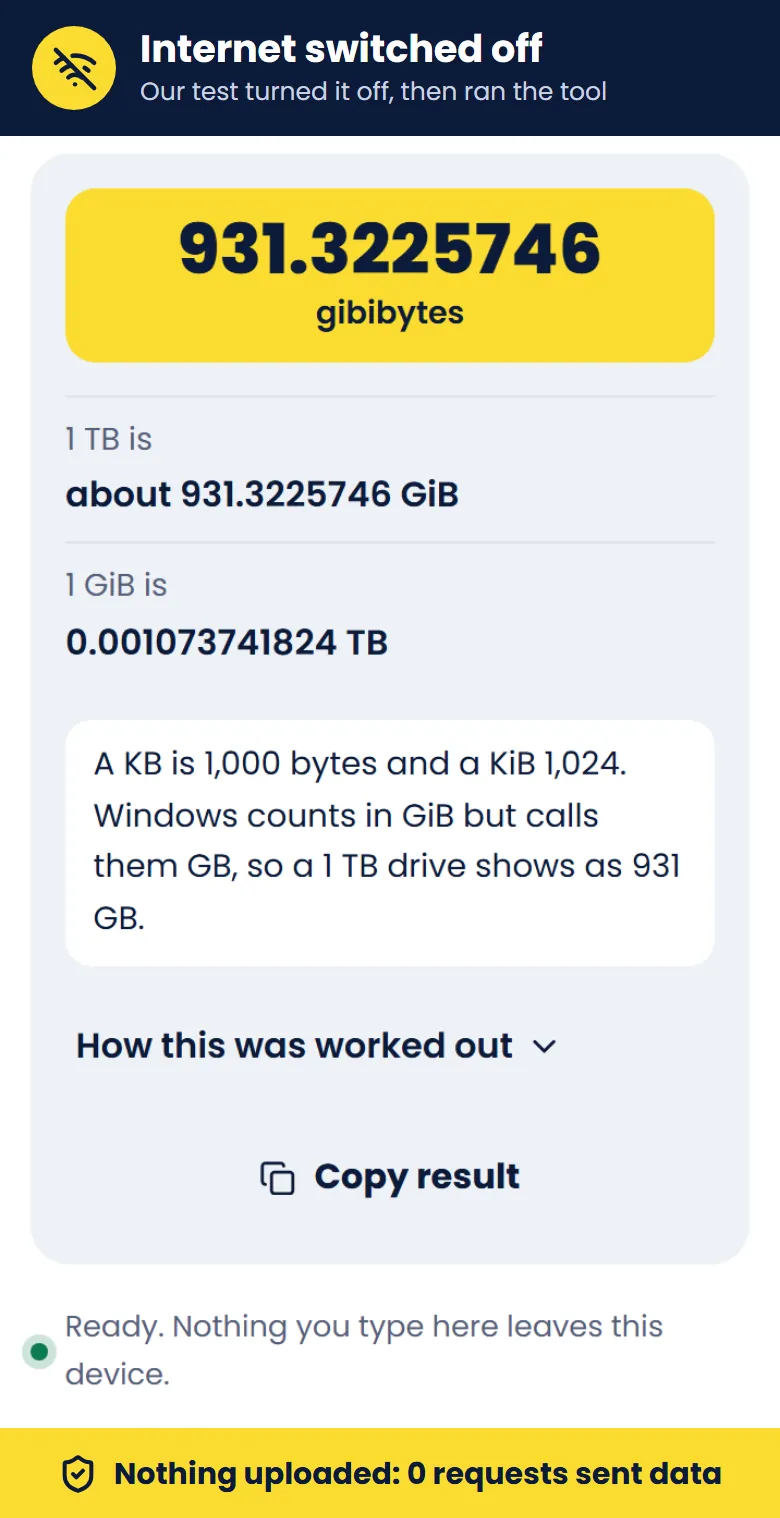
Data Storage Converter, free and private: convert bytes, KB, MB, GB, TB and their binary kin KiB, MiB, GiB, TiB, and bits.
Open Data Storage Converter