What Robots.txt Generator does, and when you need it
Robots.txt Generator writes a robots.txt file: the small text file at the top of a website that tells search engines and other crawlers which parts they may visit. Choose whether to allow the whole site, list the folders or pages to keep crawlers out of, add your sitemap's address, and tick a box to ask AI training crawlers to stay away. The file is made in your browser, with nothing uploaded and no sign-up, ready to download as robots.txt.
People use it when:
- A new site needs its first robots.txt, with the sitemap named, so search engines find every page.
- Admin pages, carts or internal search results are wasting search engines' time.
- A site owner wants AI companies' crawlers to stop collecting the site for training.
- A test copy of a site must stay out of search engines while it is being built.
How it works
The page writes the rules in the standard format, the Robots Exclusion Protocol, which the IETF published as RFC 9309 in 2022:
- One group for every crawler, starting User-agent: *, with Allow: / for the whole site, Disallow: / to block it all, or a Disallow line for each folder or page you list.
- A group for each AI crawler, when that box is ticked, each with Disallow: /.
- A Sitemap line at the end, when you give its address.
It checks that every listed path starts with a slash and that the sitemap address is a full https:// address, and says so in words when one doesn't.
Real results from our tests
On 31 October 2026 we made a robots.txt with the page's own code for a made-up shop, blocking /admin/, /cart/ and /search, with AI crawlers blocked and a sitemap, then asked Python's urllib.robotparser, a separate reader that shares no code with the page, what each crawler may fetch.
| Crawler and address | Allowed? | Why |
|---|---|---|
| Googlebot, the home page | Yes | Nothing blocks it |
| Googlebot, /products/saree | Yes | Not under a blocked path |
| Googlebot, /admin/users | No | Under /admin/ |
| Googlebot, /search?q=saree | No | Starts with /search |
| Googlebot, /searching-tips | No | Also starts with /search: see below |
| GPTBot, the home page | No | AI crawlers blocked |
| ClaudeBot, /products/saree | No | AI crawlers blocked everywhere |
What the numbers mean: in all 7 checks the file did exactly what it said, sitemap included, and the one surprise is a real lesson. Rules match addresses from their start, so Disallow: /search also blocks /searching-tips. Paths match from the start shows how to block only what you mean.
On a first visit the page downloads about 0.1 MB for the tool: the page, its styles, its scripts and the fonts, with Google's ad code not counted.
Step by step
- Choose For all search engines: Allow the whole site, or Block the whole site.
- List the folders or pages to block, one on each line, each starting with /, such as /admin/.
- Add your sitemap's full address, such as https://example.com/sitemap.xml.
- Tick Block AI training crawlers if you want them to stay away.
- Download robots.txt, or copy it, and put it at the top of your site.

The file, line by line
| Line | Means |
|---|---|
| User-agent: * | The rules below are for every crawler |
| User-agent: GPTBot | The rules below are for that crawler only |
| Allow: / | The whole site may be crawled |
| Disallow: /admin/ | Nothing whose address starts with /admin/ |
| Disallow: / | Nothing at all |
| Sitemap: https://… | Where the list of the site's pages is |
A crawler follows the group that names it most exactly, and only that group: GPTBot follows its own Disallow: / and ignores the rules for everyone. Lines that start with # are notes for people; crawlers skip them.
What to block, and what not to
Worth blocking: admin and login pages, carts and checkouts, internal search results, and endless filtered or sorted copies of the same list, which waste search engines' visits on pages nobody should land on.
Not worth blocking: your CSS, JavaScript and images. Google draws pages as a visitor sees them, and a page whose styles are blocked can look broken to it. And never block a page you want out of search results: see below.
Paths match from the start
A Disallow path blocks every address that begins with it. That is why our test's Disallow: /search also blocked /searching-tips. Three ways to be exact:
- End folders with a slash: /admin/ blocks the folder, while /admin would also block /administration-fees.
- Block search results by their question mark: /search? blocks /search?q=saree but not /searching-tips.
- Use $ for an exact end, which Google and Bing understand: /search$ blocks /search alone.
Paths are case-sensitive: /Admin/ and /admin/ are different.
Not a lock, and not noindex
Robots.txt is a polite request. Well-behaved crawlers follow it; others don't, and anyone can read the file and visit what it lists, so never use it to hide private pages: put those behind a login.
It also doesn't remove pages from search results. A blocked page can still be listed if other sites link to it, with no description, because Google can't read it. To keep a page out of results, let it be crawled and give it a noindex tag, which Meta Tag Generator writes. Google stopped reading noindex lines inside robots.txt in 2019.
AI crawlers
Ticking Block AI training crawlers adds a group with Disallow: / for each crawler that collects pages to train AI models: GPTBot (OpenAI), Google-Extended (Google's control for its AI models), CCBot (Common Crawl, whose collection many AI models learn from), ClaudeBot and anthropic-ai (Anthropic), Bytespider (ByteDance), Applebot-Extended (Apple's control for AI training) and meta-externalagent (Meta).
It leaves alone the bots that fetch pages for AI answers and AI search, which show your page and link to it: ChatGPT-User and OAI-SearchBot (OpenAI) and PerplexityBot (Perplexity). Blocking those would take your site out of the answers people read there, which is a different choice from keeping your words out of training. If you want that too, add a group for each by hand, the same way: User-agent: PerplexityBot, then Disallow: /.
- Google Search isn't affected: Google-Extended controls AI use only, so blocking it doesn't change how Googlebot ranks you.
- It works going forward: what was collected before stays collected.
- New crawlers appear all the time; check the list again now and then.
- It is still a request: crawlers that ignore robots.txt aren't stopped by it.
Should you block AI training?
There is no right answer for every site, only a trade. Blocking training crawlers keeps your words out of future training collections, which matters to writers, newspapers, course makers and anyone whose text is what they sell. Allowing them lets models learn what your business is and does, which some small businesses want, so that assistants describe them correctly. Either way, Google Search and the AI answers that cite and link to pages are separate, as above. Decide once, write it down with the date, and look at the list again every few months.
Robots.txt for common kinds of site
| Site | Usually block |
|---|---|
| A blog or a small business site | Nothing: allow the whole site and give the sitemap |
| An online shop | /cart/, /checkout/, /account/, search results (/search?), and sorted or filtered copies of lists |
| WordPress | /wp-admin/, with admin-ajax.php allowed (see below) |
| A members' or school portal | The login area; its pages need passwords anyway |
| A test or staging copy | Everything: Block the whole site, and a password |
| A site that sells its writing, such as news or courses | Often the AI training crawlers too: tick the box |
When unsure, block less. A missing robots.txt, or one that allows everything, is safe for most small sites; a wrong Disallow can quietly hide pages you want found.
Allowing one page inside a blocked folder
Sometimes a folder should be blocked except for one file. WordPress is the usual case: block /wp-admin/, but allow /wp-admin/admin-ajax.php, which some themes need for pages to work. Write the Allow line under the same User-agent group:
Disallow: /wp-admin/Allow: /wp-admin/admin-ajax.php
Google follows the rule with the longest matching path, so the longer Allow wins for that one file. The page writes the Disallow lines for your list; add such an Allow line by hand after downloading, in any text editor.
Wildcards: * and $
Google and Bing understand two special characters in paths:
- * stands for anything: /*?sort= blocks every address with ?sort= in it, wherever it is on the site.
- $ marks the end: /*.pdf$ blocks addresses that end in .pdf, and nothing else.
Other crawlers may not understand them, and a careless * can block far more than intended, so check a few addresses it should and shouldn't block with URL Inspection in Search Console before relying on it.
Scrapers and bad bots
Robots.txt only works with crawlers that choose to obey it. Spam bots, content scrapers and attackers ignore it, and some read it to find what you would rather hide. To slow or stop them, use your host's or your CDN's tools: rate limits, bot protection or blocking by address. Robots.txt is for managing honest crawlers, such as search engines, and nothing more.
After a redesign or a move
A site that changes its addresses can end up with old rules that block new pages, or with the staging site's Disallow: / copied to the live one. After any redesign, a move to a new host or a new domain, open the live robots.txt, check every Disallow against the new addresses, and look at Search Console's Pages report over the following weeks for pages "blocked by robots.txt" that should be open.
Moving to a new domain? Leave the old domain's robots.txt open. Search engines must read the old addresses to see where each one now redirects; blocking them hides the redirects and slows the whole move.
The sitemap line
A sitemap lists the pages you want found, and naming it in robots.txt lets every search engine that reads the file find it, not only the ones you have told directly. Give its full address, starting https://. Most site builders and SEO plugins make the sitemap themselves, often at /sitemap.xml or /sitemap_index.xml; open it in a browser to check the address before adding it.
Where the file goes
Robots.txt must sit at the top of the site, so it opens at https://yoursite.com/robots.txt, and be called exactly robots.txt, in small letters. A file in a folder is never read. Each address needs its own: shop.example.com and example.com read separate files, and so do http and https versions if both are served. Google reads up to 500 KB of it, far more than any normal file needs, and keeps its copy for up to a day, so changes take effect within about 24 hours.
A missing or broken file
No robots.txt at all, a page that answers "not found", means crawlers may read the whole site, which is fine for most small sites. A server error when Google asks for the file is different: Google holds back from crawling the site until it can read the file again, so a host that keeps failing on robots.txt can slow the crawling of every page. If Search Console's robots.txt report shows fetch errors, ask your host to fix them before anything else.
On WordPress, Blogger and Shopify
- WordPress makes a robots.txt itself; SEO plugins such as Yoast SEO and Rank Math have an editor for it. Uploading your own file to the site's top folder replaces it.
- Blogger: Settings, then Crawlers and indexing, where Enable custom robots.txt lets you paste the file's text.
- Shopify makes one too, and its theme code can edit it; Shopify's own rules are sensible for most shops.
- Other hosts: upload robots.txt to the folder that holds your home page.
Test and staging sites
Choose Block the whole site for a test copy, such as staging.example.com, so search engines don't list a half-built site, still full of placeholder text from Lorem Ipsum Generator. Two cautions: a password on the test copy keeps people and crawlers out far more surely, and the block must never be copied to the real site when it goes live, a mistake that takes whole sites out of Google. Check the live site's robots.txt on launch day.
Testing it
- Open https://yoursite.com/robots.txt in a browser: you should see your file, as plain text.
- In Google Search Console, Settings has a robots.txt report showing the file Google last fetched and any problems it found.
- URL Inspection in Search Console says whether a given page is blocked by robots.txt.
- Bing Webmaster Tools has a robots.txt tester of its own, for Bing's crawler.
A worked example: a small online shop
A saree shop's site has an admin area at /admin/, a cart at /cart/ and search results at /search?q=…, and a blog page called /searching-for-the-right-silk. The owner lists /admin/, /cart/ and /search? (with the question mark, so the blog page stays open), adds https://shop.example.com/sitemap.xml, and ticks Block AI training crawlers. The file is eleven short groups: one for every crawler and one for each of the ten AI crawlers. Uploaded to the site's top folder, it opens at /robots.txt, and Search Console's robots.txt report shows it fetched without errors the next day.
Private: made on your device
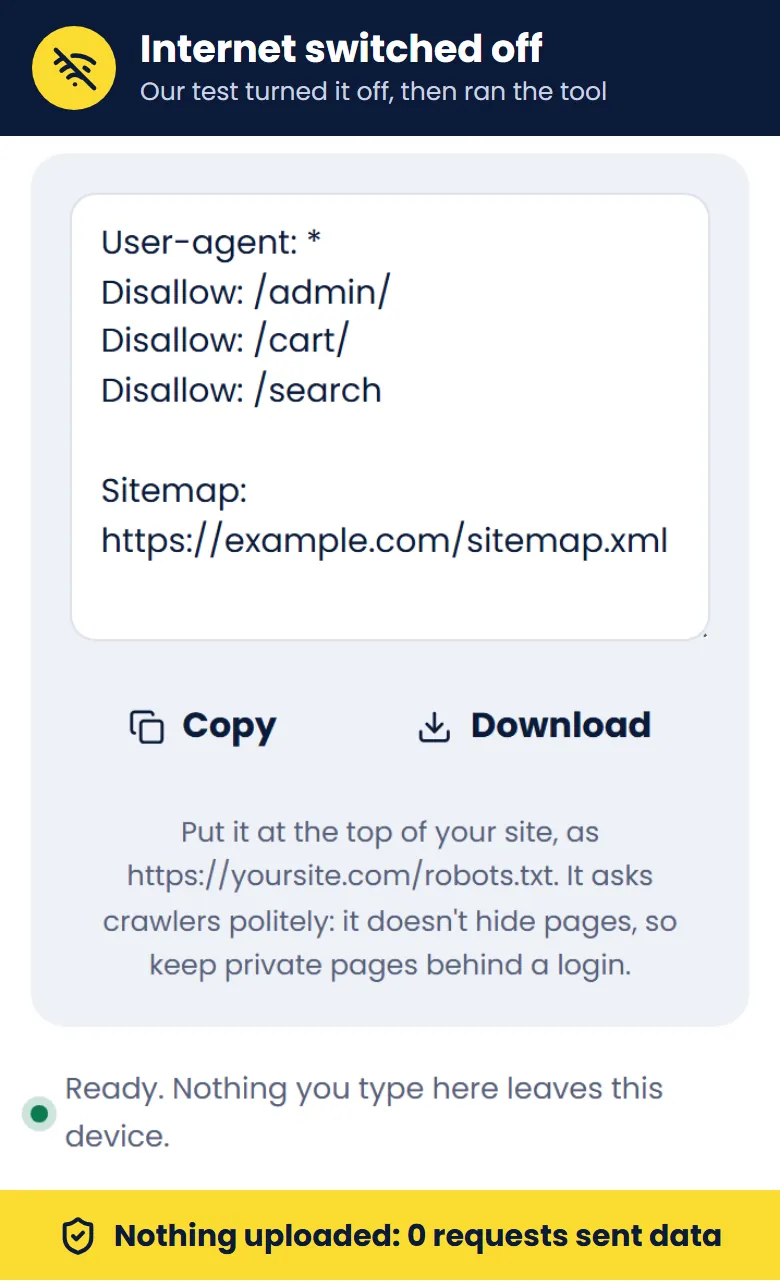
The file is written inside your browser; nothing you type is sent to us or kept, and once loaded the page works with the internet switched off. Google's ad code runs on the page too, but our code never gives it what you type. How we prove it shows how anyone can check.
Problems and fixes
- "Each line starts with /, like /admin/ (admin/)."
- A path is missing its first slash. Paths start at the site's top: /admin/, not admin/ or https://example.com/admin/.
- "Type the full address, like https://example.com/sitemap.xml."
- The sitemap address lacks https:// or has a space.
- A page I blocked still shows in Google
- Blocking stops crawling, not listing. Unblock it and add a noindex tag instead.
- Google says pages are blocked that shouldn't be
- A short path matched more than you meant, as /search matched /searching-tips. End folders with a slash, or use ? or $.
- The whole site vanished from Google
- Disallow: / reached the live site. Change it to Allow: / at once and check Search Console.
Limits
- Rules for every crawler, plus the AI crawlers' block; no groups of your own for other crawlers.
- Disallow lines only for your list; Allow exceptions inside blocked folders are written by hand.
- No crawl-delay line: Google ignores it, and other crawlers treat it differently.
- It writes the file; it doesn't upload it or read your site.
Other ways
WordPress's SEO plugins, Blogger's settings and Shopify's theme editor all let you change robots.txt inside the site. A text editor works too: it is a plain text file. This page writes a correct one in seconds, with the AI crawlers' names spelled right, and explains each line.
Terms explained
- Crawler
- A program that visits web pages to read them, such as Googlebot.
- User-agent
- The name a crawler goes by, used in robots.txt to give it rules.
- Disallow and Allow
- The lines that close or open paths to a crawler.
- Path
- The part of an address after the site's name, starting with /.
- Sitemap
- A file listing the pages a site wants found.
- Noindex
- A tag on a page asking search engines not to list it.
- Training crawler
- A crawler that collects pages to teach AI models, such as GPTBot or CCBot.
- AI search bot
- A bot that fetches a page to answer a question and link to it, such as OAI-SearchBot or PerplexityBot.