What you see, and where to look
PDF to JPG draws each page one at a time in your browser and saves it as a picture. Most problems come from the number of pages, the sharpness you chose, or a phone's limited memory. Find yours:
| What you see | Likely cause | Fix |
|---|---|---|
| It is slow, or seems stuck | Many pages, High sharpness, or a scan | Slow |
| The pictures add up to far more than the PDF | Typed pages become bigger as pictures | Bigger than the PDF |
| It stalls or stops on a phone | Phone memory, or the page went to the background | On a phone |
| A ZIP file instead of pictures, or it won't open | Several pages come in one ZIP | ZIP files |
| Text looks soft, a page is sideways or missing | Sharpness, the PDF itself, or a page that couldn't be drawn | Page problems |
| It asks for a password or can't be opened | A locked or damaged PDF | Locked or damaged |
It is slow, or seems stuck
Time depends on the number of pages and on what is on them. A scanned page is the slow kind: it is already a large photo, and that photo must be decoded before the page can be redrawn. Typed pages go faster. Here are real times from our own tests, run in headless Chromium at computer size. A phone may be slower, and these tests don't cover Safari or Firefox:
| File and setting | Pictures, in all | Time |
|---|---|---|
| 4-page colour scan, Normal, JPG | 1.58 MB | 1.4 s |
| 4-page colour scan, High, JPG | 6.81 MB | 2.1 s |
| 14-page research paper, Normal, JPG | 7.26 MB | 2.6 s |
| 117-page maths textbook, Normal, JPG | 21.1 MB | 19.1 s |
| 42-page scan, Normal, JPG | 16.0 MB | 11.9 s |
| 42-page scan, High, JPG | 39.0 MB | 20.0 s |
| 400-page scan, Normal, JPG | 152.3 MB | 135.6 s |
The time grows with the number of pages. So the biggest savings come from asking for fewer pages or less sharpness:
- Convert only the pages you need. Tap Choose pages and type them, like 1-3, 5. The button counts the pages, so you can check before you start.
- Choose Normal instead of High. Normal (150 ppi) already looks crisp on a phone, a monitor, a slide or a form. High doubles the dots in each direction, so every page is four times the pixels; our High files came out 2.4 to 4.3 times the size of Normal ones, and took longer.
- Use the progress line. While it works, the page shows how far it has got, like Page 3 of 12. If you see it moving, wait.
- Press Stop if you need to. The pictures made so far are kept, and you can download them.
To choose image quality and resolution, see the PDF-to-JPG quality guide.
The pictures add up to more than the PDF
This surprises many people. A PDF of typed pages is small because it stores letters, not dots. A picture of a page has to store every dot. A scan is different: it is already pictures, and the JPGs can come out smaller. These are our measured examples at Normal sharpness:
| The PDF | As JPGs, all pages | Bigger or smaller? | |
|---|---|---|---|
| 14-page research paper, mostly text | 992 KB | 7.26 MB | Bigger |
| 117-page maths textbook | 5.07 MB | 21.1 MB | Bigger |
| 4-page colour scan | 9.96 MB | 1.58 MB | Smaller |
| 42-page colour scan | 47.8 MB | 16.0 MB | Smaller |
| 400-page colour scan | 454.8 MB | 152.3 MB | Smaller |
So a typed document grows when it becomes pictures, and a scan shrinks. If your pictures are too big:
- Choose Small (72 ppi) for the smallest files. The 14-page paper came to 2.06 MB at Small. Small print can be hard to read at this size.
- Convert fewer pages. Only the pages you'll use.
- Ask whether you need pictures at all. If someone only wants to read the document, send the PDF itself, or make the PDF smaller with the PDF compressor. Remember that a JPG of a page is only an image of the words: nobody can search it or copy a line out of it.
- For a form's limit in KB, choose Small and convert only the page you need. On our sample scan, one page weighed roughly 60 to 70 KB at Small, against roughly 400 KB (396 to 422 KB) at Normal. Convert PDF to JPG for form upload goes through it.
It stalls or stops on a phone
The converter is built for small memory: it renders a single page, saves that picture, and moves on, rather than holding the whole document as images. Long PDFs therefore do work on phones, as long as the phone is allowed to keep going:
- Stay on the page with the screen on. A phone's browser throttles or freezes tabs that are out of sight, so a run left in the background can sit still until you return to it.
- Convert a long PDF in parts, like 1-50 and then 51-100. Each part is a separate run and a separate ZIP.
- Close other tabs and apps before a long run.
- Use Normal, not High, for long files. On an iPhone or iPad, one picture can have up to 16 million pixels (40 million on a computer). A very big page, like an A1 poster, is drawn at a lower ppi to fit: at High it comes out at 144 ppi on an iPhone and 227 ppi on a computer. The result tells you when this happens.
- For a very long file, try a computer. We converted all 400 pages of a 454.8 MB scan in one go on a computer, and it took 135.6 seconds.
A phone may be slower than our test computer. If a run seems to take long, check that the progress line is still moving before you start over.
ZIP files, and finding your pictures
One page gives one picture with its own Download button. Several pages come in a ZIP file, which is one file that holds many. One PDF gives a ZIP named after it (marksheet-jpg.zip, for example); three PDFs at once give pdf-to-jpg-3-files.zip. JPG files are already compressed, so the ZIP is about as big as the pictures together. To open it:
- Android: find the ZIP in Files by Google (My Files on a Samsung), tap it and choose Extract.
- iPhone and iPad: tapping the ZIP in the Files app unpacks it into a folder beside it. To move a picture into Photos, open it, tap Share and pick Save Image.
- Windows: Extract All, from the ZIP's right-click menu. Mac: double-click it.
If you want just a page or two, there is no need to unpack anything: each preview has its own Download button. Can't find what you saved? Check Downloads (on an iPhone, the Downloads folder in Files). Still missing? Download again; nothing is lost until you change a setting or close the page. The one ceiling is 4 GB per ZIP, beyond which the page switches you to single-picture downloads.
The pictures are named after the PDF and the page: marksheet-page-1.jpg. From 10 pages up, the numbers get zeros in front, like report-page-01.jpg, so they sort in page order.
Soft text, a sideways page or a missing page
- Text looks soft.
- Convert again at High. For a scan, though, the scanner set the limit: no setting can add detail it didn't capture. Choosing more ppi than the scanner caught makes bigger pictures, not sharper ones.
- A picture is sideways.
- So is that page in the PDF; the converter copies each page's orientation exactly. Turn the picture in your gallery or photo editor, or fix the PDF first with Rotate PDF.
- A page is missing from the result.
- A page that fails to draw is skipped, the rest still convert, and the result names the skipped page. Run that one page again by itself.
- A page past the end.
- Asking a 4-page PDF for "2, 9" converts page 2 and notes that there is no page 9.
- I wanted a see-through background.
- Pages are drawn on white, like paper, so see-through parts are not kept, even in PNG. See PDF to PNG with no background.
It asks for a password, or can't be opened
- It asks for a password. That PDF is locked; enter its password on the card and press Open (the password stays on your device). Skip it, and your other PDFs still convert.
- "Can't be opened: it may be damaged, or not a PDF." Typical causes are an interrupted download or a file that only has a .pdf name. If a PDF reader can still open it, use the reader's Save as or Print to PDF to make a clean copy, and convert that.
- Forgot the password? There is no way around it here. The tool never guesses a password. PDF says wrong password? What to check lists the usual causes.
A short routine that avoids most trouble
- Decide which pages you need, and type them under Choose pages.
- Pick the sharpness for the use: Small for tight limits, Normal for screens and forms, High for printing and cropping.
- Press Convert. Check that the button counts the pages you expect.
- Keep the page open and in front until the pictures appear.
- Look at the size under each picture, and open one to check the smallest text.
Changing any setting afterwards (sharpness, format, pages or files) clears the finished pictures and brings Convert back, so a download can never mix old and new settings. Keep your PDF too, as a picture can't be searched or copied.
Your PDF is never sent while you try again
PDF to JPG has no upload step. The pages are drawn by pdf.js inside your browser, so your PDF and its pictures never leave your phone or computer. The page contacts only this site and Google's ad service, which shows the ads that keep the tools free, and our code never gives your files to the ad code. The privacy policy has the details.
Try it: pick only the pages you need, at Normal sharpness.
Open PDF to JPG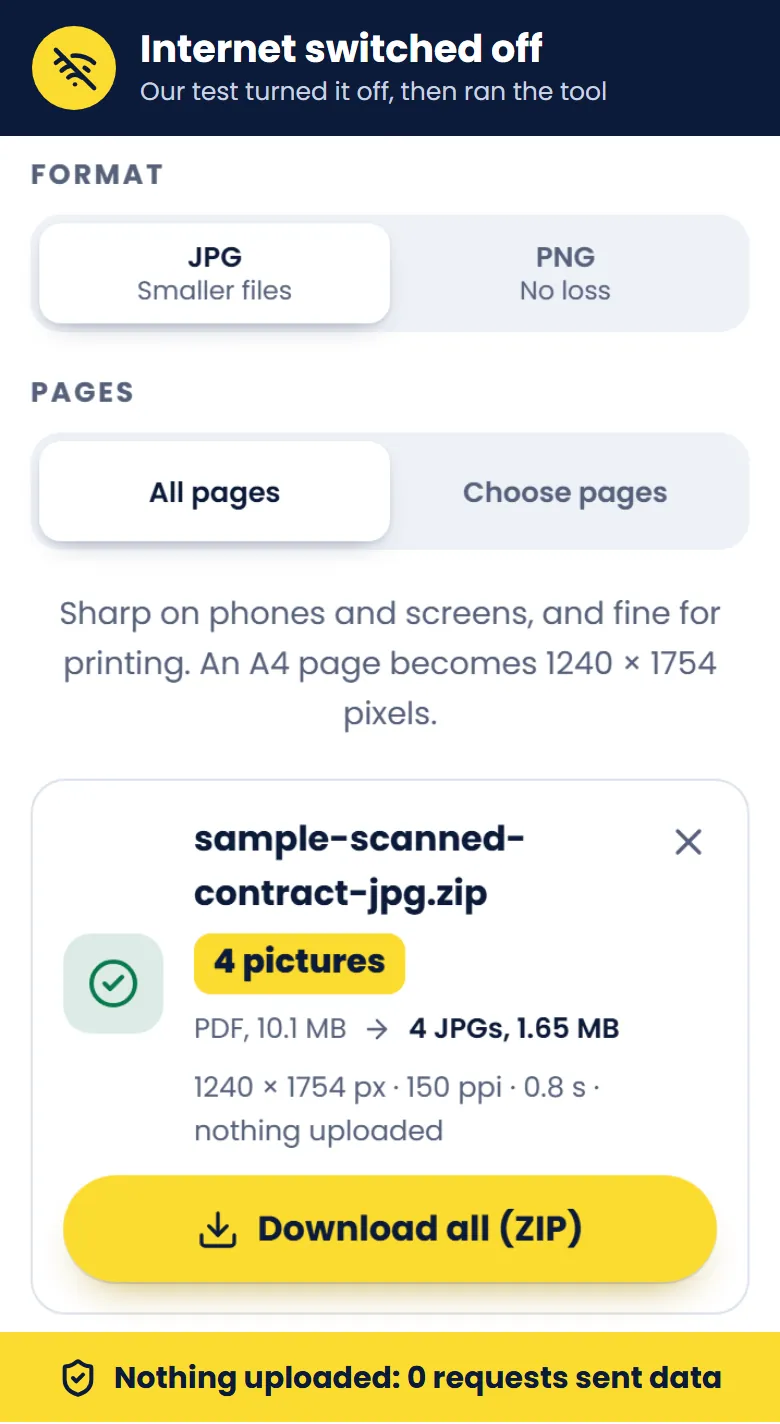
PDF to JPG, free and private: save every page of a PDF as a sharp JPG picture.
Open PDF to JPG