What you see, and where to look
Compare PDF reads the words of both files and compares them in order. It's a very good way to find changed words, and it has clear limits. Match what you see:
| What you see | Likely cause | Fix |
|---|---|---|
| Hundreds of changes | Different documents, or text in another order | Too many |
| "No differences", but something did change | A picture, stamp, signature, colour or font | Missed changes |
| "These PDFs have no text to compare" | One or both files are scans | Scans |
| The changes look backwards | The files went in the wrong way round | Which is first |
| Strange letters in the list | Older fonts store letters in their own code | Odd letters |
| It is slow, or Copy list does nothing | Long files on a phone, or a browser blocking copying | Slow |
For two versions of a document, see how to check what changed between them.
Far too many changes
Picture both files written out as one long string of words each. The tool lines up the long stretches the two have in common, and anything that doesn't fit into a shared stretch is reported. That is why one inserted sentence on page 1 counts once, even though everything after it shifts. When the result shows hundreds of changes, work through these causes in order:
- Are they really two versions of the same document? When the two share only a small part of their words (under 35%), the summary warns that they have little text in common. That warning almost always means the wrong file was picked.
- Is "Ignore extra spaces and line breaks" on? It is on at first, and it should stay on. With it on, rewrapped lines and words hyphenated at a line end are not counted. Turning it off is the most common cause of a flood: our 21-page test text, re-laid on Letter paper with new margins (20 pages), gave "No differences in the text" with the option on and 830 changes with it off, all of them just lines wrapping at other words.
- Was one file made in a different program? A different program can store the same words in a different reading order, two columns being the classic case. Read the changes in List, and check them against the real pages in the Pages view.
- Was a table rebuilt? A single edited number inside a table is caught. But tables are read as running words, row after row, so a table rebuilt with its columns swapped reads as a reshuffle of every row, and the list fills up.
- Did a paragraph move? A move is reported as two edits: the paragraph disappears in one place and appears in another.
Repeating headers and footers will not flood the list. Lines like "Confidential" or "Page 3 of 20" that repeat at the top or bottom of three or more pages (two, in a PDF of four pages or fewer) are set aside, and page numbers counting up never count as edits. If a header really did change on every page, for example "Version 1" becoming "Version 2", you see it once, as a single header or footer change; that is exactly what our test produced.
If you know both files are versions of one document and the count is still huge, read the List: the first few cards usually show the pattern, such as the same kind of change on every page.
"No differences", but something changed
The word comparison looks at words and their order. It does not see things that aren't words. Check this list against what you know changed:
| What changed | Why it is missed | What to do |
|---|---|---|
| Bold, italics, fonts, sizes, colours | Only the words are compared | Use Compare the look |
| A stamp, a signature, a logo, a photo | They have no words | Use Compare the look |
| Text typed into form boxes, or comments | Kept apart from the page text | Compare the look shows them if they are drawn on the page |
| A change in capitals, such as Agreement to agreement | Ignore capitals may be on | Turn Ignore capitals off. It is off at first |
| A change on a page with no text | A scanned, picture or blank page has no words | The summary says how many such pages there are. Use Compare the look |
Both options can be flipped after a comparison; the result refreshes at once, and a saved report records the settings you used. In our test, a word changed only in its capitals gave 1 change, and none with Ignore capitals on.
One more habit: before you sign anything, do a last check with Compare the look. Words can't reveal a stamp that was added, a signature that disappeared or a swapped logo; the page pictures can. The post Compare contract versions and find changes before signing has a checklist.
"These PDFs have no text to compare"
This message means at least one file is a scan: a photo of paper, with no words stored inside. Switch to Compare the look, which does not need words. It turns every page of both files into an 800-dot-wide image, nudges them into line (scans are rarely perfectly aligned), compares the colours, and boxes the spots that differ on both versions.
- Compare like with like. Two scans from the same scanner give clean results. A scan against a PDF saved from a computer will never match pixel for pixel, so nearly every page gets marked.
- You get places, not words. The look comparison points at areas; it can't tell you which word changed. In our test, two 3-page scans with one word changed on page 2 showed that only page 2 looked different, in 0.6 seconds. A 42-page, 50 MB scan against a copy of itself showed the pages looking the same, in 18 seconds.
- Scans that went through text recognition (OCR) have a hidden text layer, so the word comparison can run on them. Expect some false alarms: wherever the recognition misread a letter in one copy, that word shows as changed.
- Only photos of the pages? Turn them into one PDF with JPG to PDF, then compare by look. Take the photos straight on, in the same light, so the pages match.
If you can, ask for the PDF itself, not a scan: a PDF saved from the document can be compared word by word.
The changes look backwards
"Added" means words that are only in the changed version, and "removed" means words that are only in the original. If the newer file went in as the original, it all looks the wrong way round. The fix takes one click:
- Press the swap button between the two files to turn the comparison around; additions and removals trade places.
- Or choose the older file first. Picking or dropping both together also works: the tool puts the older one first for you.
- To replace one file without starting over, use Change or Remove under it.
Strange letters in the list
Odd symbols in the change list come from how the PDF was made, not from the comparison. Files typed in older Hindi fonts in particular keep their letters in a private code: they look right on the page, but the stored text is gibberish.
- Use the Pages view, which shows the real pages with each change marked on them.
- Or use Compare the look, which compares the page pictures and doesn't need the text.
- Anything typed in Unicode, which is what phone keyboards produce, compares properly, Hindi and other Indian scripts included, matras and all.
It is slow, or something else won't work
Reading the text out of every page is the slow part, and the way a PDF was produced matters as much as its page count. On our test computer: 21 pages against 21 in 0.5 seconds, a 117-page report against its compressed copy in 4.3 seconds, 298 pages against 298 in 4.6 seconds. Expect a phone to take longer. Things that help:
- Free up memory on a phone by closing other apps and tabs. Cancel is always safe: your files stay loaded for another try.
- Small screens show one version at a time. Flip between Original and Changed, or read List, where each change comes with its surrounding words.
- Copy list does nothing. Some browsers block copying. Use Save report, which saves the same list as a text file.
- "This PDF is locked." Enter the password in the box that pops up and press Open; it never leaves your device.
- "This file can't be read as a PDF." A half-finished download or a file that isn't a PDF at all. Get a fresh copy.
- A Word file? Only PDFs can be compared. Save the Word file as PDF first, or use Word to PDF.
A routine that avoids most surprises
- Put the older file first and the newer one second.
- Leave Ignore extra spaces and line breaks on. Turn it off only when lines matter, as in a poem or an address block.
- Read the summary, including the notes about little text in common or pages without text.
- Go through the changes with the arrows, or the N and P keys, and read each as words: "1" → "15" on page 1 is a different thing from a rewritten sentence.
- Do a last Compare the look for stamps, signatures and logos.
- Press Save report and keep the list with your signed copy.
The post How to compare two PDF files for differences explains how changes are found. A found change isn't always an important change, and a missed change isn't always absent: the checks above cover the gaps.
Your documents stay on your device
Contracts, rent agreements and offer letters hold private details. You can compare them freely: Compare PDF has no upload step, and both files are read, compared and drawn by your own browser. Besides this site, the page talks only to Google's ad service, which shows the ads that pay for the tools, and our code never hands your files to it. The privacy policy has the details.
Try it: put the older file first, and compare.
Open Compare PDF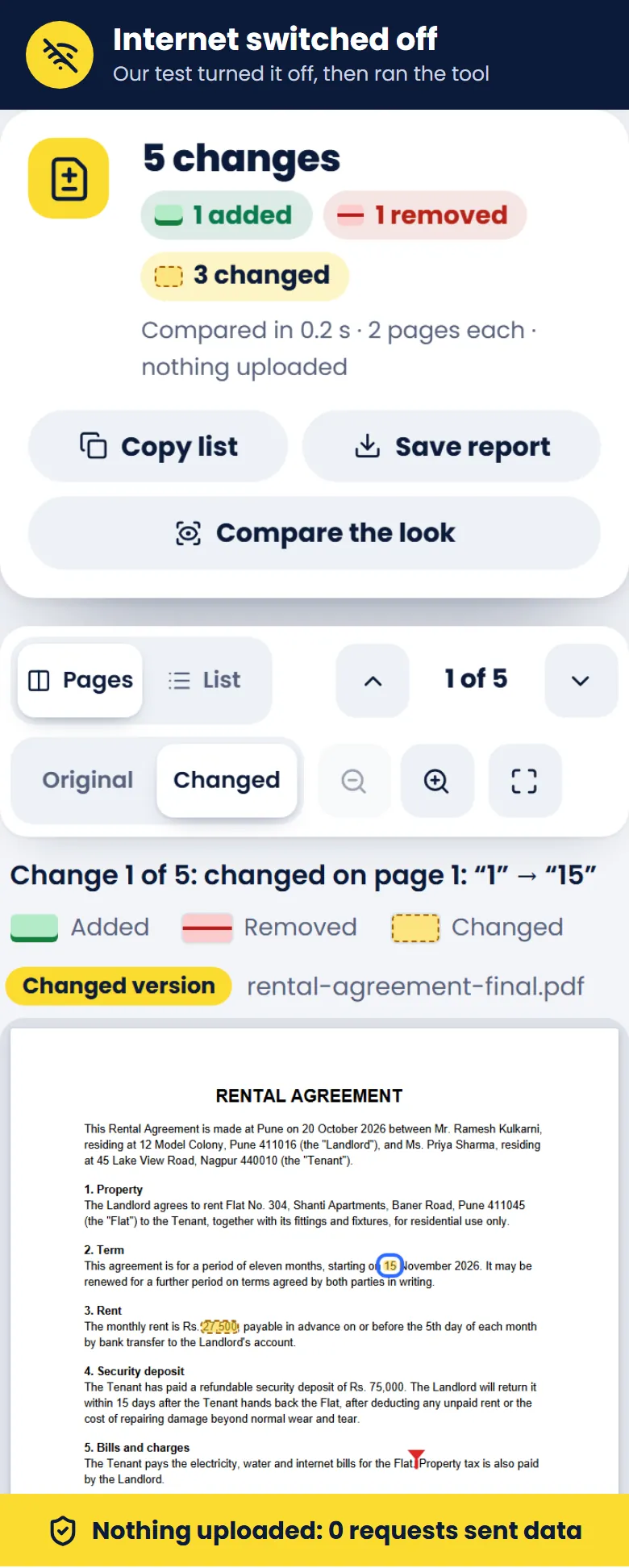
Compare PDF, free and private: put two versions side by side and review detected text changes.
Open Compare PDF